
How to Add AI Voiceover to a Screen Recording
Not everyone wants to narrate a screen recording live. Maybe you dislike the sound of your own voice, you are in a noisy environment, or you just want a polished result without multiple retakes.
AI voiceover tools solve this by turning text into natural-sounding narration you can add to any recording. This guide covers the main ways to add AI voiceover to a screen recording - from free built-in options to dedicated tools that handle everything in one app.
Why use AI voiceover instead of recording your voice
Live narration sounds simple until you try it. You stumble over a word, a notification pops up, or you realize halfway through that you explained something out of order. Each mistake means re-recording the whole thing or editing out the flaws.
AI voiceover gives you a few advantages:
- Edit the script first, then generate audio. You can refine exactly what you want to say before any audio is produced.
- Consistent tone and pacing. No vocal fatigue, no ums, no background noise.
- Faster iteration. Change a sentence in the script and regenerate - no need to re-record.
- Works in any environment. No microphone needed, no quiet room required.
The tradeoff is that AI voices still sound slightly different from a real human. For most tutorials, product demos, and internal walkthroughs, the quality is more than good enough. For content where personal connection matters - like a founder video or team introduction - you may still prefer your own voice.
Method 1: Add AI voiceover with a separate text-to-speech tool
The most flexible approach is to generate your voiceover audio separately and then combine it with your screen recording in a video editor.
Step 1 - Write your script
Watch your screen recording and write out what you want to say at each point. Keep sentences short and direct. Mark natural pause points where you will split the audio.
Step 2 - Generate audio with a TTS tool
Several standalone text-to-speech tools produce high-quality voice output:
- ElevenLabs - Currently the most natural-sounding option. Offers dozens of voices with fine-tuned control over stability and expressiveness. Free tier includes limited characters per month.
- Google Cloud Text-to-Speech - Good quality with many language options. Requires a Google Cloud account. Free tier available.
- Amazon Polly - Reliable quality, pay-per-character pricing. Good for bulk generation.
- OpenAI TTS - Simple API with a handful of natural voices. Requires an OpenAI account.
For most screen recording narration, ElevenLabs produces the best results. Generate your audio clips and download them as MP3 or WAV files.
Step 3 - Combine audio with your recording
Import both your screen recording and the generated audio files into a video editor. Line up the narration with the relevant sections of the video. Adjust timing as needed.
This method works but has a clear downside: you are juggling multiple tools and manually syncing audio to video. If you change the script, you need to regenerate the audio and re-align everything.
Method 2: Use a screen recorder with built-in AI voiceover
Some screen recording tools include AI voiceover as a built-in feature, which eliminates the need to switch between apps.
Tight Studio
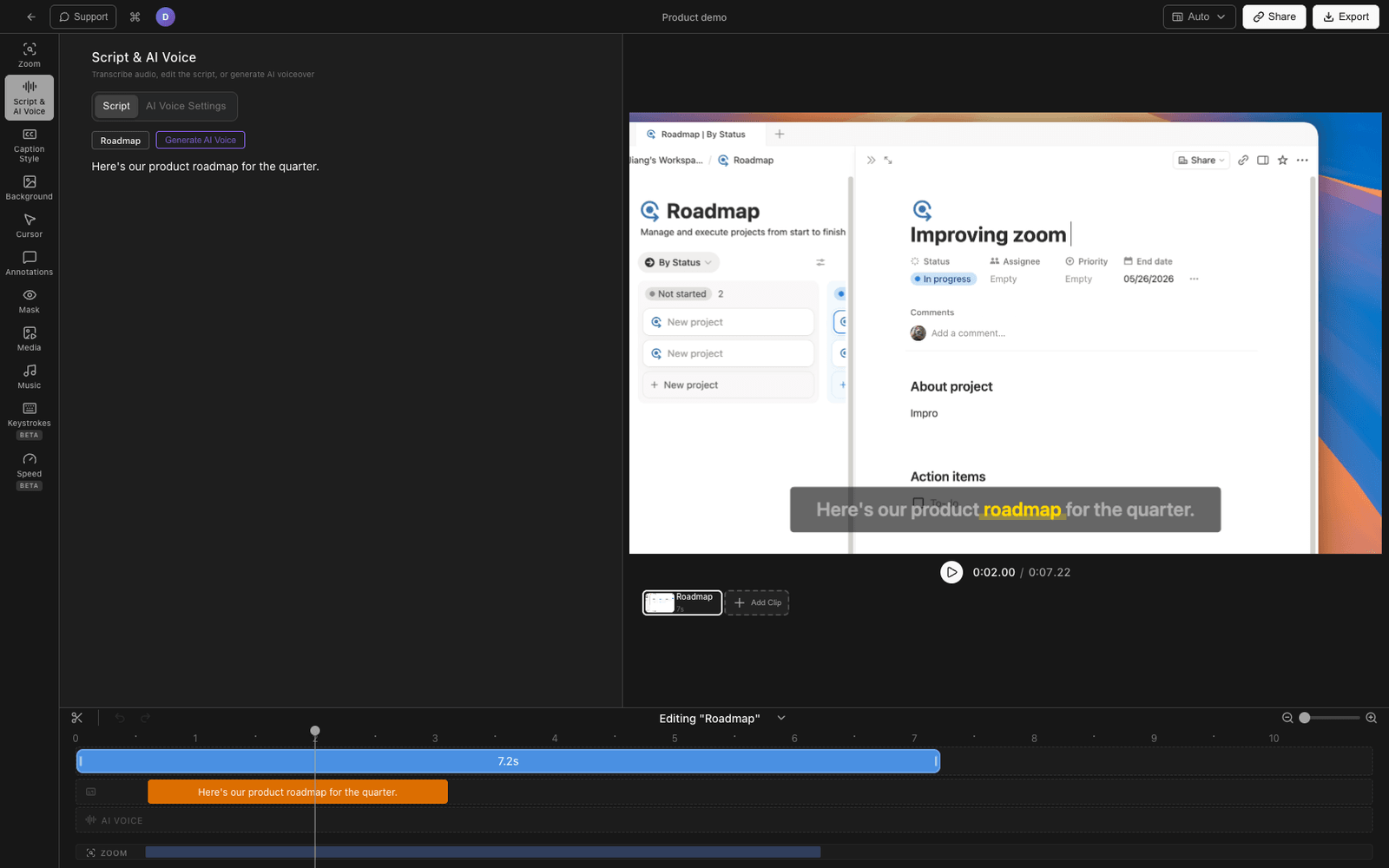
Tight Studio is a Mac screen recorder and video editor with integrated AI voiceover powered by ElevenLabs.
Here is how it works:
- Record your screen as you normally would - with or without a microphone.
- Generate captions in the editor. Tight Studio transcribes your recording or lets you add text segments manually.
- Open the AI Voice panel and select a voice from the built-in library.
- Generate voiceover from your caption text. The AI narration is automatically synced to each segment of your recording.
- Adjust settings like voice speed, stability, and volume. Preview and regenerate individual segments until the result sounds right.
- Export your video with the AI voiceover baked in.
The key advantage is that everything happens inside one app. Your script (the captions) stays linked to the video timeline, so when you edit the text, you can regenerate just that segment without touching the rest.
Tight Studio also includes zoom animations, cursor highlighting, text annotations, and intro/outro slides - so you can produce a polished tutorial without any other tools.
Descript
Descript takes a different approach. You import or record video, edit the transcript as text (deleting words removes the corresponding video), and can replace your voice with an AI clone called “Stock voices” or train your own. It is more of a full video editor than a screen recorder.
Method 3: Post-production voiceover with Clipchamp or Canva
Browser-based video editors like Clipchamp (Microsoft) and Canva include text-to-speech features you can use without installing anything.
Clipchamp
- Import your screen recording
- Go to “Record & create” and select “Text to speech”
- Choose from 170+ AI voices across 70+ languages
- Type your script, adjust speed and style, and generate
- The audio is added to your timeline - align it with your video
Clipchamp offers voice style options (cheerful, serious, etc.) and decent quality for a free tool. Premium voices require a Microsoft 365 subscription.
Canva
- Upload your screen recording to a Canva video project
- Use the “Apps” section to find text-to-speech tools
- Generate audio and add it to your timeline
Canva’s TTS options are basic and best suited for short clips rather than full tutorials.
Comparing AI voiceover methods
| Method | Voice quality | Ease of use | Sync with video | Cost |
|---|---|---|---|---|
| Standalone TTS + editor | High (ElevenLabs) | Manual sync required | Manual | Free tier + editor cost |
| Tight Studio (built-in) | High (ElevenLabs) | One app, auto-synced | Automatic | Included with subscription |
| Descript | Good | Text-based editing | Automatic | Subscription required |
| Clipchamp | Good (170+ voices) | Simple browser-based | Manual | Free / Microsoft 365 |
| Canva | Basic | Simple browser-based | Manual | Free tier available |
Tips for better AI voiceover
Write for speaking, not reading. Short sentences work best. Read your script aloud before generating - if it sounds awkward when you say it, the AI will not fix that.
Break your script into segments. Instead of one long block of text, split narration into segments that match sections of your recording. This makes timing adjustments much easier.
Match the pace to the visuals. If a section of your recording shows a quick series of clicks, keep the narration brief. If you are showing a complex configuration screen, slow down and explain each step.
Lower the recording audio. If your screen recording captured microphone audio that you are replacing with AI voiceover, mute or lower the original audio track so it does not compete with the narration.
Preview before exporting. Listen to the full video with voiceover at least once before exporting. AI voices occasionally mispronounce technical terms or place emphasis in unexpected places.
Frequently asked questions
How do I add voiceover to a screen recording?
You can either record your voice live while screen recording, or add AI voiceover after recording. For AI voiceover, write a script, generate audio using a text-to-speech tool (like ElevenLabs), and combine it with your video. Some screen recorders like Tight Studio include built-in AI voiceover that handles this automatically.
Can you add narration to a screen recording without recording your voice?
Yes. AI text-to-speech tools generate natural-sounding narration from written text. You write what you want to say, choose a voice, and the tool produces an audio file you can add to your recording. No microphone needed.
What is the best AI voice for tutorials and demo videos?
ElevenLabs currently produces the most natural-sounding AI voices for narration. Their V3 model offers realistic intonation and pacing that works well for tutorials. Tight Studio uses ElevenLabs voices directly in its editor, so you get high-quality narration without needing a separate account.
Is AI voiceover good enough for professional videos?
For tutorials, product demos, training videos, and internal communications - yes. Modern AI voices from ElevenLabs and similar tools are difficult to distinguish from human narration in these contexts. For highly personal content like keynote presentations or brand videos, human voiceover may still be preferred.
How much does AI voiceover cost?
Standalone tools like ElevenLabs offer free tiers with limited characters per month, with paid plans starting around $5/month. Tight Studio includes AI voiceover as part of its subscription. Free options like Clipchamp and Canva offer basic TTS at no cost but with lower voice quality.
Can I use AI voiceover in languages other than English?
Yes. Most AI voice tools support multiple languages. ElevenLabs supports over 30 languages with natural-sounding output. When choosing a tool, check that it supports your target language and has voices that sound natural in that language - quality varies significantly between languages.