
Best Chrome screen recorders in 2026

Quick answer: For async work messages, Loom; for free unlimited recording, OBS Studio; for sales outreach videos, Vidyard; for education, Screencastify; and for polished Mac tutorials beyond the browser, Tight Studio.
Most people searching for a Chrome screen recorder want the same thing: a fast way to capture what’s happening in their browser, get a shareable link, and move on. Chrome extensions and web-based recorders do that well. The tradeoff is that Chrome-based recording also has real ceilings - lower frame rates, no system audio on some platforms, watermarks on free plans, and very little editing.
This guide breaks down the best Chrome screen recorders in 2026 by what you’re actually trying to do, with honest notes on where each one stops being enough. It also covers the native desktop apps you’ll want when you outgrow the browser.
How to think about a Chrome screen recorder
There is no single “best” Chrome screen recorder because the right pick depends on what you’re recording and who’s watching. Most use cases fall into five buckets:
- Quick async videos - daily standups, code review walkthroughs, design feedback. Free extension is fine.
- Web-only recording without installing anything - one-off recordings on a locked-down laptop or a Chromebook. Use a web-based recorder.
- Sales and customer videos - prospecting, deal updates, customer onboarding. You want CRM integrations, viewer analytics, and a polished player.
- Tutorials, course content, product demos - anything someone will watch more than once. Browser recording usually isn’t enough. You’ll want a native desktop app.
- Anything on ChromeOS - the built-in recorder is genuinely good and ships with the OS.
You probably only need one tool from one bucket. Pick the bucket that matches your actual workflow, not the most-featured option.
Best Chrome screen recorders compared
| Category | Tool | Best for | Free tier | Starting price |
|---|---|---|---|---|
| Native desktop | Tight Studio | Polished tutorials and product demos on Mac | Yes | $6/mo |
| Native desktop | OBS Studio | Live streaming and free unlimited recording | Free | Free |
| Native desktop | ScreenPal | Cross-platform basic recording and light editing | Yes | $4/mo |
| Free extension | Loom | Async work messages and team videos | 25 videos | $20/mo |
| Free extension | Screencastify | Education and classroom recording | 30 videos/mo | $7/mo |
| Free extension | Awesome Screenshot | Quick screenshots plus short recordings | Yes | $4/mo |
| Web-based | Veed.io | Recording plus heavy in-browser editing | Yes | $18/mo |
| Web-based | Vmaker | Cross-team recording with workspace sharing | Yes | $9/mo |
| Sales tools | Vidyard | Outbound sales prospecting videos | Free | $19/mo |
| Sales tools | Sendspark | Personalized customer outreach at scale | Free | $19/mo |
| Built-in | ChromeOS Screen Recorder | Native recording on Chromebooks | Free | Free |
Free Chrome screen recorder extensions
Free Chrome extensions are the default path for most people. They install in seconds, record a tab or window, and hand you a shareable link. The big tradeoff is limits: time caps, video count caps, watermarks, or all three on the free tier.
Loom - best for async work messages
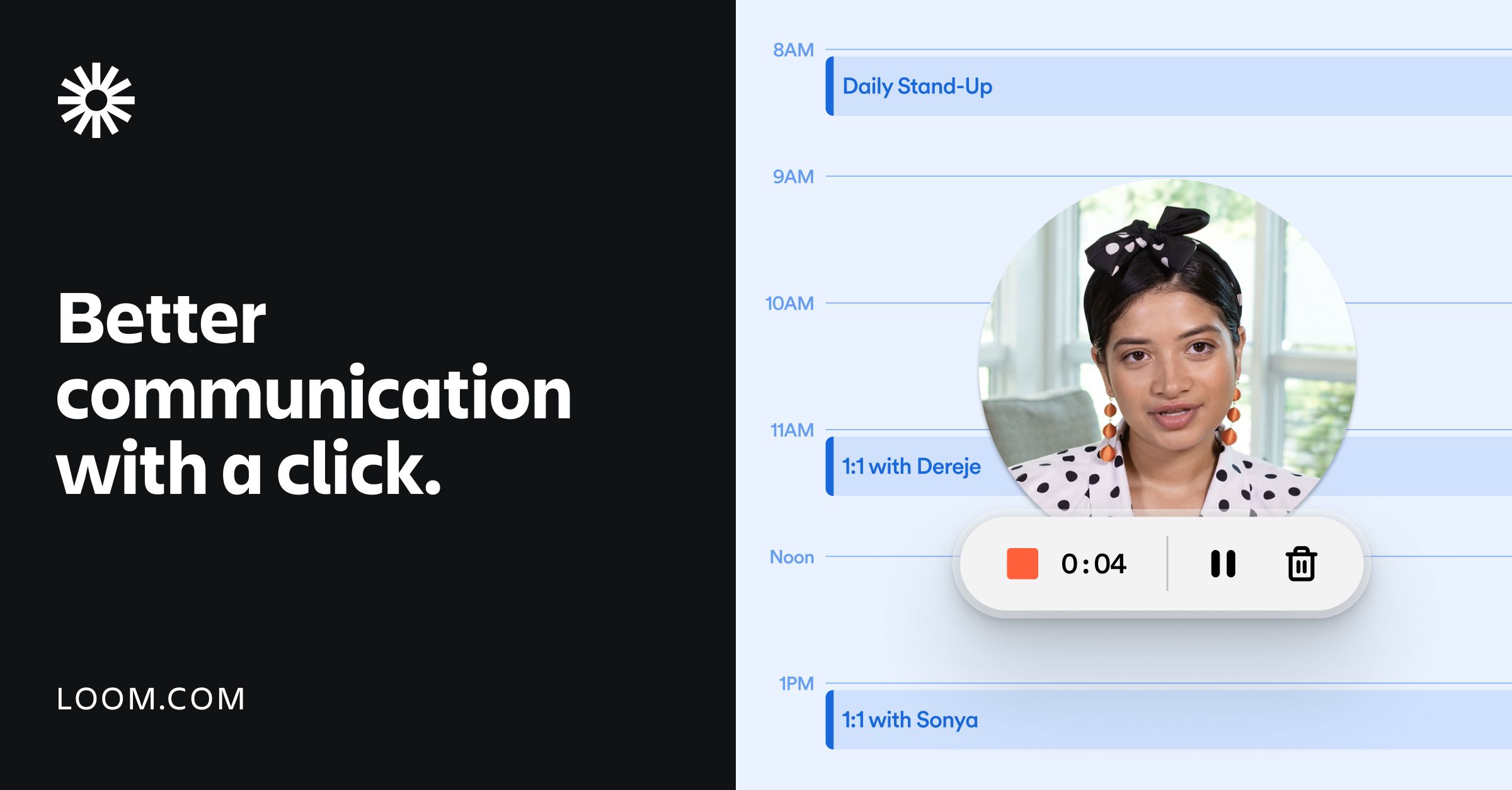
Loom is the default Chrome screen recorder for most teams. Install the extension, click record, pick a tab or window, and you get a shareable link the moment you stop. The free plan allows 25 videos at up to 5 minutes each, which is enough to evaluate it.
The reason Loom keeps winning isn’t the recording - it’s everything around it. Threaded comments, emoji reactions, video chapters, AI summaries, transcript search, and embeds that play inline in Notion, Linear, Jira, and most ticketing tools. For teams who already live in those tools, Loom is hard to dislodge.
The downside is editing. Loom’s in-app editor can trim and split, but anything beyond that (zoom-ins on a small UI, callouts, branded intros) requires either upgrading to a paid plan or exporting to a real editor. If you regularly need polish, a native app is a better fit.
Screencastify - best for education and classroom use
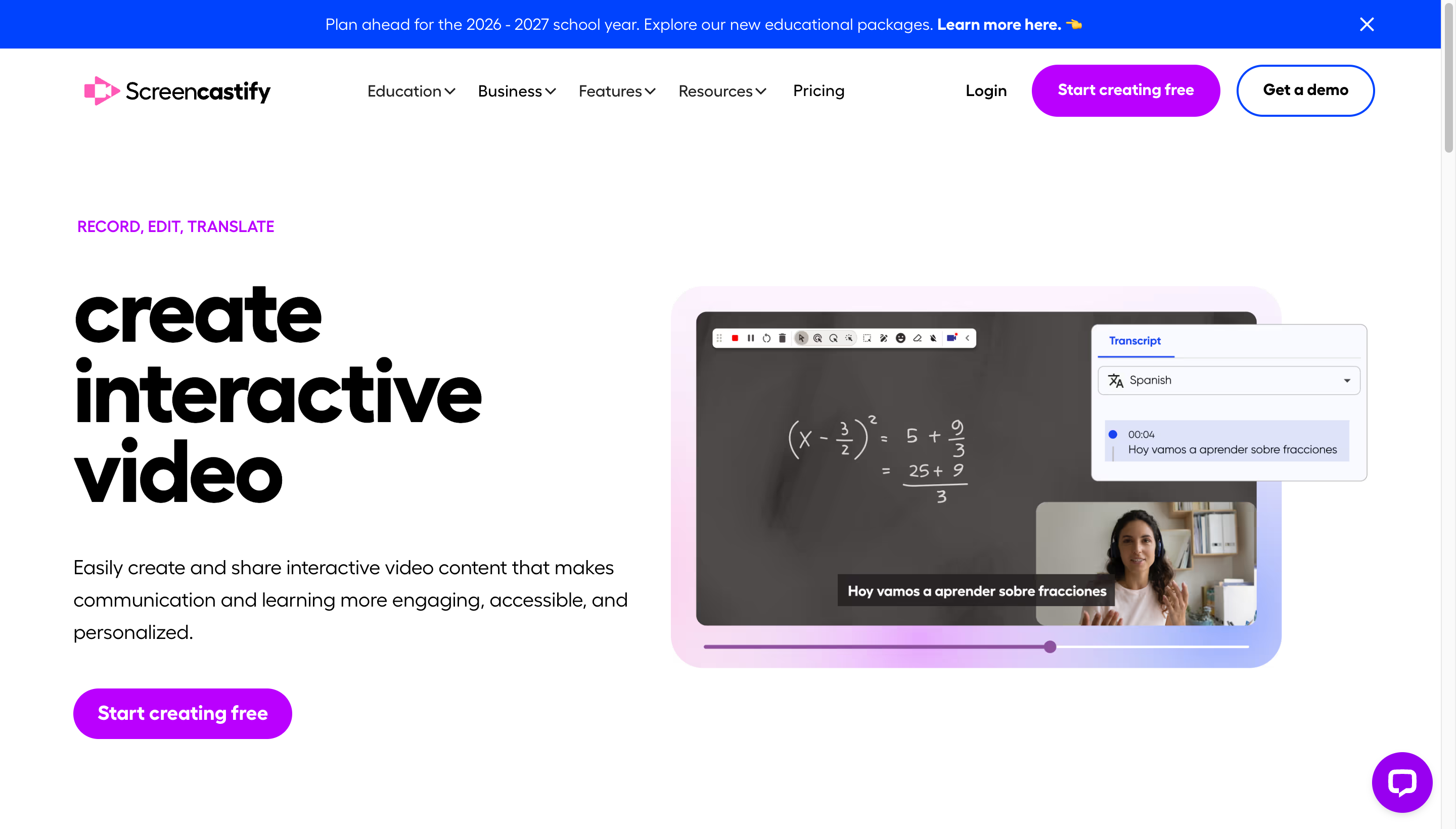
Screencastify was one of the first Chrome screen recorder extensions and has stayed firmly aimed at teachers, students, and trainers. It records tab, desktop, or webcam, saves directly to Google Drive, and has a Google Classroom integration that no other recorder really matches.
The free plan gives you 30 recordings per month at up to 30 minutes each. Recordings include a small Screencastify watermark and export at 720p. The paid plan removes both and adds a lightweight in-browser editor that handles trims, blur, and basic annotations.
Screencastify is the right Chrome screen recorder if you’re inside Google Workspace and need something that students or teachers can install without IT help. It’s not the right pick if you need polished marketing-quality videos.
Awesome Screenshot - best for quick screenshots plus short recordings
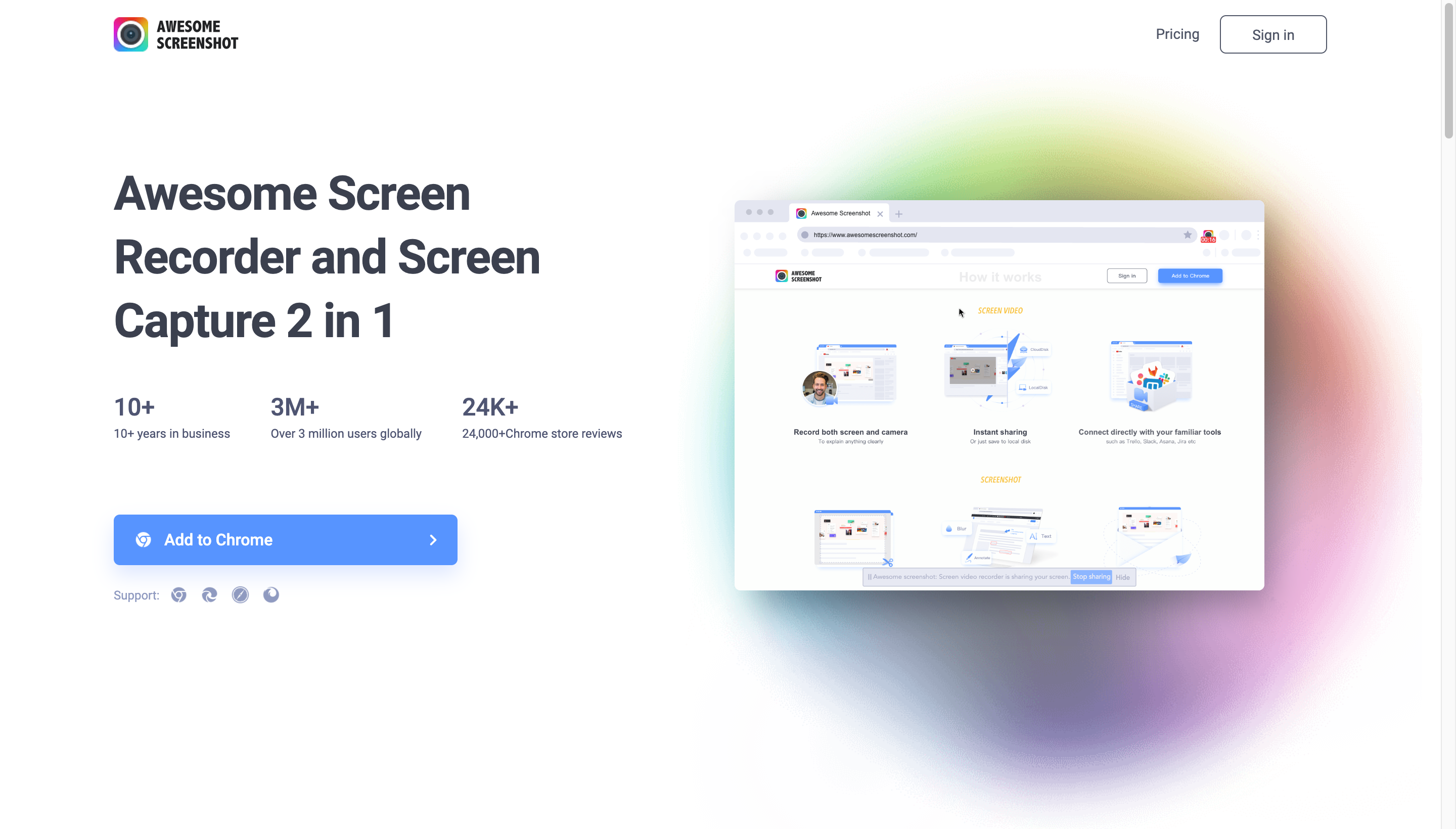
Awesome Screenshot is the screenshot tool that grew into a screen recorder. It captures full pages, scrolling pages, selected regions, and webcam-overlay video, all from the same toolbar button.
The free plan covers unlimited screenshots and up to 30-minute screen recordings. The paid plan adds longer recordings, password-protected sharing, and the ability to record from a webcam without the Awesome Screenshot watermark.
This is the right Chrome screen recorder when most of what you do is screenshots and you only occasionally need a video. It’s a worse fit than Loom when video is the primary output.
Web-based screen recorders (no extension required)
Some people can’t install Chrome extensions - locked-down work laptops, shared devices, or just a preference to keep extensions to a minimum. Web-based recorders run entirely on a marketing site and use the browser’s native screen capture API.
Veed.io - best for recording plus heavy in-browser editing
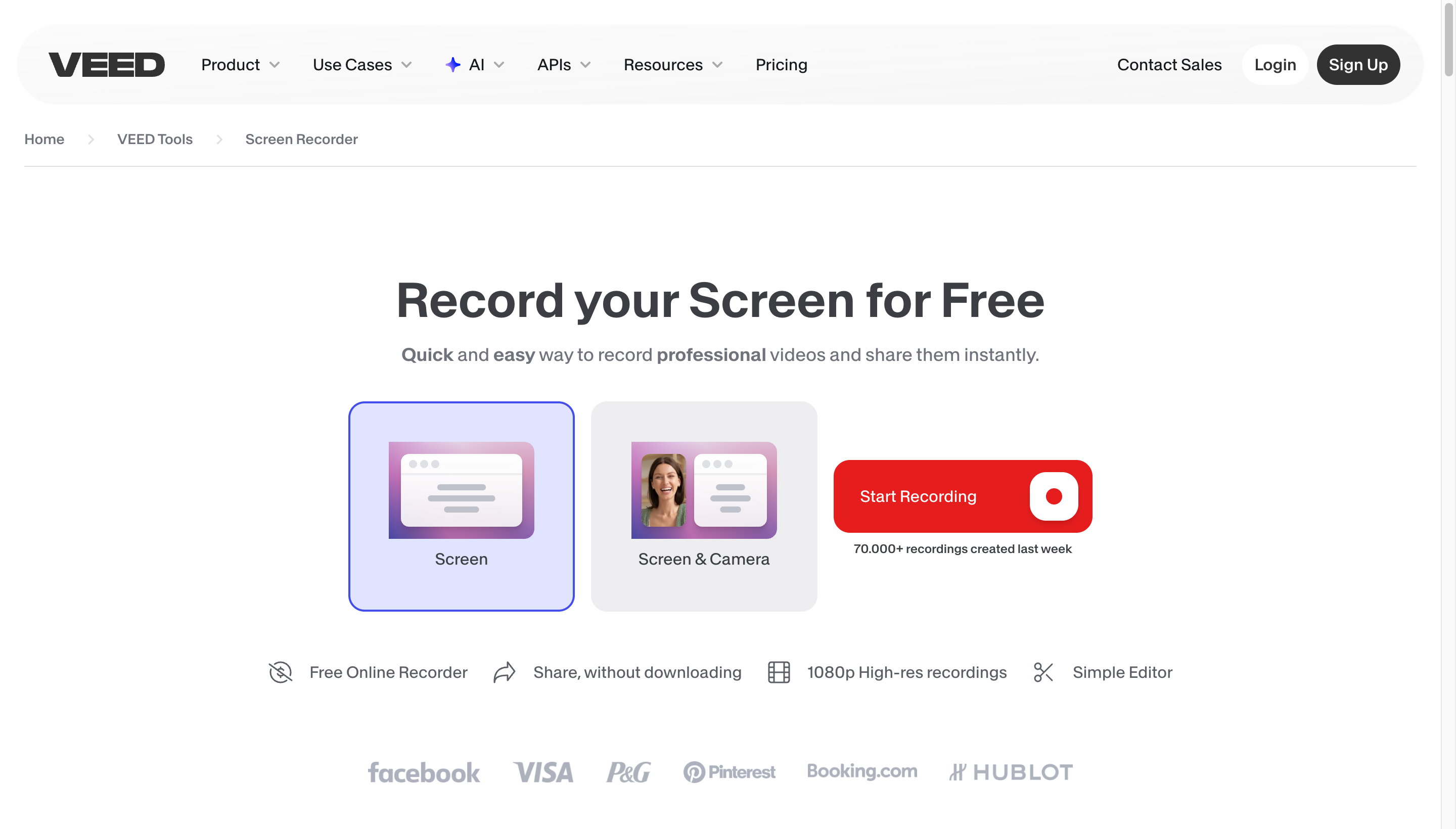
Veed.io records your screen, webcam, or both directly from its website, then drops the recording into a full video editor in the same tab. Captions, subtitles, background music, brand kits, and AI-generated voiceovers are all available without leaving the browser.
The free plan caps exports at 720p and adds a Veed watermark. Paid plans remove both and unlock 4K export, longer recordings, and AI cleanup features.
Veed.io is the right pick if you record once and then spend more time editing than recording. It’s a worse pick if you’re chasing the lowest-friction record-and-share flow, since the editor adds steps Loom doesn’t have.
Vmaker - best for cross-team recording with workspace sharing
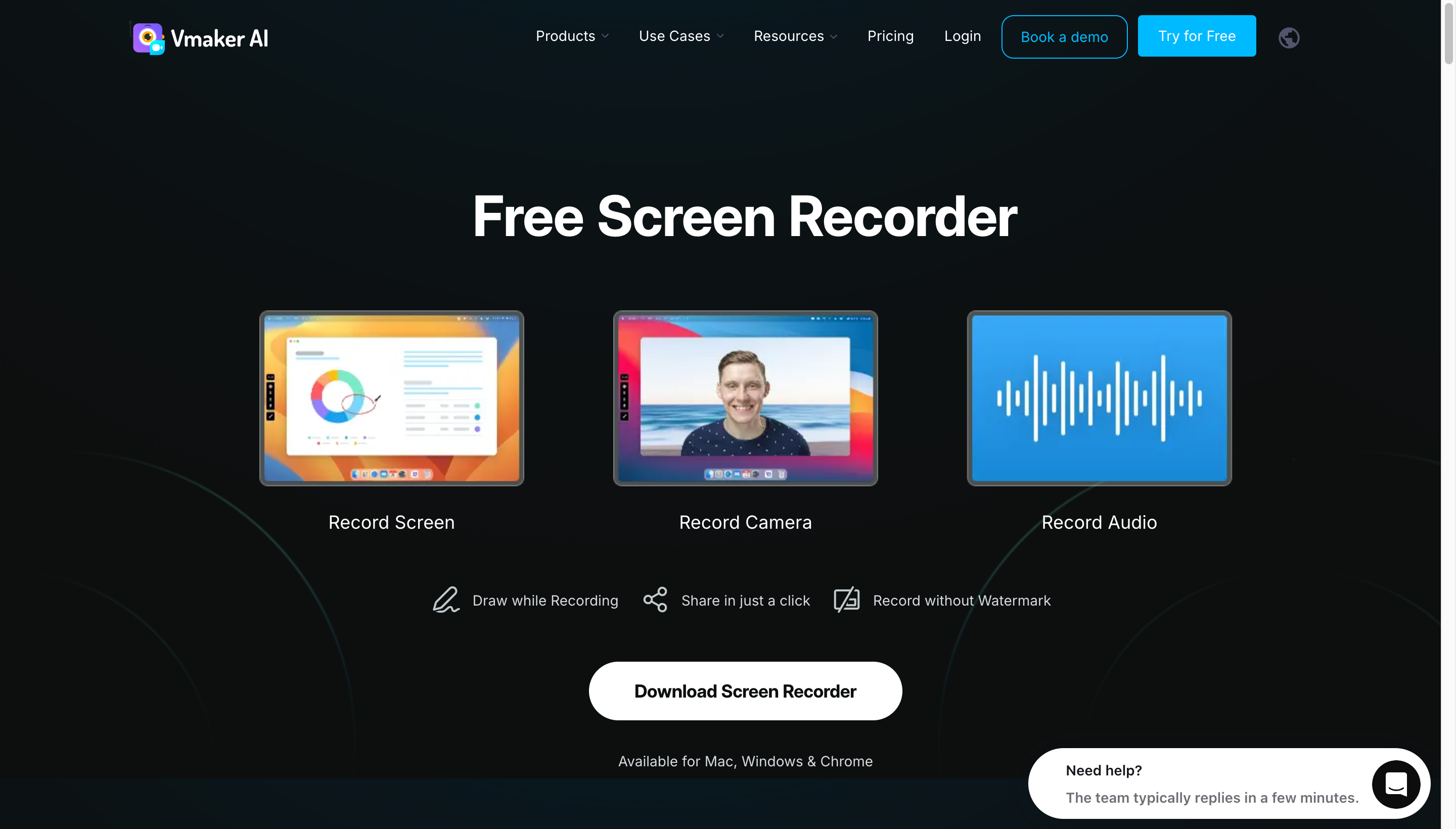
Vmaker works as both a Chrome extension and a web-based recorder. It records HD or 4K, integrates with Slack and Google Drive, and organizes recordings into team workspaces.
The free plan allows unlimited 7-minute recordings at 720p. Paid plans extend the limit, unlock 4K, and add bulk team management.
Vmaker is the right pick if you want a Loom-style sharing experience without Loom’s pricing, and your team needs workspace-level organization. The interface and player are a step behind Loom, which is the real reason to pay Loom’s premium.
Sales-focused Chrome screen recorders
Sales teams have a different problem than the rest of us. They send dozens of videos a week to prospects who may never have heard of them, and the player itself is part of the pitch. The big two recorders in this space pair Chrome screen recording with CRM-friendly metadata and intent signals.
Vidyard - best for outbound sales prospecting
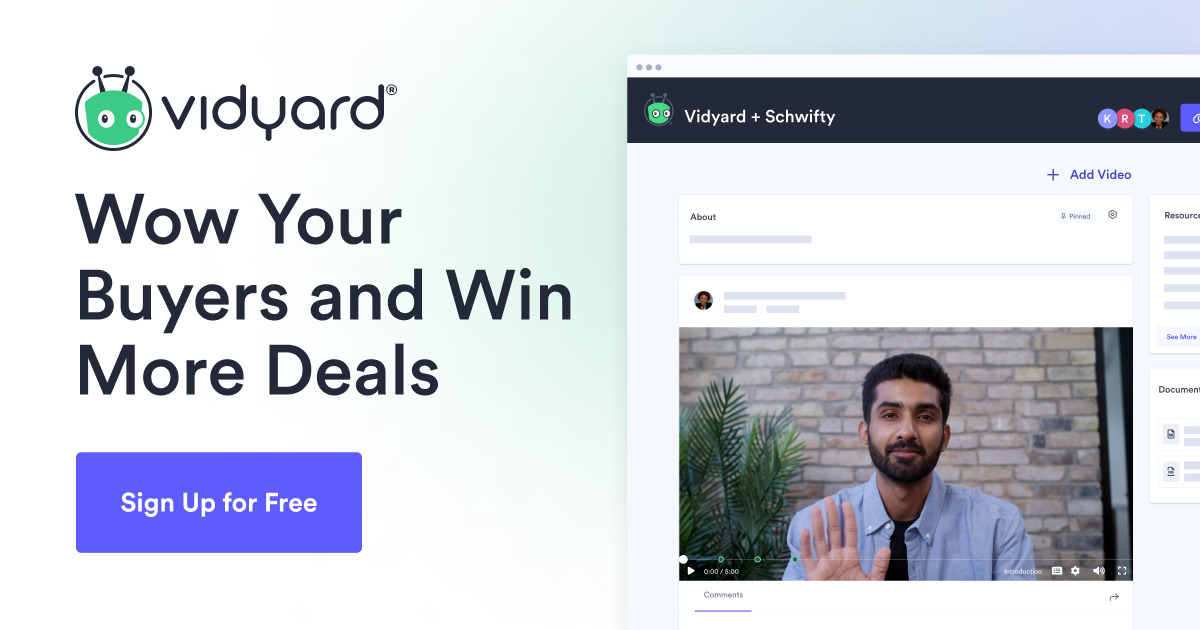
Vidyard is the Chrome screen recorder built specifically for outbound sales. The extension records you, your screen, or both, and gives you a custom landing page with a thumbnail, a call-to-action button, and granular viewer analytics (who watched, for how long, what they skipped).
It integrates deeply with Salesforce, HubSpot, Outreach, and Salesloft. The free plan covers unlimited recordings up to one hour. Paid plans unlock GIF thumbnails, AI scripting, and advanced analytics.
Vidyard makes sense if outbound video is a measurable part of your sales process. For everything else, the analytics overhead is more than you need.
Sendspark - best for personalized customer outreach at scale
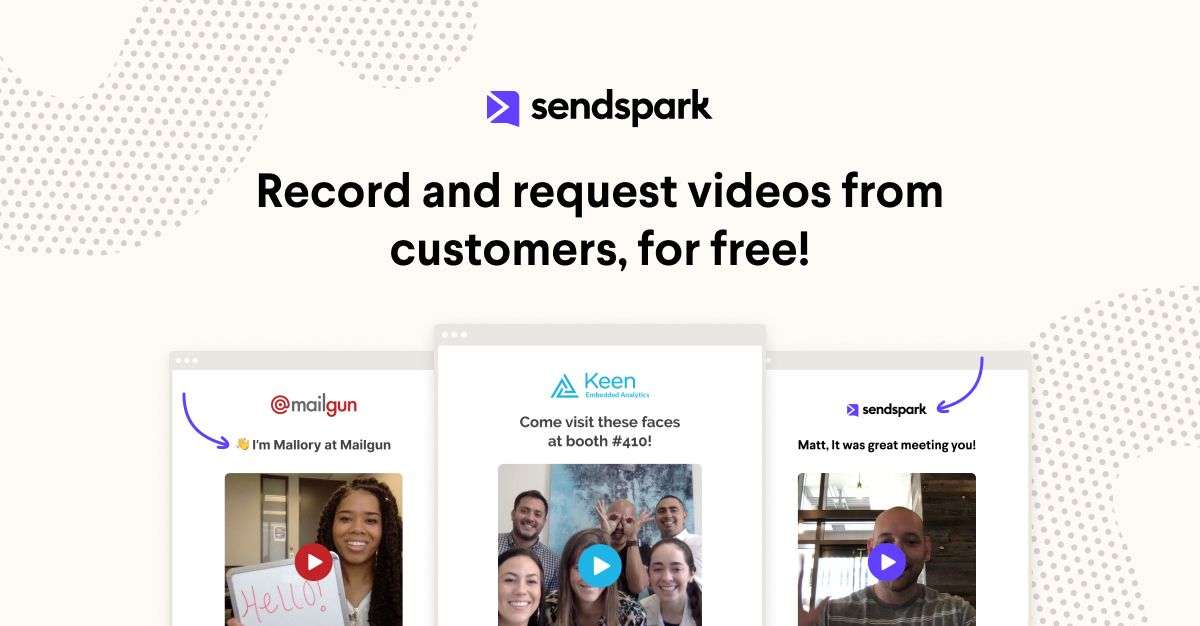
Sendspark is the lighter, faster alternative to Vidyard. The Chrome extension lets you record a personal intro plus a screen walkthrough, then attaches dynamic variables (first name, company logo, custom backgrounds) so one base video looks personalized to every recipient.
Sendspark is the right pick if you’re a small revenue team or a founder doing sales themselves. Vidyard is the right pick if you have a real outbound motion and need integration with the rest of the sales tech stack.
Native desktop alternatives (when Chrome isn’t enough)
Chrome-based recording hits a wall pretty quickly for serious content. Frame rates drop above 1080p, you can’t always capture system audio cleanly, and the editing tools are thin. When the video matters - tutorials, course content, marketing demos, customer training - a native app is the better tool.
Tight Studio - best for polished tutorials and product demos on Mac
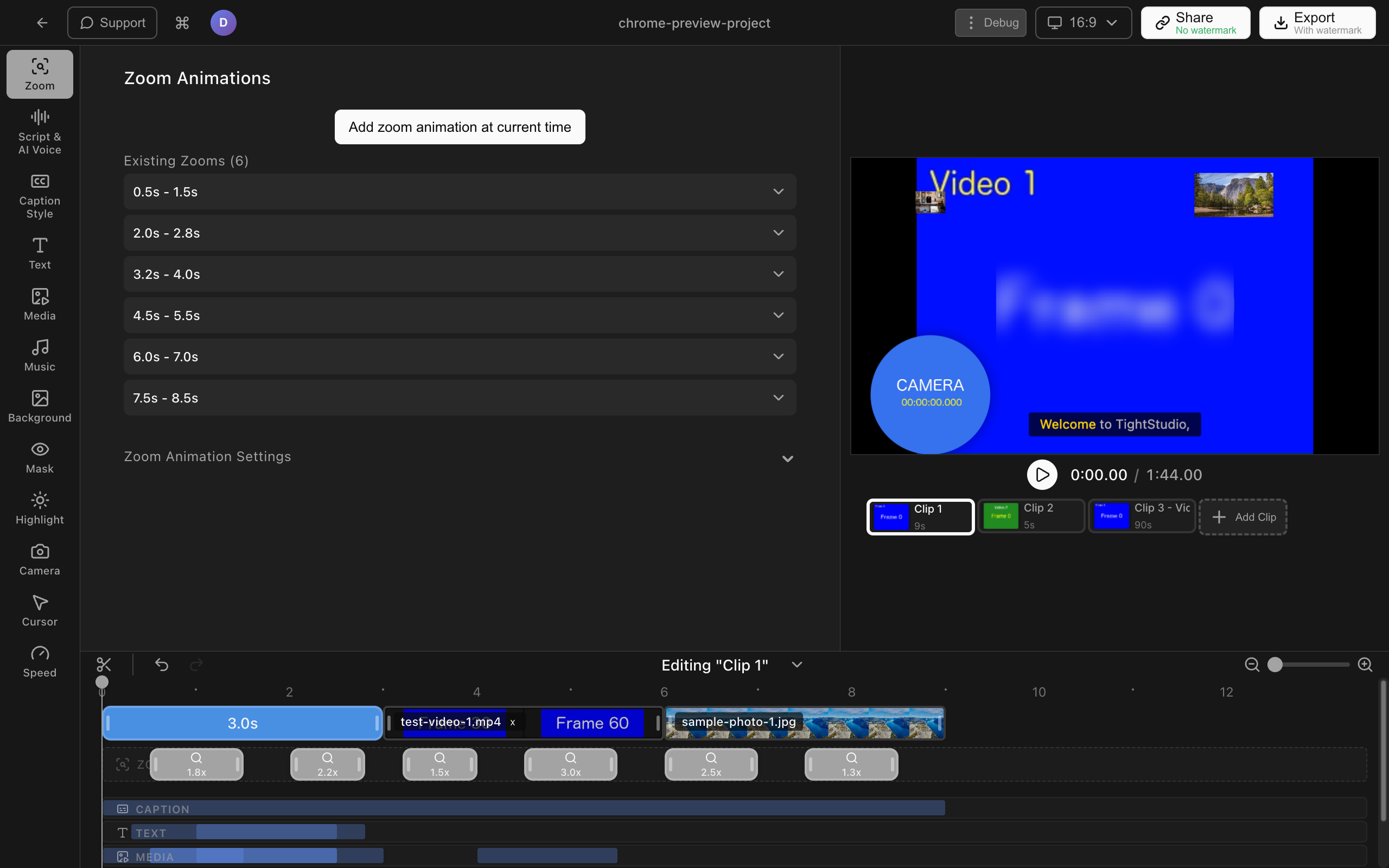
Tight Studio is a native Mac screen recorder and editor built for the kind of videos people watch more than once: tutorials, walkthroughs, course modules, customer demos.
The features that matter most when you outgrow a Chrome extension:
- Smart zoom animation - Tight Studio automatically detects your clicks and pushes in with a smooth, motion-blurred zoom. This is the single biggest reason to leave a Chrome recorder behind - browser extensions can capture your screen, but viewers still squint at small UI. Smart zoom makes every click obvious.
- Cursor animation and click highlighting - the cursor gets larger, smoother, and visually pings on every click, with optional click sound effects. Critical for tutorial videos where the viewer is following along.
- AI voiceover - generate professional narration from a written script. Useful when you don’t want to re-record audio every time you tweak a section.
- Multi-take recording - record sections separately and assemble them in the editor. If the third feature in a five-feature demo goes sideways, you just re-record that segment instead of restarting the whole video.
- Text annotations and intro/outro slides - add titles, callouts, captions, and branded openers without exporting to another tool.
- Background music - a built-in royalty-free music library with proper ducking.
Tight Studio is Mac-only and focused on screen-recorded video files (not interactive product tours or async messages). It does not currently capture internal/system audio, so for tutorials with app sound you’d route audio through a virtual cable or record the audio separately. Compared to a Chrome extension, the recording-to-finished-video gap collapses dramatically.
OBS Studio - best for live streaming and free unlimited recording
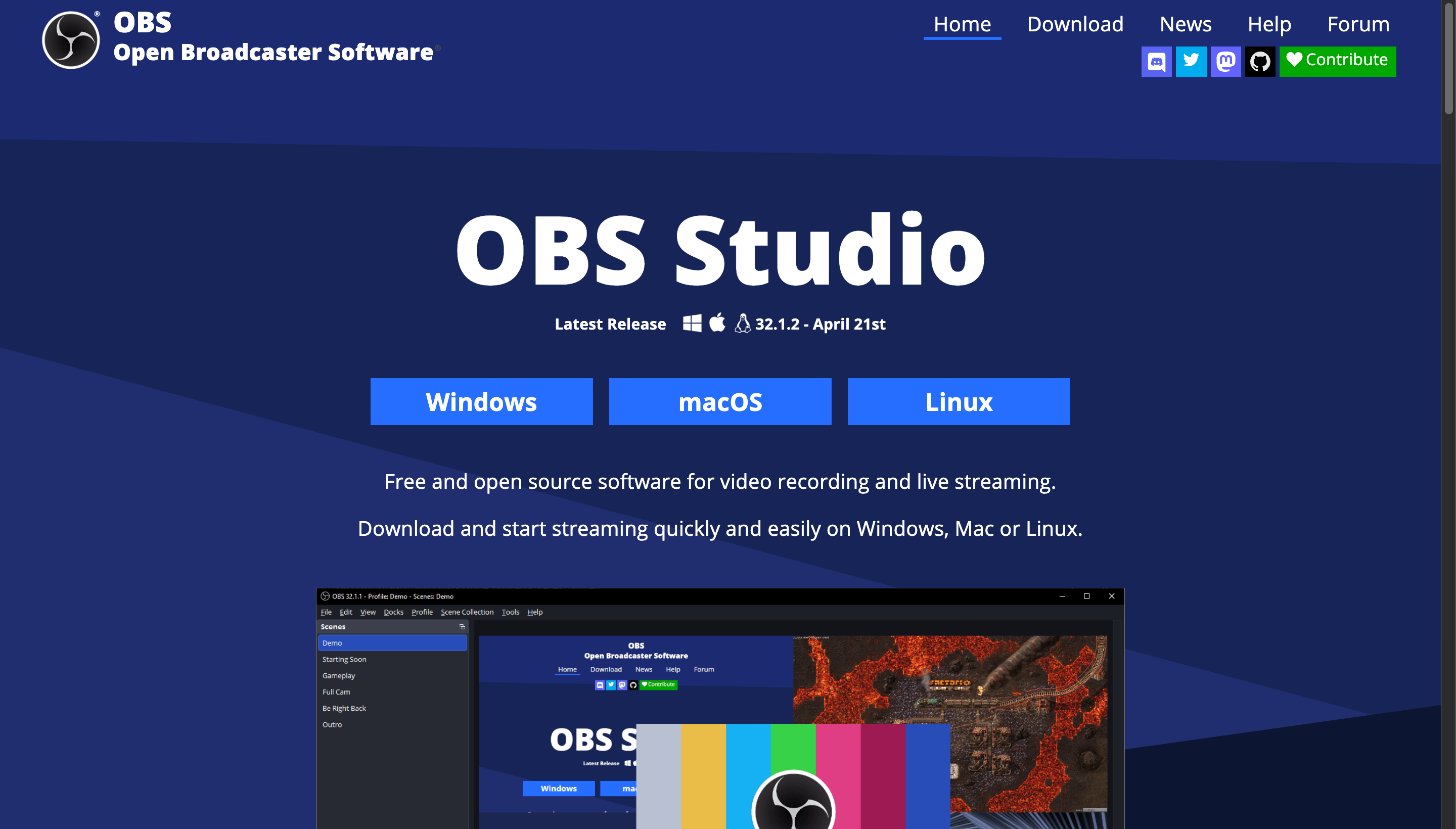
OBS Studio is the open-source recording and streaming tool used by most streamers, esports broadcasters, and serious creators on a budget. It records unlimited length at any resolution your machine can handle, with no watermark and no cost ever.
The tradeoff is the learning curve. OBS doesn’t have a built-in editor - you record clean video and audio, then take the file into Final Cut, DaVinci Resolve, or another editor for polish. Anyone coming from a Chrome extension will need a weekend to learn the scene and source model.
OBS is the right pick if you’re streaming, recording long-form content (podcasts, panels, gameplay), or you flatly refuse to pay a subscription. It’s the wrong pick if your goal is polished tutorials with minimum fuss.
ScreenPal - best for cross-platform basic recording and light editing
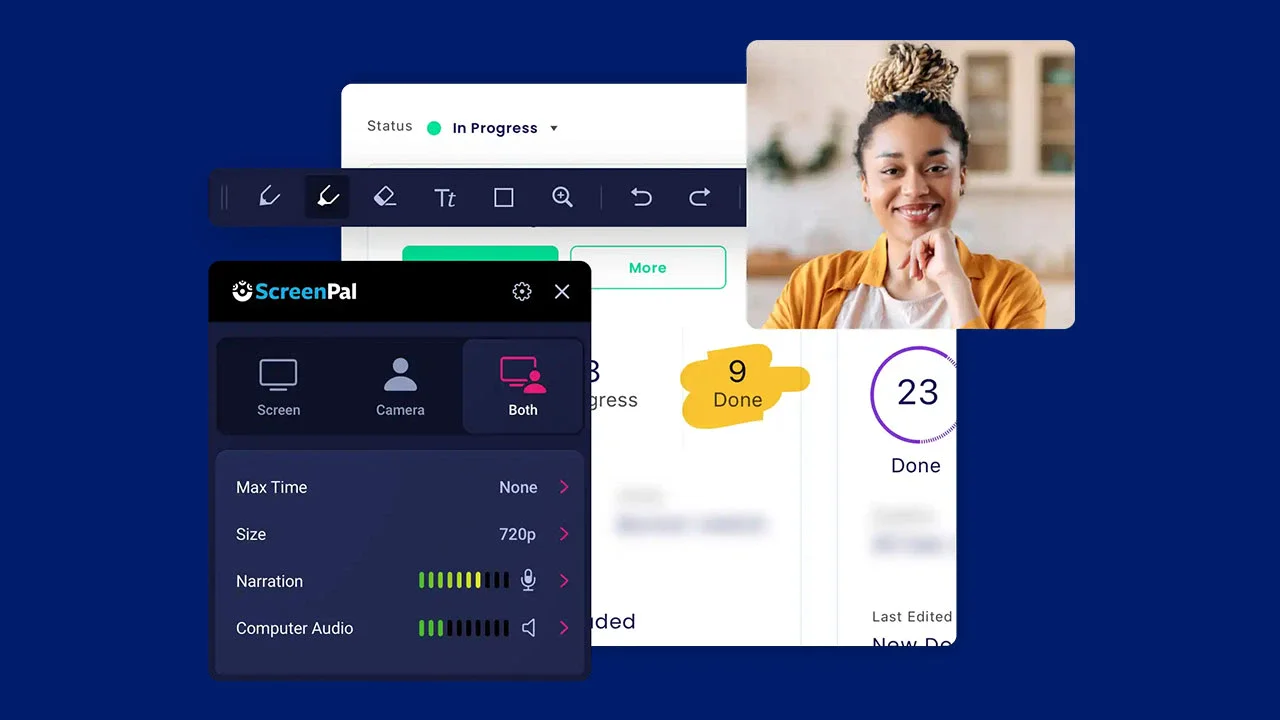
ScreenPal (formerly Screencast-O-Matic) runs on Mac, Windows, ChromeOS, iOS, and Android. It records screen plus webcam, has a built-in editor with trim, cut, captions, and overlays, and hosts your videos on its own platform with viewer analytics.
The free plan limits recordings to 15 minutes and adds a watermark. Paid plans remove both and unlock the editor.
ScreenPal is the right pick if you need one tool across multiple operating systems and the recording is more important than the polish. For Mac-only users who care about quality, Tight Studio is a stronger fit.
Built-in Chrome and ChromeOS recording
ChromeOS Screen Recorder - best for Chromebooks
If you’re on a Chromebook, you already have a screen recorder built into the OS. Press Shift + Ctrl + Show Windows, then click the screen recorder icon in the screen capture toolbar that appears at the bottom of the screen. You can record the full screen, a window, or a partial region, with or without microphone audio.
Recordings save to your Downloads folder as WebM files. There’s no editor, no upload destination, no analytics. It’s not trying to compete with Loom or Vidyard - it’s the OS’s “take a screenshot but make it a video” feature.
For Chromebook users who only need to capture a quick problem to send to support or a teacher, the built-in recorder is the right pick. Anyone doing this regularly should layer a Chrome extension on top.
There is no equivalent screen recorder built into the Chrome browser itself on Mac, Windows, or Linux. The chrome://media-internals and DevTools tab-capture features exist for developers but are not user-facing recorders. If you’re not on ChromeOS, you’ll need an extension or a native app.
Tools to skip (or delay)
- Bloomberg-style streaming dashboards bolted onto a Chrome recorder - if your team only sends a few async videos a week, paying for advanced viewer analytics is overkill. Loom’s free or starter plan is usually enough until you can prove a measurable revenue lift from video.
- Generic free Chrome extensions with sketchy permissions - the Chrome Web Store has dozens of “free screen recorder” extensions that ask for permissions far beyond what’s needed. Stick to the names in this guide; the convenience of an unknown extension isn’t worth the data exposure.
- Premium plans before you’ve outgrown the free tier - Loom, Screencastify, Vidyard, and Sendspark all have generous free plans. Hit the limits before upgrading, not before.
- A second Chrome recorder once you have one that works - the marginal value of switching from Loom to Vmaker (or vice versa) is small. The bigger upgrade is going from a Chrome extension to a native app for the kind of content where polish matters.
How to build your Chrome screen recording setup
A reasonable starter setup for most knowledge workers:
- Daily async videos and standups - Loom on the free or starter plan.
- Quick tutorials your team needs once - same Loom account or the built-in ChromeOS recorder.
- Sales outreach - Vidyard if your team has a real outbound motion, Sendspark if you’re an early-stage founder.
- Tutorials, course content, marketing demos - Tight Studio on Mac, OBS if you’re cross-platform and don’t mind learning curve.
- One-off recordings on a locked-down laptop - Veed.io in the browser.
Almost no one needs more than two of these tools. Pick the one that matches your highest-volume use case first.
Frequently asked questions
What is the best free Chrome screen recorder?
For most teams, Loom on the free plan is the best free Chrome screen recorder. You get 25 recordings at up to 5 minutes each, with no watermark, plus the sharing and comment features that make Loom actually useful. Screencastify is the better free pick for teachers and Google Workspace users. Awesome Screenshot is the better free pick if you mostly take screenshots and only occasionally record video.
Does Chrome have a built-in screen recorder?
The Chrome browser itself does not have a built-in screen recorder on Mac, Windows, or Linux. ChromeOS (the operating system on Chromebooks) does have a built-in screen recorder accessible via Shift + Ctrl + Show Windows. On other operating systems, you’ll need a Chrome extension like Loom or Screencastify, a web-based recorder like Veed, or a native app.
How do I record my screen on Chrome with audio?
Most Chrome screen recorder extensions can capture microphone audio out of the box. Capturing system audio (the sound from your computer, not your voice) is harder. On Chrome for Windows, Loom and Vidyard can capture system audio from a single tab if you choose “Chrome Tab” and check “Share tab audio” in the picker. On Mac, system audio capture is more limited and usually requires either ChromeOS, a virtual audio cable like BlackHole, or a native recorder that supports it.
What’s the difference between a Chrome extension screen recorder and a native screen recorder?
Chrome extension recorders run inside the browser and use the browser’s screen capture API. They’re fast to install, free to start, and great for short async videos. Native screen recorders are desktop apps that record at higher frame rates, capture system audio more reliably, and ship with editing features Chrome extensions don’t have (zoom animation, cursor effects, transitions). For polished tutorials, marketing demos, or course content, native apps produce noticeably better video.
Can I screen record on Chrome without an extension?
Yes. Web-based recorders like Veed.io and Vmaker use the browser’s native getDisplayMedia API to record your screen without installing anything. You go to the website, click record, pick which tab or window to capture, and download or edit the result in the same tab. This is the right approach on locked-down work laptops where IT blocks extension installs.
Is Loom or Vidyard better as a Chrome screen recorder?
Loom is better for async work videos sent inside a team or to known recipients. The sharing player, comment threads, and integrations with Notion, Jira, Linear, and Slack are what you’re paying for. Vidyard is better for outbound sales videos sent to prospects who don’t know you yet. The custom landing pages, viewer analytics, and CRM integrations are designed around that workflow. For anyone outside of sales, Loom is the right pick.
Does Tight Studio work in Chrome?
Tight Studio is a native Mac desktop app, not a Chrome extension or web app. It records your full screen or a window, including any Chrome browser content, and gives you a polished editor with smart zoom, cursor animation, and AI voiceover. If you specifically need to record inside the Chrome browser without installing anything, use a web-based recorder like Veed.io. If you’re on Mac and want higher-quality output than a Chrome extension provides, Tight Studio is the natural step up.