

A design file shows what a screen looks like. A UX walkthrough explains why the flow works, how states connect, what was learned from research, and which decisions still need feedback.
Those jobs require different artifacts. A clickable prototype is useful for exploring an interaction. A narrated video preserves design rationale. A high-fidelity prototype can demonstrate complex motion or logic. A walkthrough of the shipped product helps design, engineering, and customer-facing teams understand the final behavior.
This guide compares tools for UX walkthroughs, design demo videos, interactive prototypes, and handoff.
Choose the right UX walkthrough format
| Design question | Format | What the viewer can evaluate |
|---|---|---|
| How should the interaction work? | Clickable prototype | Flow, hierarchy, and transitions |
| Why were these design decisions made? | Narrated walkthrough video | Rationale, constraints, and tradeoffs |
| What feedback is needed asynchronously? | Quick review recording | Specific screens and open questions |
| How does the shipped experience behave? | Product walkthrough | Real states, motion, and implementation |
Choose one primary question for each artifact. A long recording that combines research playback, design critique, handoff, and launch training is difficult for every audience.
Best UX walkthrough tools compared
| Tool | Walkthrough format | Strongest part | Main limitation |
|---|---|---|---|
| Figma | Clickable design prototype | Design, interaction, and comments stay together | Cannot prove the behavior of the shipped product |
| Framer | Responsive interactive prototype | Combines realistic layout, motion, components, and a publishable web preview | More build-oriented than a quick frame-to-frame prototype |
| ProtoPie | High-fidelity interaction prototype | Handles conditional logic, input, sensors, and multi-touch interactions | Specialized interaction model takes time to learn |
| Tight Studio | Polished narrated walkthrough | Zoom, separate microphone and system-audio tracks, AI voiceover, and annotations | Mac only |
| Loom | Quick async design review | Fast sharing and time-stamped comments | Less control over a permanent presentation asset |
| Arcade | Interactive shipped-product tour | Lets viewers advance through a guided flow | Not a substitute for design rationale or research evidence |
We assessed each tool by the kind of evidence it preserves, the feedback it supports, how faithfully it represents the experience, and how easily the walkthrough can be shared or updated.
Prototype demo tools for UX designers
Figma for clickable design walkthroughs
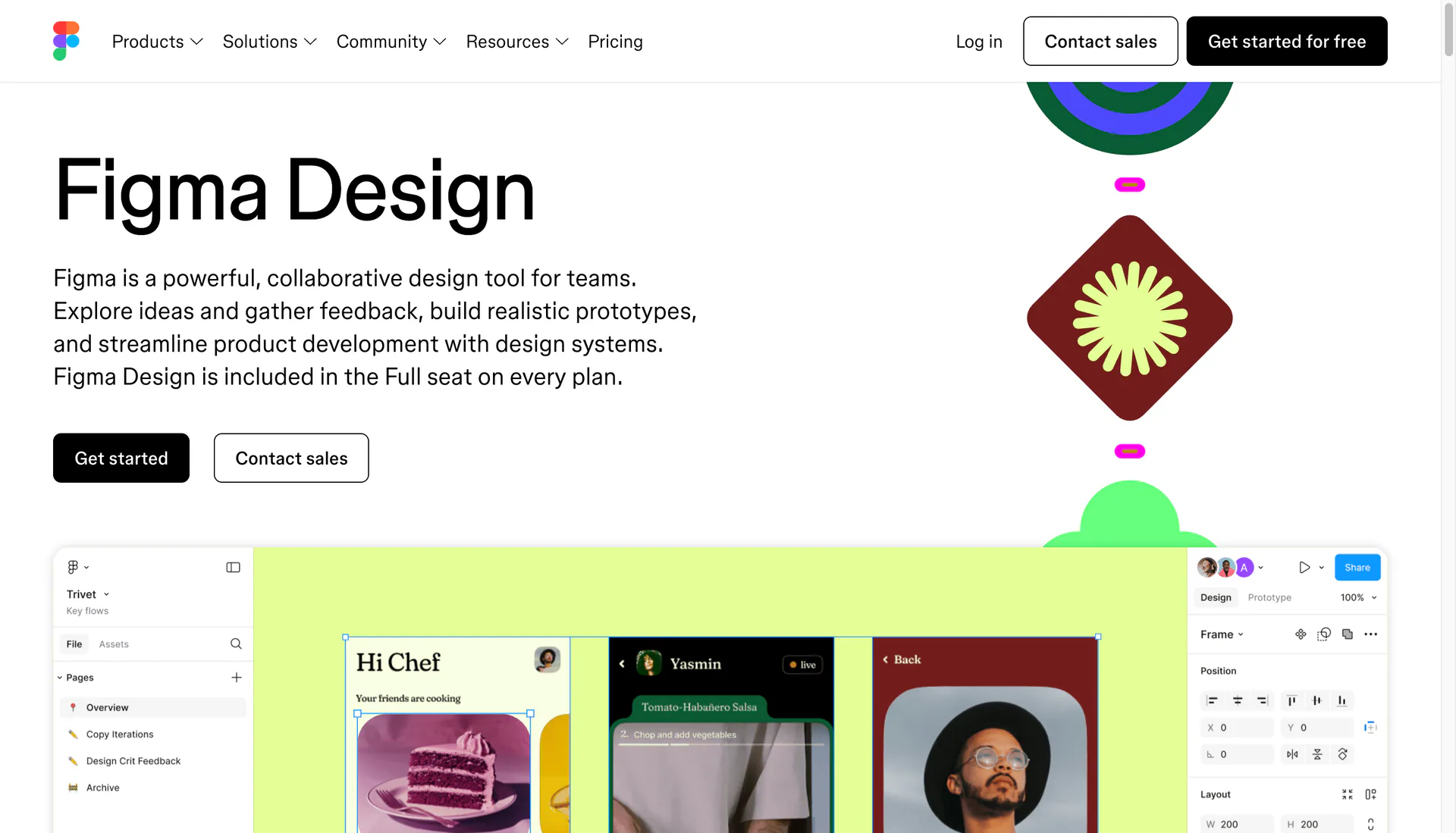
Figma lets designers connect frames into interactive flows, add transitions, preview different device sizes, and share prototypes for comments or testing.
The prototype should begin at an intentional starting frame and contain only the path being reviewed. Add realistic content and the states that materially affect the interaction. If authentication, latency, permissions, or backend logic are simulated, label those constraints during the review.
Figma is the source artifact for the proposed experience. A narrated recording can be layered on top when the audience needs rationale but should not be expected to explore the file independently.
Framer for responsive, publishable design demos
Framer lets designers build responsive prototypes with interactive components, breakpoints, transitions, and animation, then share a preview or publish the experience as a live website.
Framer is useful when a walkthrough needs to behave like a real responsive web experience rather than a sequence of connected frames. That realism makes it strong for marketing-site concepts and interaction-heavy product ideas, although it involves more construction than a quick review prototype in Figma.
ProtoPie for complex interaction prototypes
ProtoPie imports designs from Figma and adds high-fidelity behavior such as conditional logic, text input, multi-touch gestures, device sensors, and cross-device interactions. Prototypes can be tested on devices and shared for review and comments.
Use ProtoPie when the interaction itself is the demo: a gesture, hardware response, dynamic state, or input behavior that a simple hotspot prototype cannot communicate. For routine screen-to-screen flows, Figma is usually faster and easier for collaborators to edit.
UX walkthrough video tools
Tight Studio for polished design rationale and handoff videos
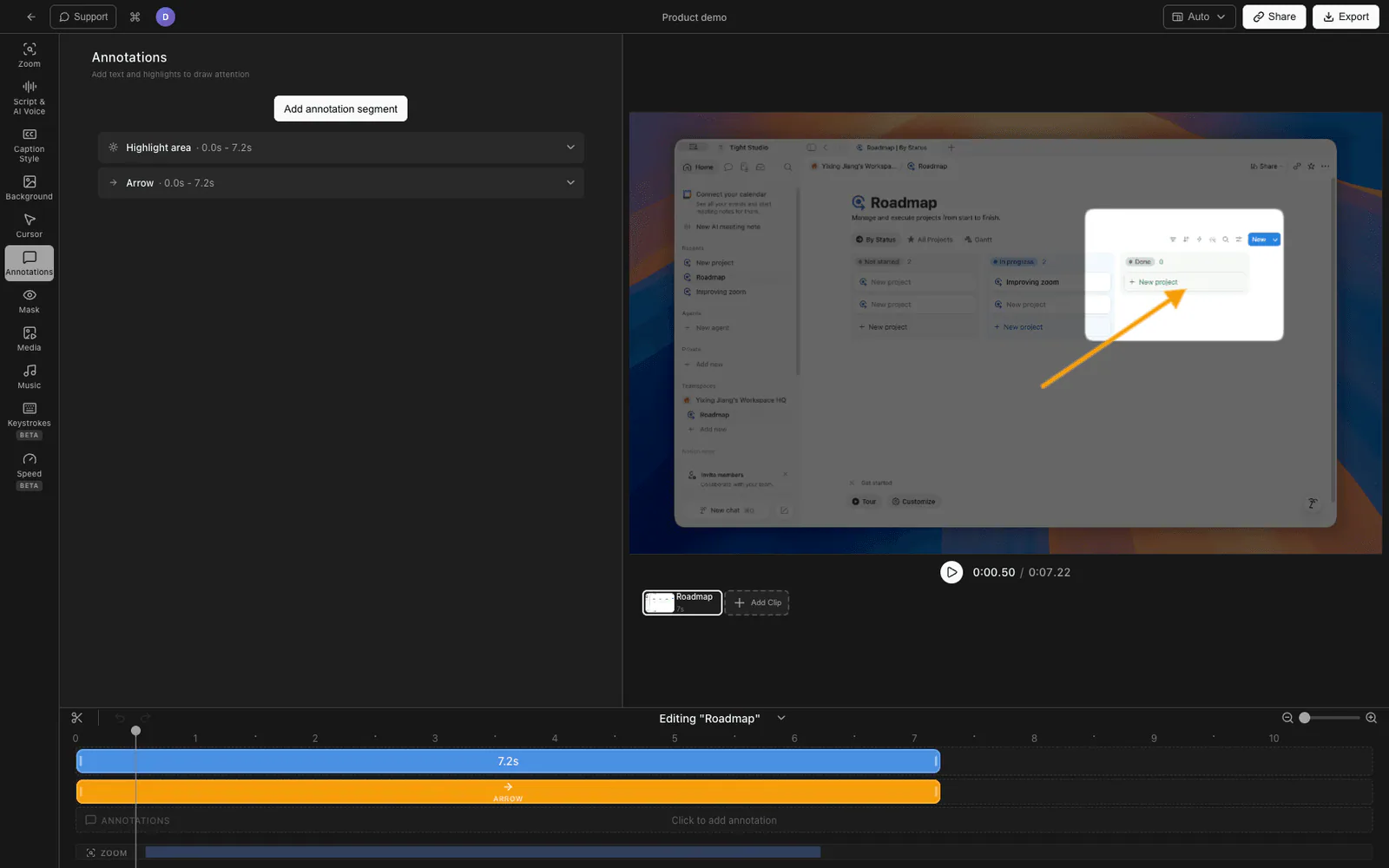
Tight Studio is a Mac screen recorder and editor for polished screen-based videos. A designer can record a prototype, implemented product, research synthesis, or handoff presentation and keep the explanation consistent for every viewer.
Useful features for UX walkthroughs include:
- Smart zoom animation brings small controls and states into view.
- Cursor animation and click highlighting make the interaction path explicit.
- Multi-take recording separates context, happy path, edge cases, and handoff notes into replaceable sections.
- System audio capture records computer audio separately from the microphone, with independent volume control.
- AI voiceover creates narration from an approved script.
- Text annotations label constraints, decisions, measurements, or unresolved questions.
- Intro and outro slides frame the problem and requested feedback.
- Captions make a design walkthrough easier to review without sound.
Tight Studio exports a finished video file. It is Mac-only. Microphone and system audio remain separate in the editor, so sounds from a prototype or shipped app can be balanced independently from narration.
If the walkthrough needs a formal narrative, start with how to write a video script. The webcam overlay guide covers when a presenter should appear alongside the design.
Loom for fast asynchronous design reviews
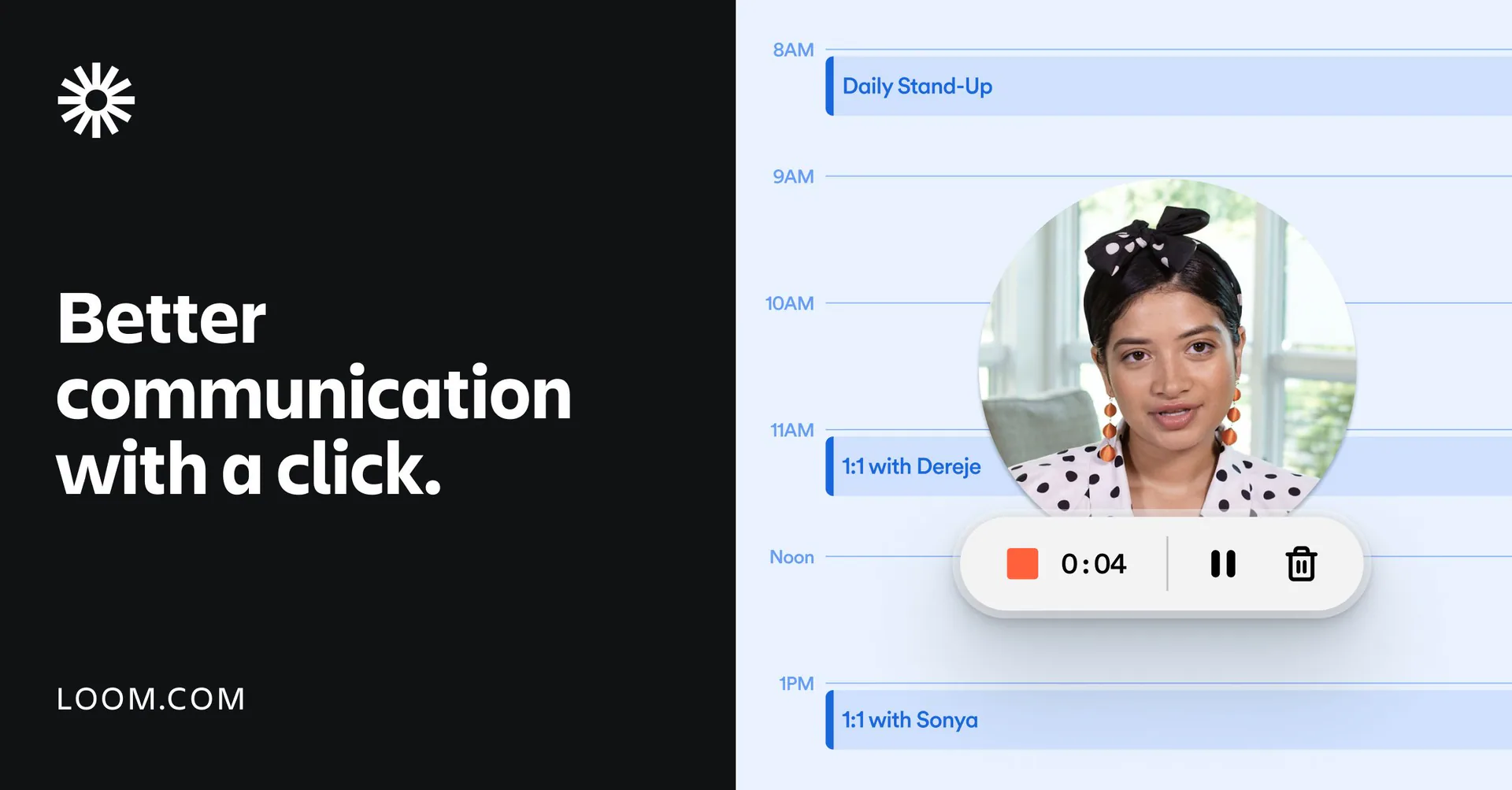
Loom creates a shareable recording immediately and lets viewers respond at specific timestamps. That keeps a comment connected to the exact state or interaction being discussed.
It works well for a short review request or a rough exploration where the recording will not become a permanent asset. For a portfolio case study, company-wide presentation, customer training video, or reusable handoff, a more structured edit can make the explanation easier to revisit.
Interactive product walkthroughs after launch
Arcade for guided tours of the shipped experience
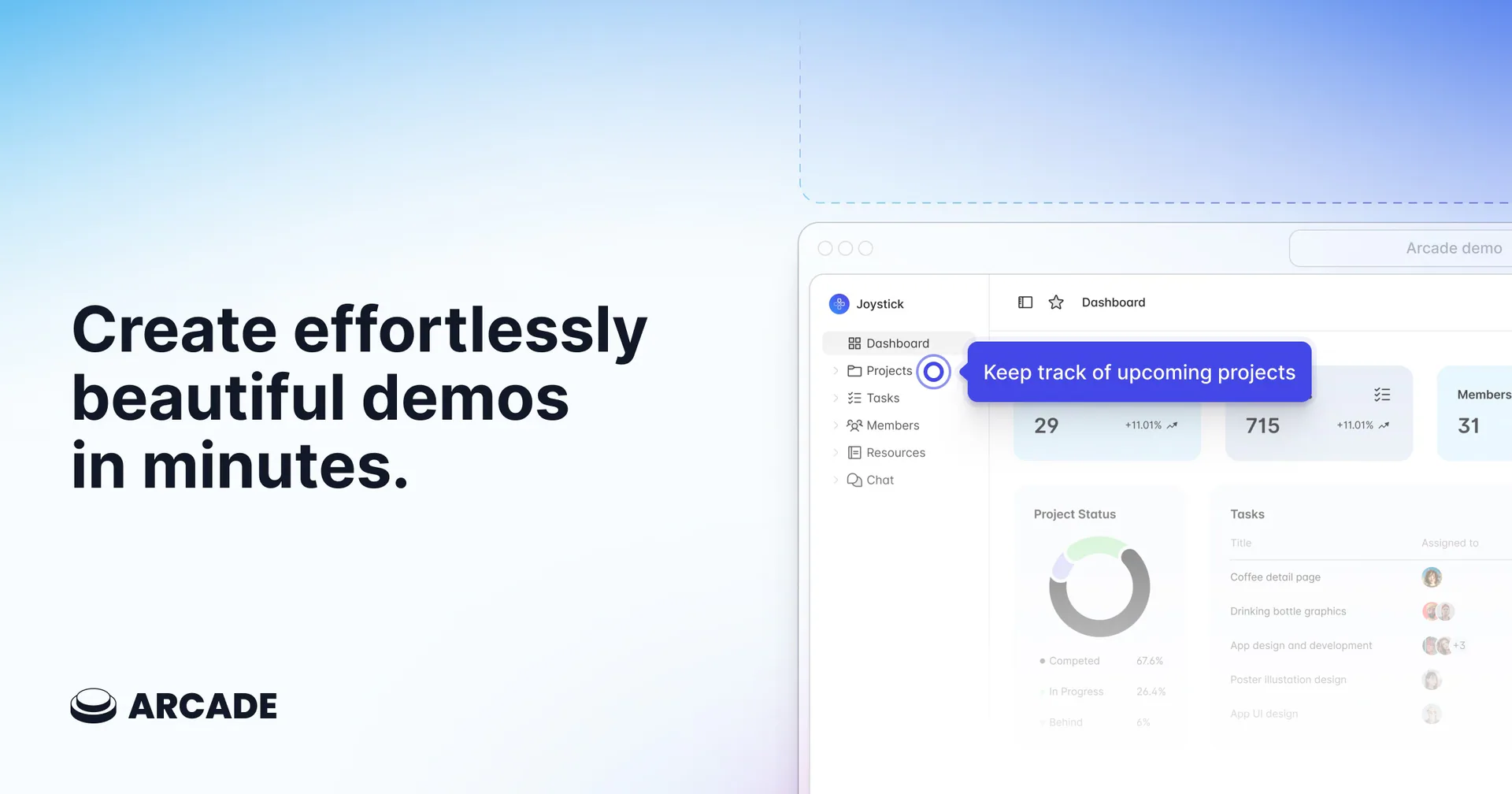
Arcade turns a product path into a self-guided sequence. It can communicate the final interaction to internal teams, customers, or prospective users without requiring a live product account.
This is useful after the design has shipped, but it serves a different purpose from a Figma prototype. The prototype explores intent before implementation; the product walkthrough demonstrates the resulting experience.
How to structure a UX design walkthrough
A clear design walkthrough usually follows this order:
- Problem and audience: State who is trying to do what.
- Starting context: Show where the task begins and what the user already knows.
- Primary path: Demonstrate the smallest complete flow at a readable pace.
- Decision rationale: Explain the important choices, not every visible pixel.
- System states: Include loading, empty, error, success, and permission states when relevant.
- Research evidence: Connect decisions to observed behavior or constraints.
- Open questions: Separate approved decisions from areas that still need feedback.
- Requested response: Tell the viewer what to approve, test, or comment on.
This structure makes the recording useful even when the viewer cannot attend the original review.
UX walkthrough mistakes to avoid
- Giving a pixel tour. Explain decisions and behavior rather than listing every component.
- Showing only ideal data. Empty, long, invalid, and restricted states often reveal the real interaction problem.
- Moving the cursor continuously. Let the viewer focus on the active element.
- Over-explaining an exploratory prototype. Guidance can hide whether the interaction communicates its intent on its own.
- Presenting a prototype as finished behavior. Label simulated interactions and missing technical constraints.
- Mixing audiences. Engineering handoff, executive approval, and research synthesis need different detail.
- Skipping captions and transcripts. Reviewers may watch without audio or need an accessible alternative. See how to add captions to screen recordings.
Frequently asked questions
What is a UX walkthrough?
A UX walkthrough is a structured explanation or exploration of a user flow. It may be a clickable prototype, narrated design video, usability test, or tour of the implemented product. The format should match the question the team needs to answer.
What is the best tool for presenting a UX design?
Figma is the clearest choice for a quick clickable design flow. Framer is stronger for a responsive, publishable web experience, while ProtoPie handles complex interaction logic and device behavior. Tight Studio is suited to a polished narrated walkthrough, and Loom prioritizes fast asynchronous feedback.
Should a UX walkthrough include every screen?
No. Include the shortest complete path plus the states that materially affect the decision. Separate unrelated tasks into their own flows or recordings so the audience can review one question at a time.
How long should a design walkthrough video be?
A focused walkthrough is often three to seven minutes. A small review request can be shorter. Longer presentations should use clearly labeled sections or separate videos for the primary path, edge cases, research evidence, and handoff.
Is a narrated prototype a usability test?
No. Narration teaches the intended path and removes ambiguity. It is useful for explaining rationale, but it does not show whether someone can understand and complete the task without being told how the interface is supposed to work.
What should designers include in a handoff walkthrough?
Include the user goal, starting state, primary path, responsive or conditional behavior, loading and error states, accessibility considerations, unresolved constraints, and links to the source designs or specifications.