
How to add annotations (arrows, shapes, text) in Tella

You finished a recording in Tella, opened the editor, and went looking for the arrow tool. Maybe you wanted to circle a button, drop a text callout over a step, or draw a rectangle around an important section. You searched the toolbar and the panels and could not find it. You are not missing anything - Tella’s editor does not ship an arrows-and-shapes annotation layer.
This guide covers exactly what Tella supports today for marking up recordings, a fair note on Tella’s own wording, the workarounds people use, and how to add real annotations in Tight Studio if you need them now.
What Tella supports today
Tella’s editor has two attention tools that touch this space, both documented in Tella’s help center:
- Highlight: place and resize a region; everything outside it is dimmed, pulling the viewer’s eye to the visible part. (tella.com/docs/help/editing/blurring-and-highlighting.md)
- Blur: the inverse - a region you drag over sensitive information to hide it. (Same source.)
That is the extent of it. As of May 2026, Tella’s editor does not let you add:
- Arrows pointing from one location to another
- Rectangles, circles, or lines drawn on top of the recording
- Text labels or callouts placed at specific timestamps
- Free-form drawing of any kind
A fair note on wording: Tella’s marketing page for the editor mentions “annotations,” but Tella’s own help documentation, docs index (tella.com/docs/llms.txt), and editor walkthrough (tella.com/help/editing/edit-a-video) describe only the highlight and blur regions plus auto-generated subtitles - there is no arrow, shape, text-box, or drawing tool in any of them. The “annotations” in the marketing copy refers to those highlight/blur regions and subtitles, not to draw-on-video markup. Tella is a well-made product from a strong team; this is a real scope boundary, not a knock on the app.
Workarounds in Tella
If you are committed to Tella and need annotations on a deadline, there are three workarounds people use. None of them are great.
Workaround 1: Use the highlight region as a “look here” pointer
This is the closest thing Tella has built in. Place a highlight region over the area you want the viewer to focus on; the surrounding area dims, which functions as a weak substitute for an arrow.
- Works for: “look at this region of the screen”
- Does not work for: text labels, showing motion (an arrow from A to B), or calling out several things in sequence
Workaround 2: Annotate before you record
Add the arrows or callouts to the source before recording. If you are recording a Figma or slide demo, draw the shapes in the file itself, then record. Tella captures them as part of the screen.
- Works for: pre-planned demos where you know exactly what you will say
- Does not work for: anything that needs the recording done first, or annotations that must appear and disappear at specific timestamps
Workaround 3: Export from Tella, annotate in another tool
Export your Tella video as MP4, then import it into a tool that handles annotations - Camtasia, ScreenFlow, Final Cut, Premiere Pro, or DaVinci Resolve - and add the arrows, shapes, and text there.
- Works for: situations where you have time and a second editor
- Does not work for: quick turnaround, or anyone who does not own a separate video editor
The two-tool workflow defeats most of the reason people pick Tella (one fast tool, no separate editor). For most demos and tutorials, the practical answer is a tool that supports annotations natively.
How to add annotations in Tight Studio
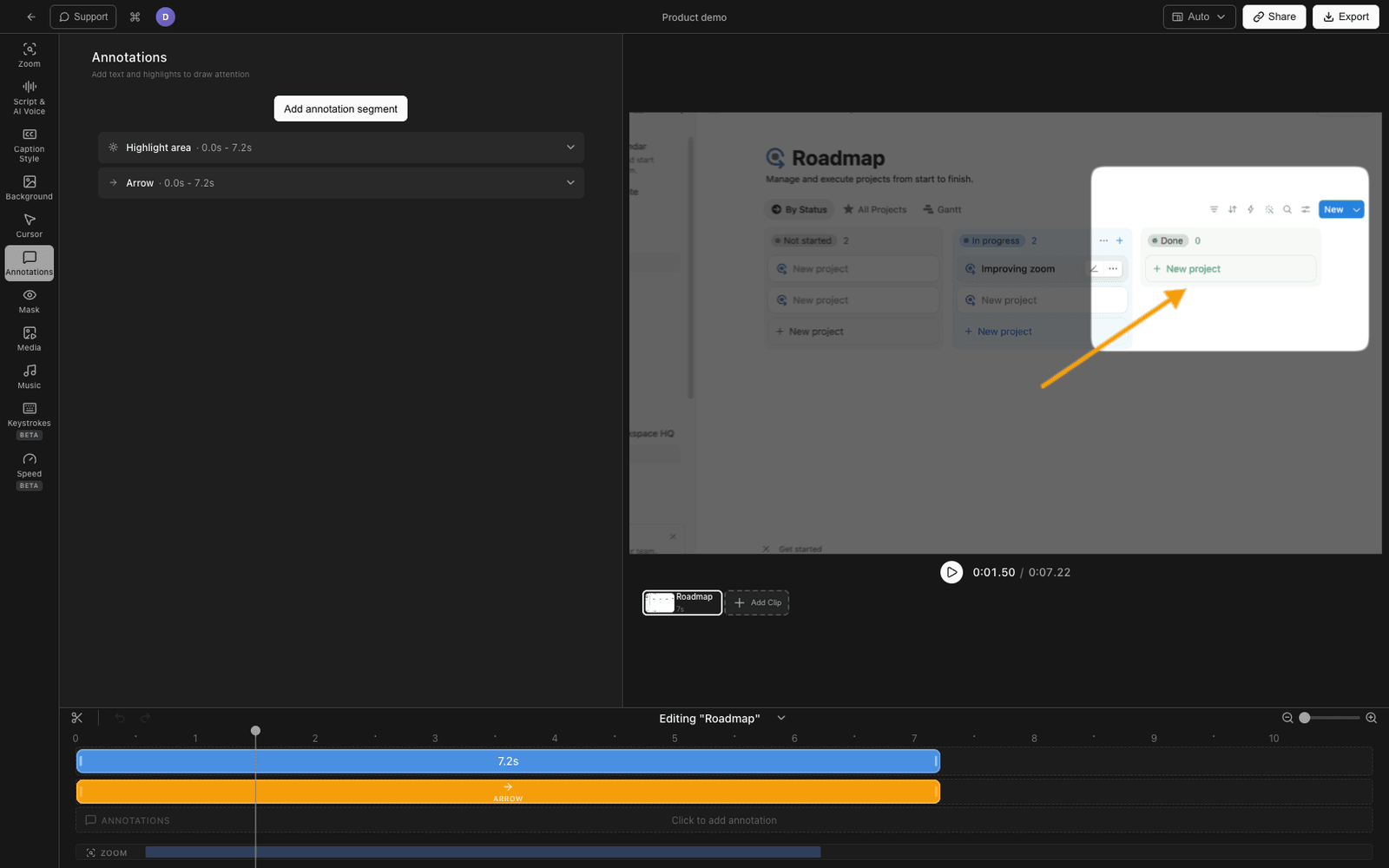
Tight Studio is a Mac screen recorder and editor that ships a full annotations panel. You can add six annotation types on top of any recording, each with its own start time and end time - so an arrow can appear when you start talking about a button and disappear when you move on.
The six annotation types Tight Studio supports:
| Type | What it is |
|---|---|
| Text | A text label placed anywhere on the frame. Customizable font, size, color, shadow, outline |
| Highlight | A dim-around-region effect, like Tella’s highlight, with adjustable feather and roundness |
| Arrow | A drawable arrow from a start point to an end point, with adjustable stroke width and head size |
| Rectangle | A bordered or filled rectangle with adjustable stroke width and color |
| Ellipse | A bordered or filled ellipse (circle / oval) with adjustable stroke width and color |
| Line | A straight line between two points |
Adding an annotation
- Open your recording in the Tight Studio editor.
- In the right-hand settings panel, click the Annotations tab.
- Click the type you want: Text, Highlight, Arrow, Rectangle, Ellipse, or Line.
- The annotation appears on the preview. Drag its handles to position it. For arrows, drag the start and end points independently.
- Set the start time and end time so it appears and disappears at the right moments.
Styling
Each type has its own controls: text gets font, size, weight, color, shadow, outline, and entrance/exit animations; highlight gets dim intensity, roundness, and feather; arrows and shapes get stroke width, color, and fill.
Timing
Every annotation has independent start and end times, so you can sequence several across a recording - an arrow at 0:12 pointing at a button, a “saved” text callout at 0:16, and so on.
Tight Studio is the all-in-one screen recorder for tutorials, demos, course videos, and social cuts, so annotations sit alongside click-following zoom, cursor animation, captions, and AI voiceover rather than being a separate step.
Why we built a full annotations layer
Annotations are how you direct attention, and directing attention is most of what a tutorial does. A single dim-around region cannot point, label, or show motion, and exporting to a second editor defeats the point of an all-in-one recorder. Six timed annotation types in the same editor as the recording is the smallest set that actually covers what demos need.
Comparing annotation support
| Capability | Tella | Tight Studio |
|---|---|---|
| Highlight region (dim-around-area) | Yes | Yes |
| Blur region | Yes | Yes |
| Arrows | No | Yes |
| Rectangles | No | Yes |
| Ellipses / circles | No | Yes |
| Lines | No | Yes |
| Text callouts | No (subtitles only) | Yes |
| Per-annotation timing (start/end) | n/a | Yes |
| Entrance / exit animations on text | n/a | Yes |
Frequently asked questions
Does Tella have an annotation tool?
As of May 2026, Tella’s editor has highlight and blur regions but no arrow, shape, text-box, or freehand drawing tool. Tella’s marketing mentions “annotations,” but its help docs and editor walkthrough describe only the highlight/blur regions and auto subtitles - there is no draw-on-video markup.
Can I add arrows to a Tella recording without leaving the app?
Not currently. The only built-in option is the highlight region. To add arrows you either draw them in the source before recording, or export the video and add arrows in a separate editor.
Is Tella’s highlight the same as annotations?
No. Highlight is one specific effect: dim everything outside a region. Annotations are a broader category - arrows, text labels, drawn shapes, lines, and callouts placed at specific times. Tella has highlight and blur but not the rest.
Will I lose my Tella recordings if I switch to Tight Studio?
No. Export your Tella video as MP4, drop it into Tight Studio, and add annotations on top of the existing video. You do not have to re-record.
Does Tight Studio also handle zoom, cursor, and captions?
Yes. Tight Studio has auto-zoom, cursor smoothing and click highlighting, captions, and AI voiceover in addition to the annotations layer described above, so switching for annotations does not cost you the core polish features.