
How to add auto-zoom (cinematic zoom) in Loom

You have seen the polished demo videos where the screen smoothly zooms in the moment someone clicks a button, then pulls back out to show the full picture. It keeps the viewer’s eye exactly where it needs to be, and it makes a plain screen recording feel produced. So you opened your Loom recording, went looking for the zoom effect - and could not find one. You are not missing a setting. Loom does not ship automatic cinematic zoom yet.
This guide covers exactly what Loom supports today for zooming, what is missing, the workarounds people are using, and how to get automatic click-tracking zoom in Tight Studio if you need it now.
What Loom supports today
Loom’s editor has a “zoom” control, but it is not the effect you are looking for. The only zoom in Loom today is a timeline zoom - it magnifies the audio waveform in the editor so you can trim and split more precisely. It changes what you see while editing. It does not zoom the actual video your viewers watch. Loom’s own editing documentation describes the editor as trim, split, stitch, and edit-by-transcript - there is no zoom-in effect that gets rendered into the final recording.
As of May 2026, Loom does not let you add:
- An automatic zoom that follows your mouse clicks or activity
- A manual zoom-in / zoom-out effect placed at a specific timestamp
- Smooth animated camera moves (pans) across the recording
Loom has announced it. Loom’s official editing page lists “Auto-zoom: smart, dynamic zooms that focus your viewer’s attention” under its “coming soon” section - which means Loom itself acknowledges the feature is not yet released. You can see it here: atlassian.com/software/loom/editing. The Loom team is building it, but as of May 2026 it has not shipped, and there is no public timeline.
Workarounds in Loom
If you are committed to Loom and need a zoomed-in look on a deadline, there are two workarounds. Be warned up front: neither one reproduces the automatic, animated, click-tracking zoom that people actually want.
Workaround 1: Zoom your screen before you record
Increase the zoom of whatever you are about to record before you hit record, so the captured frame is already magnified. On macOS, turn on accessibility zoom (System Settings > Accessibility > Zoom). On Windows, use Magnifier (Win + Plus). In a browser, press Cmd/Ctrl and +.
- Works for: making a single area larger for the whole recording
- Does not work for: zooming in only at the moments that matter, animating between zoomed and full views, or following the cursor. It is a static crop, not a cinematic move - and once you commit to the zoom level, the rest of your screen is off-frame for the entire video.
Workaround 2: Export from Loom, add zoom in another editor
Download your Loom recording as MP4, import it into a video editor that supports keyframed scale and position - Camtasia, ScreenFlow, Final Cut, Premiere Pro, or DaVinci Resolve - and animate the zoom there by hand, keyframe by keyframe.
- Works for: people who own a separate editor and have time to hand-animate
- Does not work for: quick-turnaround recordings, and anyone who picked Loom precisely so they would not have to open a timeline editor
Hand-keyframing zoom on every click across a five-minute tutorial is hours of work, and the two-tool workflow defeats most of the reason people use Loom in the first place. For most demos and tutorials, the practical answer is to record in a tool that does the zoom automatically.
How to add auto-zoom in Tight Studio
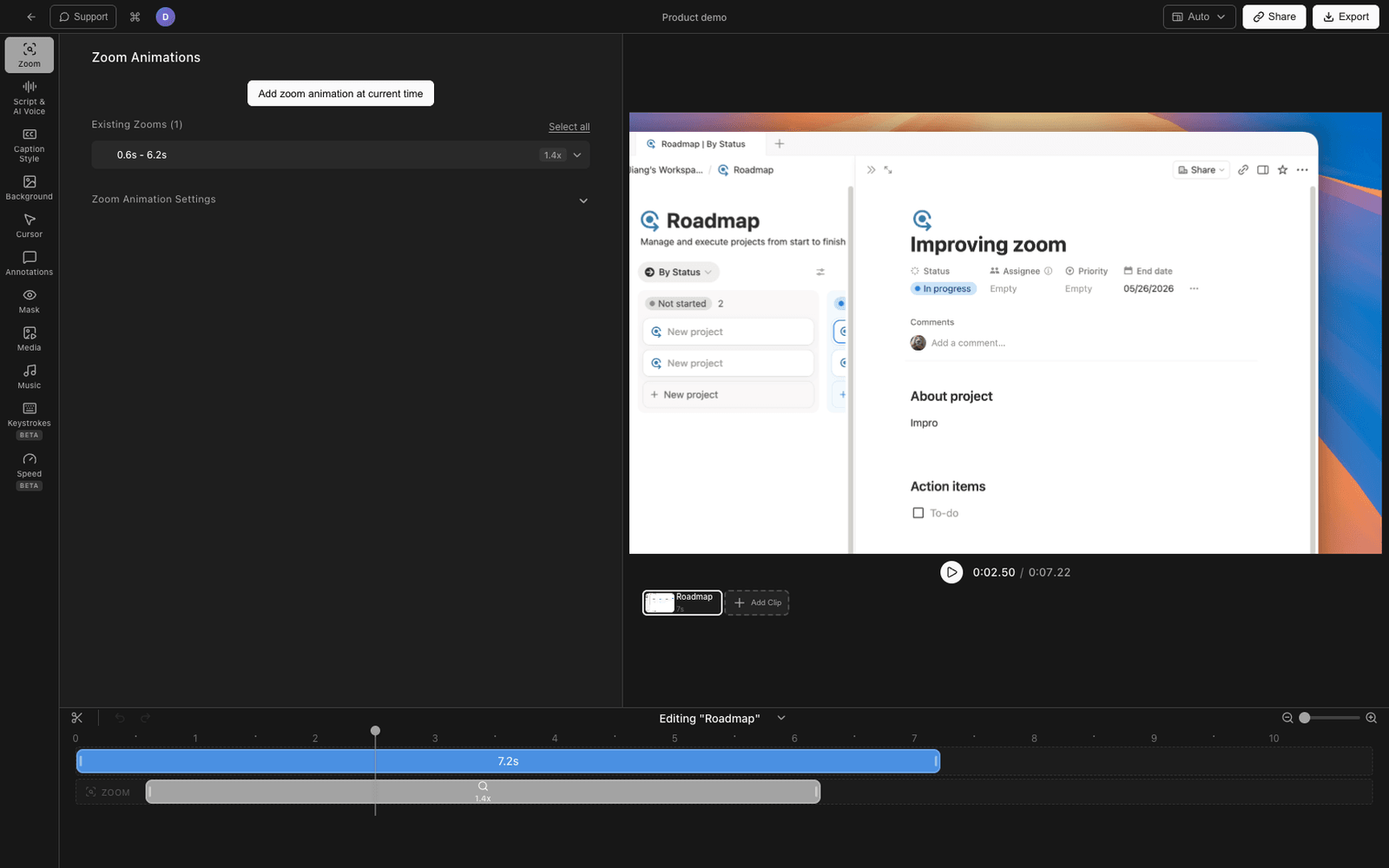
Tight Studio is the all-in-one screen recorder for tutorials, demos, course videos, and social cuts - and auto-zoom is on by default. It records your cursor and click data alongside the screen, so it can zoom in on the right spot at the right moment without you placing a single keyframe.
Auto-zoom follows your clicks automatically
Open your recording in the Tight Studio editor and auto-zoom is already applied. When you clicked into a form field or pressed a button during the recording, the video smoothly zooms in toward that spot, holds while you work there, then eases back out. You did not have to mark anything - it reads the click and cursor activity from the recording itself.
Adjust the zoom level and easing
In the Zoom panel you can tune how aggressive the effect is: set the zoom level (how far in it pushes), and pick the easing for the transition - linear, ease in/out, or a spring motion - so the camera move feels as snappy or as gentle as you want. Motion blur on the transition keeps fast moves from looking choppy.
Add or edit manual zoom segments
If you want a zoom somewhere auto-zoom did not place one, add a zoom segment manually on the timeline, drag it to the exact start and end time, and click on the video preview to set the point it zooms toward. Each segment is independent, so you can sequence several across a recording - push in on a menu at 0:08, pull out at 0:12, push in on a result at 0:15.
All of this is in the free download - you do not need a paid plan to get auto-zoom.
Comparing zoom support
| Capability | Loom | Tight Studio |
|---|---|---|
| Timeline zoom for trimming (editor only) | Yes | Yes |
| Automatic zoom that follows clicks | No (coming soon) | Yes |
| Manual zoom segment at a timestamp | No | Yes |
| Adjustable zoom level | No | Yes |
| Easing / animation style on the zoom | No | Yes (linear, ease, spring) |
| Motion blur on zoom transitions | No | Yes |
| Click-to-set zoom center | No | Yes |
Frequently asked questions
Does Loom have auto-zoom?
Not yet. As of May 2026, automatic cinematic zoom is listed under “coming soon” on Loom’s official editing page, which means Loom has announced it but has not released it. The only zoom in Loom today is a timeline/waveform zoom used for trimming in the editor - it does not change the video your viewers see.
How do I zoom in on part of a Loom recording?
There is no built-in effect to zoom into part of the finished video. Your options today are to zoom your screen before recording (a static crop, no animation) or to export the recording and add keyframed zoom in a separate video editor. Neither reproduces an automatic zoom that tracks your clicks.
Will Loom add cinematic zoom later?
Loom has publicly committed to it - it appears in the “coming soon” section of their editing page. There is no published release date. Until it ships, Loom does not have an automatic or manual zoom effect that renders into the exported video.
Can I move my existing Loom recordings into a tool with auto-zoom?
You can export a Loom recording as MP4 and drop it into another editor, but auto-zoom relies on the recorder capturing click and cursor data at record time. To get true click-tracking auto-zoom, record the session in a tool like Tight Studio so the click data is there to drive the zoom automatically.
How much does Tight Studio cost?
Tight Studio has a free tier with limits on Add Clip and shareable videos, plus a Pro plan for unlimited recording, exporting, and sharing. Auto-zoom is available on the free download. See tight.studio for the latest pricing.