
How to add enter/exit animations in FocuSee

You want a label to slide in over a button, hold while you talk about it, and slide back out before the next step. Or a title that fades up at the start of a section and fades away when you move on. So you add a text element in FocuSee, look for an in and out animation on it, and find only a duration.
Here is the straight answer on where FocuSee stands today, the workaround that gets you partway, and how to do animated in/out in one app if you would rather not round-trip through a second editor.
Does FocuSee have enter/exit animations?
No. FocuSee added an annotation suite in v2.3.0 (April 2026) - you can place text (basic and artistic) and shapes like arrows, lines, and rectangles on the timeline, and each element has an adjustable duration (focusee.imobie.com/guide/annotations.htm). That is real and useful. What it does not have is a motion preset for how an element enters and leaves. An annotation appears with a hard cut at its start and vanishes with a hard cut at its end. There is no fade in, slide in, or scale in - and no matching way out. Enter/exit animations for text, shapes, the camera, or any overlay appear nowhere in FocuSee’s guide, feature pages, or changelog (latest v2.3.0 - focusee-voice.imobie.com/changelog).
This is not a knock on the app. FocuSee is a solid auto-zoom recorder from a small team that has stayed focused on cursor motion, zoom, and recording finish, and the annotation suite is recent. It just means a callout that eases in, holds, and eases out is not something you can do inside FocuSee today. If you want it, FocuSee runs a public roadmap board at focusee-voice.imobie.com/roadmap where you can request it.
The workaround in FocuSee
You can place the text in FocuSee, but you cannot animate its entrance or exit there, so the animation has to happen outside FocuSee:
- Record and finish in FocuSee - zoom, cursor, background, the parts it is good at. You can leave the annotations off, or keep them as static holds.
- Export the MP4.
- Open it in a second editor that has animated text - CapCut, Descript, Camtasia, or Kapwing all have enter/exit text presets.
- Add each text element on a timeline, set an in animation and an out animation, and position it over the right moment.
- Re-export from the second tool.
It works, but weigh the downsides before committing to it for anything you maintain:
- Two tools, two timelines. The animated text lives in the second editor, not in your FocuSee project.
- Re-edits are expensive. Trim or re-order a section in FocuSee and you re-export, re-import, and re-place every text element by hand.
- Quality round trip. You re-encode an already-encoded recording, which is avoidable quality loss.
A lighter alternative is to accept FocuSee’s hard-cut annotations and lean on what it does animate - auto-zoom into the area you are talking about, cursor highlight, and the spotlight effect. That is fine for emphasis, but a hard-appearing label is not the same as a callout that eases in, holds, and eases out.
How to add enter/exit animations with Tight Studio instead
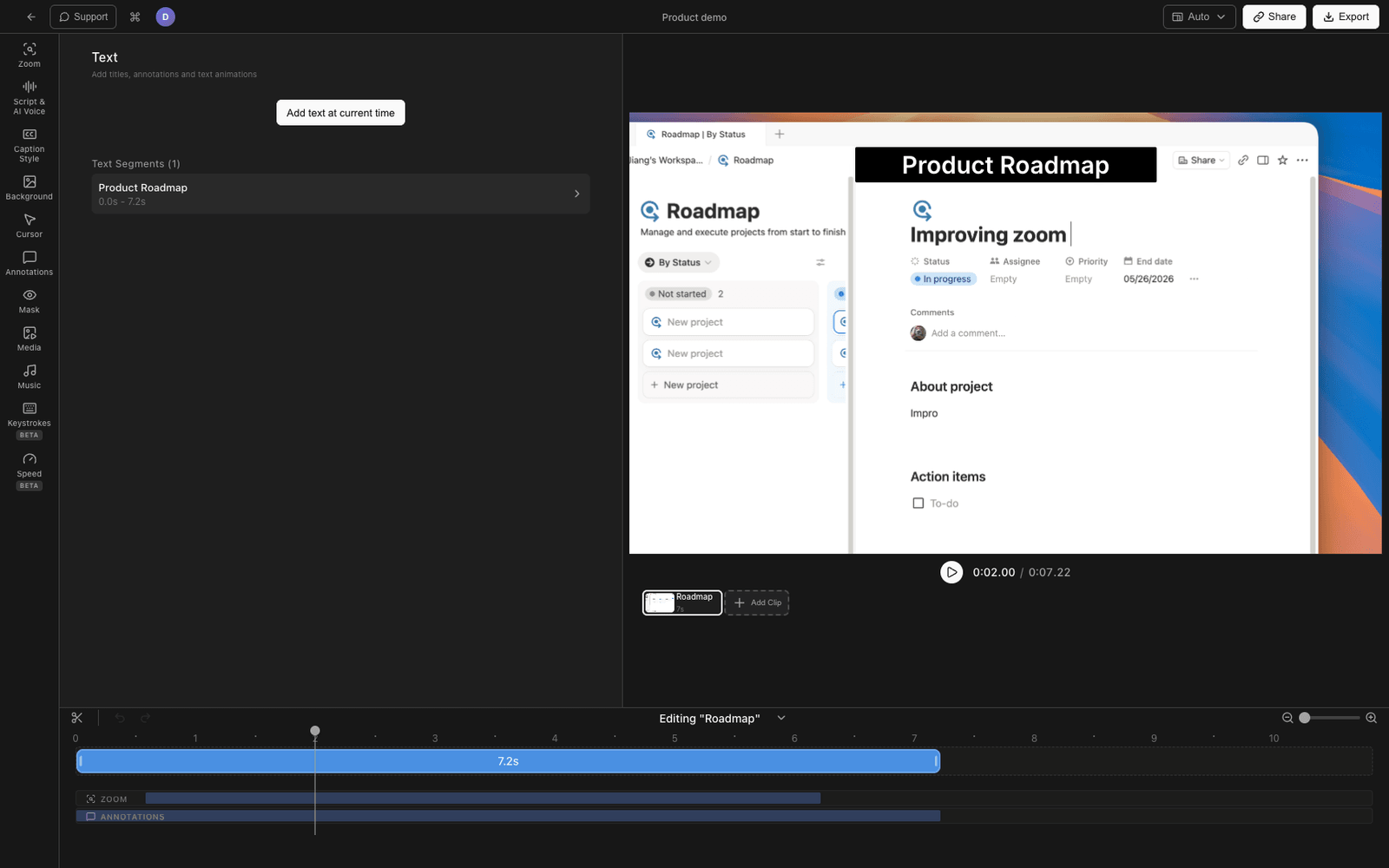
If animated callout text is the point, it helps to have the text layer and its in/out animation in the same editor as the recording. Tight Studio is a Mac screen recorder and editor with text segments that have independent enter and exit animations built in.
Here is the end-to-end flow:
- Record your screen in Tight Studio as usual.
- Add a text segment and type your callout. Place it on the timeline over the moment it should appear, and drag its edges to set how long it stays on screen.
- Open the Animation tab in the text panel. It has two sections: Enter Animation and Exit Animation, each independent.
- Pick an enter animation - Fade In, Slide In, or Scale In.
- Pick an exit animation - Fade Out, Slide Out, or Scale Out. Enter and exit are set separately, so a text can fade in and scale out, slide in and fade out, or any other pairing.
- Tune the motion. Set the duration of each animation (100ms to 3000ms). For slide, choose the direction - up, down, left, or right - and the slide distance. For scale, set the start scale on enter and the end scale on exit.
- Preview it with the play button in each section, adjust, and export with the animation baked in.
Because the text segment lives on the timeline next to the recording, trimming or re-ordering a section moves its animated text with it. There is no second tool and no re-export round trip.
What Tight Studio adds
- Independent enter and exit - Fade In / Slide In / Scale In on the way in, Fade Out / Slide Out / Scale Out on the way out, mixed freely.
- Per-animation duration from 100ms up to 3000ms.
- Directional slide - up, down, left, or right, with an adjustable slide distance.
- Scale control - set the start scale for a grow-in or the end scale for a shrink-out.
- The same enter/exit animations work on image overlays, not just text, so a logo or screenshot can animate in and out the same way.
- Full text styling to pair with it - font, size, weight, color, background fill, opacity, shadow, and outline, so the animated text matches your video rather than looking like a default caption.
The recording polish you would expect from this category is here too - click-following zoom, cursor animation and click highlighting, and intro/outro slides - so the animated text sits in a finished video, not a bare screen capture.
Why we built it into the editor
We kept the text and its animation on the same timeline as the recording on purpose. The reason people want enter/exit animation is rhythm: text shows up exactly when you start talking about something and leaves before it gets stale. That timing only works if the text moves with the edit. The moment the animated text lives in a different app from the recording, every trim desyncs it and every revision is a manual re-place. Keeping the segment, its in animation, and its out animation as one object on the timeline removes that whole class of friction.
FocuSee vs Tight Studio for enter/exit animations
| FocuSee | Export workaround (FocuSee + 2nd editor) | Tight Studio | |
|---|---|---|---|
| Manual text on the recording | Yes (annotation suite) | In the second editor only | Yes, text segments |
| Enter/exit animation on it | No (hard cut, duration only) | In the second editor only | Yes, independent in and out |
| Animation lives with the edit | n/a | No - separate app, re-place by hand | Yes - on the same timeline |
| Re-edit after trimming | n/a | Re-export and re-place every element | Moves with the section |
| Same animation on images | No | Depends on the second editor | Yes |
| Tools to maintain | One | Two | One |
Frequently asked questions
Does FocuSee have enter and exit animations?
No. FocuSee’s annotation suite (v2.3.0) lets you place text and shapes with an adjustable duration, but elements appear and disappear with a hard cut. There is no fade, slide, or scale in or out. Enter/exit animations appear nowhere in FocuSee’s guide or changelog.
Can you animate text in FocuSee?
You can add text and set how long it stays on screen, but you cannot animate how it enters or leaves - it cuts in and cuts out. To get text that eases in and out on a FocuSee recording you export the video and add the animation in a second editor like CapCut, Descript, or Camtasia.
How do I make text appear and disappear smoothly in a screen recording?
Use an editor with independent enter and exit animations on a text element. In Tight Studio you add a text segment, set its on-screen duration on the timeline, then pick an enter animation (Fade In, Slide In, Scale In) and an exit animation (Fade Out, Slide Out, Scale Out) in the Animation tab, each with its own duration.
What is the best FocuSee alternative for animated text?
If animated callout text is the main thing you need, Tight Studio is the closest like-for-like option on Mac - it has the same category of recording and auto-zoom polish as FocuSee, plus text segments with independent enter/exit animations and adjustable duration, slide direction, and scale that FocuSee does not have.
Can I animate images in and out, not just text?
Yes, in Tight Studio. The same enter and exit animations available on text segments - fade, slide, and scale - also apply to image overlays, so a logo, badge, or screenshot can animate in and out the same way a text callout does.