
How to change cursor on Mac

macOS lets you change the cursor in a few ways - make it bigger, change its outline and fill color, or make it shake to locate. The settings live in System Settings under Accessibility, but they are easy to miss if you do not know where to look.
This guide walks through every built-in way to change the cursor on Mac, the limits of what macOS lets you customize, and how to add animated cursor effects when you are recording your screen.
Change cursor size on Mac
The cursor on a Retina display can be hard to see, especially during a presentation or screen recording. macOS lets you scale it up to about 4x its default size.
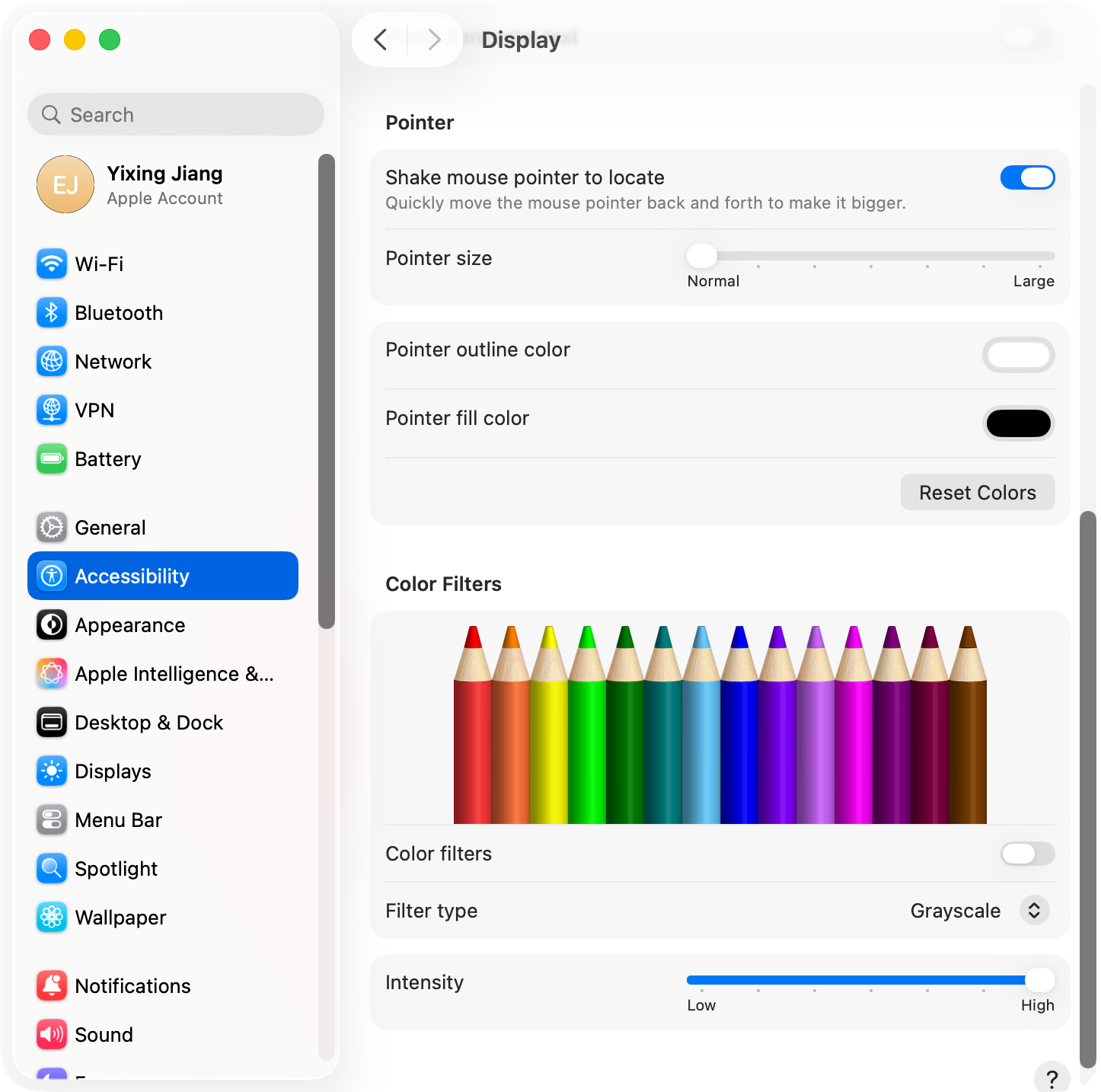
- Open System Settings (Apple menu > System Settings)
- Click Accessibility in the sidebar
- Choose Display under Vision
- Scroll to the Pointer section
- Drag the Pointer size slider from Normal to Large
The change takes effect immediately. The cursor stays the new size across all apps and persists across restarts.
Tip: If you only want a larger cursor temporarily (for a demo or recording), drag it back to Normal afterward. A permanently huge cursor can feel awkward for everyday use.
Change cursor color on Mac
macOS lets you change two cursor colors independently: the outline (the border around the cursor) and the fill (the inside).
- Go to System Settings > Accessibility > Display
- Scroll to the Pointer section
- Click the color swatch next to Pointer outline color to change the border
- Click the color swatch next to Pointer fill color to change the inside
- Use Reset to restore the default black outline and white fill
You can pick any color from the macOS color picker, including custom hex values. A bright fill color (yellow, red, neon green) makes the cursor easy to spot in screen recordings or during a presentation.
What you cannot change: macOS does not let you replace the cursor shape or use custom cursor images through System Settings. You are limited to scaling the default arrow and recoloring it.
Shake mouse pointer to locate
If you keep losing your cursor on a large display, macOS has a feature that briefly enlarges the cursor when you shake the mouse or swipe quickly on the trackpad.
- Go to System Settings > Accessibility > Display
- Scroll to the Pointer section
- Toggle Shake mouse pointer to locate on
Shake the mouse left and right (or swipe back and forth on the trackpad) and the cursor temporarily grows large enough to spot, then shrinks back to its normal size.
Change the cursor in specific apps
A few macOS settings affect the cursor inside particular apps rather than system-wide.
- Mission Control and Stage Manager use the system pointer size and color
- Finder respects the system pointer settings
- Browsers (Safari, Chrome, Firefox) use the system cursor for normal pointing, but websites can override the cursor for elements via CSS
There is no per-app cursor setting in macOS. Whatever you configure in Accessibility applies everywhere.
Use a custom cursor image with third-party tools
macOS does not officially support custom cursor images, but a free open-source tool called Mousecape lets you install custom cursor sets (called “capes”). Mousecape works on macOS Catalina through Sonoma, but compatibility on newer macOS versions can be inconsistent because it relies on private APIs.
- Download Mousecape from its GitHub releases page
- Open Mousecape and grant Accessibility permissions when prompted
- Drag a downloaded
.capefile into the Library window - Right-click the cape and select Apply
Communities like r/MacOS and DeviantArt host hundreds of free cape downloads (Windows-style, anime, retro, themed). The trade-off is that Mousecape is not officially supported by Apple, can break with system updates, and may need to be reapplied after a restart.
Change cursor in screen recordings with Tight Studio
If your goal is making the cursor more visible specifically for screen recordings, you do not need to change the system cursor at all. Tight Studio renders an animated cursor on top of your recording in post, with click highlights, smooth motion, and sound effects.
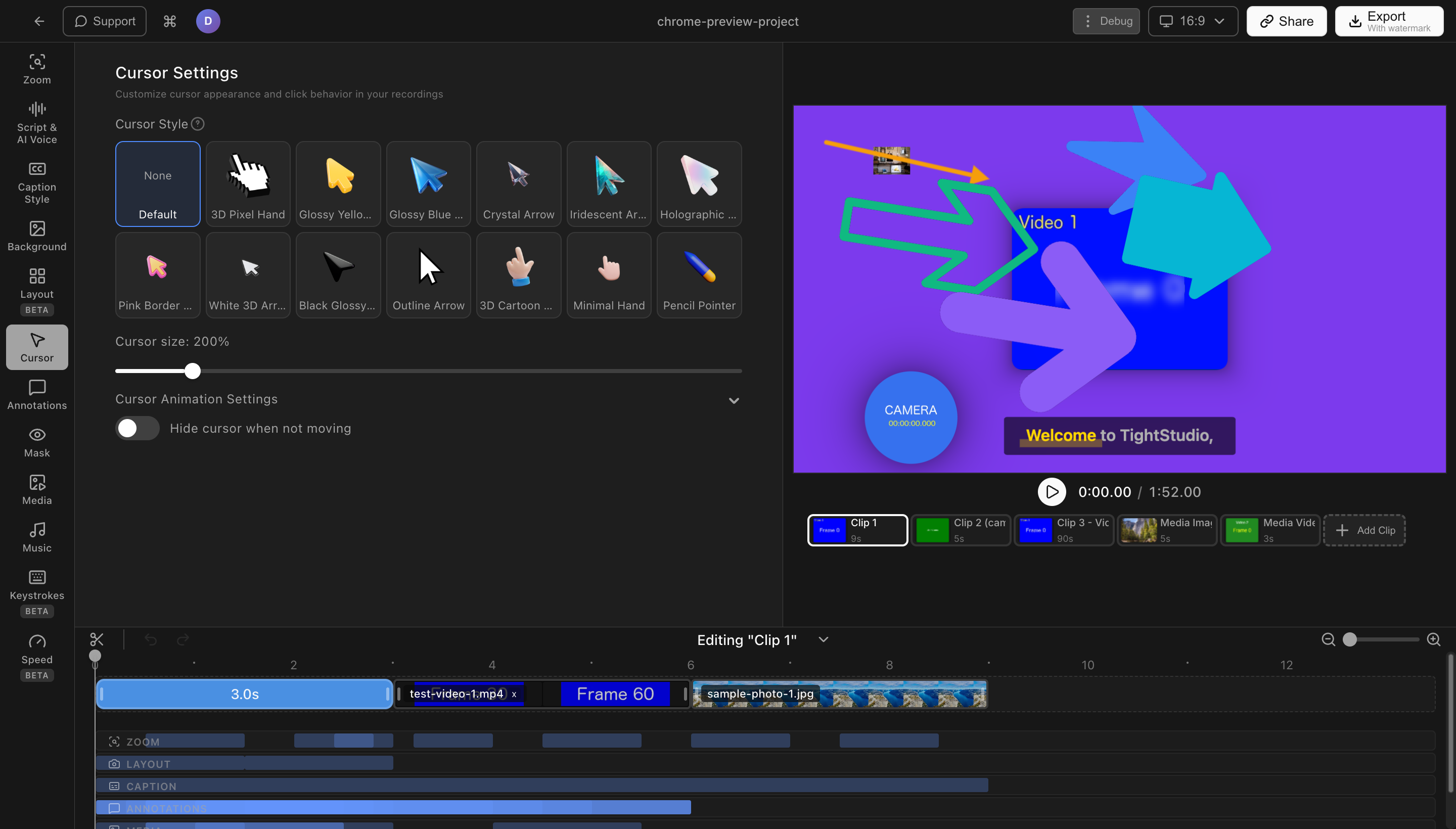
- Download Tight Studio and record your screen as normal
- The recording opens in the built-in editor
- Cursor animation is enabled by default - you will see a polished cursor with click rings and motion smoothing
- Adjust cursor size, click ring color, and click sound from the cursor settings panel
- Export the finished recording
Because the cursor is rendered at export time, you can record with the standard system cursor (no need to enlarge or recolor it system-wide) and still ship a recording with a clear, animated cursor.
What Tight Studio adds beyond the system cursor
- Click highlighting - a subtle ring or pulse appears around each click so viewers see exactly where you tapped
- Click sound effects - optional click sounds make interactions feel more deliberate
- Smooth cursor motion - cursor movement is interpolated for a less jittery feel
- Zoom animation - smart zoom follows your clicks with motion blur, so the cursor and the action it triggers stay in frame
Comparing ways to change the Mac cursor
| Method | Resize | Recolor | Custom image | Click effects | Persists system-wide |
|---|---|---|---|---|---|
| Accessibility settings | Yes | Yes | No | No | Yes |
| Shake to locate | Temporary | No | No | No | Yes |
| Mousecape (third-party) | Yes | Yes | Yes | No | Yes (until restart) |
| Tight Studio (screen recording only) | Yes | Yes | Limited | Yes | No (recording only) |
Frequently asked questions
How do I make my cursor bigger on Mac?
Open System Settings > Accessibility > Display, scroll to the Pointer section, and drag the Pointer size slider toward Large. The cursor scales up immediately and stays that size until you change it back.
How do I change the cursor color on Mac?
Go to System Settings > Accessibility > Display > Pointer. Click the swatches next to Pointer outline color and Pointer fill color to pick custom colors. The change applies system-wide and persists across restarts.
Can I use a custom cursor on Mac?
macOS does not officially support custom cursor images. The free tool Mousecape lets you install custom cursor sets, but it relies on private APIs and can break with macOS updates. For built-in customization, you are limited to resizing and recoloring the default cursor.
How do I reset the cursor on Mac?
Go to System Settings > Accessibility > Display > Pointer and click the Reset button next to the color swatches. Drag the Pointer size slider back to Normal. The cursor returns to the default black outline, white fill, and standard size.
Why is my cursor invisible on Mac?
Try shaking the mouse or swiping quickly on the trackpad. If “Shake mouse pointer to locate” is enabled in Accessibility settings, the cursor briefly enlarges so you can find it. If shaking does not help, restart the affected app or log out and back in - certain apps (especially when using external displays or screen sharing) can occasionally drop the cursor.
How do I change the cursor only for screen recordings?
System cursor changes apply everywhere, so they affect your normal use as well. To customize the cursor only inside screen recordings, use a tool like Tight Studio that renders an animated cursor on top of your recording at export time. You record with the standard cursor and the polished cursor appears in the final video.
Can I change the cursor in a Zoom or Google Meet call?
No. Video calls share your screen using the system cursor and do not let you customize it per-call. If you want a more visible cursor for a call, change the system cursor size and color in Accessibility settings before joining.