
How to password-protect a video in Screen Studio

You recorded something in Screen Studio that should not be public - a client walkthrough, an internal demo, a sensitive feature preview - and you want to send a link that asks for a password before it plays. You went into the share settings looking for a password field and could not find one. You are not missing it. Screen Studio does not currently ship password-protected sharing.
This guide covers exactly what Screen Studio’s sharing supports today, what is missing, the workarounds people use, and how to put a password on a recording in Tight Studio if you need that now.
What Screen Studio’s sharing supports today
Screen Studio does have hosted sharing, and it is good. Since the v3.0.0 release in December 2024, you can upload a recording and get a hosted link with Screen Studio’s own player instead of sending a raw file. Since v3.4.4 (July 2025) you can also mark a link as private, so it is scoped to sign-in rather than open to anyone with the URL. Later releases added viewer comments (v3.4.10, September 2025) and a view counter (v3.5.1, November 2025). All of this is documented on Screen Studio’s changelog and in the official guide.
What Screen Studio’s sharing does not include, as of May 2026:
- A password you set on a link and hand to a viewer
- A creator-controlled link expiry (a link that stops working after a date or a number of days you choose)
- An email gate or access list (only specific email addresses can watch)
The distinction matters. A “private” link in Screen Studio is access-scoping tied to sign-in - it is not the same as “here is a link and the password is acme-2026.” If you need a recipient who is not in your account context to watch, or you want to share a single password with a client, that flow does not exist in Screen Studio today.
The sharing/privacy surface is unaddressed: Password protection is not a tracked request on Screen Studio’s public feedback hub at hub.screen.studio, and the related link-expiry request has sat at “In Review” for over three years. Screen Studio’s team is small and ships deliberately - hosted sharing itself only arrived at the end of 2024 - so this is a real gap, not an oversight, and there is no public timeline for closing it.
Workarounds in Screen Studio
If you are staying in Screen Studio and need to keep a recording behind a gate, there are two options. Neither is a true password.
Workaround 1: Use a private (sign-in-scoped) link
This is the closest built-in option. Mark the share as private so it is no longer open to anyone with the URL. It is access-scoping, not a password: the viewer’s access is tied to sign-in, you cannot set a shared passphrase to hand out, and you cannot make the link expire on a schedule you choose. For an internal viewer this can be enough. For a client or an external reviewer who just needs one password, it is not the flow you are looking for.
- Works for: keeping a link from being fully public
- Does not work for: a shared password you give to a specific person, link expiry, or external viewers outside your account context
Workaround 2: Export the MP4 and host it somewhere with a password
Export your Screen Studio recording as an MP4 and upload it to a service that supports password-gated video. You get a real password prompt, but you lose Screen Studio’s hosted player and analytics, and you have added a second tool and an upload step to every share.
- Works for: situations where you must have a password and have a second host available
- Does not work for: quick turnaround, or keeping everything in one tool
For most people the honest answer is that if password protection is a requirement, Screen Studio cannot do it natively today, and you either bolt on a second host or use a recorder that supports it directly.
How to password-protect a video in Tight Studio
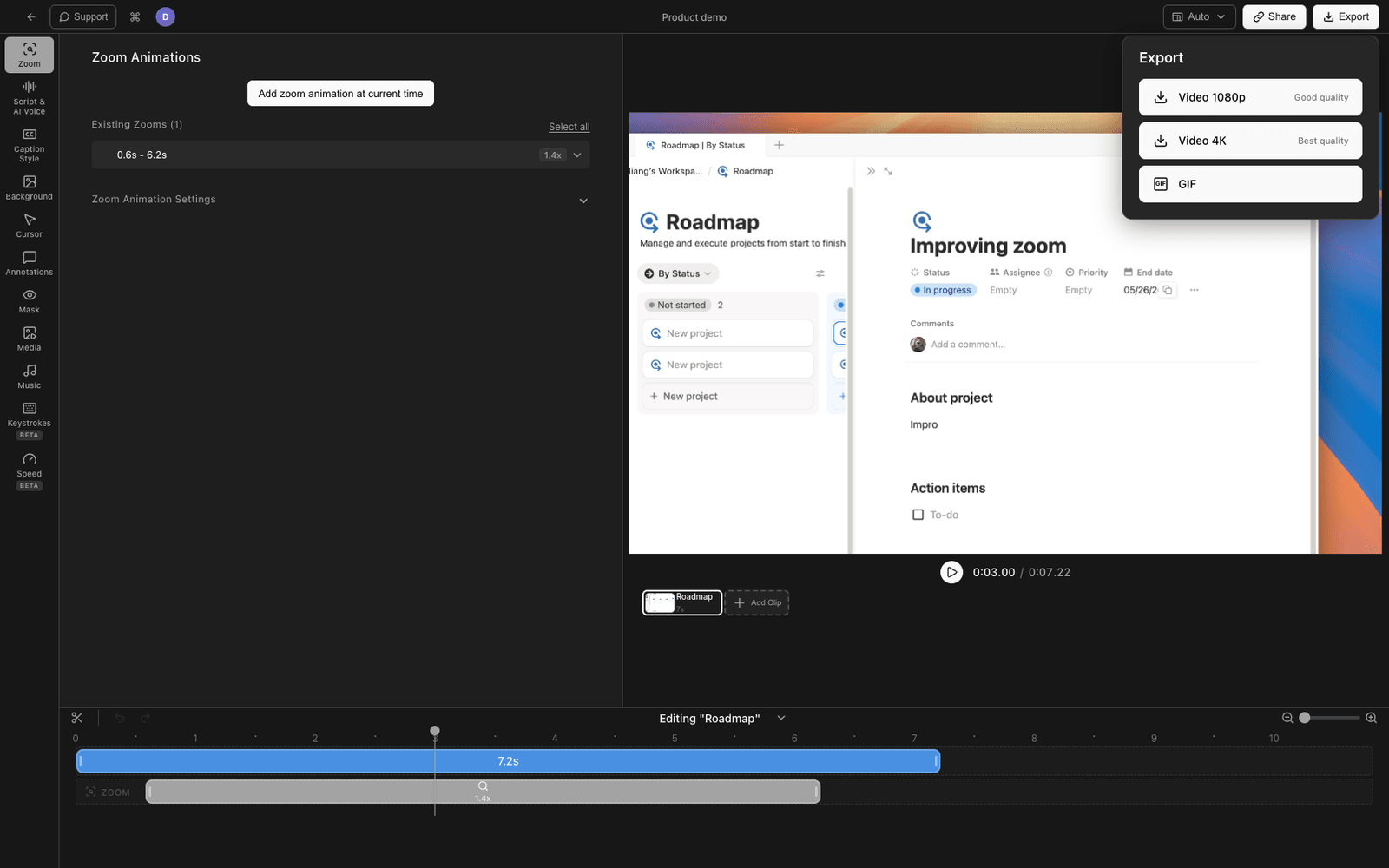
Tight Studio is the all-in-one screen recorder for tutorials, demos, course videos, and social cuts, and password protection is built into its sharing. You set an access code on the share, send the link, and the viewer is asked for the password before the video plays - no account required on their side.
Putting a password on a share
- Record or open your project in Tight Studio and create a shareable link.
- Open the share’s settings.
- Set the share visibility to Password protected.
- Enter the access code you want viewers to use.
- Copy the link and send it. Anyone who opens it sees a password gate and has to enter the code before the recording plays.
Other ways to gate a recording in Tight Studio
Password protection is one option. Depending on who the recording is for, Tight Studio also offers:
- Specific people (email-restricted): limit a share to named email addresses. People who are not on the list can request access, and you are notified so you can let them in.
- Private (“only me”): keep a recording entirely to yourself.
- Public link: the default open-by-URL share, like Screen Studio’s standard link.
Password protection and email-restricted sharing are paid-plan features in Tight Studio; on the free tier you will see an upgrade prompt, and free-tier shares are kept for 7 days before the link stops working. Paid shares do not expire.
Why we built it this way
People constantly share client work and internal demos that should not be public-by-URL, and the simplest gate that does not force the viewer to create an account is a password you can hand them. That is the case password protection is built for.
Comparing sharing and privacy controls
| Capability | Screen Studio | Tight Studio |
|---|---|---|
| Hosted shareable link with a player | Yes (since Dec 2024) | Yes |
| Private / non-public link | Yes (sign-in scoped) | Yes (“only me”) |
| Password you set and hand to a viewer | No | Yes (paid) |
| Email-restricted / access list | No | Yes (paid) |
| Access requests from blocked viewers | No | Yes |
| Viewer comments | Yes | Varies |
| Basic view count | Yes | Yes |
Frequently asked questions
Can you password-protect a Screen Studio video?
Not natively. Screen Studio supports public links and private (sign-in-scoped) links, but there is no field to set a password that you hand to a viewer. To get a real password prompt you have to export the MP4 and host it elsewhere, or use a recorder that supports password protection directly.
Is a private link in Screen Studio the same as password protection?
No. A private link scopes access to sign-in. Password protection means a viewer with the link is asked for a passphrase before the video plays, with no account needed. Screen Studio has the first, not the second.
Can I set a Screen Studio share link to expire?
Not on a schedule you control. There is no creator-set expiry in Screen Studio today. The related feature request has been “In Review” on Screen Studio’s public hub for over three years.
How do I password-protect a recording in Tight Studio?
Create a shareable link, open the share settings, set the visibility to Password protected, enter an access code, and send the link. The viewer enters the code before the video plays. It is a paid-plan feature.
Will I lose my Screen Studio recordings if I switch to Tight Studio?
No. Export your Screen Studio recording as MP4, bring it into Tight Studio, and share it from there with a password. You do not have to re-record.
How much does Tight Studio cost?
Tight Studio has a free tier with limits on Add Clip and shareable videos, plus a paid plan for unlimited recording, exporting, password-protected and email-restricted sharing, and links that do not expire. See tight.studio for the latest pricing.