
How to record your iPhone screen in Tella

You want to demo a mobile app, so you need your iPhone or iPad screen inside a Tella recording - ideally with the same backgrounds, zoom, and share page you use for your desktop videos. So you go looking for an iOS device option in Tella’s recorder.
It is a reasonable thing to want. App walkthroughs, mobile onboarding flows, and “here is the feature on your phone” clips all need a real device screen. Here is the straight answer on where Tella stands, the workaround Tella itself recommends, and how to capture an iPhone screen natively without recording a recording.
Can Tella record an iPhone screen?
Not directly. As of May 2026, Tella cannot capture an iOS device’s screen as a recording source. This is not a gap we are inferring - Tella documents it directly. Tella runs on the desktop and in the browser, with no mobile recording, and their own guidance says to bring the phone screen onto your Mac with a separate app first:
“Tella can’t be used on mobile, so you need to install an app like Bezel to show your iPhone screen on your Mac.” - Tella: screen recorder mobile app demo
Tella’s usage requirements confirm the same thing: recording and editing are not available on mobile or tablets at all (tella.com/docs/article/usage-requirements). Tella is a well-made product focused on desktop and browser capture - it just means the iPhone screen has to be mirrored onto your Mac by another tool before Tella can see it.
The workaround in Tella
The workaround is the one Tella’s own documentation recommends: mirror the iPhone to your Mac with a separate app, then have Tella screen-record that mirror.
- Install a device-mirroring app such as Bezel (Tella’s suggestion), or use QuickTime Player’s Movie Recording with the device selected.
- Connect your iPhone or iPad and bring its screen up on your Mac in the mirroring app.
- Start your Tella recording and capture the window the mirror is displayed in.
- Demo your app. Tella records whatever the mirror app shows, as part of the Mac screen.
This works, but be honest about the trade-offs before you rely on it:
- You are recording a recording. The phone screen goes phone → mirror app → Tella’s screen capture. Every hop is a chance to lose sharpness or drop frames.
- You are framed by the mirror app. The device frame, scaling, and any chrome the mirror app adds become part of your video whether you want them or not.
- No direct device feed. Tella never sees the iPhone as its own source, so you cannot treat it like a clean input the way you would a camera.
- Another tool to set up. You are managing a second app, its permissions, and its window position every session.
For a quick clip this is acceptable. For polished mobile demos or a series you update, the quality loss and setup overhead add up.
How to record an iPhone screen with Tight Studio instead
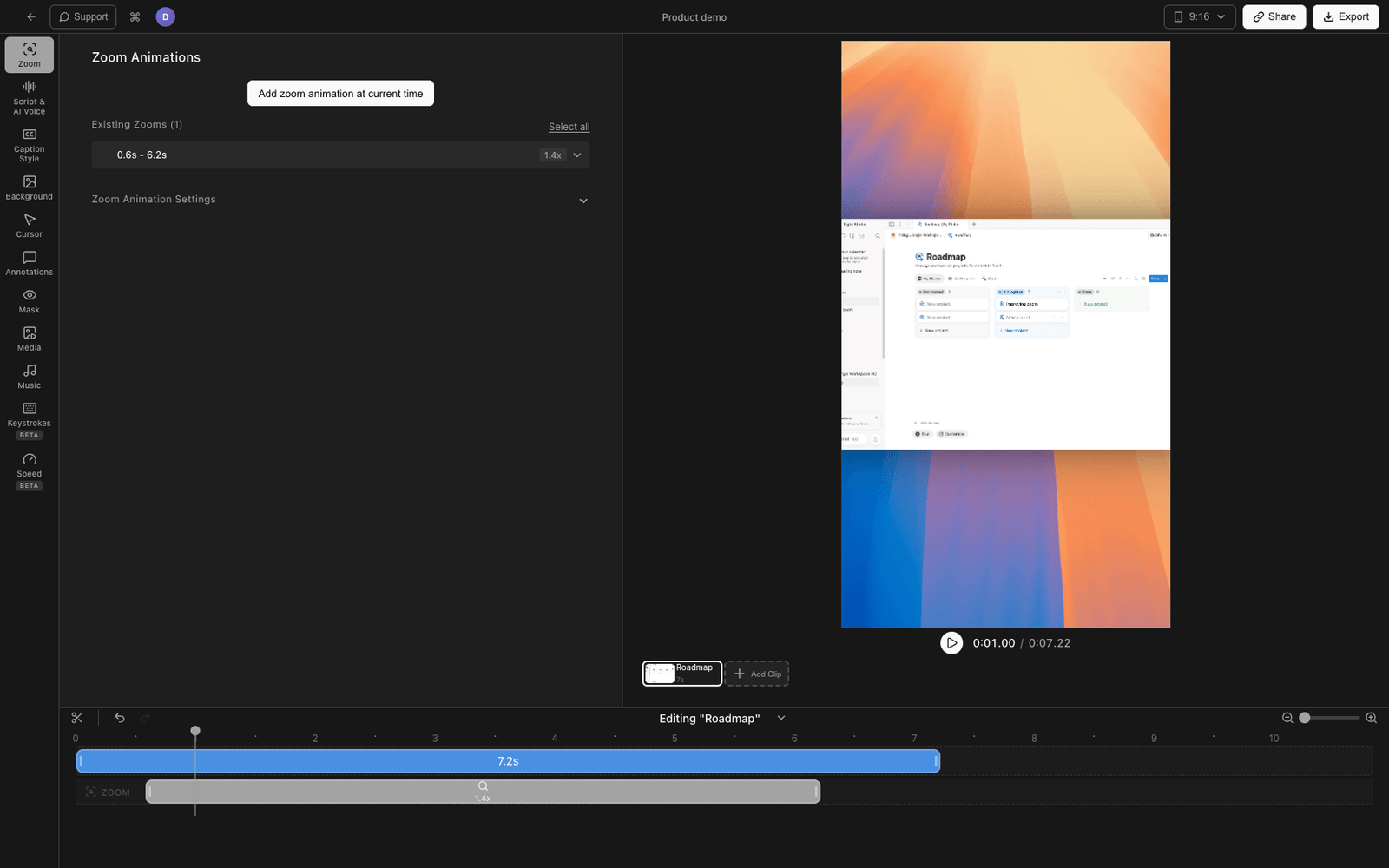
If mobile demos are part of your workflow, it helps to capture the device directly so there is no mirror app in the chain. Tight Studio is a Mac screen recorder and editor that records a connected iPhone or iPad as a native device source - the same way it records a screen or a camera.
1. Connect the device over USB
Plug your iPhone or iPad into your Mac with a cable and tap Trust on the device if prompted. No mirroring app, no QuickTime in the middle.
2. Pick the device as your source
In Tight Studio’s recorder, choose the device capture mode. Connected iPhones and iPads appear in the source list. (If none show up, the recorder prompts you exactly where it matters: connect an iPhone or iPad via USB and trust it.)
3. Record the device screen directly
Tight Studio captures the device feed directly, not a screen-grab of a mirror window - so you get a clean iOS screen at the device’s own resolution, without a third-party frame baked in.
4. Edit it like any other recording
The iPhone recording lands in the same editor as your desktop captures, so it gets the same backgrounds, zoom, cursor and tap polish, captions, and share page. You are not maintaining a separate flow for mobile.
Tight Studio is the all-in-one screen recorder for tutorials, demos, course videos, and social cuts, so a phone demo and a desktop demo are the same workflow.
Why we built native device capture
Mobile demos are demos - they get revised, restyled, and reused. Routing the phone through a separate mirror app adds a quality tax and a setup tax to every one of those revisions. Treating the iPhone as a first-class recording source, alongside screen and camera, removes both.
Tella vs Tight Studio for iPhone screen recording
| Tella | Workaround (mirror app + Tella) | Tight Studio | |
|---|---|---|---|
| Direct iOS device capture | No (docs point to a 3rd-party app) | No - mirror then screen-record | Yes (native device source) |
| Clean device-resolution feed | n/a | Degraded by the extra hop | Yes |
| Third-party frame baked in | n/a | Yes, from the mirror app | No |
| Same editor as desktop recordings | n/a | Yes (it is just a screen grab) | Yes |
| Tools to maintain | One + a 3rd-party app | Two | One |
Frequently asked questions
Can Tella record an iPhone or iPad screen?
Not directly. As of May 2026, Tella has no iOS device capture. Tella’s own documentation tells users to mirror the iPhone to a Mac with a separate app (such as Bezel) and then screen-record that mirror in Tella.
How do I record my phone screen for a Tella demo?
You install a mirroring app like Bezel or use QuickTime, bring the iPhone screen up on your Mac, and have Tella capture that window. The phone is never a direct source in Tella, so the recording is a screen grab of the mirror rather than a clean device feed.
Is there a way to get a clean iPhone recording without a mirror app?
Yes, with a recorder that supports native device capture. Tight Studio records a connected iPhone or iPad over USB as its own source, so there is no mirror app in the chain and no third-party device frame baked into the video.
What is the best Tella alternative for mobile app demos?
Tight Studio is the closest like-for-like alternative on Mac - it has the same category of recording and editor polish as Tella, plus native iPhone and iPad capture, so mobile demos and desktop demos use the same editor, backgrounds, and share workflow.