
How to Send a Shareable Video Link (Without Huge Attachments)

Email attachments cap out fast. Gmail rejects anything over 25 MB. Outlook stops at 20 MB. A 2-minute screen recording at 1080p easily clears that, which is why “your message could not be delivered” is the universal video-sharing experience.
The fix is to send a link instead. Upload the video somewhere, copy the URL, paste it into the email or chat. The recipient streams it in the browser - no download, no zip files, no “this attachment is too large.”
This guide covers the main ways to turn a video file into a shareable link, plus the tradeoffs of each.
Why email attachments fail for video
A quick reality check on file size limits:
- Gmail: 25 MB attachment limit. Files over 25 MB automatically convert to Google Drive links, which works if both sides have Google accounts.
- Outlook (Microsoft 365): 20 MB attachment limit by default, up to 150 MB in some configurations. OneDrive links are the fallback.
- iCloud Mail: 20 MB attachment limit. Apple’s Mail Drop feature uploads anything over that to iCloud and sends a link valid for 30 days.
- Most corporate email servers: 10-25 MB caps, sometimes lower for inbound mail.
A typical 1080p screen recording runs around 10-30 MB per minute depending on motion and encoder settings. So even a short demo blows past the limit, and a 5-minute walkthrough is hopeless as an attachment.
Shareable links solve this by moving the file to cloud storage and sending only the URL. The recipient gets a clickable link, streams or downloads on demand, and your inbox stays clean.
Method 1: Google Drive shareable link
Google Drive is the most universal option - free, integrated with Gmail, and works on any device.
- Open drive.google.com and sign in
- Click New > File upload and select your video
- Wait for the upload to finish (the progress shows in the bottom right)
- Right-click the uploaded video and choose Share
- Under General access, change Restricted to Anyone with the link
- Click Copy link and paste it into your email or chat
What you get: A free 15 GB storage quota shared with Gmail and Google Photos. Files stream in the browser via Google’s built-in video player. Anyone with the link can watch unless you restrict access. The downside: viewers see a Google Drive interface, not a clean player, and they may be prompted to sign in even for public links.
Method 2: Dropbox shareable link
Dropbox works similarly to Drive, with a slightly cleaner viewer.
- Open the Dropbox desktop app or dropbox.com
- Drag your video into your Dropbox folder (or click Upload on the website)
- Wait for the file to finish syncing
- Right-click the file and choose Copy Dropbox link, or click the Share button on the web
- Paste the link into your message
Dropbox’s free Basic plan includes 2 GB of storage, which fills up quickly with video. The Plus plan starts at $11.99/month for 2 TB. Links can be set to expire and password-protected on paid plans.
Method 3: WeTransfer for one-time large transfers
WeTransfer is built for sending big files without an account.
- Go to wetransfer.com
- Click Send a file (you can skip the sign-up prompt)
- Drag your video onto the page or click to upload
- Optional: enter the recipient’s email, or use the Get a link option to generate a URL
- Click Transfer and wait for the upload to complete
- WeTransfer emails the recipient a link, or gives you a URL to share manually
The free tier sends up to 2 GB per transfer. Files expire after 7 days, which is fine for one-off sends but bad if you want a permanent link. Paid plans (WeTransfer Pro, $12/month) extend file life, raise the limit to 20 GB, and add password protection.
Method 4: YouTube unlisted upload
YouTube hosts video for free with no storage cap and a polished player. The trick is unlisted uploads, which don’t show in search or your channel but anyone with the link can watch.
- Sign in to youtube.com and click the Create button (camera icon, top right)
- Click Upload video and select your file
- Fill in the title and skip the rest if it’s an internal video
- On the Visibility step, choose Unlisted (not Private, not Public)
- After processing, click Share and copy the link
What you get: Unlimited storage, fast streaming worldwide, no expiration. The downside: anyone with the link can watch (no password protection on free YouTube), the URL is a
youtube.comlink which doesn’t always feel professional, and processing can take 5-30 minutes for HD video before the link works.
This is the best option for tutorial-style videos you want to keep around long-term but don’t want indexed publicly.
Method 5: iCloud Mail Drop (Apple Mail)
If you’re on a Mac and sending from Apple Mail, Mail Drop handles large attachments automatically.
- Compose a new message in Mail on macOS or iOS
- Attach the video like normal (drag it in, or click the paperclip)
- If the file is over 20 MB, Mail will offer to send via Mail Drop
- Click Use Mail Drop
- Send the email - the recipient sees a download link instead of an attachment
Mail Drop links are valid for 30 days and work in any email client. The catch: it only triggers from Apple Mail. If you send the same file from Gmail or another client, Mail Drop won’t kick in.
Method 6: One-click share from a screen recorder
Recording, uploading to cloud storage, then copying a link is three separate steps. Modern screen recorders combine them into one click - hit stop and you get a shareable URL instantly.
This is the workflow Loom popularized for async work communication, and the same pattern is now available in most polished screen recorders.
Tight Studio’s share link
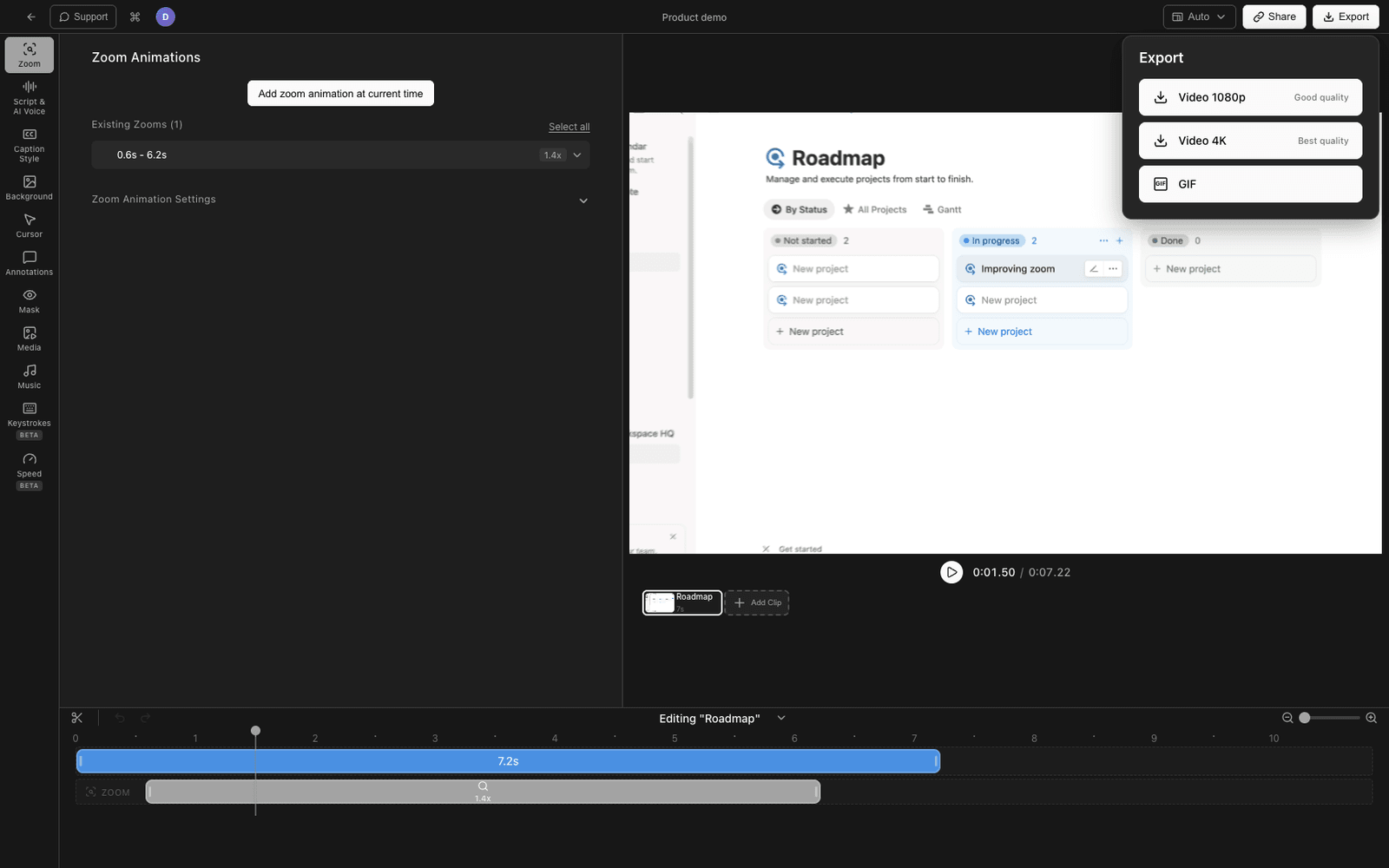
Tight Studio generates a shareable link directly from the recording or editor, no separate upload step:
- Record your screen (and optionally webcam, microphone)
- When recording stops, the video opens in the built-in editor
- Click Share in the top right
- The video uploads to Tight Studio’s CDN and a link copies to your clipboard
- Paste the link into any email, Slack message, or chat
The recipient opens the link in a browser and watches in a clean player - no sign-up, no Google Drive interface, no download prompts. Because the video is encoded and hosted by Tight Studio, the link works on any device without compatibility issues.
This is the fastest path when the goal is “record something quick and send it to a coworker” - you skip the upload-and-copy-link dance entirely.
What Tight Studio adds beyond the link
If you want the recording itself to look polished before sharing:
- Zoom animation - Smart zoom follows your clicks automatically with motion blur and smooth panning
- Cursor animation - Animated cursor with click highlighting and sound effects
- AI voiceover - Generate professional narration from text, in multiple voices
- Multi-take recording - Record sections separately and combine them, so one mistake doesn’t ruin the whole take
- Text annotations - Add text overlays with customizable fonts, sizes, and colors
- Intro and outro slides - Add branded slides at the start and end
- Music - Royalty-free background music library with volume control
The combination of polished recordings plus one-click share links makes Tight Studio a fit for both async work videos and tutorials that need to look produced.
Comparing shareable video link methods
| Method | Free tier | Max file size | Expiration | Best for |
|---|---|---|---|---|
| Google Drive | 15 GB total | 5 TB per file | Never | General sharing if recipient has Google account |
| Dropbox | 2 GB total | Same as plan | Never | Quick links to existing Dropbox files |
| WeTransfer | 2 GB per send | 2 GB | 7 days | One-off transfers without an account |
| YouTube unlisted | Unlimited | 256 GB / 12 hr | Never | Long-form tutorials, permanent links |
| iCloud Mail Drop | 5 GB total | 5 GB | 30 days | Mac users sending from Apple Mail |
| Tight Studio share | Free tier with watermark | Per plan | Never | Record-and-send screen videos |
Tips for sharing video links
A few things that make any shared video easier to watch and easier to send.
Keep the file size reasonable. A 5-minute screen recording at 1080p should be 50-100 MB, not 500 MB. If your file is huge, re-encode it with handbrake or your screen recorder’s export settings. Smaller files upload faster and play more reliably on slow connections.
Add a thumbnail or preview when possible. Plain links look like spam. Most services auto-generate previews when pasted into Slack, Notion, or email. If yours doesn’t, mention what the video shows in the message body so recipients know what they’re clicking.
Test the link before sending. Open the link in a private browser window or send it to yourself first. This catches the “I shared it as Restricted by accident” mistake before your boss has to email back asking for access.
Set expiration dates for sensitive content. If the video shows internal data, customer information, or anything that shouldn’t live forever on the public internet, use a service that supports link expiration (WeTransfer, Dropbox paid, Mail Drop) or delete the file after the recipient confirms they’ve watched it.
Frequently asked questions
How do I send a video that is too big to email?
Upload the video to a cloud service and send a link instead of an attachment. The fastest options are Google Drive (free 15 GB), WeTransfer (free up to 2 GB per send), or YouTube unlisted upload. For screen recordings specifically, a tool like Tight Studio generates a shareable link directly after recording so you skip the manual upload step entirely.
How do I make a video link shareable?
After uploading to a cloud service, change the sharing setting from “Restricted” or “Private” to “Anyone with the link.” On Google Drive, right-click the file and choose Share, then set access under General access. On Dropbox, click Share and copy the link. On YouTube, set the video to Unlisted during upload. Anyone you send the link to will be able to view it without needing an account.
What is the easiest way to share a video link from my phone?
On iPhone, save the video to the Files app or Photos, then use the share sheet to upload to iCloud Drive, Google Drive, or Dropbox and copy the link. On Android, the share sheet works the same way with Google Drive or Photos. For screen recordings, a mobile-friendly recorder that uploads automatically is faster than the manual share flow.
Can I send a video link without anyone seeing it publicly?
Yes. Use unlisted YouTube uploads (not in search but anyone with the link can watch), Google Drive with “Anyone with the link” access (not indexed by Google), or paid services that support password protection (Dropbox Pro, WeTransfer Pro). For truly private sharing, restrict access to specific email addresses through Drive’s permission system instead of using a public link.
How long do shareable video links last?
It depends on the service. Google Drive, Dropbox, and YouTube links last indefinitely unless you delete the file. WeTransfer free links expire after 7 days. iCloud Mail Drop links expire after 30 days. If you need a permanent link, avoid one-off transfer services and use cloud storage with a long-term account.
Why does my Gmail attachment keep failing?
Gmail rejects attachments over 25 MB. When you try to attach a larger file, Gmail offers to upload it to Google Drive and send a link instead. If that prompt isn’t appearing, your file may be slightly under 25 MB but exceeding the limit after Gmail wraps it for transit - try uploading to Drive manually and sharing the link.
What is the best way to share a screen recording?
For a one-off async message, use a screen recorder with a built-in share-link feature like Tight Studio or Loom - record, click share, paste the link. For longer tutorials you want to keep available indefinitely, upload to YouTube as Unlisted. For internal-only content where you want full control, upload to Google Drive or Dropbox and restrict access to specific email addresses.