
How to transcribe video recordings

A transcript turns a video recording into searchable text. You can paste it into docs, repurpose it for blog posts, generate captions, or just skim it instead of rewatching a 20-minute walkthrough.
This guide covers the main ways to transcribe video recordings - from free built-in tools to AI services that handle long recordings in minutes - and how to pick the right one for your workflow.
Why transcribe a video recording
A few reasons you might want a transcript of a recording:
- Captions and subtitles. Most viewers watch tutorials and demos with sound off. A transcript is the starting point for accurate captions.
- Searchable archives. A library of recordings is hard to navigate. A transcript lets you grep across every meeting, tutorial, or course video you have made.
- Repurposing content. Turn a recorded walkthrough into a blog post, doc page, or knowledge base article.
- Editing by text. Some editors let you delete words from a transcript and have the corresponding video cut automatically. Useful for trimming filler words.
- Accessibility and compliance. Transcripts are required for many accessibility standards and improve reach in markets where viewers do not speak the source language.
The bar for usable transcription has moved up sharply in the last two years. Modern AI models transcribe an hour of clean audio in under a minute with accuracy above 95%. Free, built-in tools are catching up but still lag the dedicated services.
Method 1: Transcribe a recording manually
The free option is to play back the recording and type what you hear. For a one-minute clip with simple language this takes about five minutes. For a 30-minute tutorial it can take two to three hours.
Manual transcription is only worth it when:
- The recording is under a minute or two
- You need extremely precise wording for a legal or editorial reason
- The audio is noisy or has heavy accents that AI models struggle with
For anything longer or repeating, jump to an AI tool.
Method 2: Use the macOS built-in dictation as a workaround
macOS has live dictation but no built-in feature that transcribes a saved video file directly. The common workaround is to play the recording aloud and dictate alongside it, which is fragile and slow.
A cleaner free option on macOS is the Voice Memos app combined with system audio routing - record the video’s audio into Voice Memos, and recent macOS versions will show a transcript in the app.
Limitation: This is not a real transcription pipeline. Quality is inconsistent, you cannot get word-level timestamps, and you lose the original video sync. Use it only as a last-resort free option.
Method 3: Transcribe with an AI service
Dedicated AI transcription services are the standard answer for recordings longer than a couple of minutes. The main options:
- ElevenLabs Scribe - Currently among the most accurate models for English and 90+ other languages. Word-level timestamps, speaker diarization, and audio event detection. Pay-as-you-go pricing around $0.40 per hour of audio.
- OpenAI Whisper - The open-source model that set the modern accuracy bar. Free if you run it locally, or via OpenAI’s API at $0.006 per minute. Strong on English, decent on most major languages.
- AssemblyAI - Developer-focused API with speaker labels, sentiment, and topic detection. Pricing starts around $0.37 per hour.
- Otter.ai - Browser and mobile app aimed at meetings. Free tier with monthly minute limits, paid plans for longer recordings.
- Rev - Offers both AI transcription and human-verified transcripts. Higher accuracy via humans, higher cost ($1.50+ per minute).
- Descript - Video editor with built-in transcription. You edit the transcript and the video edits along with it.
For most recordings the workflow is the same: upload the file, wait, download the transcript as .txt, .srt, or .vtt.
Step 1 - Export the audio or upload the video
Most services accept common video formats (MP4, MOV) directly. If yours does not, extract the audio with a quick FFmpeg command:
ffmpeg -i recording.mp4 -vn -acodec mp3 recording.mp3Step 2 - Upload and pick options
Choose the source language, whether to detect speakers, and whether you want timestamps. Word-level timestamps are useful if you plan to generate captions or sync the transcript back to the video.
Step 3 - Download the result
Most services return the transcript as plain text plus a timed format (SRT or VTT) for captions. If you only need a written summary, the plain text is enough.
The downside of standalone services is the round trip. You record in one tool, transcribe in another, edit in a third. Each handoff is a place where timing drifts or formatting breaks.
Method 4: Use a screen recorder with built-in transcription
The cleanest workflow is a screen recorder that transcribes recordings inside the same app, so the transcript stays linked to the video timeline.
Tight Studio
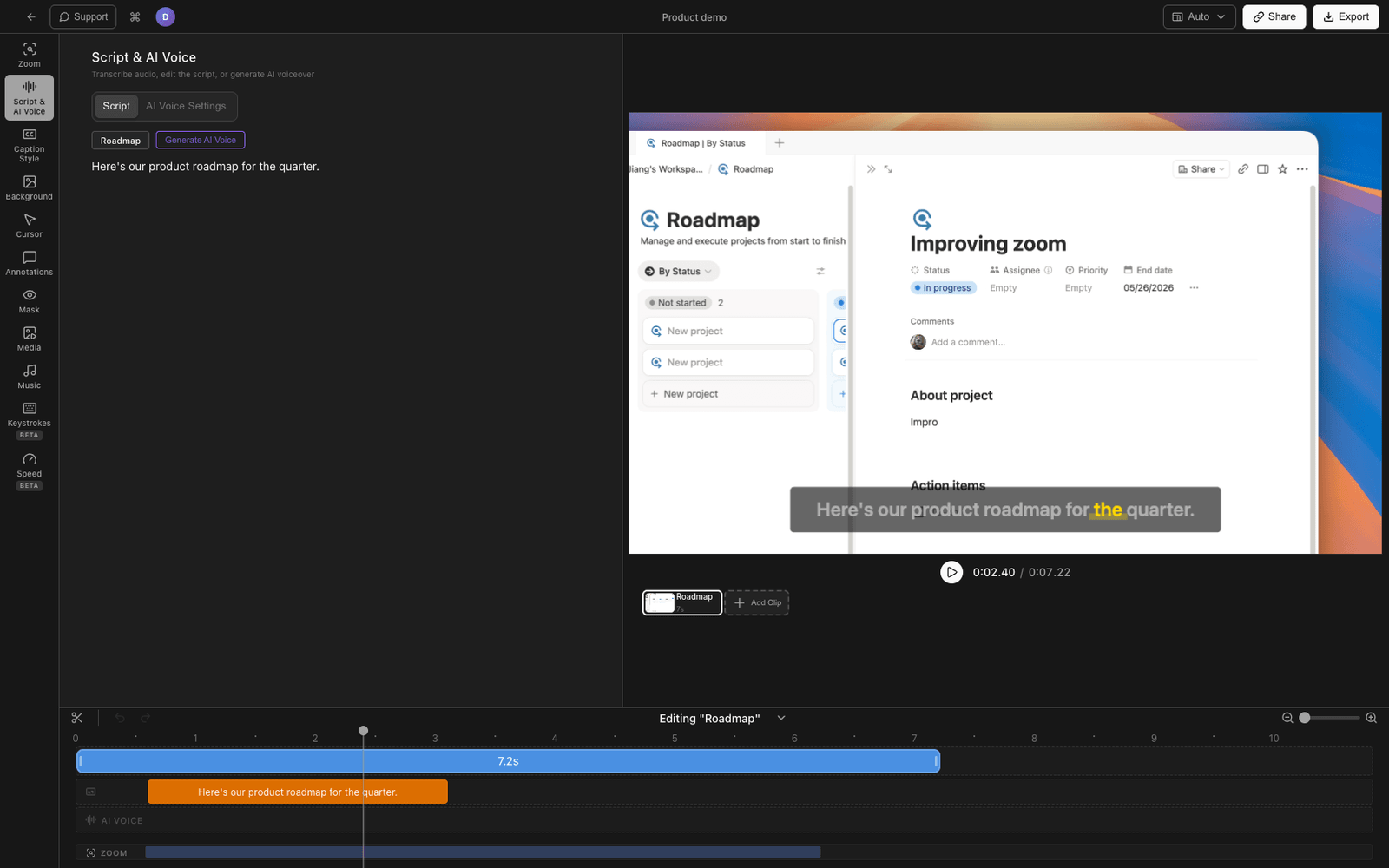
Tight Studio is a Mac screen recorder and video editor with built-in transcription powered by ElevenLabs Scribe. Here is the flow:
- Record your screen with or without a microphone. Multi-take recording lets you record sections separately if needed.
- Open the captions panel in the editor and click Generate captions. The audio is uploaded to the transcription service and returns with word-level timestamps.
- Review the transcript segment by segment. Words are tied to the video timeline, so clicking a word jumps the playhead.
- Edit text inline to fix any mistranscribed terms (product names, acronyms, technical vocabulary).
- Style and burn in captions if you want them in the exported video, or just use the transcript as-is for your docs.
- Export the final video with captions rendered, or copy the transcript out as text.
Because the transcript lives inside the editor, you can also use it to:
- Trim filler words automatically
- Generate AI voiceover from the same script if you decide to replace your live narration
- Re-time captions by editing word timings directly
Tight Studio uses ElevenLabs Scribe for transcription, which supports 90+ languages and produces word-level timestamps. The transcript is editable inside the captions panel before you export the video.
Descript
Descript is the other well-known integrated option. You record or import video, the app generates a transcript, and you can edit the video by editing the text. Strong for podcast-style content and long-form video. Less of a screen recorder and more of a full video workstation.
Method 5: Run Whisper locally for free transcription
If you record a lot of video and do not want to pay per minute, running OpenAI’s Whisper model locally is a good option for technical users.
brew install ffmpeg
pipx install openai-whisper
whisper recording.mp4 --model medium --output_format srt
The medium model balances speed and accuracy on modern Macs. The large-v3 model is slower but more accurate, especially for non-English languages.
Tradeoffs:
- Free after the one-time setup
- Slower than cloud services (5-10x for the largest model)
- Requires a reasonably modern Mac (M1 or newer recommended)
- No speaker diarization out of the box - you have to bolt on a second tool like
whisperx
This is the best option if you are doing dozens of hours per month and want zero per-minute cost.
Comparing video transcription methods
| Method | Speed | Accuracy | Best for | Cost |
|---|---|---|---|---|
| Manual typing | Very slow | Highest if careful | Tiny clips, legal precision | Free |
| macOS dictation workaround | Slow | Low | One-off short clips | Free |
| AI service (ElevenLabs, Whisper API, AssemblyAI) | Fast | High (95%+ on clean audio) | Most recordings | $0.006-$0.40 per minute |
| Built-in transcription (Tight Studio) | Fast | High (uses ElevenLabs Scribe) | Screen recordings done end-to-end in one app | Included with subscription |
| Local Whisper | Medium | High | High-volume self-hosted use | Free after setup |
| Human-verified (Rev) | Slow | Highest | Legal, broadcast, compliance | $1.50+ per minute |
Tips for accurate video transcription
Record clean audio. A directional microphone in a quiet room beats any AI model trick. Even the best transcription struggles with overlapping speakers and heavy room noise.
Add a glossary if your tool supports it. Services like ElevenLabs Scribe accept “keyterm prompts” - a short list of product names or technical terms to bias the model toward. This is the single biggest accuracy improvement for product demos and tutorials.
Pick the right language. Most services auto-detect language but auto-detection can fail on short clips. Set the source language explicitly if you know it.
Split long recordings. For multi-hour recordings, splitting into 20-30 minute chunks gives you faster turnaround and lets you start editing the transcript while the rest is still processing.
Review proper nouns and numbers. AI transcription consistently fumbles proper nouns, version numbers, and acronyms. Skim the transcript and fix these by hand - it is faster than letting them slip into final captions.
Frequently asked questions
How do I transcribe a video recording?
Upload the video to an AI transcription service like ElevenLabs Scribe, OpenAI Whisper, or AssemblyAI. The service returns a transcript with timestamps, usually in under a minute for a one-hour video. If you are recording on Mac, screen recorders like Tight Studio include transcription as a built-in feature so you can transcribe and edit in the same app.
What is the most accurate video transcription tool?
For purely automated transcription, ElevenLabs Scribe and OpenAI Whisper (large-v3) currently lead on accuracy benchmarks, both around 95-97% on clean English audio. For maximum accuracy, human-verified services like Rev produce near-perfect transcripts but at significantly higher cost.
Can I transcribe a video for free?
Yes. The two main free options are running OpenAI Whisper locally on your own computer, and using free tiers of services like Otter.ai (capped at a few hundred minutes per month). Manual transcription is also free but only practical for very short clips.
How long does it take to transcribe an hour of video?
Cloud AI services usually return a transcript in 1-5 minutes for an hour of audio. Local Whisper on a recent Mac takes 5-15 minutes for an hour, depending on the model size. Manual transcription typically takes 4-6 hours per hour of audio.
What is the difference between a transcript and captions?
A transcript is a plain text version of the spoken audio, useful for reading or repurposing the content. Captions are timed text overlaid on the video, used while watching. Most transcription tools can produce both - the timed format (SRT or VTT) is captions, the plain text version is the transcript.
Can I edit a transcript inside the video editor?
Yes, in editors that support it. Tight Studio and Descript both let you edit transcripts inline alongside the video timeline. Words stay linked to their timestamps, so corrections do not break caption timing. Standalone transcription tools usually produce a text file you edit separately.
Does video transcription work in languages other than English?
Yes. Most modern transcription services support 50+ languages. ElevenLabs Scribe and OpenAI Whisper both support 90+ languages. Accuracy is highest for English and other widely-spoken languages, and drops somewhat for languages with less training data.