

Disclosure: We make Tight Studio. We apply the same decision criteria to every app below, link to the original sources, and recommend competing products when they are the stronger fit.
TL;DR - Tight Studio is our pick when you want automatic zoom, AI voiceover, and multi-clip editing in one Mac app. The combination turns separate takes into a polished, narrated video without handing the recording to another editor. Apple’s built-in recorder is enough for a quick capture. OBS is the strongest free option for streaming and complex scenes. Loom is the simplest choice when the link and conversation around a recording matter more than the final video file.
We started with 29 screen recorder entries collected by the r/macapps community, checked current product pages, and supplemented the list with four widely used reference points that were missing from the sheet. From that longlist, 13 Mac-compatible recorders met the criteria for a full review. The result is not one universal winner. It is a guide to which recorder makes sense when you care about speed, visual polish, editing depth, streaming, sharing, or ownership.
Why we started with r/macapps
Most screen recorder roundups begin with whichever products the writer already knows or whichever companies have the largest affiliate programs. We wanted a broader starting point.
The Mac App Comparisons - 2025 Update post collects app comparisons crowdsourced by the r/macapps community. Its author describes the project as a way to bring community contributions together, accepts submissions through public forms, and asks contributors to support corrections with sources. The linked Definitive MacApp Comparisons spreadsheet compares screen recorders across pricing, platform support, capture modes, audio, webcam controls, cursor effects, zoom, captions, editing, exports, sharing, storage, and privacy.
The spreadsheet is useful for breadth, not as a primary source. It puts smaller tools beside familiar benchmarks and exposes the feature rows behind each entry, giving readers a way to challenge entries and submit corrections. Because the data comes from user submissions, includes duplicate products, and can fall behind pricing or feature changes, we used it only for discovery. We verified the shortlist against official product pages and documentation, then added our own observations where we had hands-on evidence.
How we built the comparison
This is a research-based editorial comparison, not a controlled lab test. We used the following process:
- Build the longlist. We started with the screen recorders in the r/macapps spreadsheet so that the comparison was not limited to the products we already knew.
- Add expected benchmarks. We also added Apple’s built-in recorder, OBS, Loom, and Camtasia. These widely used reference points were not included in the community sheet, but readers would reasonably expect to see them in a broad Mac screen recorder comparison.
- Check eligibility. An app had to record a Mac screen, have a current product or download page, and provide enough public information for us to verify its main features and price.
- Verify the facts. We checked official documentation, feature pages, and pricing pages. When a community entry and an official source differed, we used the official source.
- Create the shortlist. An app received a full review if it represented a meaningfully different workflow or served as a widely recognized benchmark.
- Recommend by use case. We selected winners for specific jobs, such as quick local capture, streaming, automatic polish, timeline editing, and team sharing. We did not calculate one equal-weight feature score because the right weighting changes with the reader’s goal.
For each finalist, we used the same comparison fields: capture sources; post-recording editing; cursor, zoom, caption, annotation, and layout tools; local export and link sharing; free-plan limits and paid pricing; platform support; and the main tradeoffs. These fields follow the actual recording workflow from capture to editing to delivery.
We did not install and benchmark every app under identical conditions. Where we report a hands-on result, we state the recording duration and the settings we captured, and we treat it as evidence from that configuration rather than a universal benchmark. We therefore do not make comparative claims about CPU use, battery life, crash rates, capture reliability, or export speed. Product details and list prices were checked on August 29, 2026. Temporary discounts and taxes are excluded, and prices can change.
The best Mac screen recorders at a glance
| Screen recorder | Our verdict | List price checked August 29, 2026 |
|---|---|---|
| Tight Studio | Best for automatic zoom, AI voiceover, and multi-clip editing in one app | Free; Plus from $9/month billed yearly |
| Apple Screenshot and QuickTime Player | Best built-in recorder | Free with macOS |
| OBS Studio | Best for streaming and complex scenes | Free and open source |
| Loom | Best for quick team sharing | Free; Business $18/user/month |
| Screen Studio | Best focused automatic-zoom workflow | $29/month or $108/year |
| Cap | Best for open-source ownership and self-hosting | Free for personal use; commercial desktop $29/year |
| Screen Charm | Best focused one-time purchase | $79 one-time |
| CleanShot X | Best screenshot and recording utility | $35 one-time |
| Camtasia | Best full production and training suite | Essentials $179.88/year |
| ScreenPal | Best low-cost editor and hosting bundle | Free; Deluxe $4/month billed yearly |
| FocuSee | Best cross-platform automatic editing option | From $49.99/year |
| Tella | Best browser-first recording workspace | From $13/month billed yearly |
| Recordly | Best open-source automatic-zoom option | Free and open source |
Tight Studio - Best for automatic zoom, AI voiceover, and multi-clip editing
Tight Studio is our recommendation when the recording itself needs to become a finished video. Its main advantage is not one isolated effect. It is the combination of editable automatic zoom, script-based AI narration, and multi-clip projects inside the same Mac editor.
The real use case: imagine making a five-minute product walkthrough, onboarding video, or help-center tutorial. You record the setup, main feature, and final result as separate clips. Tight Studio adds editable zooms around the clicks viewers need to follow, while AI voiceover reads your finished script. If the product UI changes or you miss a step, you replace only that clip and regenerate only the affected narration instead of recording the entire video again. The practical payoff is fewer retakes, less manual animation, and no handoff to a separate editor just to assemble a polished update.
Automatic zoom that remains editable
Tight Studio generates zooms from recorded clicks and keystrokes after capture, so the original recording remains editable. Automatic and manual zoom segments sit on the timeline, where you can change the zoom level, center, animation duration, motion style, and motion blur. The camera can also become smaller during a zoom so the screen remains the focus.
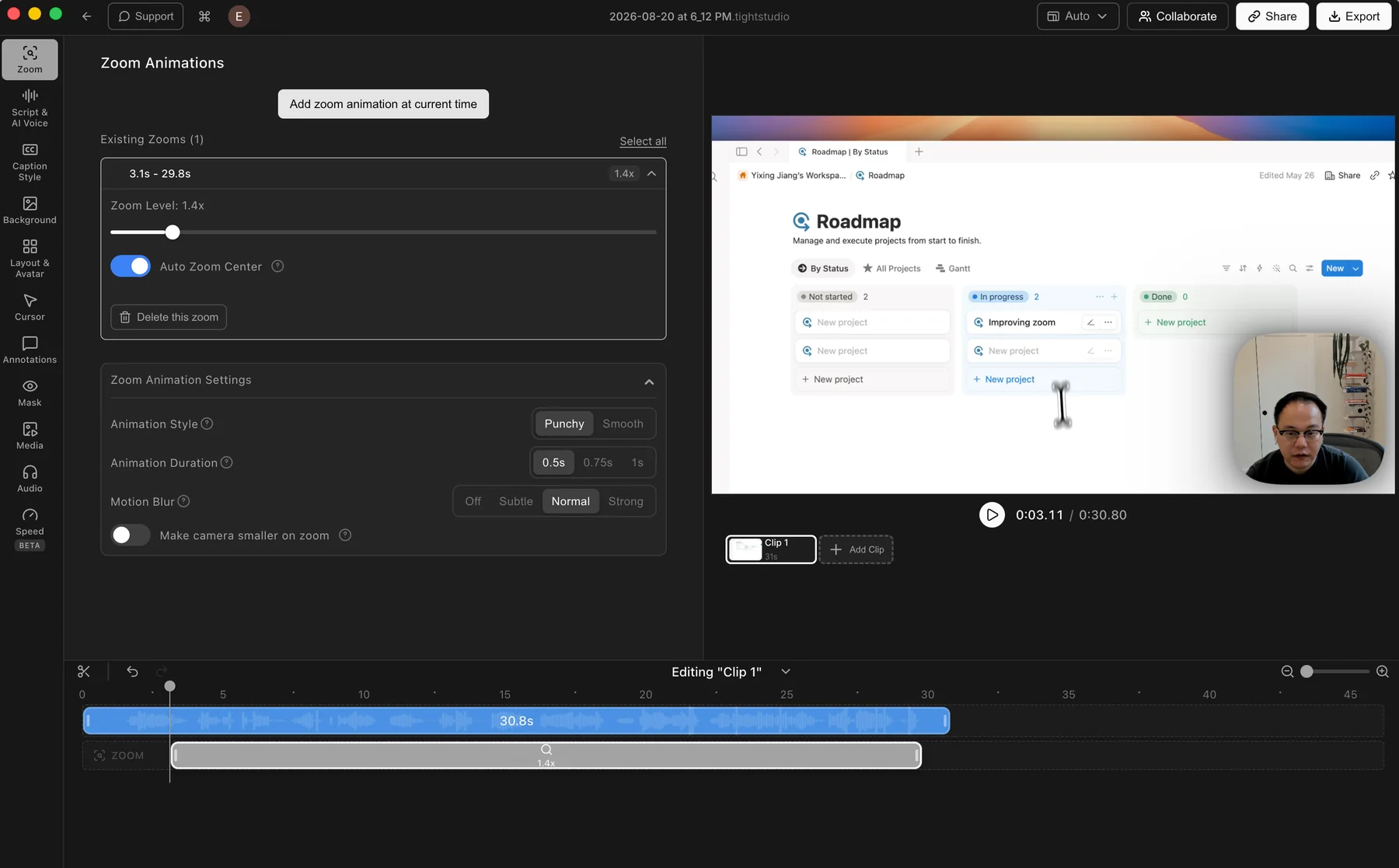
Automatic zoom segments remain editable after recording instead of being baked into the captured video.
Automatic zoom alone is not unique: Screen Studio, FocuSee, and several other products offer good versions of it. Tight Studio’s distinction is that the zoom timeline connects directly to the narration and multi-clip workflows below rather than ending at a polished single take.
AI voiceover connected to the timeline
AI voiceover makes the script the editable source for narration. You can correct a line, regenerate the speech, and keep it aligned with the video without recording another voice take. Tight Studio can clone your own voice or use a searchable library of premade voices, and generated narration stays on a dedicated AI Voice track inside the project.
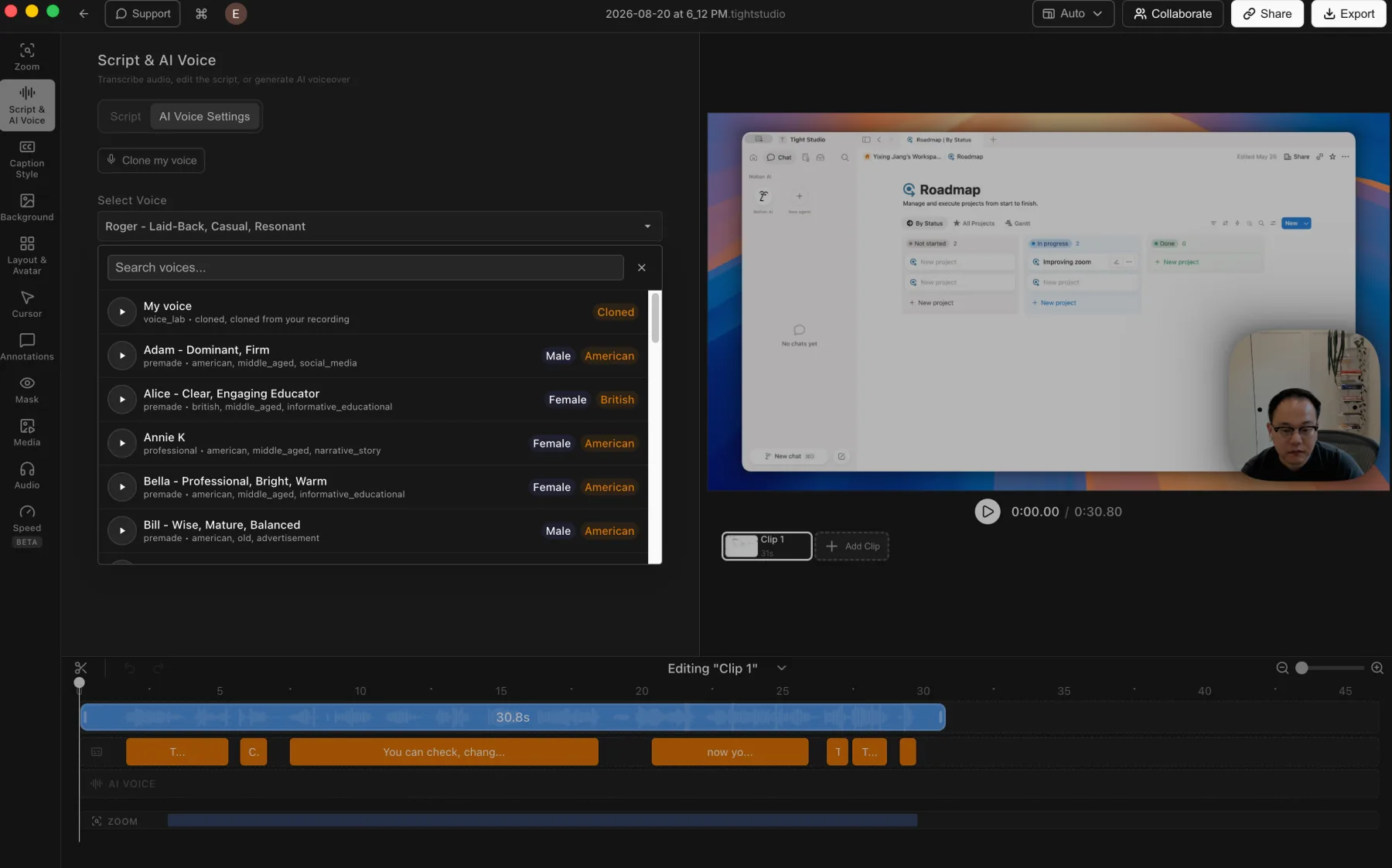
AI narration is generated from the project script and remains part of the editing timeline.
This is most useful for product demos that change after recording, tutorials made in a noisy environment, and creators who prefer writing to live narration. AI voice generation is a Pro feature, and generated speech still benefits from previewing and script adjustments before export.
Multi-clip recording and editing in one project
Multi-clip recording lets you record a tutorial in sections instead of restarting every time you make a mistake. Add another recording take to the same project, import a clip from another video, or add photos and videos as timed media layers. The clips can be assembled and edited together, then exported once as a finished video.
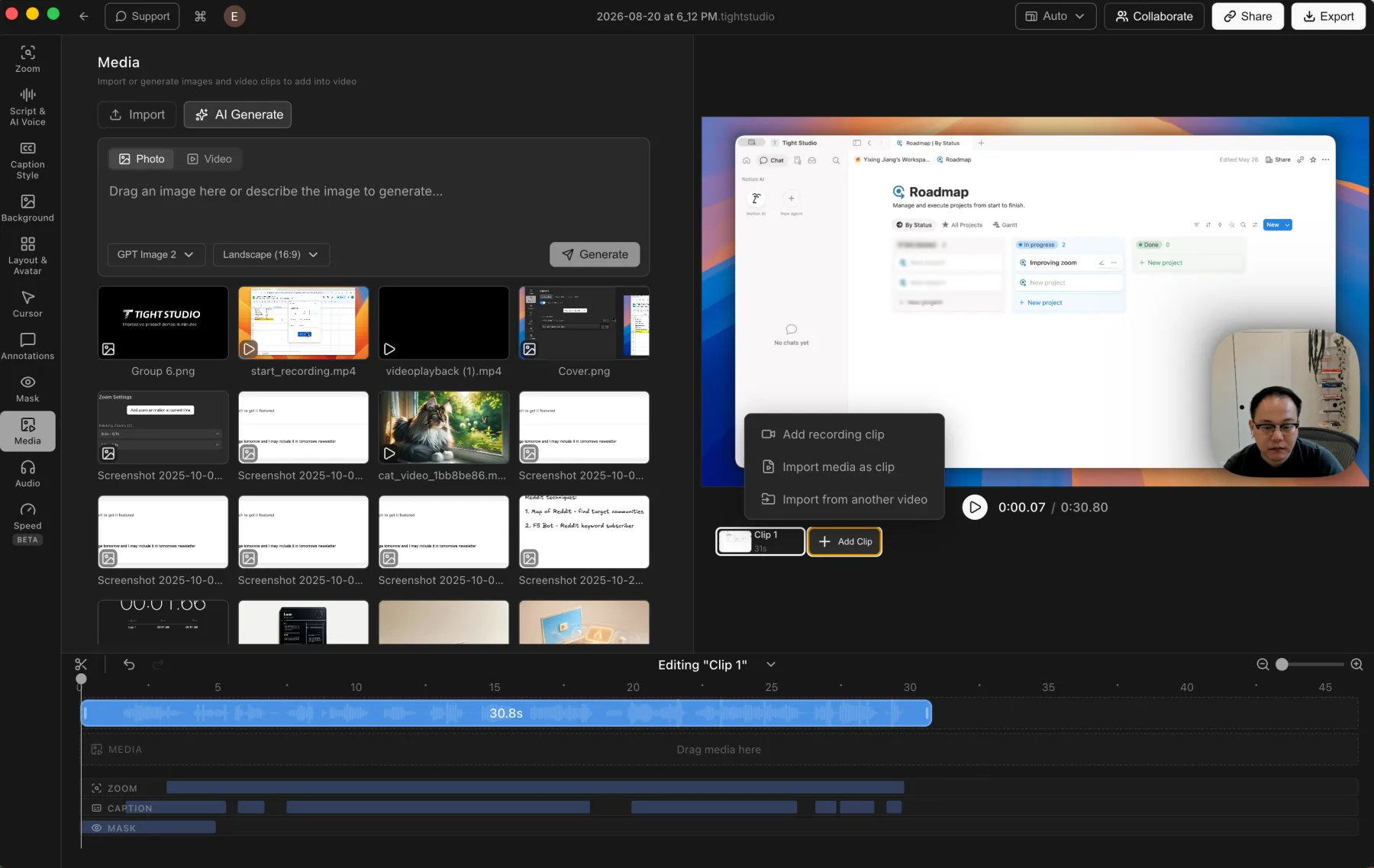
Separate recording takes, imported clips, and supporting media stay inside one editable project.
Cursor treatment, captions, annotations, backgrounds, music, dynamic screen-and-camera layouts, and branded intro or outro clips remain available around that core workflow.
The free plan includes the core recorder and editor, standard exports without a watermark, captions, zoom and cursor effects, annotations, music, and trials of multi-clip recording and share links. Plus removes limits from multi-clip recording and share links. Pro adds AI voice and media tools, team workspaces, and collaborative editing.
The main limitation is platform support. Tight Studio is currently for Mac, with Windows still on the waitlist. If you need live streaming, use OBS. If the main deliverable is an instantly shared workplace message, Loom may be faster.
See how Tight Studio compares with Screen Studio or download Tight Studio for Mac.
Apple Screenshot and QuickTime Player - Best built-in recorder
Before installing anything, press Shift-Command-5. Apple’s Screenshot app records the entire screen or a selected portion, supports microphone input, can show pointer clicks, and offers a five- or ten-second timer. Choosing File > New Screen Recording in QuickTime Player opens the same Screenshot controls on current versions of macOS. On macOS Tahoe 26, supported Macs also gain selected-window recording and SDR or HDR capture choices.
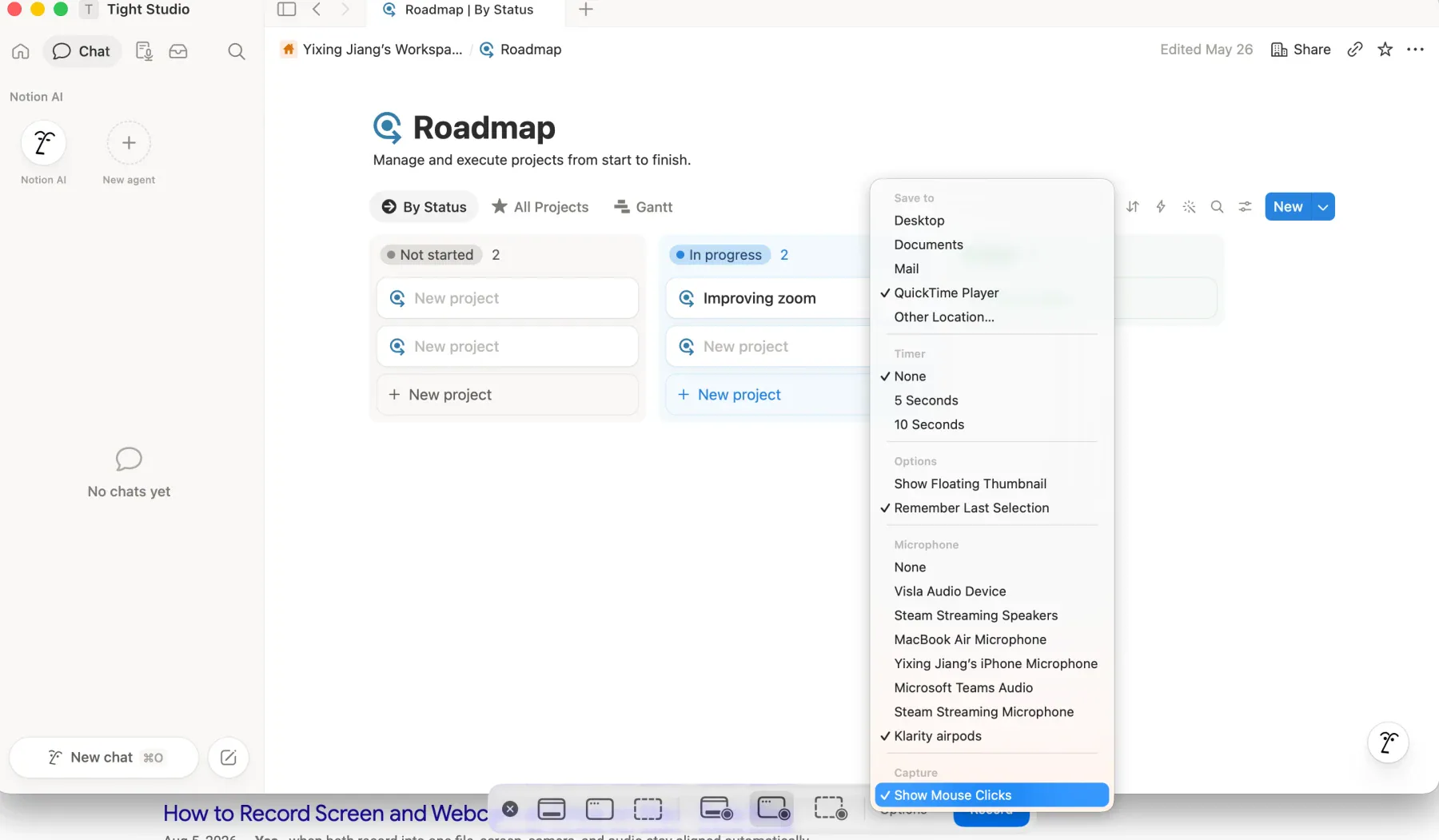
Apple’s built-in recorder includes a five- or ten-second timer, microphone selection, and mouse-click highlighting.
The appeal is simple: it is already installed, produces a local MOV file, and has almost no learning curve. The result is a straightforward, flattened screen capture rather than an editable recording project. In our quick test, a 30-second recording produced an 8 MB file. The output looked good, although that is roughly 16 MB per minute if the rate remained constant. File size varies with the recorded area, display resolution, frame rate, and visual activity, so this result is a reference point rather than a universal benchmark.
The limitations appear as soon as the raw recording needs presentation work. Apple does not natively combine the screen and webcam in one recording, and the recording controls do not provide pause, resume, or a mid-recording discard-and-restart action. QuickTime Player can trim, split, and rearrange clips after recording, but it does not provide automatic zoom, cursor smoothing, captions, screen-and-camera layouts, annotations, or a full multi-track editor. Adding those elements requires a separate video editor. It is best for a one-take raw capture that needs little or no editing.
OBS Studio - Best for streaming and complex capture
OBS Studio is free, open source, and built around scenes and sources. A scene can combine windows, displays, cameras, images, browser content, text, capture cards, and audio. You can position and resize those sources on the canvas before recording, monitor their audio levels, and save the finished composition directly as a video file.
In our test with OBS 32.0.1, we added the Mac screen and webcam as separate sources, then placed the webcam in the corner of a 1920×1080 canvas. Once we understood the scene-and-source model, adding capture inputs and adjusting their position was straightforward. The source menu also exposes browser content, capture cards, images, text, media, macOS audio, and other inputs that simpler recorders do not offer.
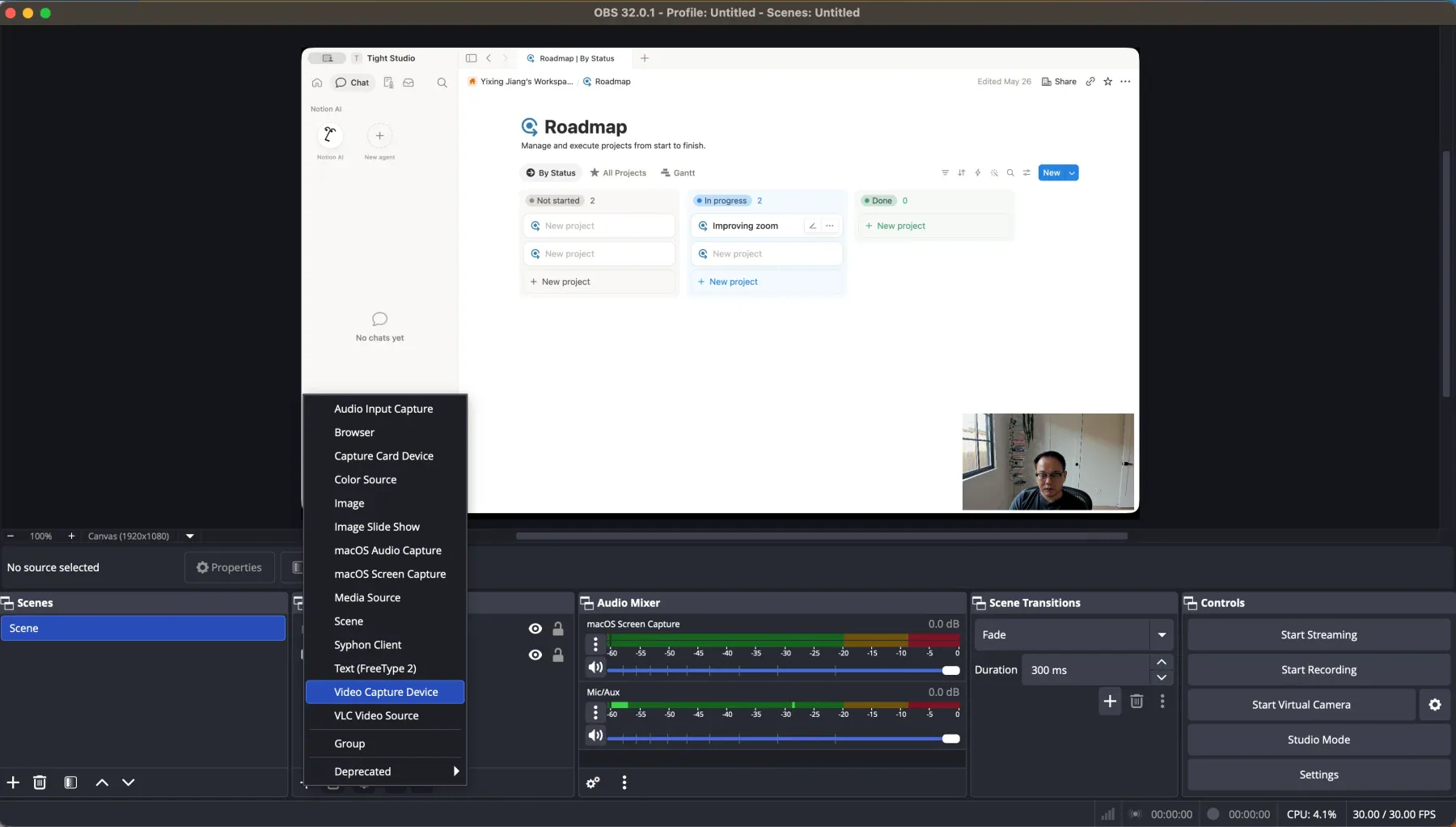
OBS lets you compose the screen, webcam, audio, and other sources on a canvas before recording.
Our 30-second test recording at 1920×1080 and 30 fps produced a 23.4 MB MOV file, or about 46.8 MB per minute if the rate remained constant. The screen, webcam, and audio sources were flattened into that finished file, so their positions could no longer be adjusted after recording. File size in OBS depends heavily on the selected encoder, quality, bitrate, and recording format, so this result describes our configuration rather than a fixed OBS file size.
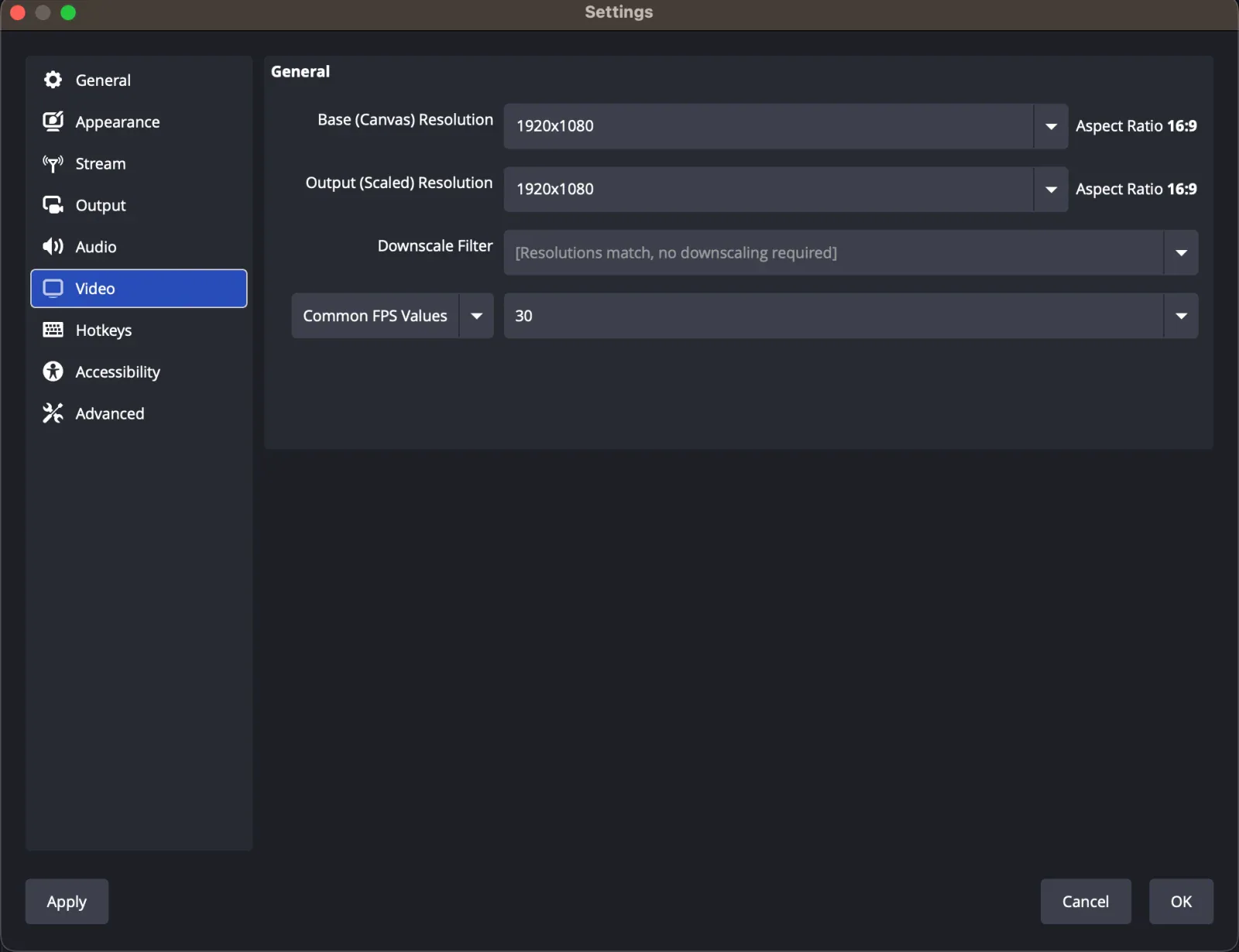
Our OBS test used a 1920×1080 canvas and output resolution at 30 fps.
The same flexibility that makes OBS powerful also makes it harder to learn. The interface presents scenes, sources, an audio mixer, transitions, streaming controls, output settings, video settings, and hotkeys at once. We had to search for setup instructions before we could confidently add the screen and webcam. OBS also has no post-production video editor. Automatic zoom, cursor enhancement, captions, annotations, trimming mistakes, or rebuilding sections must be handled in a separate editor after recording.
That makes OBS the strongest choice here when recording is part of a live production or when you need precise control over several simultaneous sources. It is also the only completely free option on this list with this level of capture and streaming flexibility.
Compare Tight Studio and OBS for a closer look at the difference between production control and automatic polish.
Loom - Best for quick team sharing
Loom treats the share page as part of the product. Record your screen and camera, finish, and send a link where viewers can comment, react, read a transcript, and move through a shared workspace. Paid plans add higher resolution, unlimited recording time, branding controls, engagement insights, and stronger privacy settings.
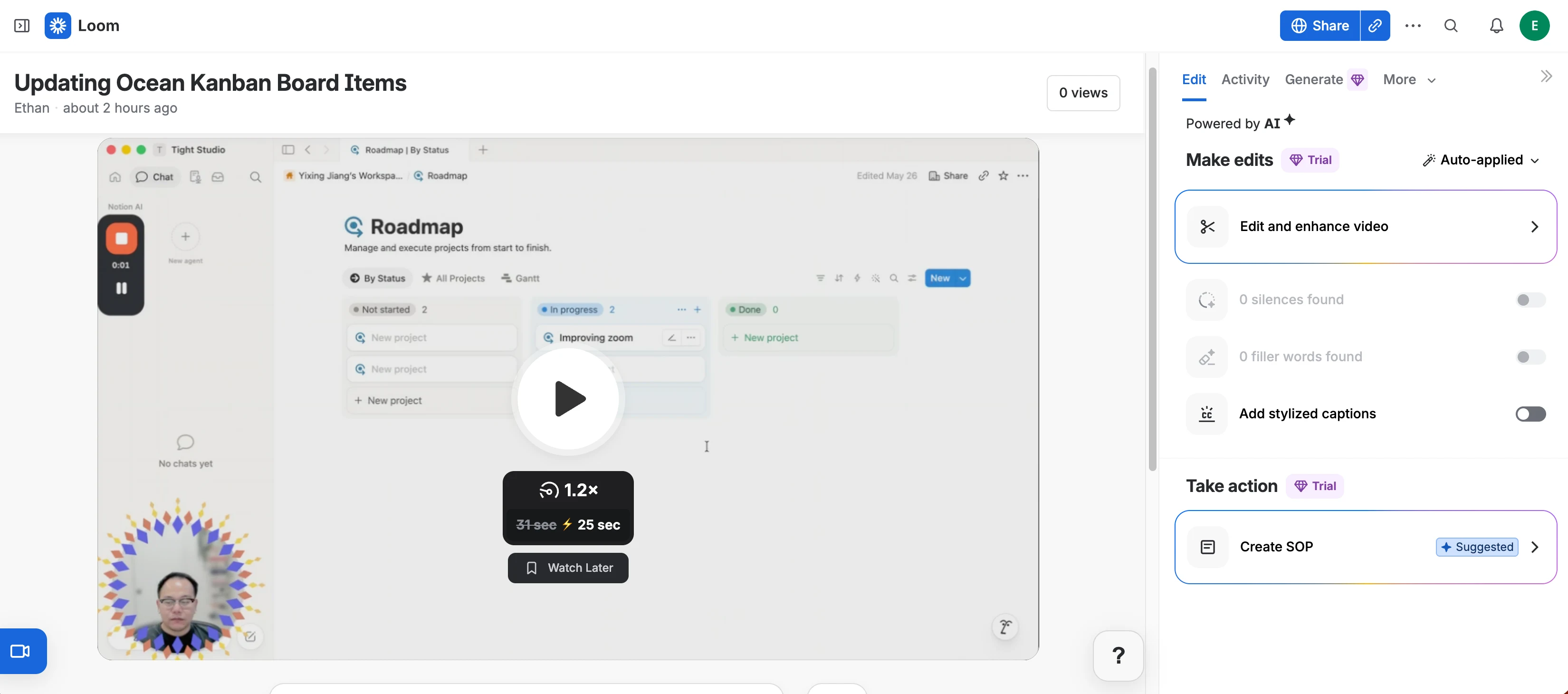
In our comparison test, stopping a Loom recording opened a hosted page with the video and share link already available.
The free Starter plan currently allows 25 videos per person, with five-minute recordings at up to 720p. Business costs $18 per user each month and adds unlimited videos, unlimited recording time, downloads, 4K, and basic editing. Business + AI adds transcript editing, filler-word and silence removal, summaries, chapters, and other automated workflows.
Loom wins when the recording starts a conversation. It is less compelling when the exported video itself needs deliberate motion, reusable visual styling, music, annotations, or a deeper editing timeline.
Compare Tight Studio and Loom for the full recording-versus-sharing breakdown.
Screen Studio - Best focused automatic-zoom workflow
Screen Studio helped define the current generation of polished Mac screen recorders. It automatically zooms around screen actions, smooths cursor movement, hides an idle cursor, and lets you adjust zoom segments on a simple timeline.
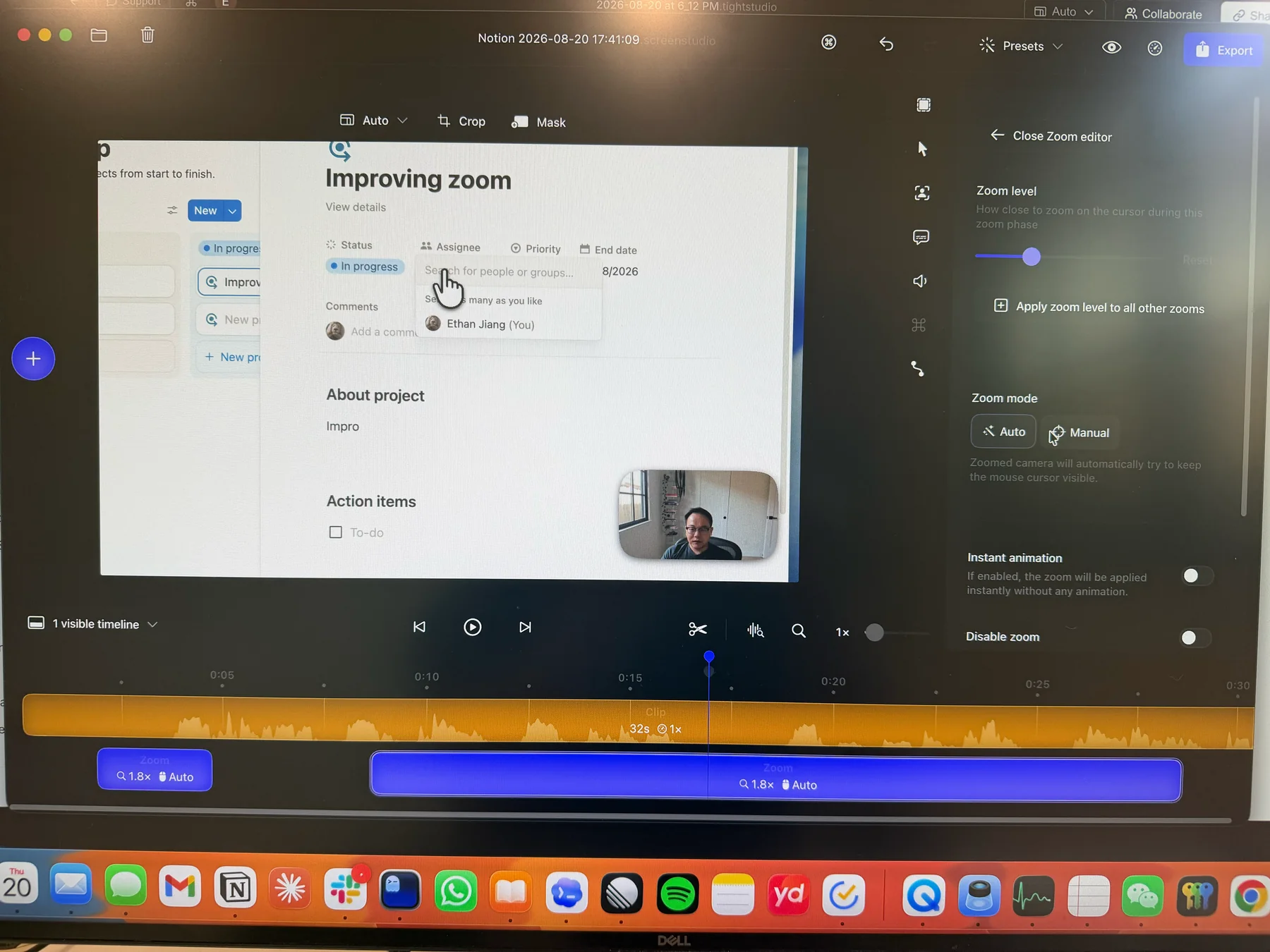
Screen Studio keeps its automatically generated zoom segments editable after recording.
It also records the webcam, microphone, system audio, and connected iPhone or iPad. You can add backgrounds and spacing, crop the recording, show keyboard shortcuts, create vertical exports, generate local transcripts, and export video or GIF files up to 4K and 60fps.
Its strength is focus. The workflow is opinionated, the automatic effects look consistent, and the controls stay centered on screen recording rather than becoming a general video editor. The tradeoff is that a focused tool offers less room for multi-clip construction, narration changes, annotations, additional media, and broader production work than a more complete editor.
At the time of checking, Screen Studio costs $29 per month or $108 per year.
Read the full Tight Studio vs Screen Studio comparison.
Cap - Best for open-source ownership and self-hosting
Cap combines two recording workflows in an open-source desktop app. Instant Mode is the fast path for recording and sending a hosted link. Studio Mode records locally and opens a fuller editor with a timeline, automatic zoom, cursor controls, backgrounds, camera layouts, captions, trimming, speed controls, and exports up to 4K and 60fps. Cap also supports self-hosting and native apps for Mac and Windows.
In our Cap 0.5.9 comparison test, Studio Mode generated editable automatic zoom segments after recording and let us switch individual segments between automatic and manual framing. Cursor motion felt smooth, and the editor exposed more traditional timeline controls than most focused Mac recorders. Automatic framing on our short walkthrough sometimes traveled farther than the action required, however, so the motion felt less settled than Tight Studio in that specific test. That observation is version- and recording-specific rather than a claim about every Cap project.
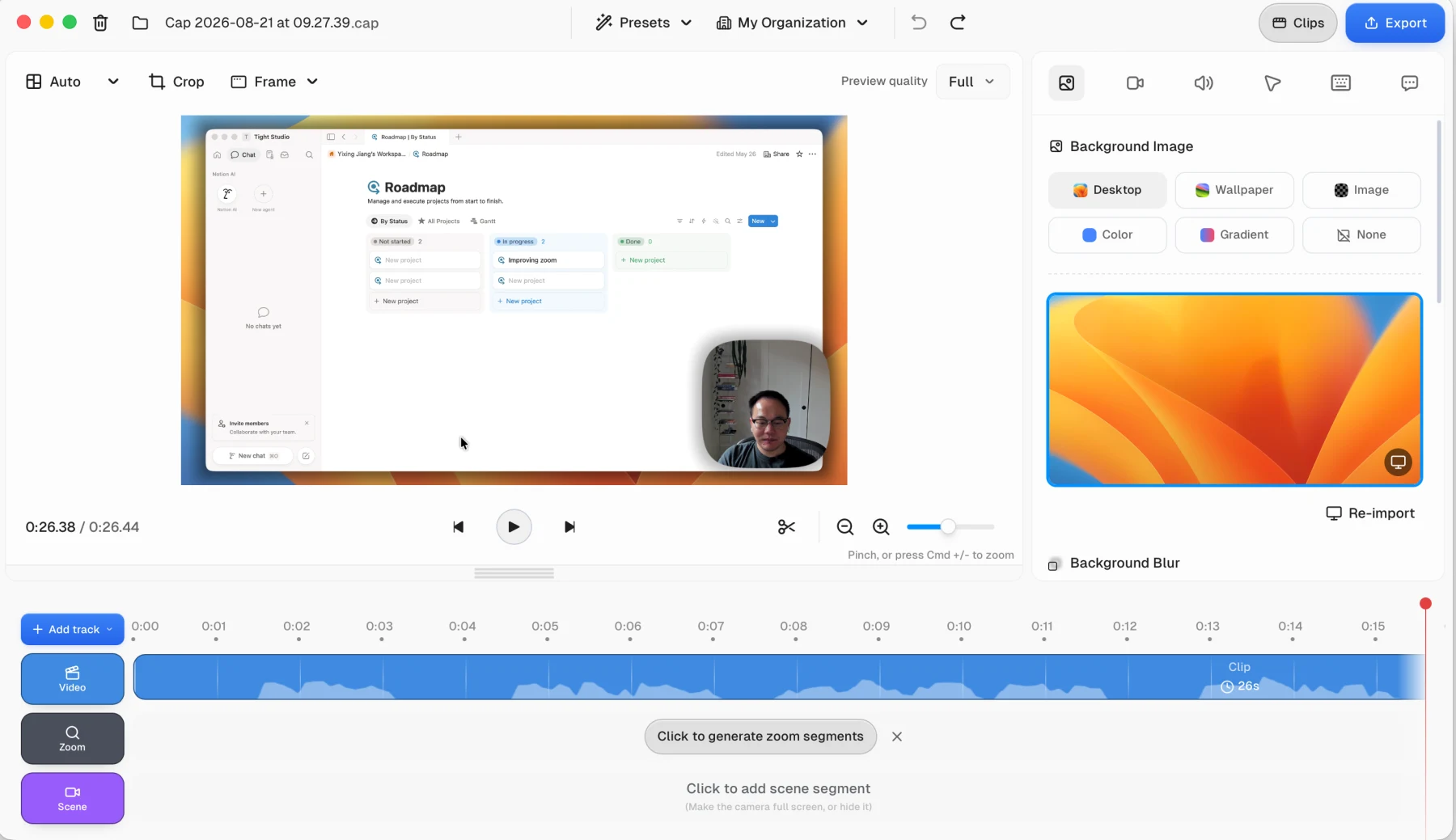
Cap Studio Mode can generate automatic zoom segments after recording and keep them editable on a dedicated timeline track.
The ownership model is Cap’s clearest distinction. The source is public, the cloud can run on your own infrastructure, and Studio Mode can keep ordinary recording and editing local. Cap is free for personal use. Commercial desktop use costs $29 per year, while Cap Pro adds unlimited cloud sharing, AI features, analytics, and team tools from $8.16 per user per month when billed annually.
Choose Cap when source access, self-hosting, Windows support, or the ability to switch between quick hosted recordings and a local production editor matters more than having the most focused Mac-only workflow.
Read the full Tight Studio vs Cap comparison.
Screen Charm - Best focused one-time purchase
Screen Charm is a Mac-only recorder for people who want polished automatic effects without a subscription or a broad production suite. It records the screen, camera, microphone, and system audio, then adds editable automatic zoom, smooth cursor motion, backgrounds, camera layouts, motion blur, click highlights, microphone enhancement, a MacBook device frame, and local MP4 export up to 4K. Finished recordings can also be shared by link.
In our Screen Charm 1.9.5 test, the automatic zoom motion was smooth and easy to adjust. Each effect exposed its zoom level, landing target, follow-cursor behavior, and timing, while a global control could apply one zoom level across the recording. The app’s MacBook frame and cursor click feedback also gave it useful visual treatments that several larger editors do not provide.
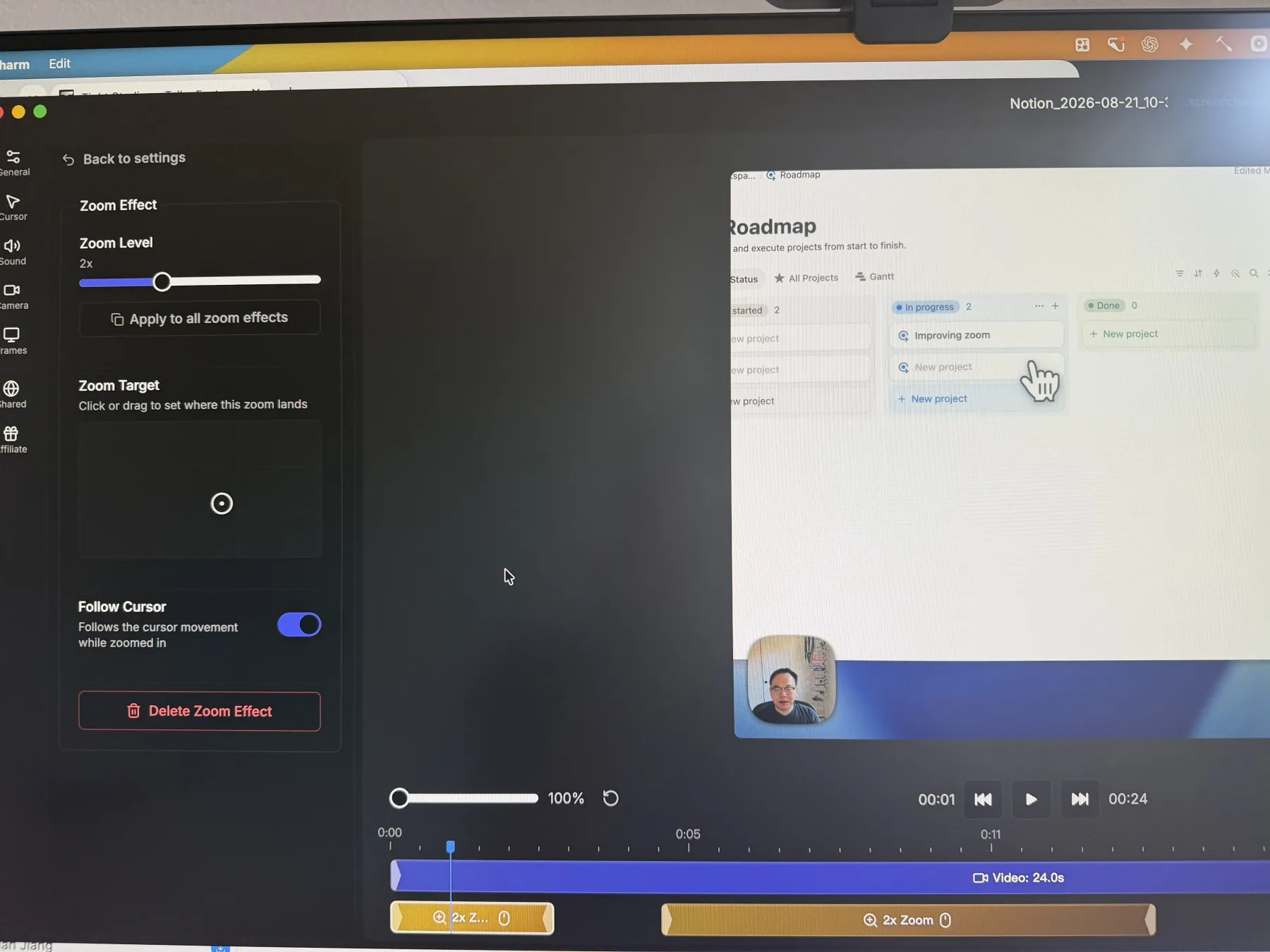
Screen Charm keeps its automatic zoom effects editable while presenting fewer decisions than a broader production editor.
That focus is also the tradeoff. In the tested build, we did not find captions, AI narration, camera-only recording, imported media, additional recording takes, overlays, or camera-layout changes across the timeline. Screen Charm’s current public feature list remains centered on refining one recorded source rather than assembling a larger multi-clip project.
Screen Charm costs $79 once, includes future updates and shareable links, and can be used on up to three devices. Choose it when smooth automatic zoom, a straightforward Mac editor, and one-time pricing cover the whole job.
Read the full Tight Studio vs Screen Charm comparison.
CleanShot X - Best screenshot and recording utility
CleanShot X is the strongest choice when screenshots and short recordings share equal importance. Its toolkit includes standard and scrolling screenshots, annotation, OCR, pinned captures, desktop cleanup, quick-access overlays, and cloud links alongside video recording.
In our test, choosing Record Screen opened a manual area-selection frame. We could record the selected area with a microphone and webcam, while CleanShot automatically highlighted mouse clicks. The controls were substantially simpler than OBS, and the webcam appeared as a movable bubble over the capture.
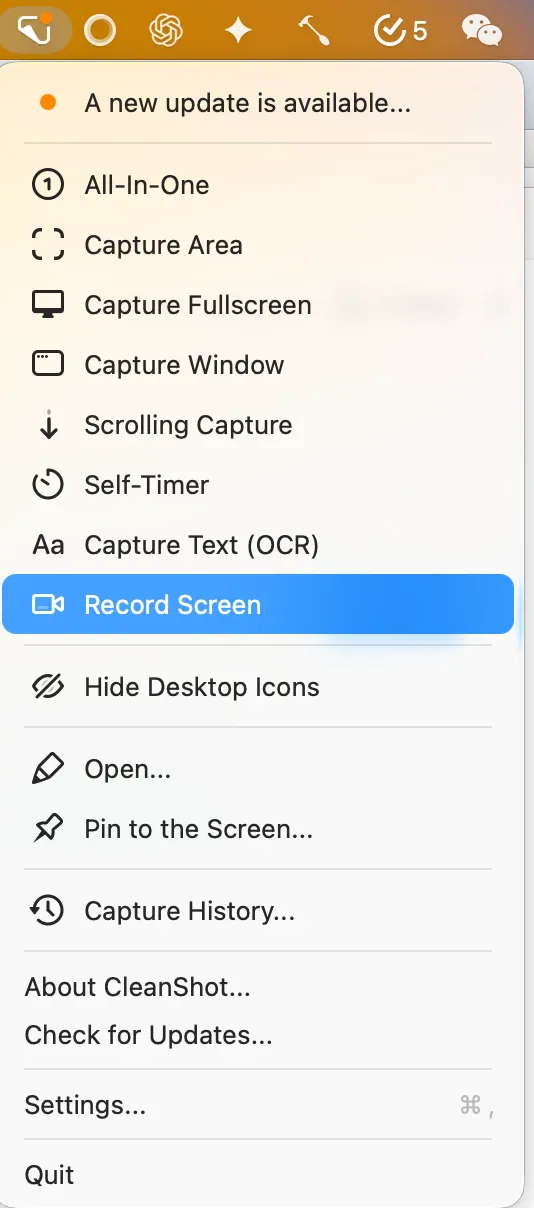 CleanShot X places screen recording alongside its screenshot, OCR, annotation, and capture-history tools.
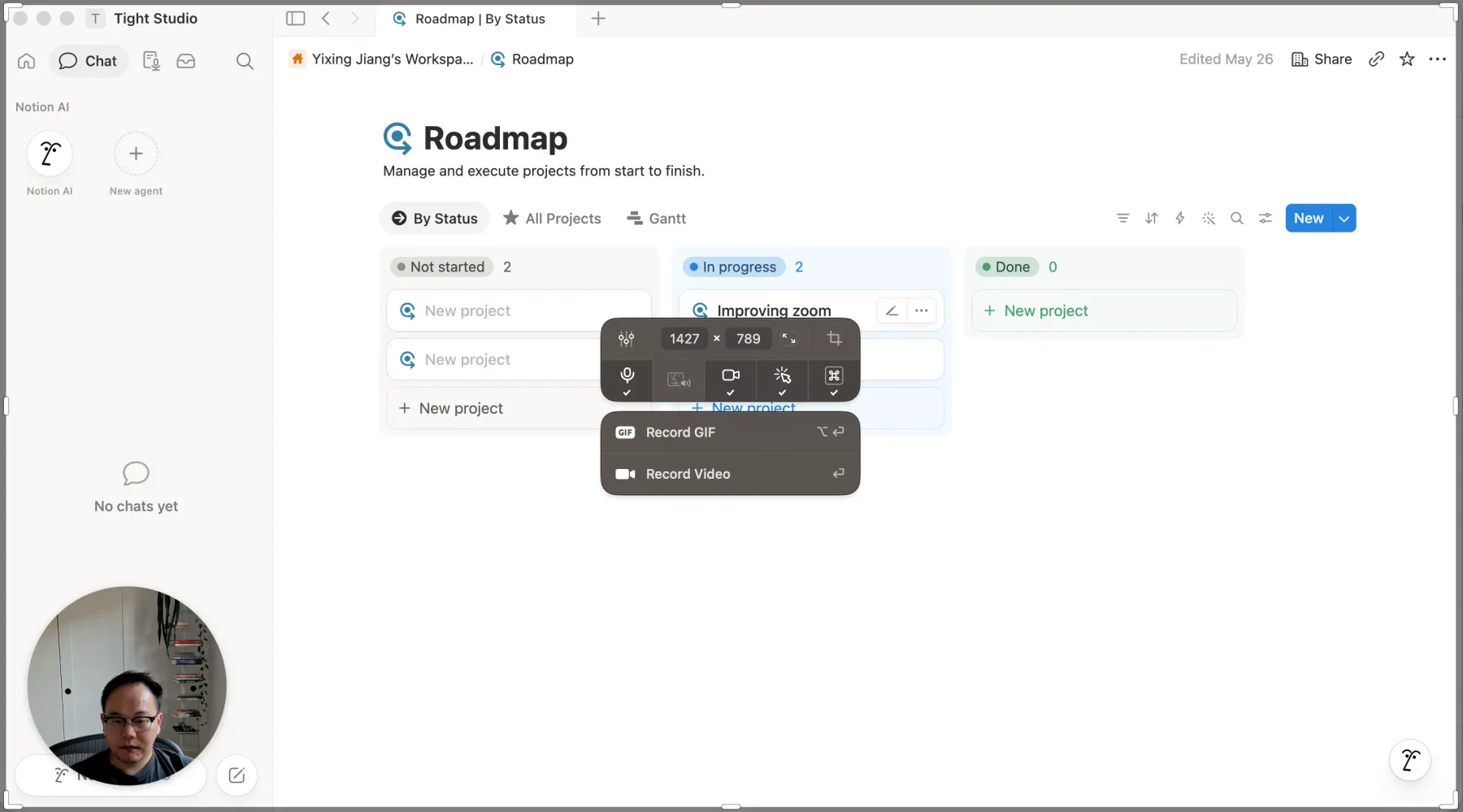 In our test, CleanShot X used a manually drawn recording area and let us enable the microphone, webcam, and automatic click highlighting before recording.
The manual selection was also its main recording limitation. Capturing an approximate region was easy, but matching an app window exactly was more fiddly because the recording workflow did not give us the same one-click window target available in CleanShot’s screenshot tools.
Our recording was saved directly as a flattened MP4. CleanShot includes basic trimming, but it does not provide a post-production workflow for adding captions, zooms, cursor styling, alternate screen-and-camera layouts, or deeper timeline edits. Those changes require another video editor.
CleanShot X is easier to start with than OBS, but the two are similar only in being capture-first tools that bake the chosen inputs into a finished video file. OBS provides much more control over sources, audio, scenes, and streaming before recording. CleanShot offers a faster, simpler capture workflow and a much broader screenshot toolkit.
The one-time $35 license includes the Mac app, one year of updates, and 1 GB of cloud storage. Renewal for another year of updates costs $19 and is optional.
Read the full Tight Studio vs CleanShot X comparison.
Camtasia - Best full production and training suite
Camtasia is the broadest production suite in this comparison. It records screen, camera, microphone, system audio, mouse movement, clicks, and keystrokes up to 4K. The editor includes multi-track editing, detailed cursor control, zoom and pan, annotations, transitions, captions, quizzes, SCORM export, themes, audio tools, and AI-assisted workflows.
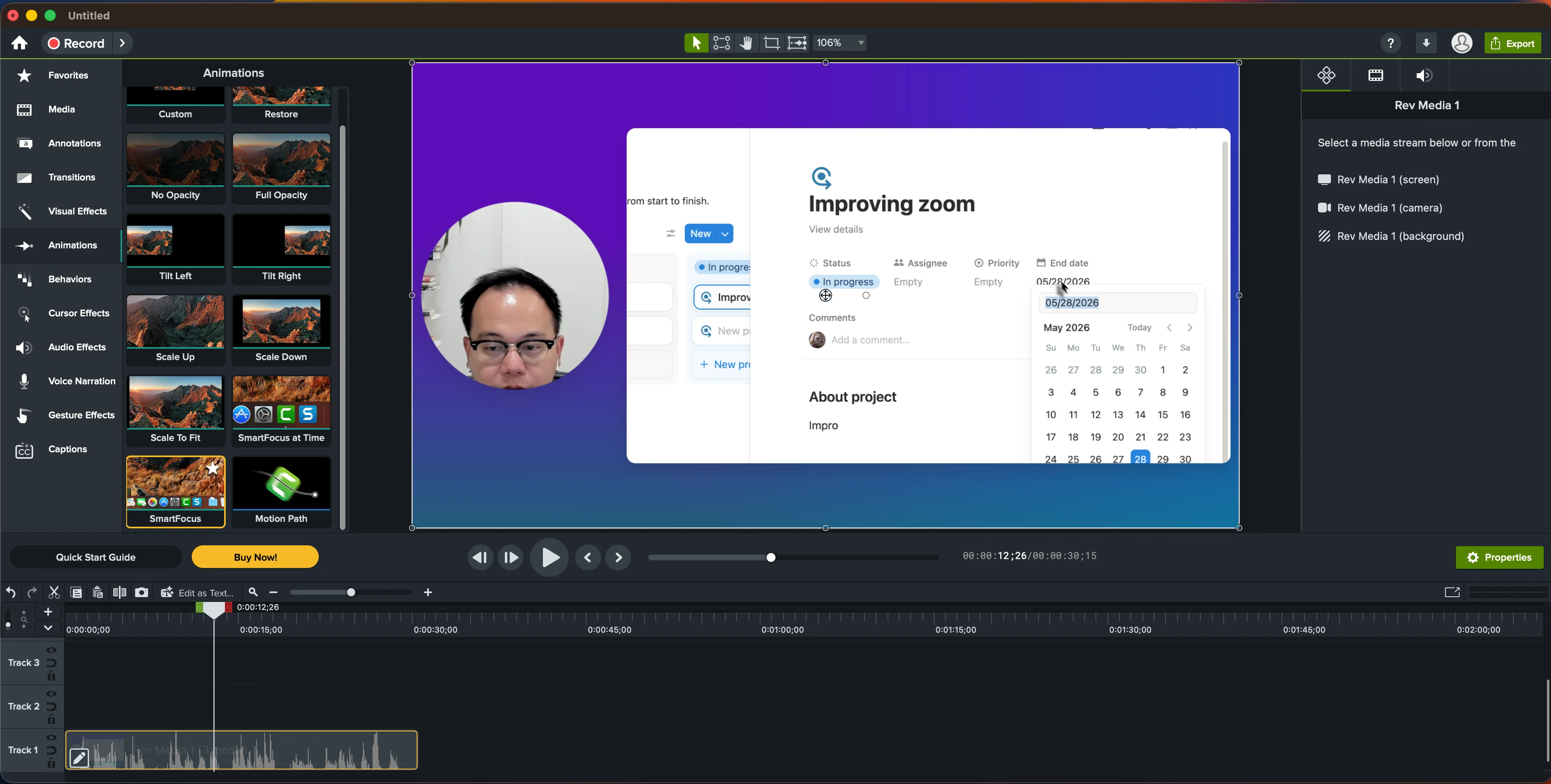
Camtasia places SmartFocus inside a much broader traditional multi-track production environment.
The Essentials plan costs $179.88 per year and includes the watermark-free editor, Audiate, and Snagit. More expensive plans add generated scripts, voiceovers, translations, avatars, and larger asset libraries. The $39 Starter plan records 4K/60fps, but Camtasia Editor exports remain watermarked at that tier.
Camtasia earns its place when the recording must become a structured production with fine control, interactive training elements, or a large supporting asset library. It is expensive and heavier than necessary when all you want is an attractive two-minute recording.
Read the full Tight Studio vs Camtasia comparison.
ScreenPal - Best low-cost editor and hosting bundle
ScreenPal covers recording, editing, hosting, screenshots, quizzes, and AI features at unusually low entry prices. Its free plan includes 15-minute recordings, ten hosted videos, basic editing, webcam-background blur, and screenshot tools.
Deluxe costs $4 per month billed annually and removes the recorder limit while adding a full editor, unlimited hosted videos, storyboards, speech-to-text captions, and stock media. Max costs $10 per month billed annually and adds AI captions, transcription, narration, video generation, premium assets, and interactive tools.
The product spans more platforms and more education-oriented features than most Mac-only recorders. Its interface and output are less tightly centered on the automatic zoom-and-cursor style associated with modern product recordings, but its feature-to-price ratio is difficult to ignore.
FocuSee - Best cross-platform automatic editing option
FocuSee records on Mac and Windows, automatically follows cursor actions, creates zoom effects, and adds backgrounds. It supports screen and webcam capture, microphone and system audio, keyboard shortcuts, mobile-device recording, subtitles, a teleprompter, and exports up to 4K at 60fps.
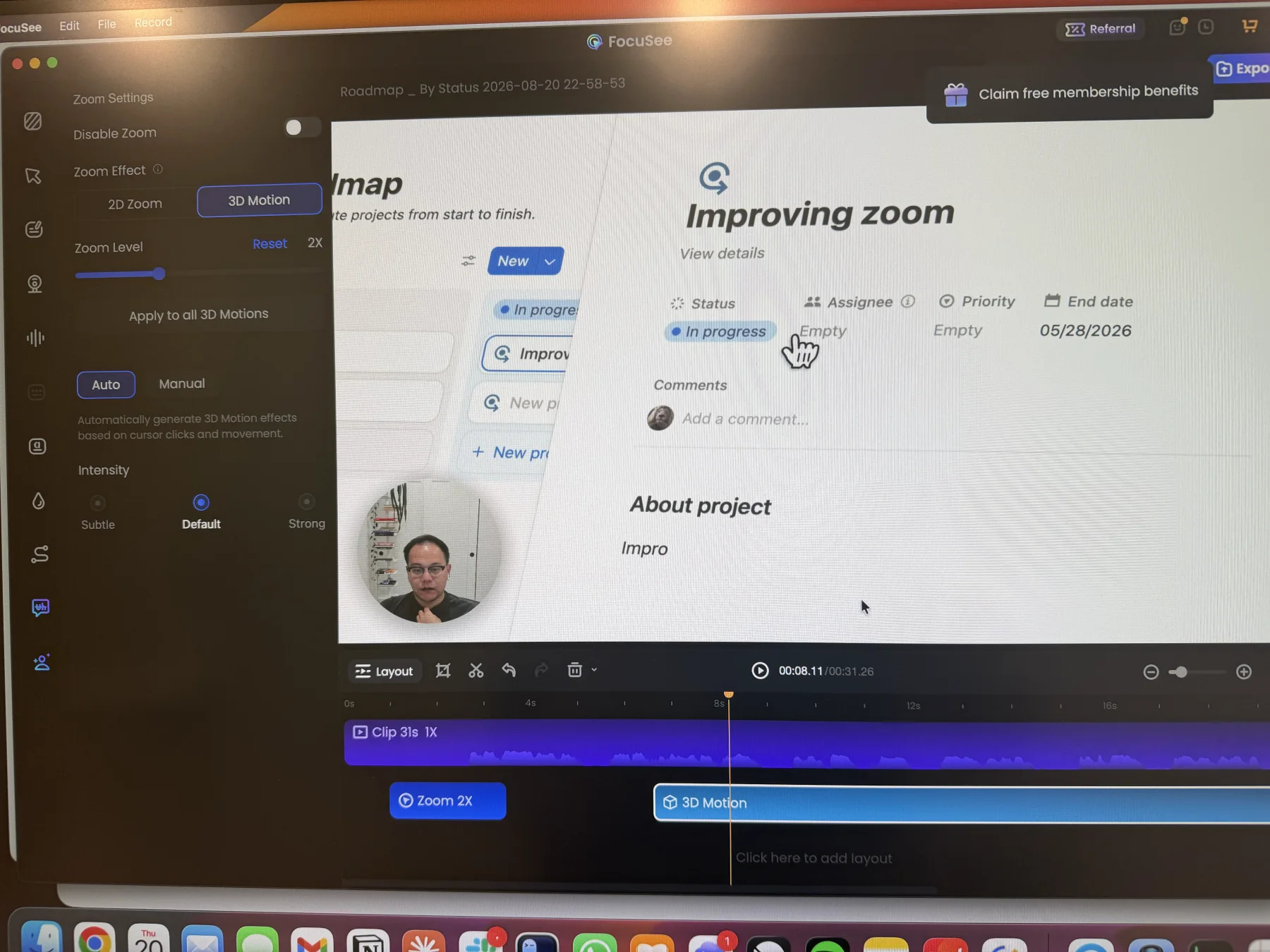
FocuSee’s distinctive 3D Motion adds perspective and intensity controls beyond a standard two-dimensional zoom.
The Standard plan costs $49.99 per year for one computer. Advanced plans add AI credits for avatars, filler-word and silence removal, enhanced subtitles, and voice cleanup. A $199.99 one-time license covers FocuSee 2.x on up to five computers, with the next major version treated as a paid upgrade.
FocuSee is the most direct cross-platform option for people who like the automatic presentation style of Screen Studio and Tight Studio. Its plan and AI-credit structure requires more attention than a single flat license, and its one-time purchase is tied to a major version rather than every future release.
Read the full Tight Studio vs FocuSee comparison.
Tella - Best browser-first recording workspace
Tella works across its web recorder, Chrome extension, and desktop apps. It records screen, camera, or both, and encourages you to capture several clips instead of forcing one perfect take.
The web editor can trim, split, crop, rearrange, add backgrounds, change screen-and-camera layouts, create zoom effects and transitions, generate subtitles, and remove filler words or silence. Finished videos can be exported in 4K or shared through hosted pages with comments, calls to action, branding, domains, analytics, and embeds.
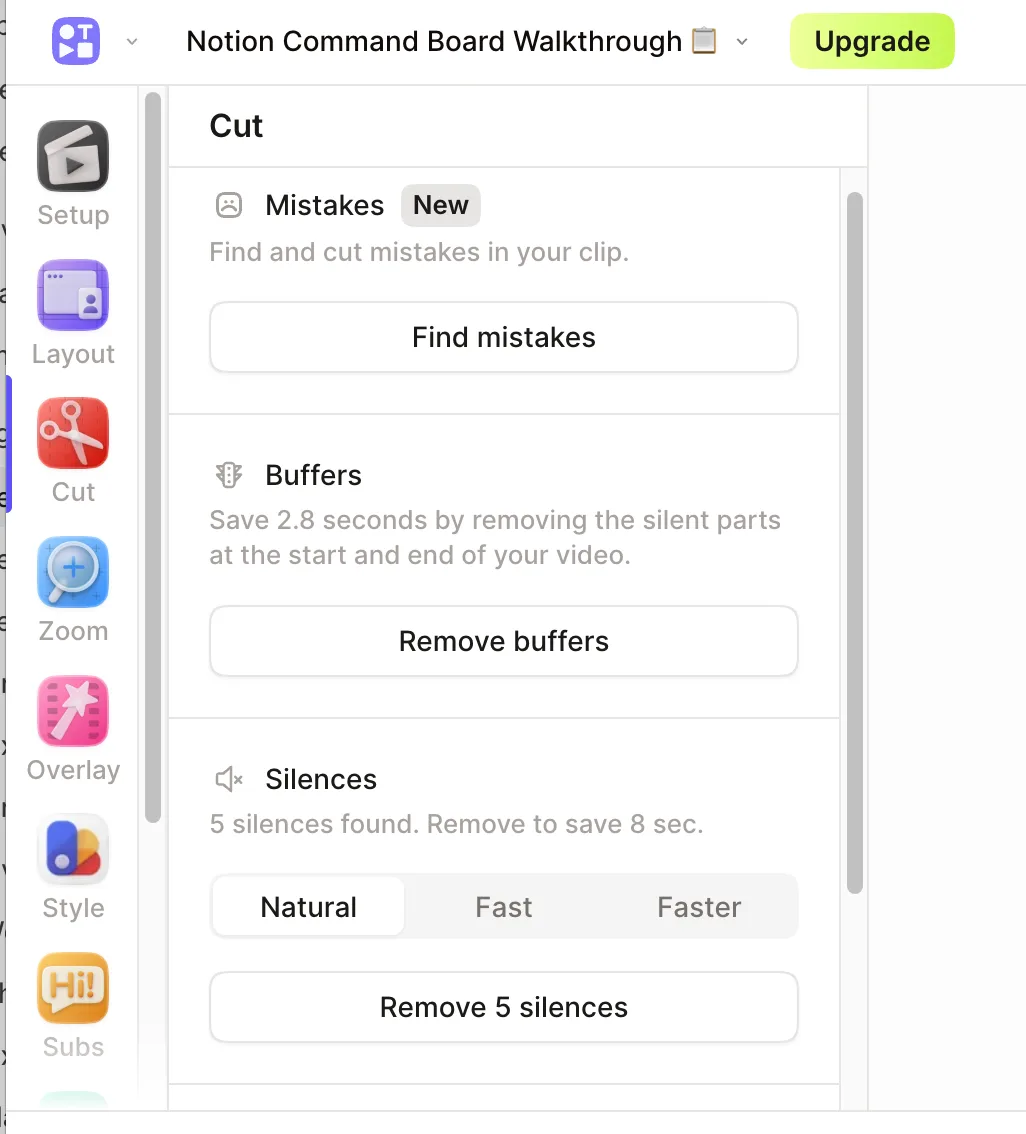
Tella’s cleanup panel can find mistakes and remove buffers or silences from a recording.
Tella Pro costs $26 per user monthly or $13 per user monthly when billed annually. The cloud-first workflow is convenient across devices and teams, but it is not the same as keeping recording and editing inside a local Mac app.
Read the full Tight Studio vs Tella comparison.
Recordly - Best open-source automatic-zoom option
Recordly is a free, open-source recorder for macOS, Windows, and Linux. Its editor provides automatic and manual zoom, local-model captions, cursor controls, webcam cropping, backgrounds, and annotations.
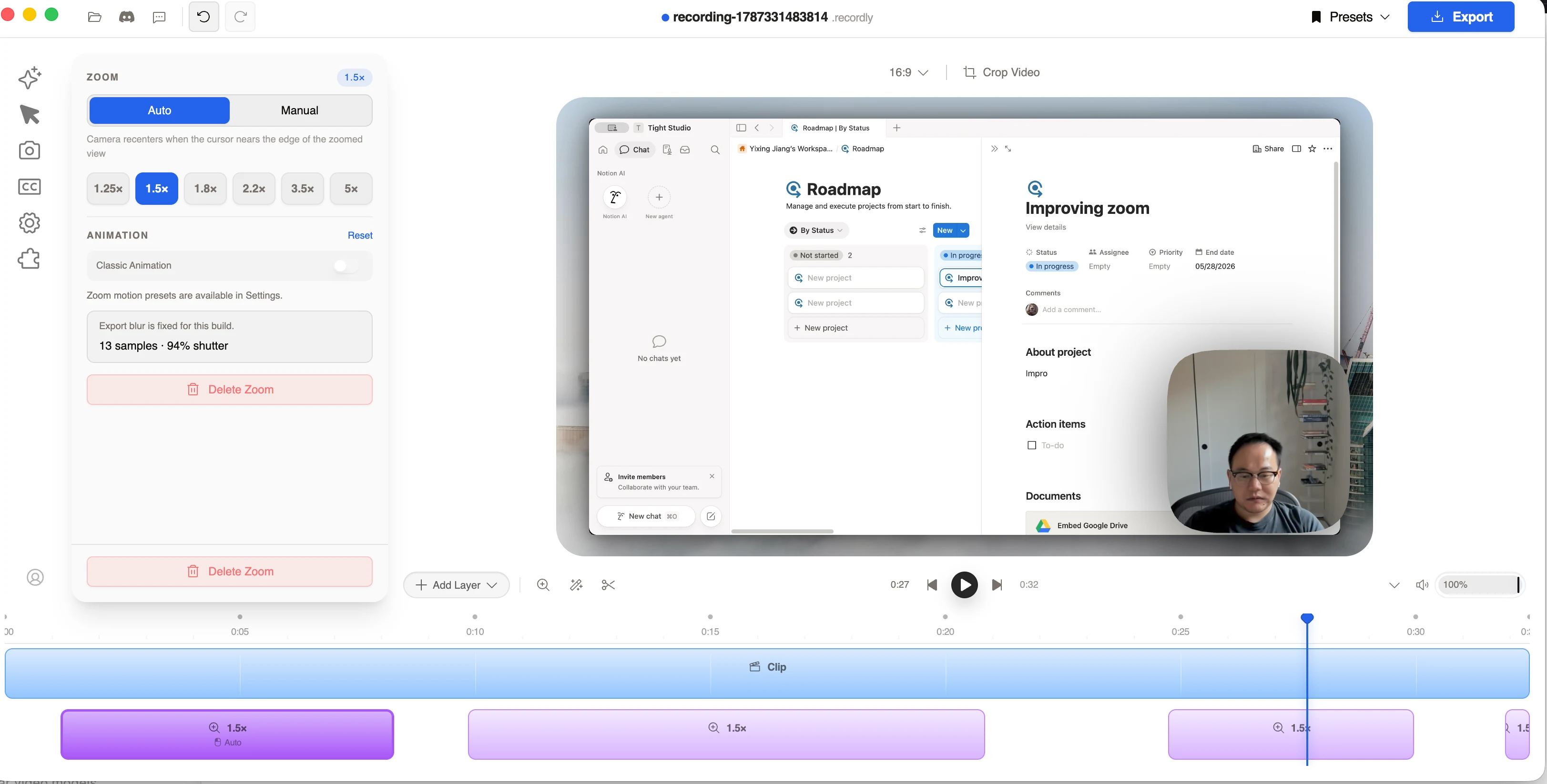
Recordly provides automatic and manual zoom modes with editable segments and animation controls.
The automatic zoom was competitive in our test, and source access plus a $0 price make Recordly appealing to people comfortable evaluating open-source software. The tradeoff is project continuity: an August 2026 community update said the original lead developer was unreachable and administrators had started independent forks. Verify the active repository, release signing, maintenance cadence, and project compatibility before depending on it for production work.
Read the full Tight Studio vs Recordly comparison.
Why other recorders did not make the shortlist
The r/macapps dataset is broader than this article. We left out products that did not add a distinct decision path, lacked enough current public information for a fair review, or overlapped with a stronger representative of the same workflow. Omission is not a claim that an app is bad. The community spreadsheet remains the best place to explore every submitted feature row.
Which Mac screen recorder should you choose?
Choose based on what must happen after you press Stop:
Apple’s recorder and OBS both produce flattened video files rather than editable recording projects. OBS gives you far more control over the composition before recording, but with either option you need a separate video editor for post-recording zoom, cursor effects, captions, annotations, and deeper edits.
- If you want editable automatic zoom, AI voiceover, and multi-clip editing in one Mac app, choose Tight Studio.
- If you only need a local recording and a quick trim, start with Apple Screenshot and QuickTime Player.
- If you need streaming, complex scenes, or precise source control, choose OBS Studio.
- If you need a link, comments, viewer activity, and a shared workspace, choose Loom.
- If you want a tightly focused automatic-zoom workflow, choose Screen Studio.
- If you want open-source ownership, self-hosting, or both instant sharing and local editing, choose Cap.
- If you want a focused Mac automatic-zoom editor for a one-time price, choose Screen Charm.
- If screenshots are as important as recordings, choose CleanShot X.
- If you need detailed production, training, quizzes, or SCORM, choose Camtasia.
- If price matters more than a Mac-specific interface, look at ScreenPal.
- If you need automatic editing on both Mac and Windows, compare FocuSee and Recordly.
- If you prefer to record and edit through a browser-first workspace, choose Tella.
Frequently asked questions
What is the best free screen recorder for Mac?
Apple’s Screenshot app and QuickTime Player are the best free choice for a straightforward local capture. OBS is the strongest free option when you need scenes, multiple sources, streaming, or detailed recording controls. Tight Studio’s free plan is the better fit when you want zoom, cursor animation, captions, annotations, music, and editing without a watermark.
Does Mac have a built-in screen recorder?
Yes. Press Shift-Command-5 to open the macOS Screenshot toolbar, or choose File > New Screen Recording in QuickTime Player. You can record the whole screen or a selected area, choose a microphone, show clicks, set a timer, and choose where the recording is saved. macOS Tahoe 26 adds selected-window recording and capture-format controls on supported Macs.
What should I check before paying for a screen recorder?
Check whether the free plan limits recording length, resolution, exports, or watermarks. Confirm that the app records system audio and your webcam in the combination you need. Then look at the work after recording: trimming, captions, zoom, cursor treatment, annotations, multi-clip editing, export formats, and link sharing.
Which recorder is best for 4K on Mac?
Most of the paid tools in this comparison offer 4K. Resolution alone should not decide the purchase. A readable 1080p recording with deliberate zooms can communicate more clearly than a raw 4K desktop capture where every interface element appears tiny.
Is OBS better than QuickTime?
OBS offers far more control, including scenes, multiple sources, audio mixing, plugins, and streaming. QuickTime and the macOS Screenshot app are much easier when you only need a simple local recording. OBS is more capable; Apple’s recorder is faster to learn.
Is a local recorder more private than a cloud recorder?
A local workflow gives you more control because footage can remain on your Mac until you decide to upload it. Cloud recorders can make sharing and collaboration faster, but you should check their privacy policy, retention behavior, access controls, and whether uploading happens automatically.
Our final recommendation
There is no single winner for every recording. OBS wins for live production. Loom wins when the share page and viewer conversation are the product. Cap wins when source access and self-hosting are decisive. Screen Charm wins when a focused one-time-purchase workflow is enough. Apple’s recorder wins when you need nothing beyond capture.
For a finished video, our pick is Tight Studio. Its strongest case is the connected workflow: record in multiple takes, generate editable zooms from interactions, and revise the narration through AI voiceover without moving the project to another editor. Cursor treatment, captions, annotations, layouts, and music support the same project. You can download Tight Studio without a credit card and decide from the exported result, not the feature list.