
Best free trimmers for screen recordings in 2026

Most screen recordings need a trim before they go out: cut the awkward five seconds at the start, drop the part where you fumbled with the wrong tab, snip the trailing silence after you stop talking. You don’t need a full video editor for that. You need a free trimmer that opens fast, lets you set in and out points, and exports cleanly.
This guide breaks down the best free trimmers for screen recordings in 2026 by category - built-in OS tools, online trimmers that need no install, free desktop editors when you want a bit more than a single cut, and recorder + trimmer combos where the trim is built into the recording app itself. Each option includes honest notes on watermarks, time limits, and where it stops being enough.
How to think about trimming a screen recording
There is no single “best” free trimmer because what you need depends on the recording. Most use cases fall into four buckets:
- Single trim from the start or end - the most common case. Any built-in OS tool handles this in under 30 seconds.
- Multiple cuts in the middle - removing umms, pauses, or whole sections. You want a free desktop editor or an online trimmer with a real timeline.
- No install, no signup - one-off trim on a borrowed laptop or a locked-down work machine. Online trimmer is the answer.
- Trim plus polish - if you also need to add zoom, callouts, captions, or intro slides, skip the standalone trimmer and use an all-in-one screen recorder with editing built in.
Pick the bucket that matches the recording in front of you, not the most-featured tool.
Free screen recording trimmers compared
| Category | Tool | Best for | Watermark | Time limit |
|---|---|---|---|---|
| Built-in macOS | QuickTime Player | Single trim from start or end | No | None |
| Built-in macOS | Photos app | Trimming MOV or MP4 files in your library | No | None |
| Built-in Windows | Photos app (Clipchamp) | Trim, split, basic edits on Windows 11 | No | None |
| Built-in mobile | iPhone Photos app | Trim screen recordings on iPhone | No | None |
| Online | Veed.io | Online trim plus basic editing | Free tier adds watermark | 10 min upload (free) |
| Online | Clideo | Quick online trim with no signup needed | Free tier adds watermark | 500 MB upload |
| Online | Online Video Cutter (123apps) | Fastest browser trim, no signup | No | 4 GB upload |
| Online | Kapwing | Online trim plus collaboration | Free tier adds watermark | 7 min export (free) |
| Free desktop | iMovie | Free Mac editor with full timeline | No | None |
| Free desktop | DaVinci Resolve | Full pro editor that is genuinely free | No | None |
| Free desktop | CapCut | Free editor with auto-captions and effects | Optional outro | None |
| Recorder + trimmer | Tight Studio | Record, trim, and polish in one Mac app | Free tier adds watermark | None |
| Recorder + trimmer | Loom | Record in Chrome, trim in the same player | Free tier limits | 5 min/recording (free) |
| Recorder + trimmer | ScreenPal | Cross-platform record plus light trim | Free tier adds watermark | 15 min/recording (free) |
Built-in free trimmers (already on your machine)
If you only need to cut a few seconds off the start or end of a screen recording, the trimmer you already have is almost always the right answer. Zero install, zero signup, no watermark, no upload.
QuickTime Player - best Mac trimmer for single cuts
QuickTime Player is the default media player on every Mac and has a built-in trimmer that is faster than any third-party app for a single edit. Open the screen recording in QuickTime, press Cmd+T (or Edit > Trim), drag the yellow handles to set the new start and end, and click Trim. Save with Cmd+S (overwrites the original) or File > Export As to keep the original intact.
QuickTime trim is lossless when you save - it does not re-encode the parts you keep, so there is no quality loss and the export is instant. The tradeoff is that QuickTime only supports a single trim per pass. To remove a section from the middle, you’d need to trim twice (front half, back half) and stitch the result in iMovie or another editor.
QuickTime is the right pick when the recording just needs a clean start and end. It is not the right pick when you need multiple cuts in the middle.
Photos app on Mac - best for files in your Photos library
The Photos app on macOS also has a built-in trimmer. Double-click a video, click Edit, drag the trim handles, and click Done. Same lossless behavior as QuickTime but only works on files you’ve imported into Photos.
Most screen recordings save to the Desktop or a Movies folder, not Photos, so QuickTime is usually the faster path. Photos is worth knowing about if you AirDropped a screen recording from your iPhone and it landed in your library.
Photos app on Windows 11 - best Windows trimmer for quick cuts
Windows 11 ships with the Photos app, which uses Microsoft Clipchamp under the hood for video. Right-click any MP4 or MOV screen recording, choose Open with > Photos, click the pencil icon, then Trim. Drag the handles, click Save a copy, and you have a trimmed version next to the original.
Like QuickTime, this is a single-trim tool with no support for cuts in the middle. For multi-cut edits on Windows 11, Clipchamp itself (also free, also built in on newer installs) has a full timeline with split and delete.
iPhone Photos app - best for trimming iPhone screen recordings
Screen recordings made on iPhone save directly to the Photos app. Open the recording, tap Edit, drag the trim bar at the bottom of the screen, and tap Done. You can save as a new clip or overwrite the original.
This is the fastest path for iPhone-only trims. If you need to edit a recording on a Mac too, mirror the recording to your computer first - see our guide on screen recording iPhone on Mac for the cleanest workflow.
Free online trimmers (no install required)
Online trimmers are the right pick when you can’t install software (locked-down work laptop, shared computer, Chromebook without the Photos app equivalent) or when you only need to trim one file and don’t want to leave anything installed afterward.
The big tradeoff with online trimmers is upload time. A 10-minute 1080p screen recording can be 200-500 MB, and uploading that over a slow connection often takes longer than the trim itself. They also re-encode the output on the free tier, which means a small quality hit on every save.
Online Video Cutter (123apps) - fastest online trimmer, no signup
Online Video Cutter by 123apps is the cleanest online trimmer. Drag a file onto the page, set the trim handles, click Save, and download the trimmed result. No signup, no watermark, no email gate. Files up to 4 GB are supported on the free tier, which covers most screen recordings.
The tool re-encodes the output by default but offers a “without conversion” option that performs a fast lossless trim on snapped keyframe boundaries. For screen recordings (which have frequent keyframes), this option usually produces a clean cut without quality loss.
Online Video Cutter is the right pick when speed matters and you only need one trim. It is not the right pick if you want multi-cut editing or captions in the same step.
Veed.io - online trim plus basic editing
Veed.io is more than a trimmer - it’s a full browser-based editor with captions, subtitles, music, and effects. For pure trimming, drag your file onto the editor, drag the timeline handles, and export. The free tier exports at 720p with a Veed watermark and limits uploads to 10 minutes.
Veed is the right pick if you want to trim and also add captions, subtitles, or a logo in the same session. It is overkill if you just need to cut five seconds off the start.
Clideo - quick online trim with predictable UX
Clideo is the trimmer that consistently shows up in search results for “trim mp4 online” and lives up to it. The interface is plain and fast: upload, drag the slider, hit cut, download. Free tier adds a watermark and caps uploads at 500 MB.
Clideo also offers separate single-purpose pages for compressing, merging, and converting video, so it’s useful as a general-purpose video swiss-army-knife when you don’t want to install anything.
Kapwing - online trim plus team collaboration
Kapwing leans further toward collaborative editing than the other online trimmers. You can drop a screen recording in, trim it, add subtitles, and share the edit with a teammate via link, all in the browser. The free tier limits exports to 7 minutes and adds a Kapwing watermark.
Kapwing is the right pick if you and a teammate need to iterate on the same recording. It’s the wrong pick when you just want to trim and download.
Free desktop editors (when you need more than a single cut)
If you need multiple cuts, want to remove sections from the middle, or are going to keep editing screen recordings regularly, install a real free editor instead of round-tripping through online tools.
iMovie - free Mac editor with a real timeline
iMovie ships free on every Mac and Apple device. Drop a screen recording onto the timeline, drag the playhead, press Cmd+B to split, then delete the unwanted sections. Closes the gap automatically. Export at 1080p with no watermark.
iMovie is the right free Mac editor for anyone who wants a normal timeline editor without paying. The downside is that it is a general video editor, not a screen recording editor: no automatic zoom on clicks, no cursor highlighting, no smart panning. For tutorial-style screen recordings where polish matters, iMovie produces a clean trim but a flat-looking video.
DaVinci Resolve - the free pro editor
DaVinci Resolve is a pro-grade video editor used in actual film and broadcast post-production, and the free version is genuinely free with most features intact. For trimming a screen recording it is overkill, but if you already use Resolve or want to learn a serious editor for free, the trim and multi-cut workflow is excellent.
The learning curve is the catch. Resolve has separate Cut, Edit, Fairlight, Fusion, and Color pages, which is more app than most screen-recording trim tasks need.
CapCut - free editor with auto captions
CapCut is free on Mac, Windows, web, and mobile, and is known for auto-generated captions and TikTok-style effects. For a straight trim it works the same as iMovie - drop on timeline, split, delete, export. The free desktop tier exports at 1080p without a watermark.
CapCut is the right pick if you also want auto captions or simple effects baked into the same tool. It is owned by ByteDance, so privacy-sensitive teams sometimes prefer alternatives.
Recorder + trimmer combos (skip the separate trim step)
If you keep finding yourself trimming the same way after every recording - cutting the start, cutting the end, maybe removing one fumble in the middle - a screen recorder with trimming built in saves a step. You record, trim in the same app, and export. No round trip through QuickTime or an online tool.
Tight Studio - Mac recorder with full editing built in
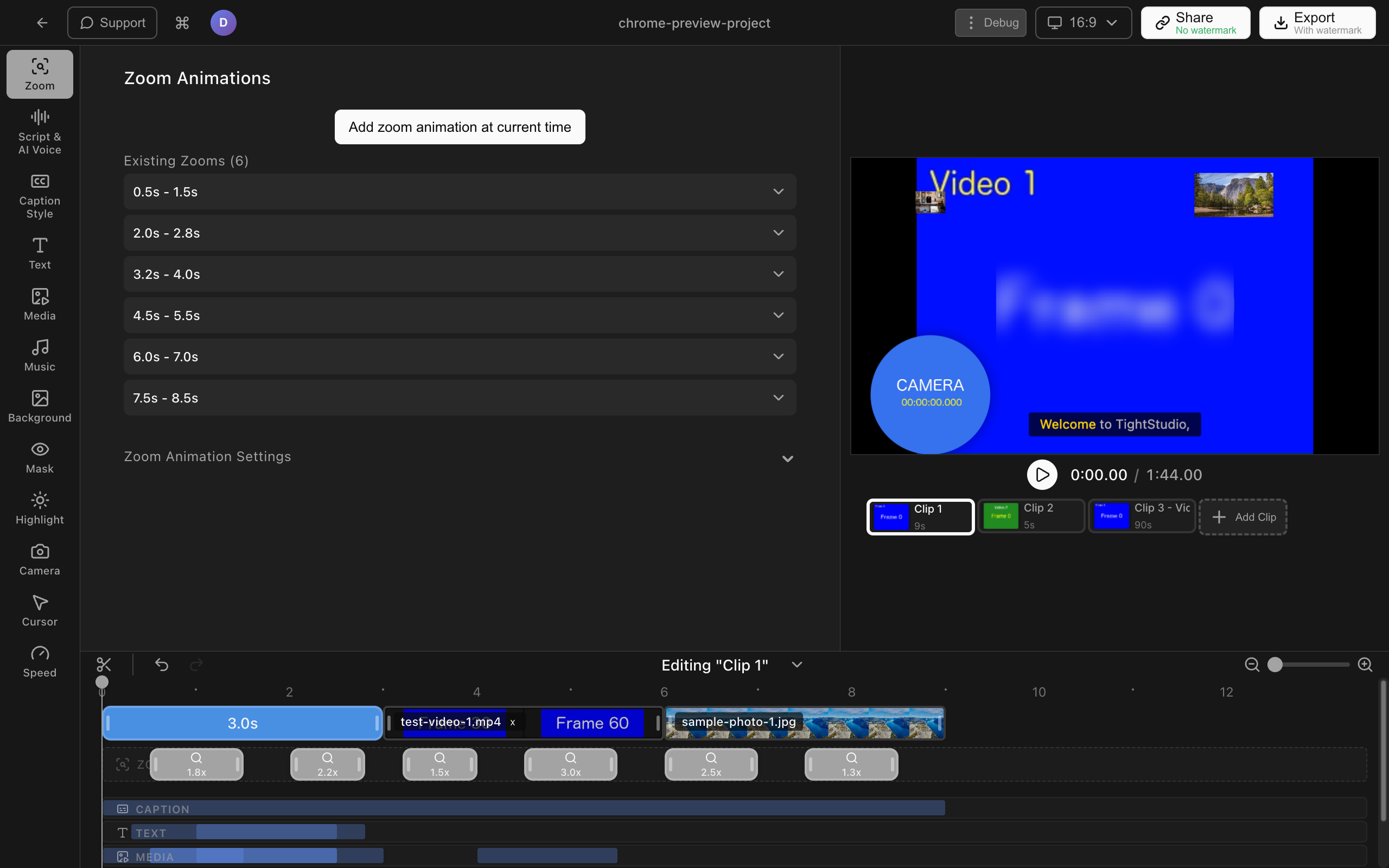
Tight Studio is a native Mac screen recorder and editor. Trimming is the default workflow: every recording lands on a timeline where you can drag the clip edges to trim, split with Cmd+B, and delete sections from the middle. The free tier is unlimited recording with a small watermark.
What it adds beyond trim:
- Smart zoom animation - automatic zoom into every click with motion blur and smooth panning. The single biggest upgrade over a flat QuickTime trim.
- Cursor animation - larger, smoother cursor with click highlighting and optional click sound effects.
- AI voiceover - generate narration from a written script with multiple voice options.
- Multi-take recording - record sections separately and assemble them on the timeline. If one part goes sideways, re-record just that segment.
- Text annotations and intro/outro slides - titles, callouts, and branded openers without exporting to another tool.
- Music - built-in royalty-free music library with volume control.
Tight Studio is Mac-only (Apple Silicon) and does not currently capture internal/system audio - for tutorials with app sound you’d route audio through a virtual cable or record it separately. It is the right pick when trimming is the start of a longer edit, not the end.
Loom - Chrome screen recorder with player-side trim
Loom records your screen in the browser and includes a basic trim tool inside the player. Hit record, stop, and use the Trim option in the share page to cut the start and end. Free tier caps videos at 5 minutes and 25 saved recordings total.
Loom trim is the right pick if you already use Loom for async messages and just want to clean up the ends before sending. It is the wrong pick if you need cuts in the middle or any visual polish.
ScreenPal - cross-platform record plus light trim
ScreenPal (formerly Screencast-O-Matic) runs on Mac, Windows, ChromeOS, iOS, and Android. The free tier records 15 minutes with a watermark and includes a basic trim editor that supports cuts from the start, end, and middle.
ScreenPal is the right pick when you need a free trim and recording tool that works on whatever device is in front of you. For Mac users who care about polish, a Mac-native option produces better video.
Tools to skip (or delay)
- Paid Loom or Vimeo plans just for trimming - if the only feature you’d use on the paid tier is a longer trim or no watermark, QuickTime (Mac) or Photos (Windows) does the same job for free.
- Random free trimmer downloads from search ads - the top ads on “free video trimmer” often link to apps that bundle browser hijackers or push for a paid upgrade after one trim. Stick to the named tools in this guide.
- Buying a video editor just to trim - if all you need is a single cut at the start or end, do not pay for Premiere, Final Cut, or Camtasia. Built-in OS tools handle it for free.
- Online trimmers for files over ~500 MB - uploading a half-gig screen recording on a coffee-shop connection often takes longer than launching iMovie or DaVinci Resolve and trimming locally.
How to choose a free screen recording trimmer
A reasonable starter setup for most people:
- Mac, single trim - QuickTime Player. Already installed, lossless, instant.
- Windows 11, single trim - Photos app. Already installed, no download needed.
- iPhone screen recording - Photos app on iPhone, then AirDrop to Mac if you need to polish further.
- No-install one-off - Online Video Cutter for speed, Veed.io if you also want captions.
- Multi-cut edits and you’ll keep doing this - iMovie on Mac, Clipchamp on Windows, CapCut anywhere.
- Trim plus zoom, cursor effects, AI voiceover - Tight Studio on Mac, Loom or ScreenPal cross-platform.
Almost nobody needs more than one of these. Pick the one that matches the recording in front of you and stay there until you outgrow it.
Frequently asked questions
What is the best free trimmer for screen recordings?
For most people on Mac, QuickTime Player is the best free trimmer for screen recordings - it is already installed, trims losslessly without re-encoding, and handles the most common case (cutting the start and end) in under 30 seconds. On Windows 11, the built-in Photos app does the same job. If you need multiple cuts in the middle or no install at all, Online Video Cutter is the fastest browser-based option. If you want trimming plus zoom, cursor effects, or AI voiceover in the same app, Tight Studio on Mac is the natural step up.
How do I trim a screen recording on Mac for free?
Open the recording in QuickTime Player (right-click the file, Open with > QuickTime Player), press Cmd+T, drag the yellow handles to the new start and end points, and click Trim. Save with Cmd+S to overwrite the original or use File > Export As to keep both versions. The trim is lossless - no re-encoding, no quality loss, no watermark.
How do I trim a screen recording on Windows for free?
On Windows 11, right-click the MP4 or MOV file, choose Open with > Photos, then click the pencil icon and select Trim. Drag the slider handles, click Save a copy, and you’ll have a trimmed version next to the original. On Windows 10, the same Photos app trim flow exists but the UI is slightly different.
Can I trim a screen recording in the browser without installing anything?
Yes. Online Video Cutter, Veed.io, Clideo, and Kapwing all support browser-based trimming with no install. Online Video Cutter is the fastest if you only need to trim and download. Veed.io is best if you also want to add captions or text overlays. The tradeoff is upload time - a 500 MB recording can take several minutes to upload before you can even start trimming.
Do free trimmers add watermarks to screen recordings?
Built-in OS trimmers (QuickTime, Photos on Mac and Windows, Photos on iPhone) never add watermarks. Most online trimmers (Veed, Clideo, Kapwing) add a small watermark on the free tier and remove it on a paid plan. Online Video Cutter is one of the few that does not add a watermark on the free tier. For screen recorder + trimmer combos, Loom and ScreenPal add either a watermark or other free-tier limits; Tight Studio’s free tier adds a small watermark and removes it on the $6/month Starter plan.
How do I trim multiple sections out of a screen recording for free?
QuickTime and the Windows Photos app only support a single trim per pass. To remove sections from the middle, use a free editor with a real timeline: iMovie on Mac, Clipchamp or CapCut on Windows, or DaVinci Resolve on either. Drop the recording on the timeline, position the playhead at each cut point, press the split shortcut (Cmd+B in iMovie, S in Resolve), delete the unwanted sections, and export. All three are free and produce 1080p output with no watermark.
Can Tight Studio trim screen recordings?
Yes. Tight Studio is a Mac screen recorder with a full editor built in - trimming is the default workflow for every recording. You can trim clip edges by dragging, split with Cmd+B, delete sections from the middle, and export. The free tier is unlimited with a small watermark; the $6/month Starter plan removes it. Tight Studio also goes beyond trimming with smart zoom on clicks, animated cursors, AI voiceover, and intro/outro slides. Try it free if your trim workflow keeps growing into a full edit.