

You have a Screen Studio recording and you want to bring in another piece of video - an intro clip you made elsewhere, some b-roll, a screen capture from another tool, or a second Screen Studio recording - and combine them into one project. You went looking for an Import button or a way to drop a clip onto the timeline and could not find one. You are not missing it. Screen Studio does not currently let you import an external video file or merge separate recordings into a single project.
Direct answer: Screen Studio cannot merge multiple recordings inside one project. Tight Studio is a screen recorder and video editor for Apple Silicon Macs that lets you record another take with Add Clip, import an existing MP4 or MOV as a clip, reorder the clips, and export the project as one continuous video.
This guide covers what Screen Studio supports today, the available workaround, and the exact Tight Studio workflow for importing and combining recordings without moving the finished edit to another app.
What Screen Studio supports today
Screen Studio is built around a one-recording-per-project model. You hit record, you capture a screen (and optionally camera) take, and you edit that take. The editor it gives you for that single recording is good - cursor smoothing, auto-zoom, captions, backgrounds.
What Screen Studio does not let you do, as of May 2026, is bring other video into that project:
- Import an existing video file (an MP4 you already have) onto the timeline
- Append a second recording to the end of the current one
- Merge two or more separate Screen Studio projects into one
- Drop in an intro clip, outro, or b-roll captured outside Screen Studio
Each recording lives in its own project. There is no Import, no “add clip”, and no merge. If you need a video to be more than one continuous take, Screen Studio does not assemble it for you.
The single biggest open request on Screen Studio’s hub: “Import clips or append external video clips” has 438 upvotes and is the highest-voted open request on Screen Studio’s entire public feedback board, at “Planned” status: hub.screen.studio/p/import-clips-or-append-external-video-clips. The closely related “merge multiple projects” request has another 412 upvotes, also “Planned”: hub.screen.studio/p/ability-to-merge-multiple-projects. Both have been Planned for over two years without shipping. Screen Studio’s team is small and ships deliberately, so this is a known, long-standing gap, not an oversight.
Workarounds in Screen Studio
If you are staying in Screen Studio and need more than one clip in the final video, there are two options. Neither imports video into Screen Studio.
Workaround 1: Plan the whole video as one continuous take
Record everything you need in a single session, in order, and trim inside Screen Studio. This is the model Screen Studio is designed around.
- Works for: a self-contained walkthrough you can perform start to finish in one sitting
- Does not work for: anything that needs pre-made footage, an intro or outro clip, b-roll, a screen capture from another tool, or material you cannot re-record
Workaround 2: Export each recording and stitch them in another editor
Export each Screen Studio recording as MP4, then assemble them in a separate video editor - iMovie, Final Cut, Premiere Pro, CapCut, or DaVinci Resolve - and add your imported clips there.
- Works for: situations where you have time and own a second editor
- Does not work for: quick turnaround, keeping styling editable, or staying in one tool
The single-take approach is rigid for anything beyond a short demo, and the second-editor route defeats the reason most people pick Screen Studio (one fast app, no separate timeline editor). If your video needs to combine clips or pull in outside footage, the practical answer is a recorder that imports and assembles video natively.
How to import and combine video clips in Tight Studio
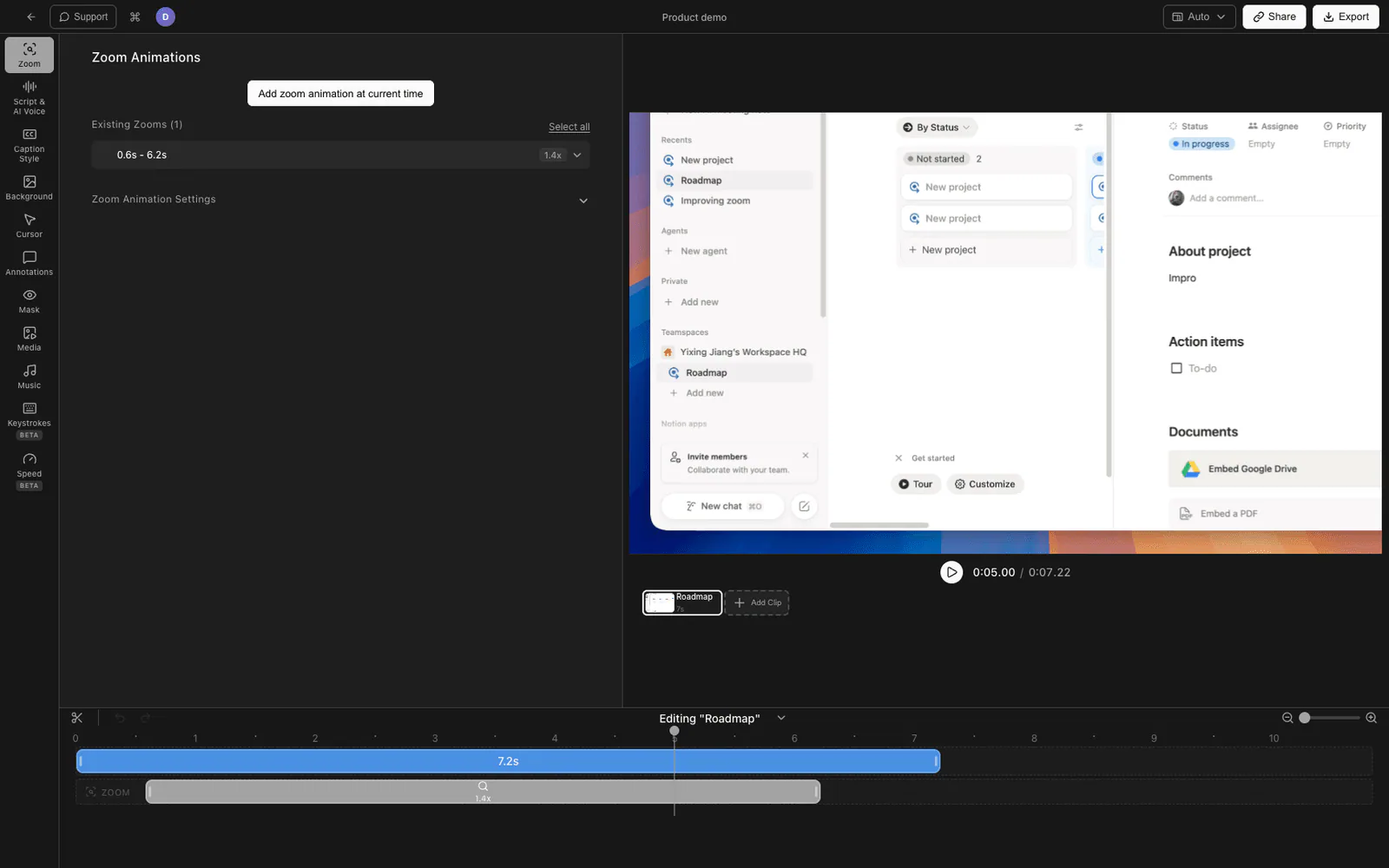
Tight Studio handles both parts of a multi-clip workflow in one Mac app: importing external video files and combining multiple recorded takes inside the same project.
Importing an external video file
- Open your project in the Tight Studio editor and find Add Clip beside the clip carousel.
- Choose Import media as clip. In the Import a clip window, select an MP4 or MOV from your Mac or choose a video already saved in the media library.
- Tight Studio adds the video as a new card in the clip carousel without replacing the active recording. Drag the card to place it before, after, or between the other clips.
- Select the imported clip to trim it and adjust its editor settings. Play the full sequence to review the joins, then export once to create a single video.
If the video should appear over an existing recording instead of becoming a sequential clip, use the Media panel to place it on a timed media track. The Add Clip workflow is the one to use when separate recordings should play in sequence.
Combining multiple recordings
Tight Studio also records clip by clip. Choose Add Clip → Add recording clip to capture another take directly into the current project, then reorder its card in the clip carousel. If your real need is recording separate takes and joining them rather than importing an existing file, see how to record clip by clip in Screen Studio.
Why we built it this way
Real videos are rarely one perfect take - they have an intro, b-roll, a clip from somewhere else, and a few re-recorded sections. Forcing all of that into a second editor breaks the one-app workflow that makes a screen recorder fast, so importing and combining clips lives directly in the timeline.
Comparing clip import and combining
| Capability | Screen Studio | Tight Studio |
|---|---|---|
| Record a screen / camera take | Yes | Yes |
| Import an external video file (MP4 / MOV) | No | Yes |
| Combine multiple recordings in one project | No | Yes |
| Append a clip to an existing project | No | Yes |
| Reorder clips on the timeline | No | Yes |
| Use imported video as inline b-roll or an overlay | No | Yes |
Frequently asked questions
Can you import a video into Screen Studio?
No. Screen Studio does not have an import option. It records its own screen/camera take per project and edits that take. You cannot bring an existing MP4 or a clip from another tool onto a Screen Studio timeline.
Can you combine or merge multiple Screen Studio recordings?
Not inside Screen Studio. Each recording is its own project, and there is no merge or append. To combine recordings you export each as MP4 and stitch them in a separate editor. The “merge multiple projects” request has 412 upvotes and has been “Planned” on Screen Studio’s hub for over two years.
Does Screen Studio plan to add video import?
It is the highest-voted open request on Screen Studio’s public feedback hub (438 upvotes, “Planned”), alongside the 412-upvote merge request. Both have been Planned for years with no public ship date.
How do I import and combine clips in Tight Studio?
Choose Add Clip in the editor. Use Import media as clip for an MP4 or MOV, Add recording clip for a new take, or Import from another video to copy clips from an existing Tight Studio project. Reorder the resulting cards in the clip carousel and export the project once. Free accounts include five saved Add Clip additions across all projects; Plus and Pro remove that limit.
Will I lose my Screen Studio recordings if I switch to Tight Studio?
No. Export your Screen Studio recordings as MP4 and import them into Tight Studio, where you can combine them with other clips and b-roll. You do not have to re-record.
How much does Tight Studio cost?
Tight Studio has a free tier with limits on Add Clip and shareable videos, plus a paid plan for unlimited recording, exporting, and sharing. Importing your own video files onto the timeline is free. See tight.studio for the latest pricing.