
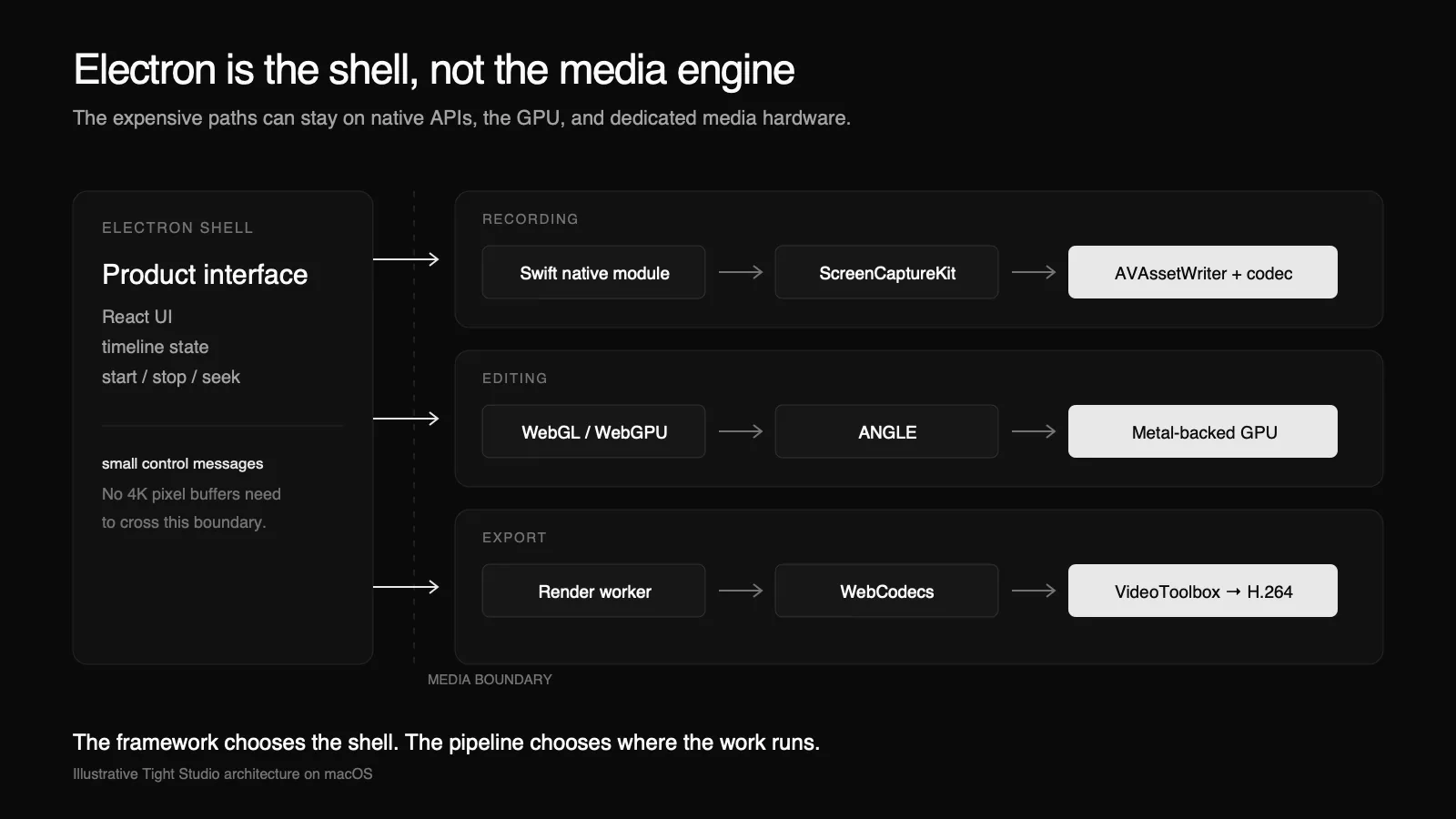
Electron is not your screen recorder's bottleneck
We benchmarked native and Electron media paths for 4K recording, editing, and export. Electron used more memory, but the framework label did not determine media performance.

Blog category
Tight Studio product news, feature guides, engineering, and company updates.
18 articles
We benchmarked native and Electron media paths for 4K recording, editing, and export. Electron used more memory, but the framework label did not determine media performance.
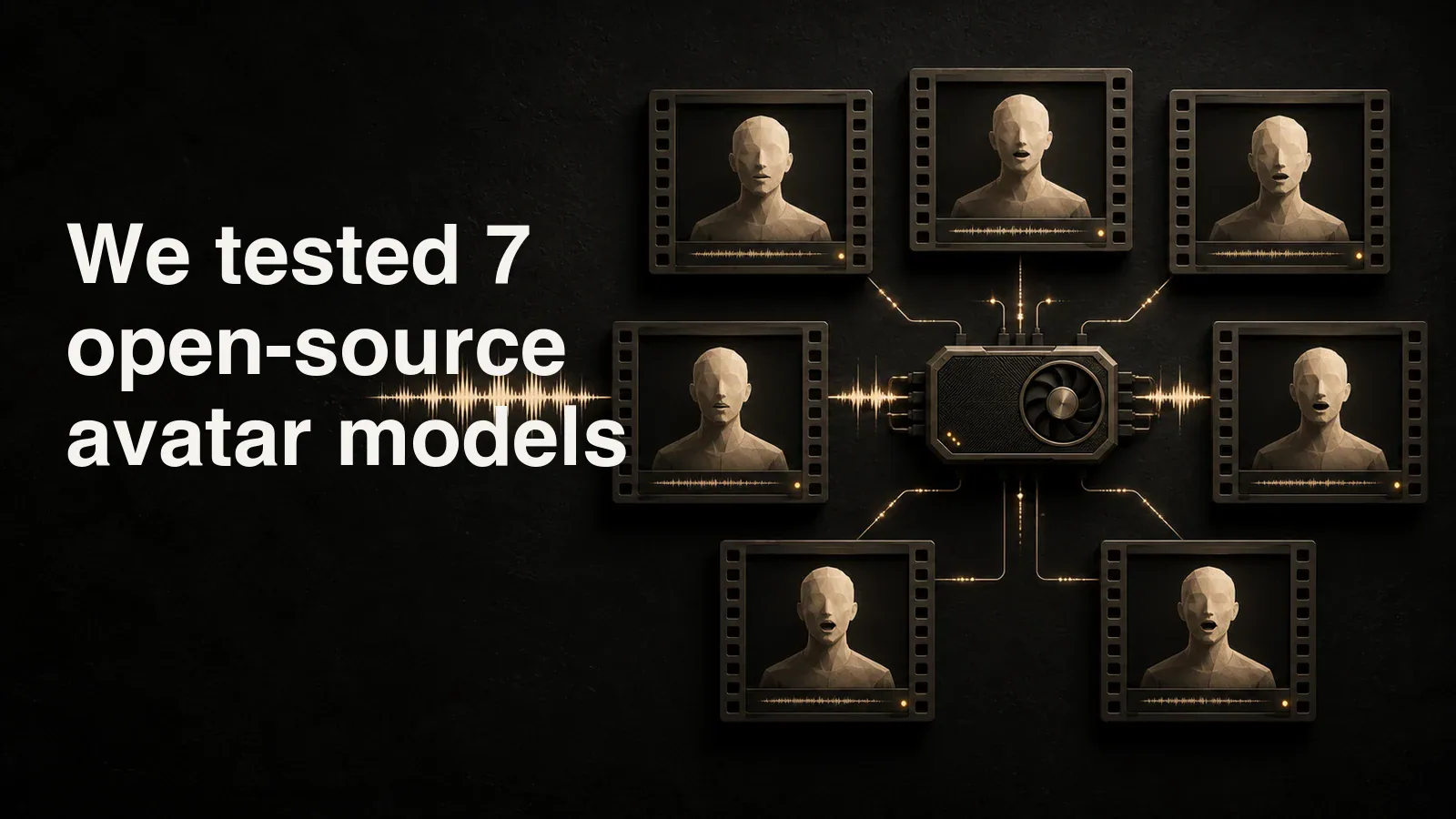
We tested seven open-source avatar video models released in the past year with over 1,000 GitHub stars, using the same public avatar and male voice.
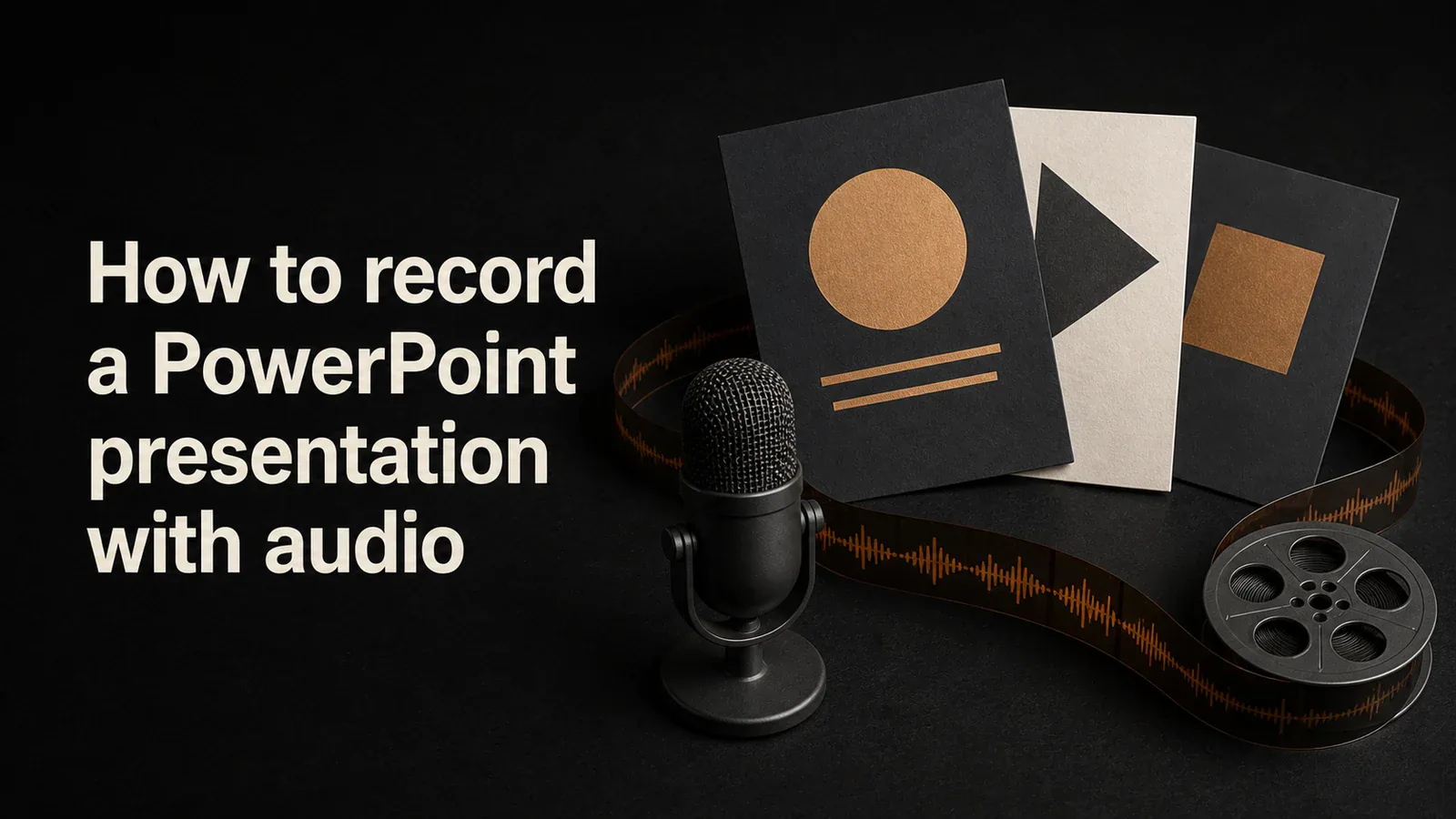
Learn how to record a PowerPoint presentation with audio and voiceover - using PowerPoint's built-in Record Slide Show, exporting to video, and screen recorders.
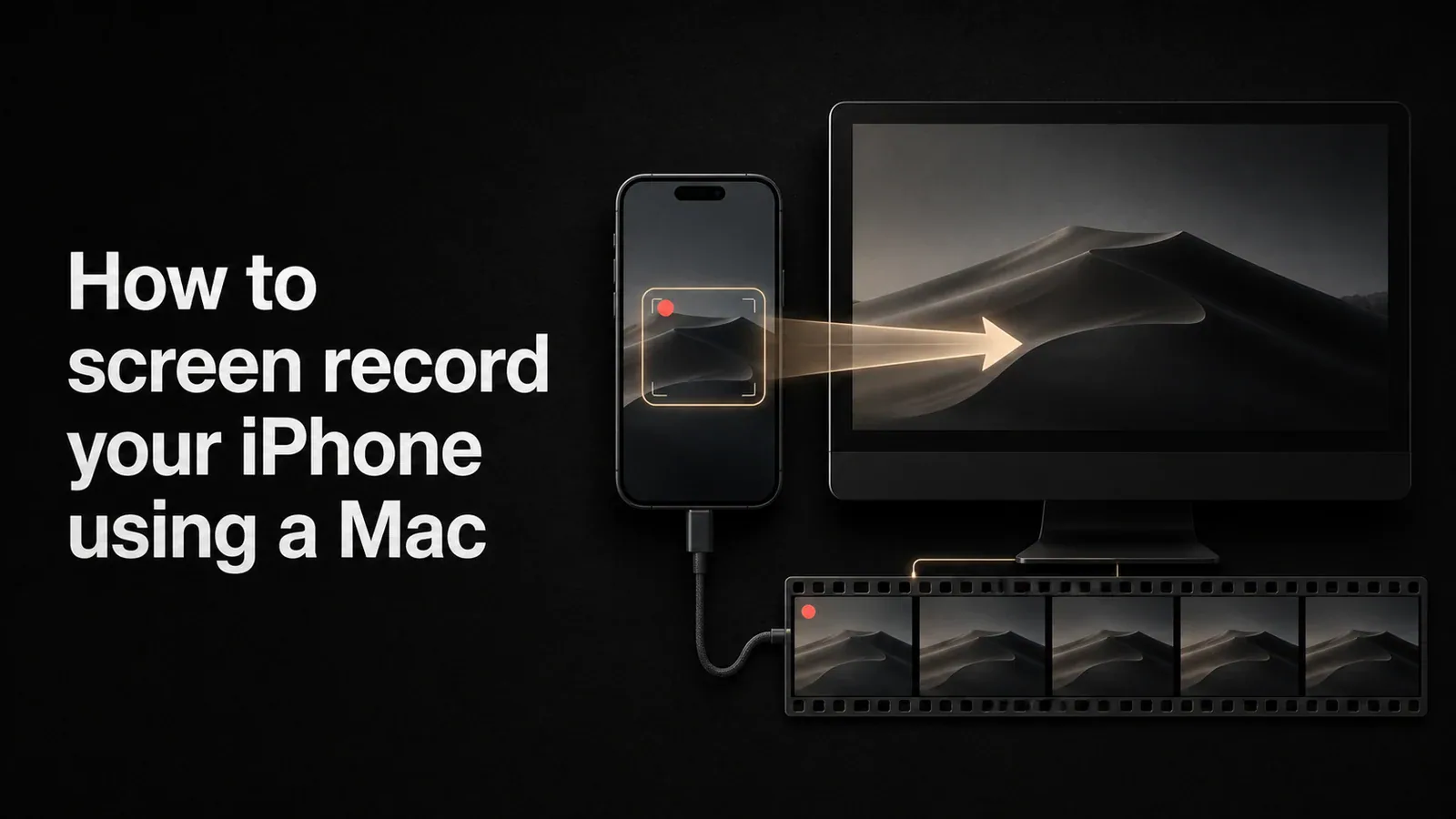
Step-by-step guide to recording your iPhone screen from a Mac. Covers QuickTime Player, the iOS built-in recorder, and how to capture a polished version with Tight Studio.
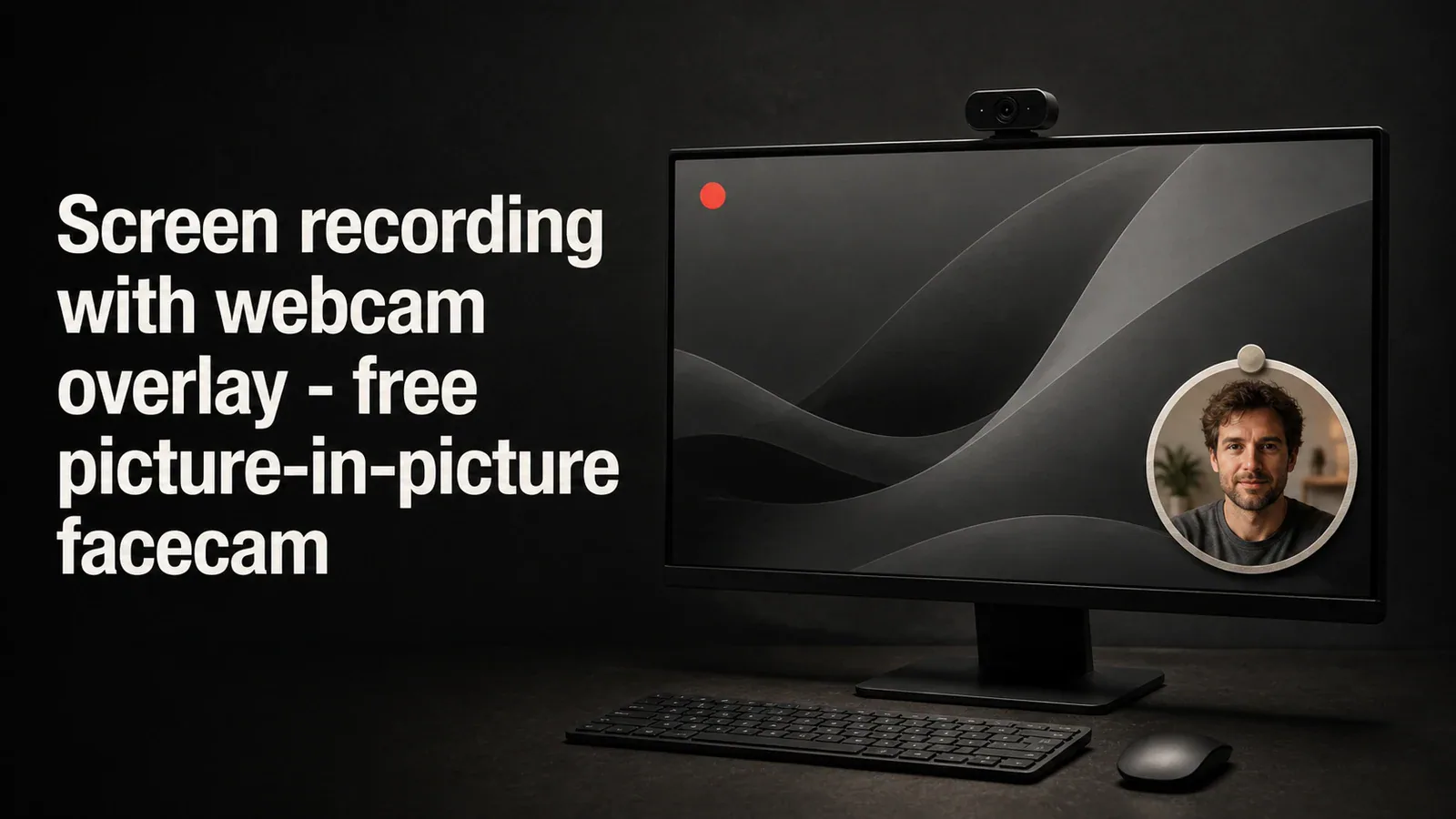
How to record your screen with a webcam overlay (facecam) for tutorials, demos, and online courses. Free picture-in-picture screen recording methods compared.
Voice Cloning is now in Private Beta. Generate narration in your own voice from any script. Your voice data stays private to you, and access is invite-only.
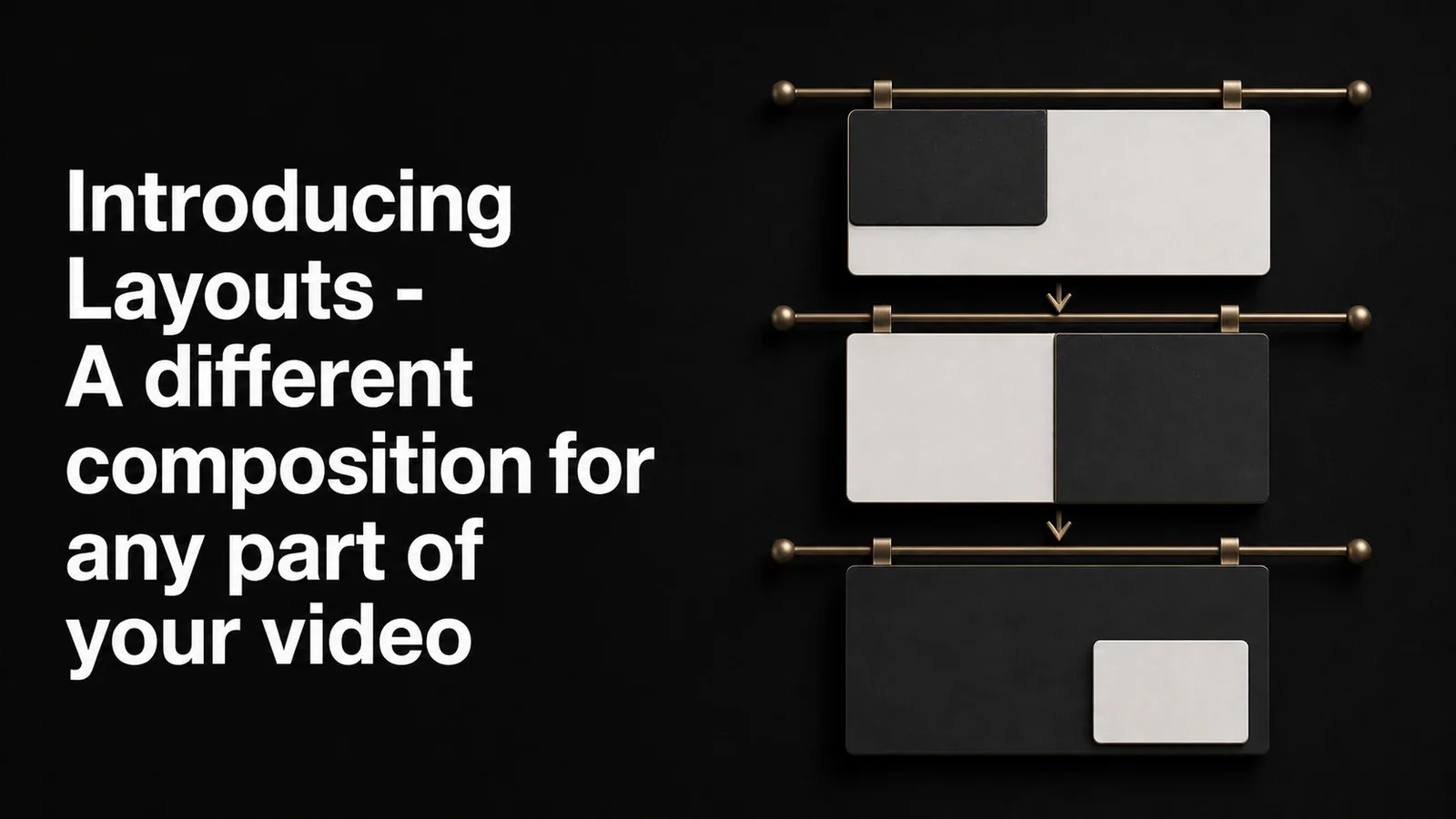
Layouts let you set how your screen recording and camera share the canvas - corner overlay, side-by-side, stacked, camera-only - and switch between them at any point in the video. Show your face during the intro, the screen during the demo, both side-by-side for the wrap.
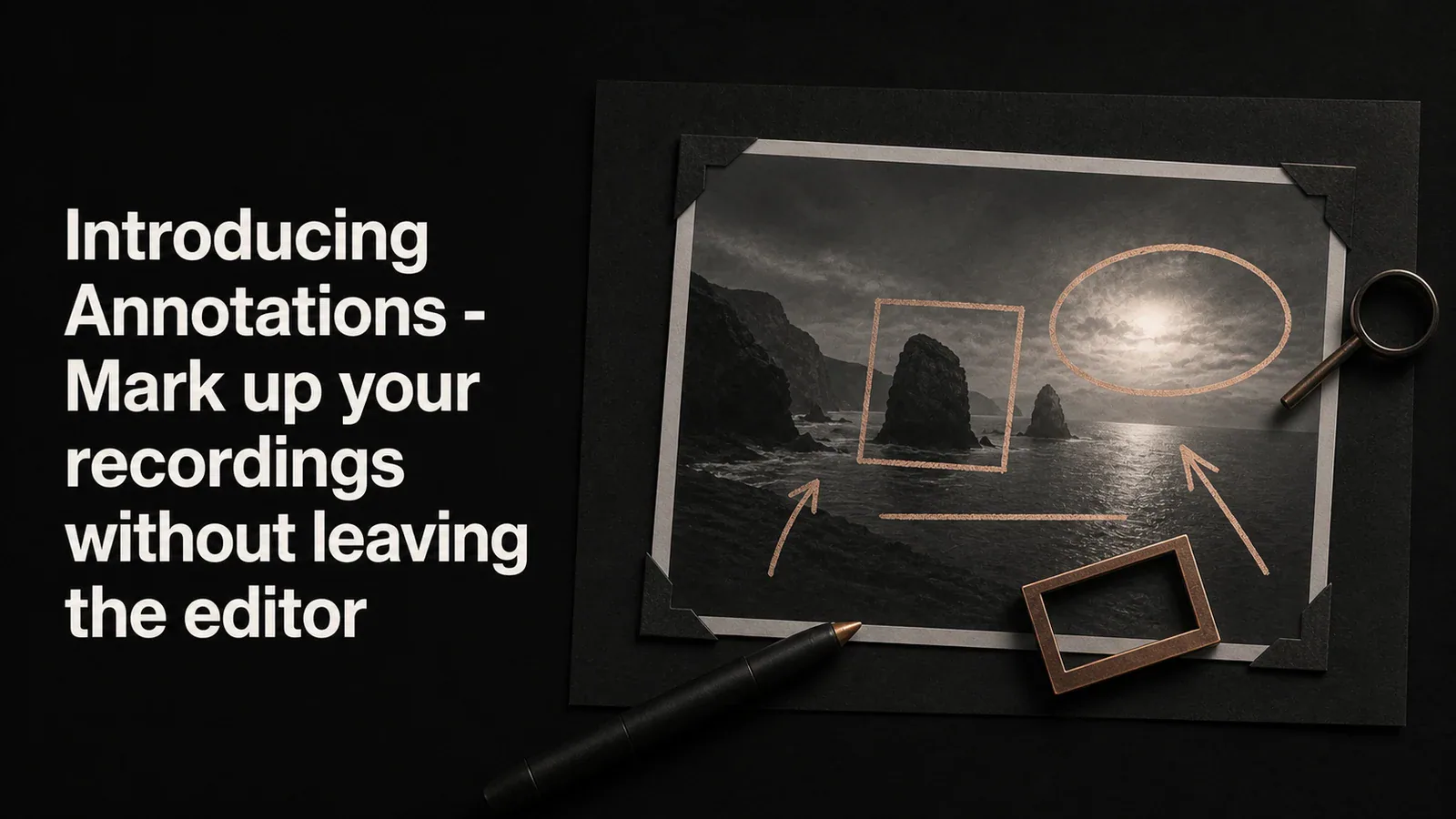
Drop rectangles, ellipses, lines, and arrows on top of your video to point out what matters. Six annotation types, one unified panel, and four textured arrow styles for when a plain line isn't enough.
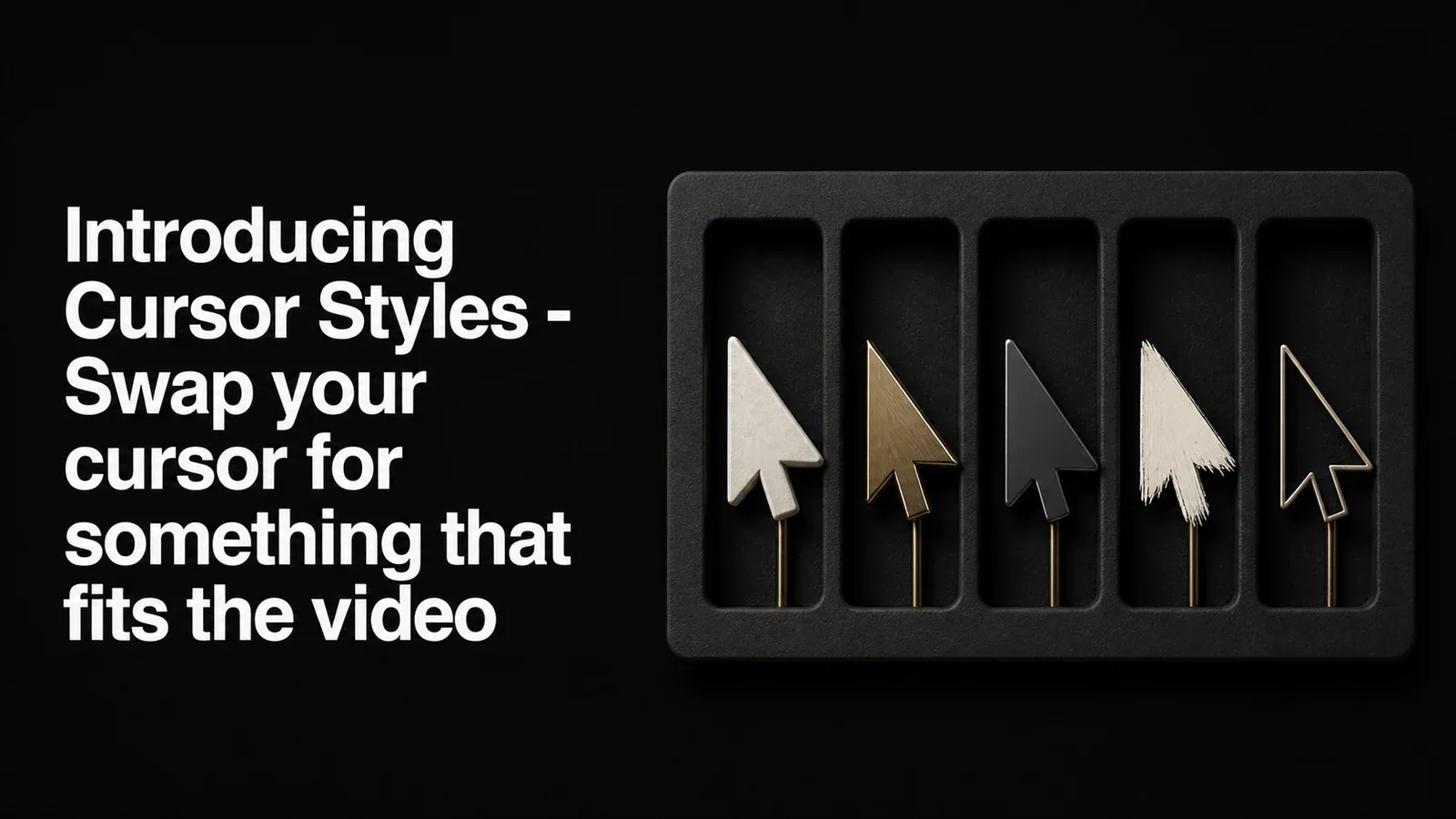
A new Cursor Style picker lets you replace the system cursor in your recording with one of 13 alternate styles - glossy arrows, hand pointers, a 3D pixel hand, and more. Applied in playback and export, no re-recording needed.
Learn how to screen record on Mac using built-in tools and professional screen recorders. Step-by-step guide covering Screenshot toolbar, QuickTime, and Tight Studio.
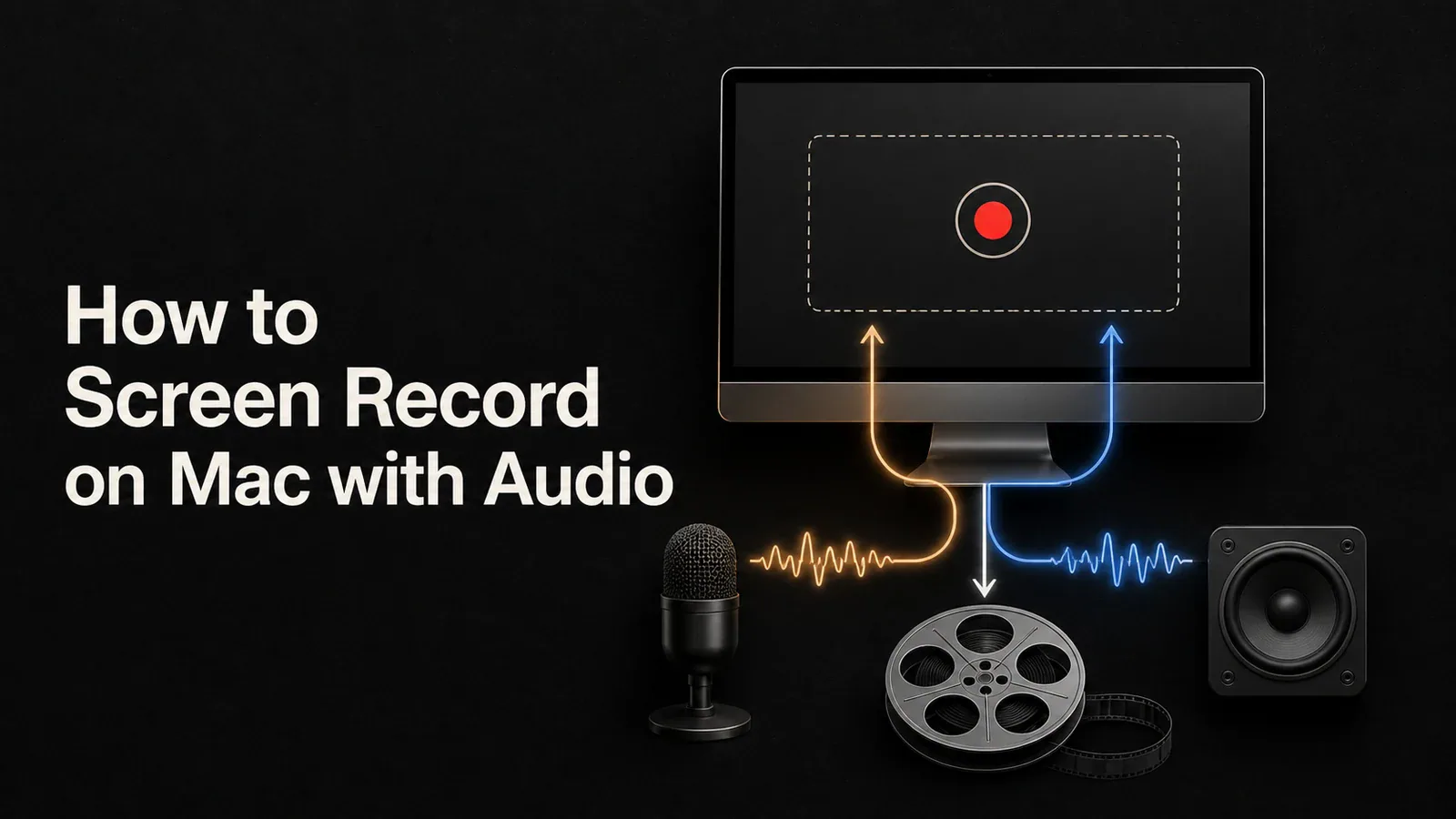
Learn how to screen record with audio on Mac using built-in tools, BlackHole, or Tight Studio's direct microphone and system-audio capture.
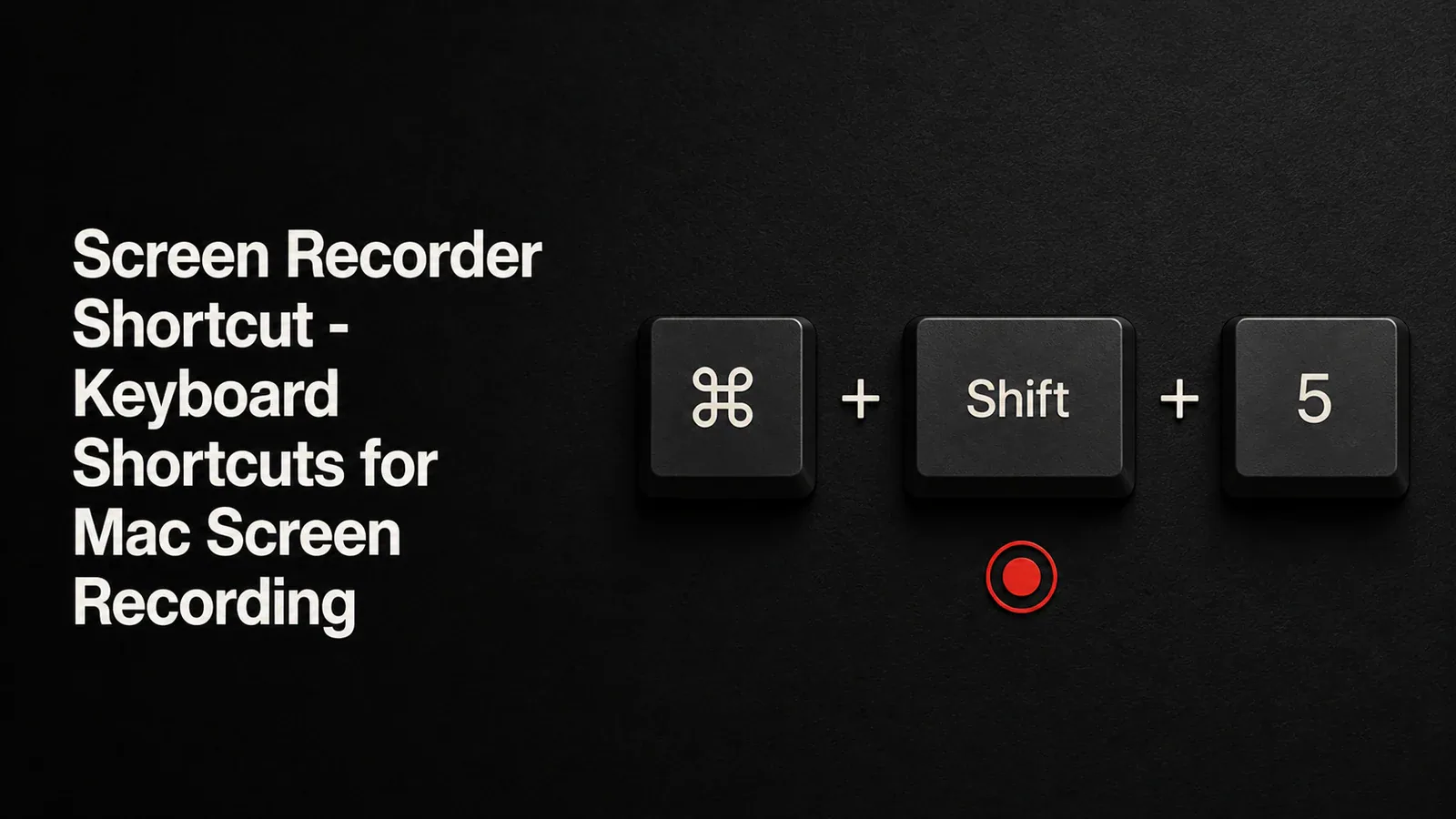
Complete reference of Mac screen recording keyboard shortcuts including Cmd+Shift+5 and QuickTime. Plus how to get professional results with zoom, cursor effects, and editing.
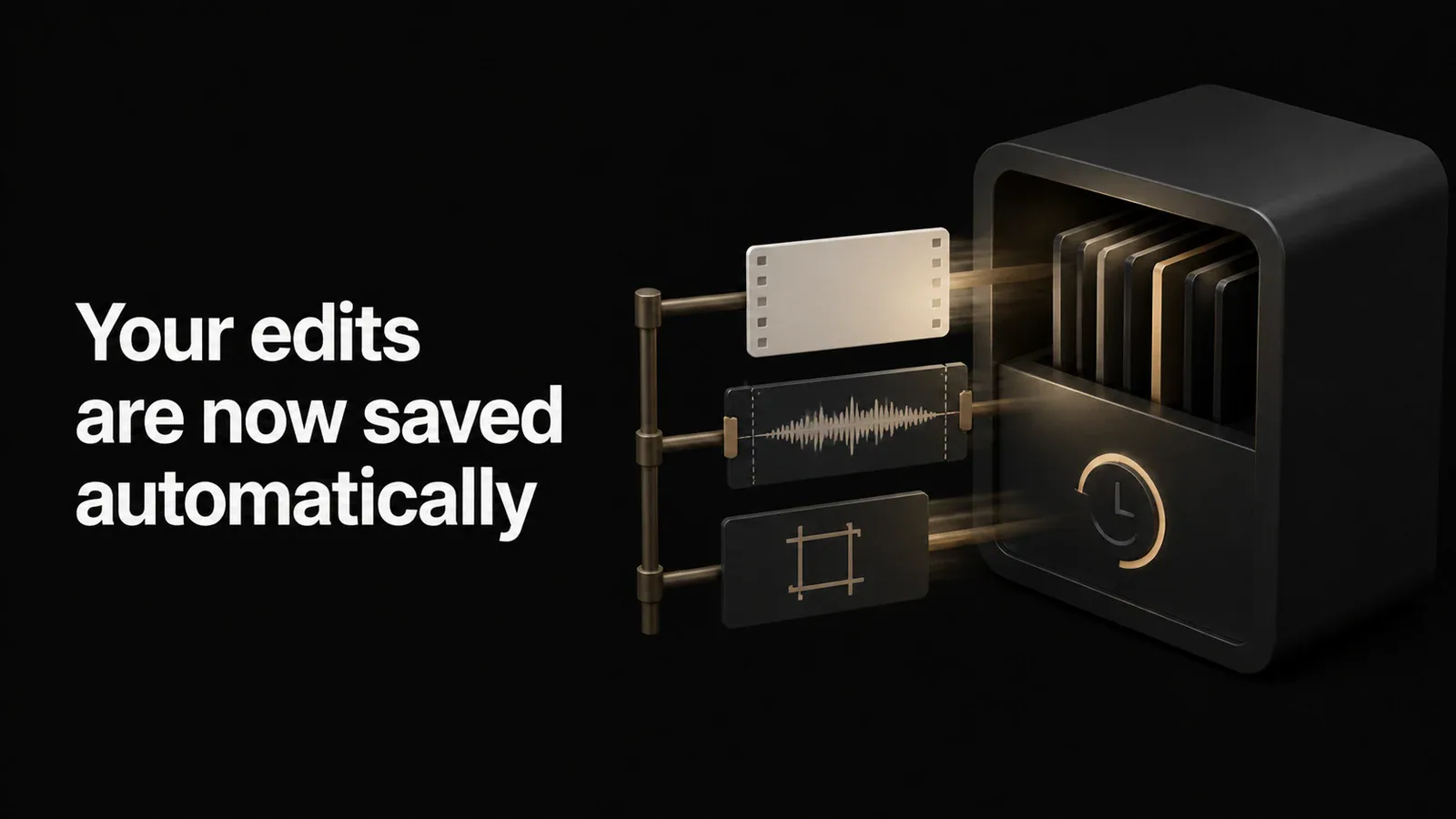
Tight Studio auto-saves your edits every 30 seconds so you never lose work. No more forgetting to hit save.
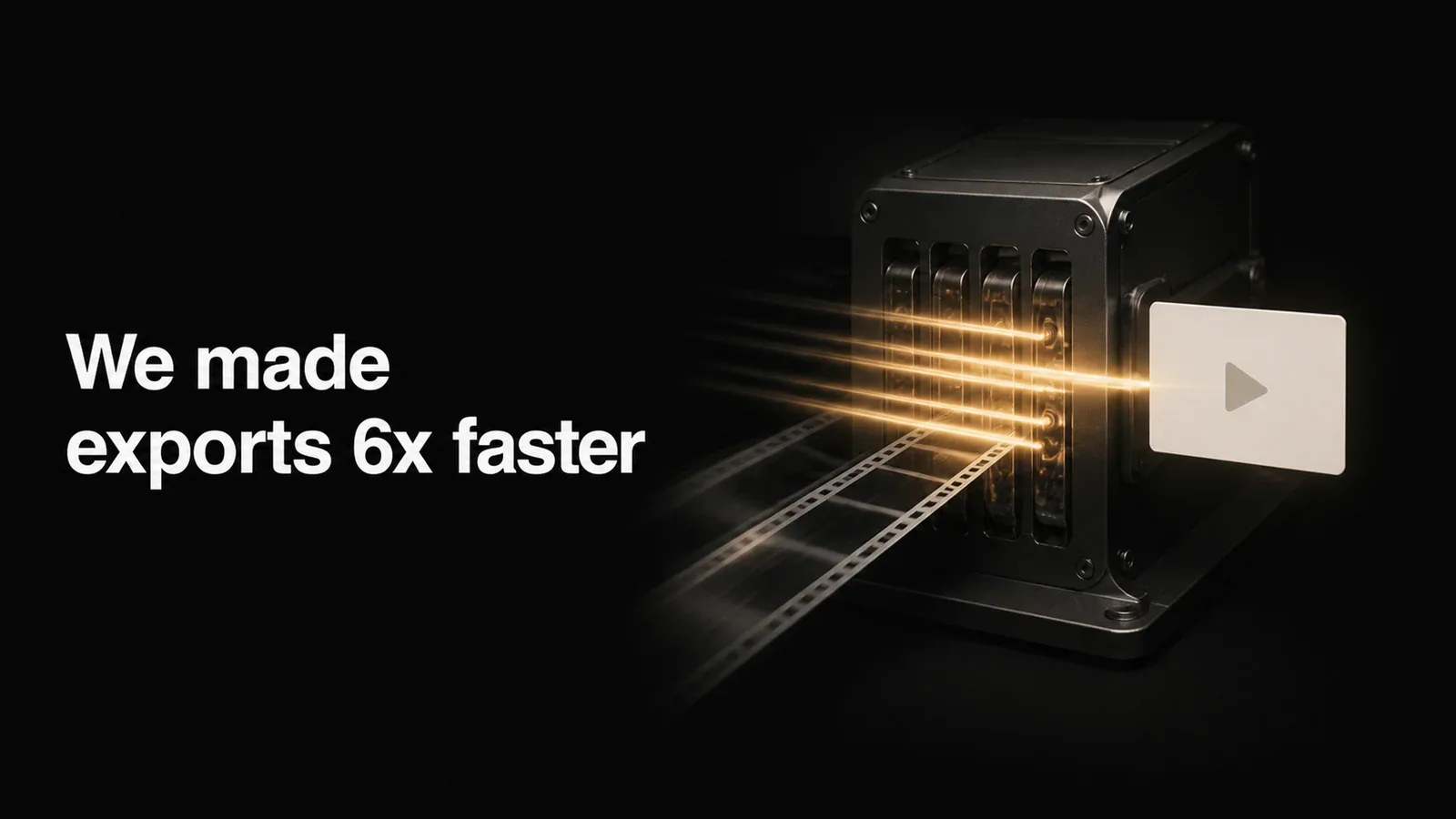
Real numbers from our analytics - export speed improved from ~2,000ms per second of video to ~300ms. A 60-second recording now exports in 20 seconds instead of 2 minutes.
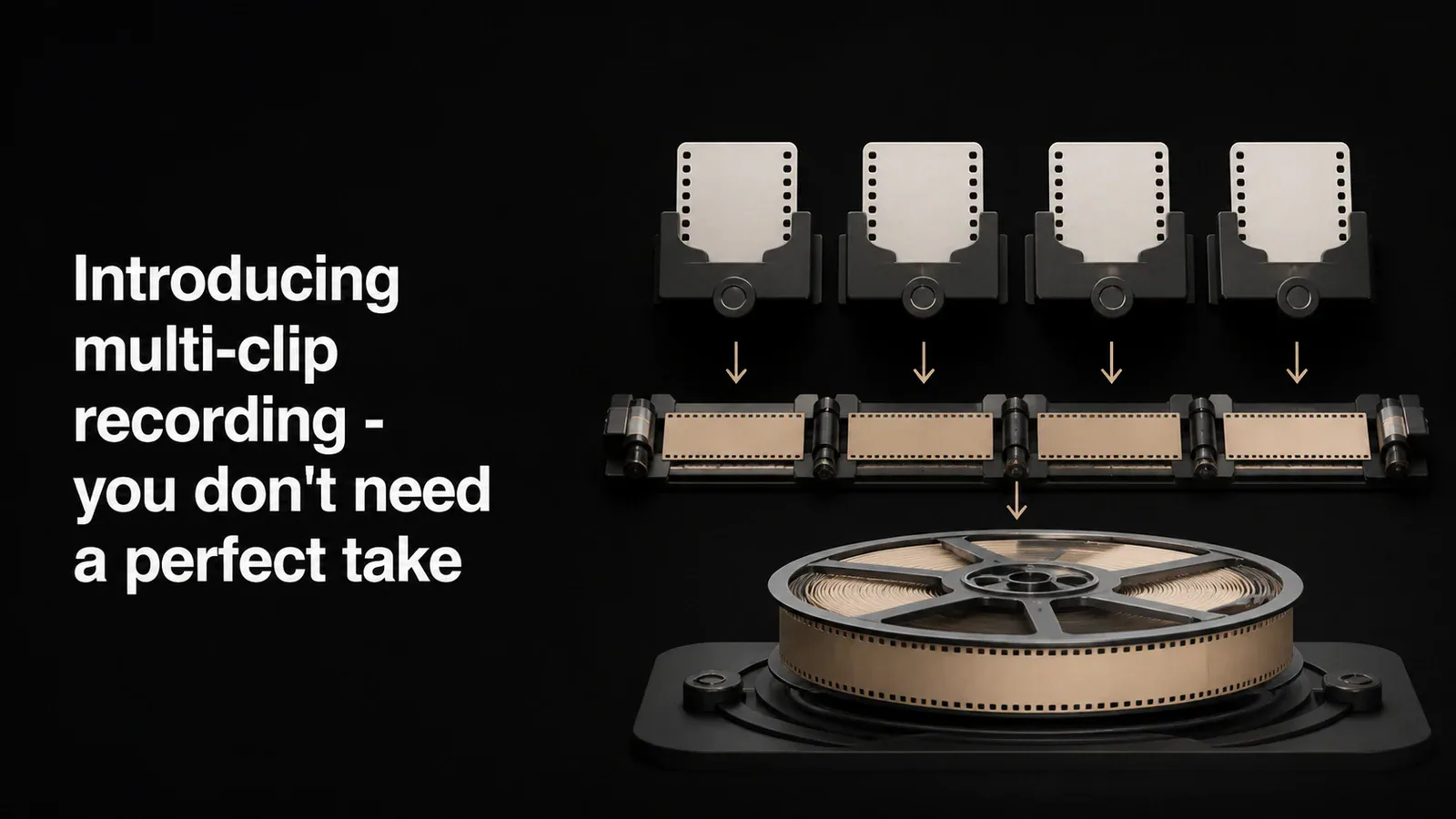
Tight Studio's multi-clip screen recorder lets Mac users record in parts, reorder the takes, and export them together as one finished video.
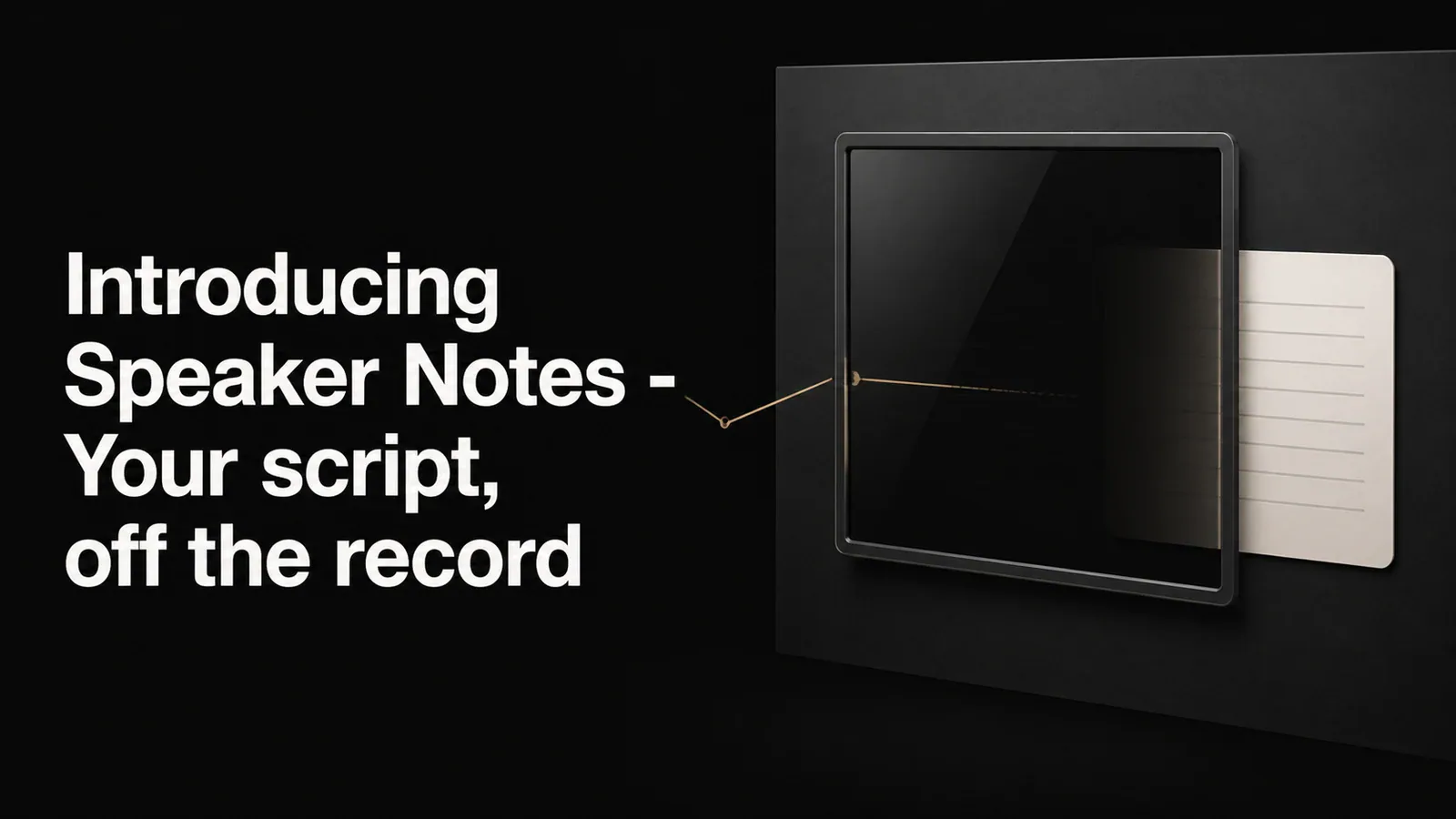
A floating notes window that stays visible while you record but never appears in the final video. Write your script, keep your talking points handy, and stay on message.
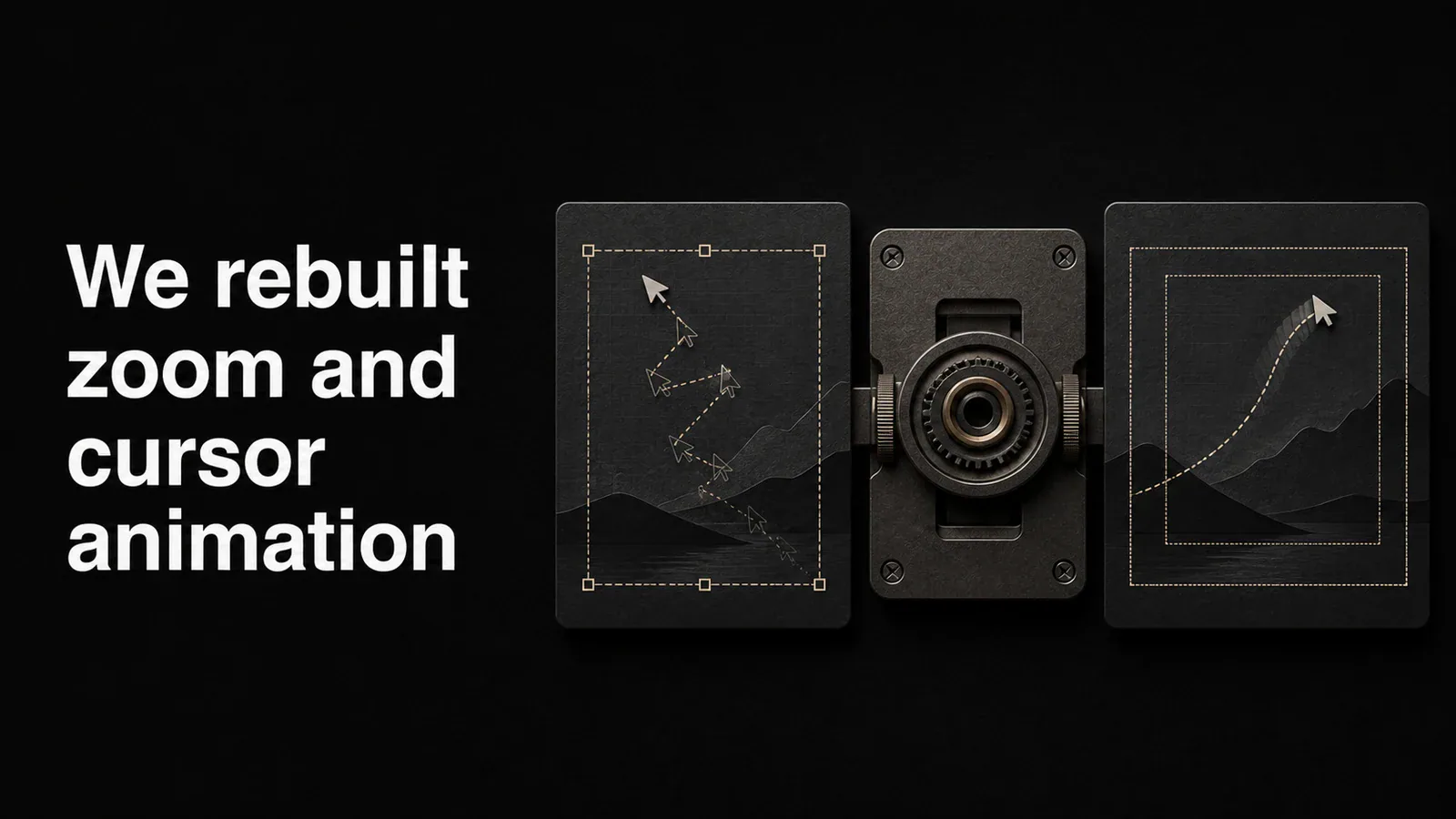
We rebuilt auto zoom and cursor animation from the ground up. Smoother transitions, smarter focus detection, and a cursor that finally looks like it belongs in a professional video.
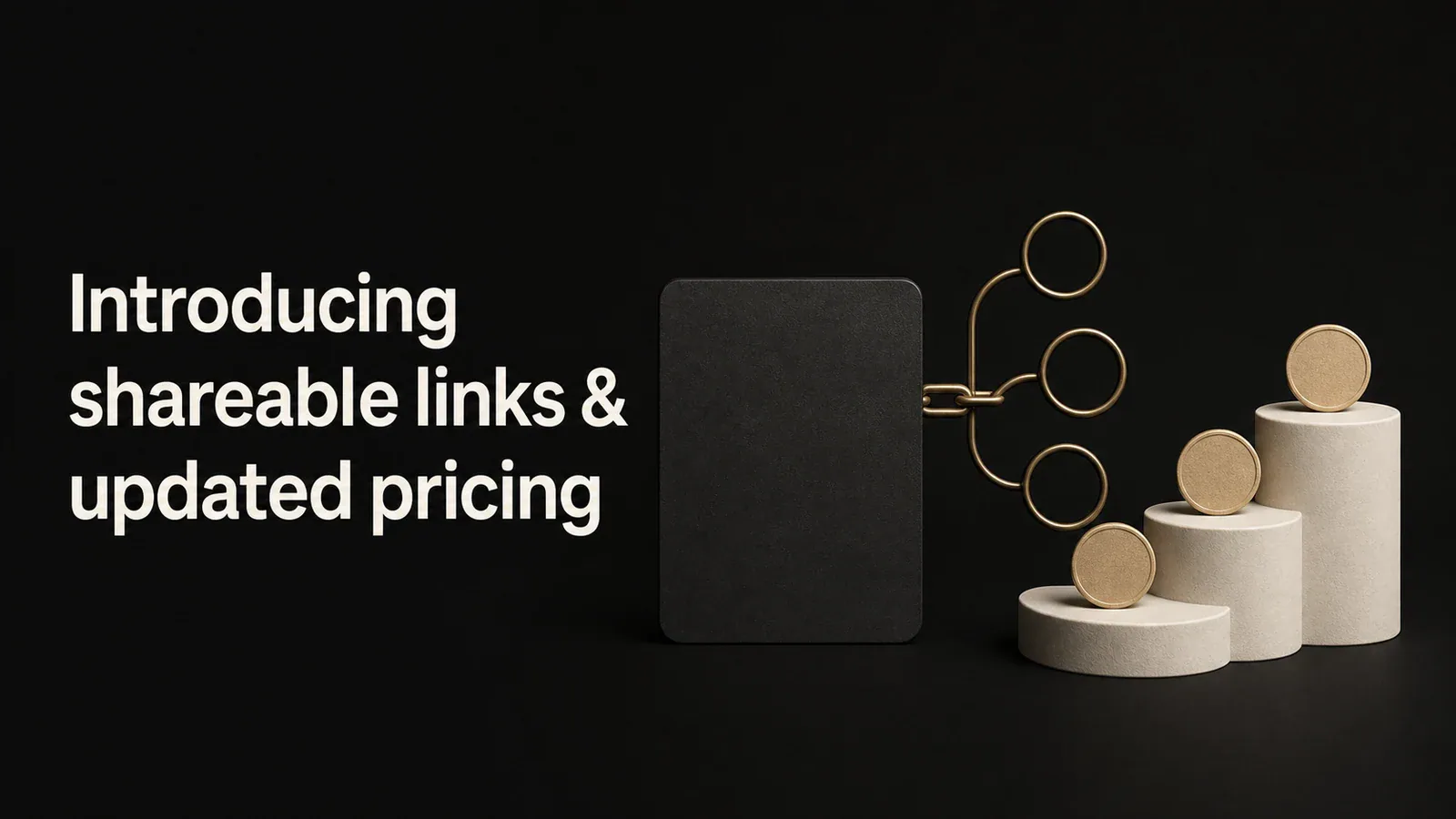
Share your screen recordings instantly with a link. Choose who can view - public, password-protected, or invite-only. Plus, our new pricing makes it easy to pick the right plan.