

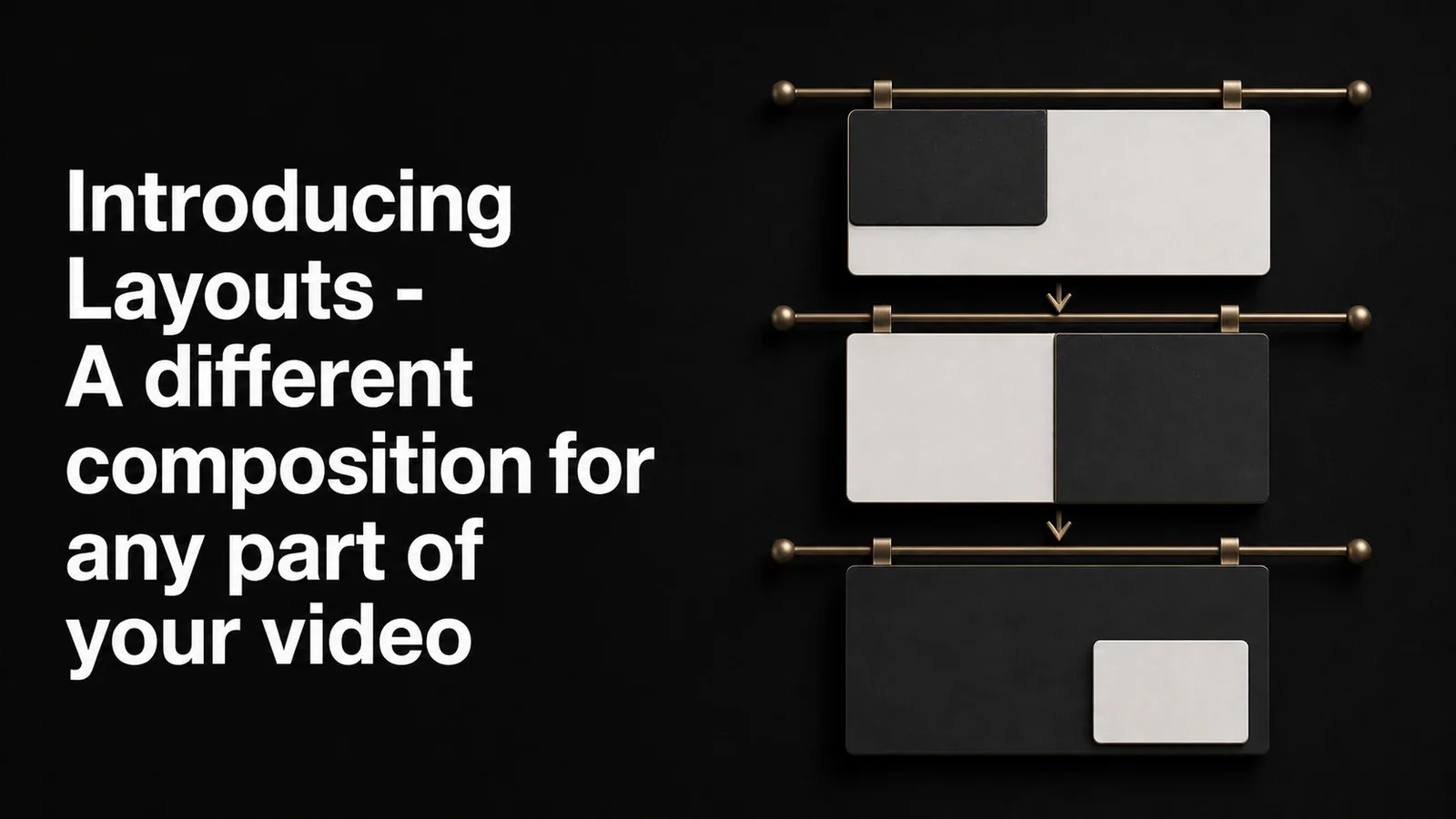
TL;DR - Tight Studio now has Layouts. Pick how your screen recording and camera share the canvas - and switch the layout for any part of your video. Face-only for the intro, screen-only for the demo, side-by-side for the wrap, all from the same recording.
One recording, many compositions
A good screen recording rarely wants the same framing the whole way through. The intro is about you - your face, your voice, the hook. The demo is about the screen - you want every pixel of it. The wrap-up is about both - you back on camera while the result of what you just built sits next to you.
Up until now, you picked one layout when you set up the recording and lived with it for the whole video. Layouts changes that.
Pick a layout, click a button
Open the Layout panel and you’ll see a grid of layout presets grouped by how they treat the camera:
- Corner Overlay - camera as a small picture-in-picture in any of the four corners
- Side-by-side - camera and screen as two equal panels
- Stacked - camera on top or bottom with the screen filling the rest, tuned for vertical 9:16 canvases
- Camera Primary - camera fills the canvas, screen recording hidden
- Screen Only - no camera at all
Click a preset and the entire video updates instantly. The camera position, size, shape, and how the two feeds share the canvas are all handled for you. No dragging, no resizing.
Different layouts for different parts of the video
Here’s the part we’re most excited about. Inside the Layout panel there’s an “Add Layout Segment” button. Click it, drag the segment to cover any range of your video, and pick a layout for just that range.
The classic example: your recording opens with you talking to the camera, then transitions into a screen demo, then comes back to you for the close. With Layouts, you set the intro segment to Camera Only, the demo segment to Screen Only or Corner Overlay, and the wrap segment to Side-by-side. As the playhead moves through the video, the composition follows.
You can stack as many layout segments as you want on the same clip. Drag the edges to fine-tune timing. Delete a segment and that range falls back to the clip’s default layout.
Transitions are automatic
When the video crosses from one layout segment into another, Tight Studio animates the change for you. Camera positions, sizes, and shapes interpolate from one layout to the next, so the cut doesn’t feel like a cut. It feels like the camera is moving with intention.
You don’t configure the transition. Pick the layouts, and the animation between them is taken care of.
Made for any aspect ratio
Layouts work for both 16:9 and 9:16 canvases. The vertical-stacked presets are tuned specifically for 9:16, so a recording shot for short-form video gets layouts that actually use the full canvas instead of just shrinking horizontal compositions.
If you switch the canvas aspect on a project, the layouts adapt - a side-by-side on 16:9 becomes a stacked composition that makes sense on 9:16.
Available to everyone
Layouts are available on all plans, including Free. Download Tight Studio and try it on your next recording.