

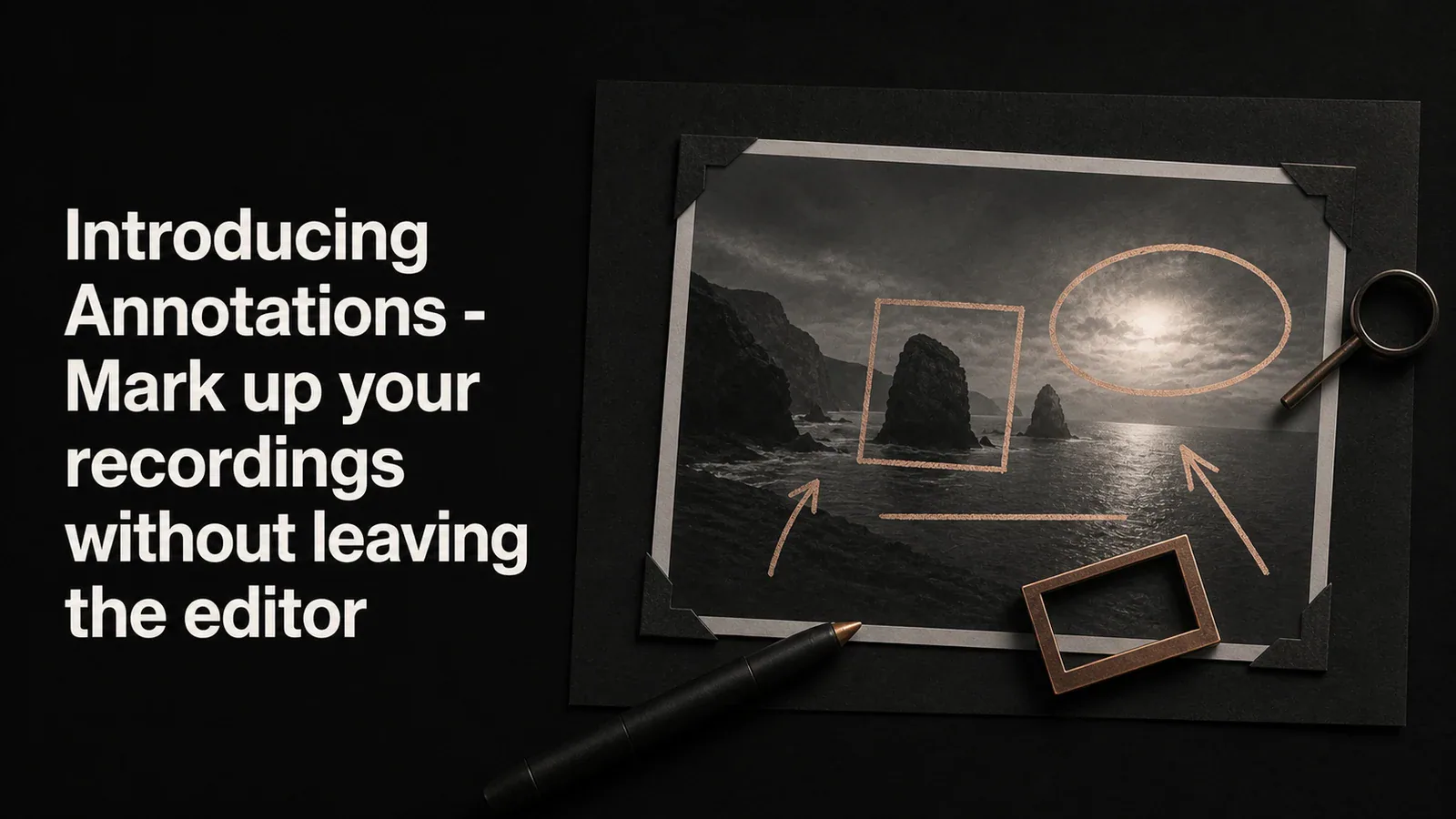
TL;DR - Tight Studio now has shape annotations. Drop a rectangle, ellipse, line, or arrow anywhere on your video to call out exactly what your viewer should be looking at. Text, highlights, and shapes all live together in one Annotations panel and one timeline track.
When pointing matters more than zooming
A lot of screen recordings have a moment where you need to say “look at this.” You can zoom in. You can dim the rest of the screen with a highlight. Sometimes you just want to draw a circle around the thing.
Until now, you couldn’t do that in Tight Studio without exporting to another tool. You can now.
Six ways to mark something up
The Annotations panel groups every kind of overlay into one place:
- Text - on-screen labels, titles, callouts
- Highlight - dim the rest of the screen and spotlight a region
- Rectangle - box around a region
- Ellipse - circle around a region
- Line - a double-headed arrow connecting two points
- Arrow - a single-headed arrow pointing at a region
Pick a type, drop it on the timeline, and drag the handles on the canvas to position it. Every annotation becomes a segment on the Annotations track, so you can slide it around to change when it appears, drag the edges to change how long it stays, or stack multiple annotations to call out several things at once.
Defaults that just work
We picked the defaults so you almost never have to touch the editor panel. New shapes come in highlight yellow with a transparent fill, so the screen behind them stays visible. Rectangles get a 5% corner radius - rounded enough to feel modern, not so round that it looks cartoonish. Lines render as double-headed arrows, because a line on a video is almost always saying “this connects to that.”
If you want to change a color, the picker is one click away. But the goal was that the first shape you drop already looks right.
Textured arrows for when a plain line is boring
Plain arrows are great for diagrams. They’re a little plain on top of a polished product walkthrough.
The arrow tool now ships with four textured styles - thin, pill, diamond, and split. They’re vector-based, so they stay sharp at any size, and they come pre-styled so a single click swaps the look. Drag the side handles to make the arrow thinner or thicker. The plain arrow is still there if you want it.
One panel, one track
The thing we wanted to fix more than anything else was the friction of switching panels. Captions in one place, highlights in another, text overlays in a third - it adds up. The Annotations panel collapses all of that into a single list, and the Annotations timeline track shows every overlay on the same row, color-coded by type.
If you’ve used Highlights or Text overlays before, your existing segments show up in the new panel. Nothing moved on disk. Just the UI is unified.
Available to everyone
Annotations are available on all plans, including Free. Download Tight Studio and try them on your next recording.