Tight Studio vs OBS

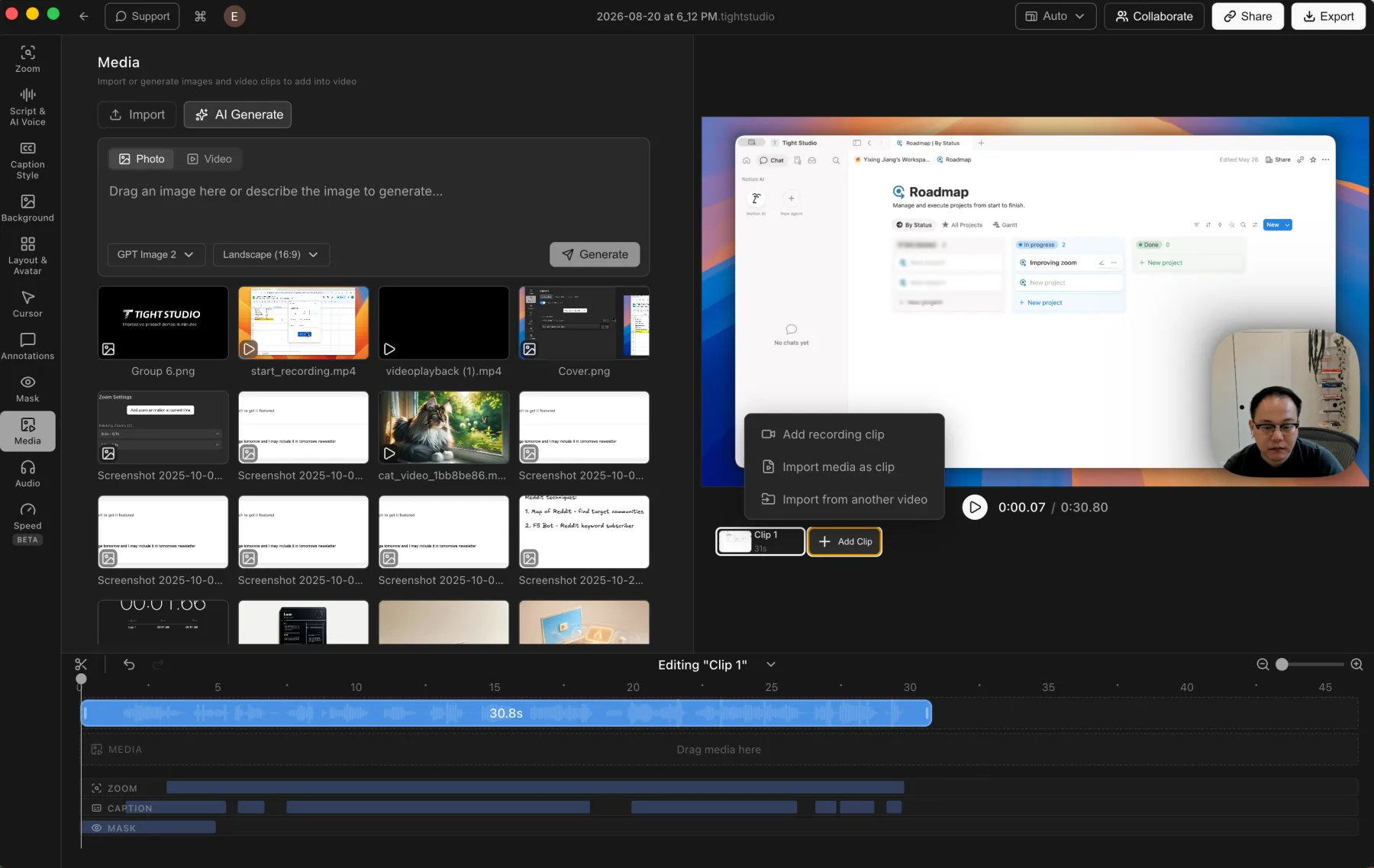
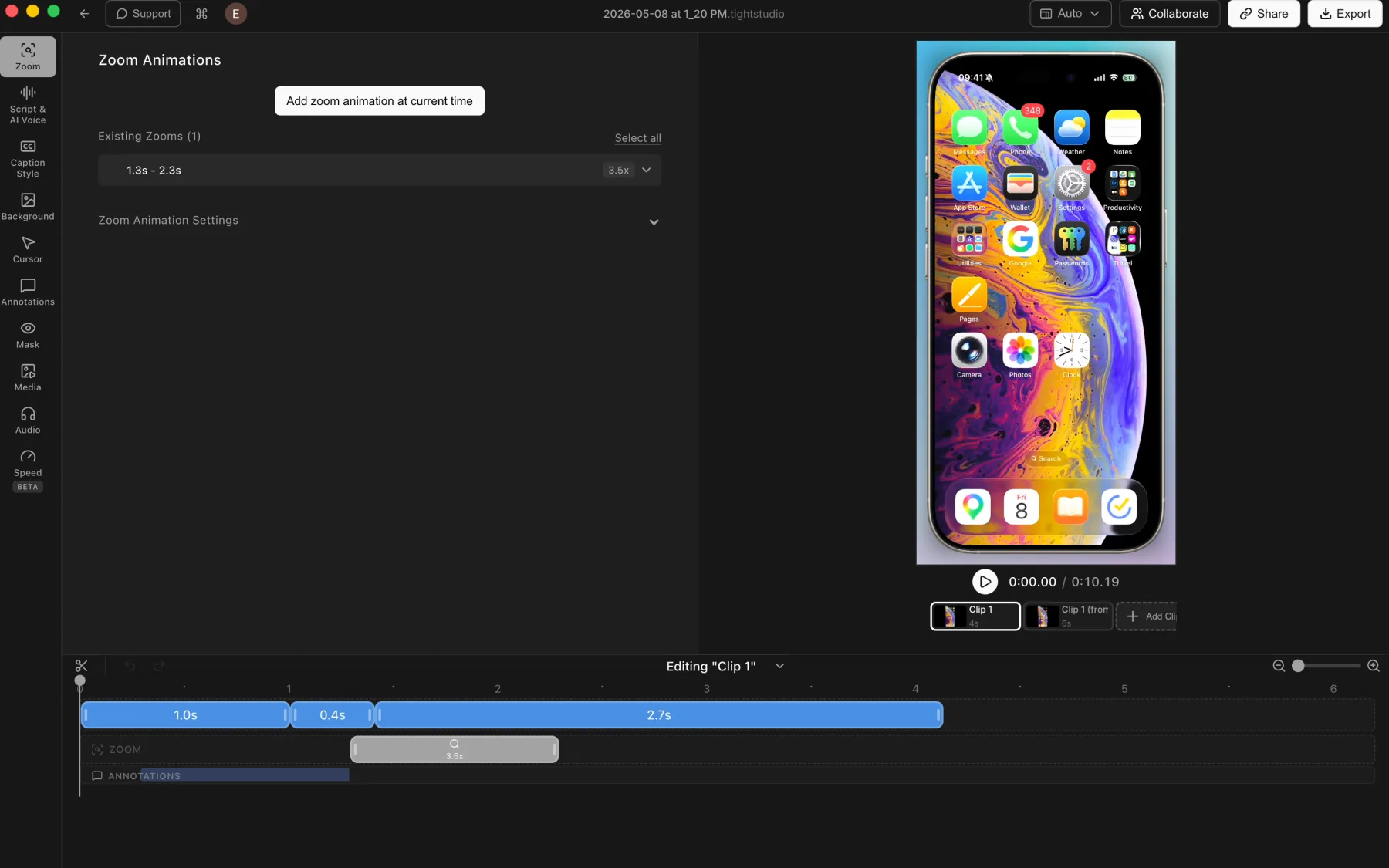
OBS is a configurable recorder and live-production tool. Tight Studio offers a more guided path from screen capture to an edited demo with zoom, cursor animation, narration, and captions.

Download Tight Studio free

macOS Apple Silicon - Free to start

TL;DR

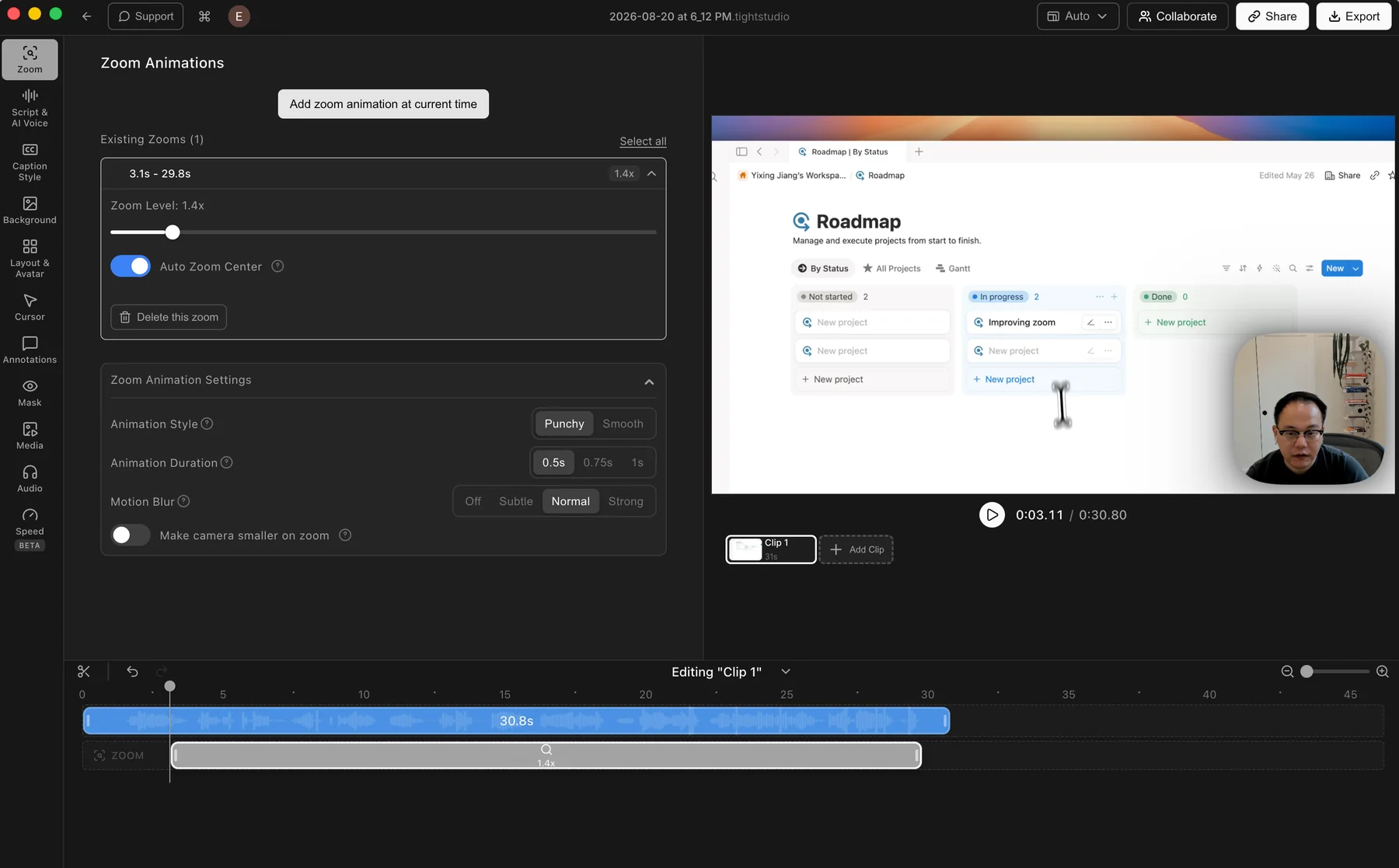
Tight Studio is best for creating polished product demos, tutorials, and presentations with smart zoom, AI narration, and full video editing - all in one app. OBS is best for live streaming, complex multi-source recording setups, and users who want a free, open-source tool with maximum configurability. If you want to go from recording to polished video without a separate editor, Tight Studio is the better choice.

Configurable live capture versus guided recorded-video production

OBS is built for both recording and live streaming with flexible multi-source composition. Tight Studio is built to take a screen recording from capture through post-production and sharing in one guided workflow.

Choose OBS when these tradeoffs work for you

You live stream

OBS supports Twitch, YouTube, and custom RTMP destinations. Tight Studio does not provide live streaming.

You compose complex scenes

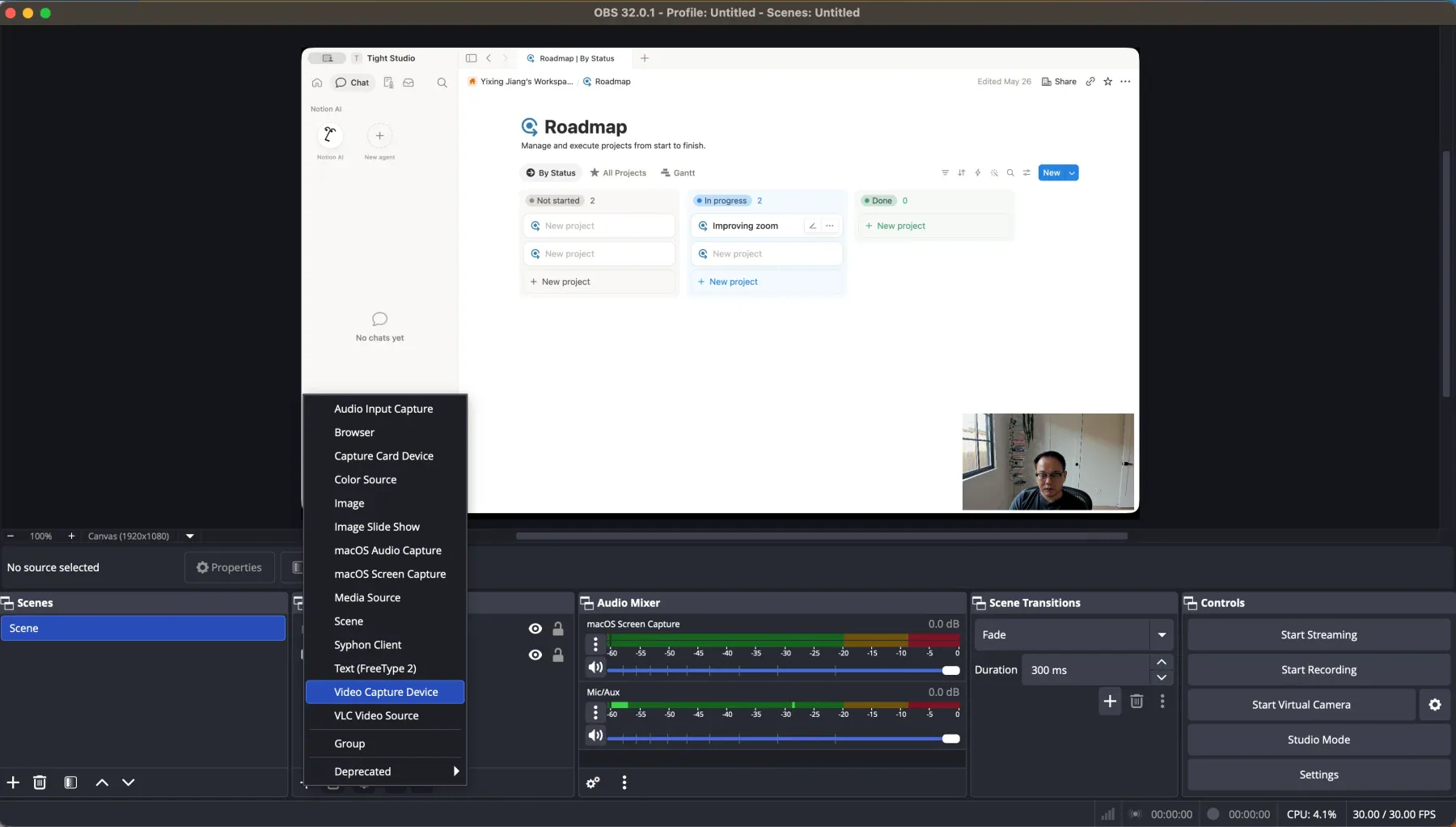
OBS can combine multiple sources, layouts, transitions, and community plugins.

You need free cross-platform software

OBS is free, open source, and available on Windows, macOS, and Linux.

Choose Tight Studio when these tradeoffs work for you

You make edited screen videos

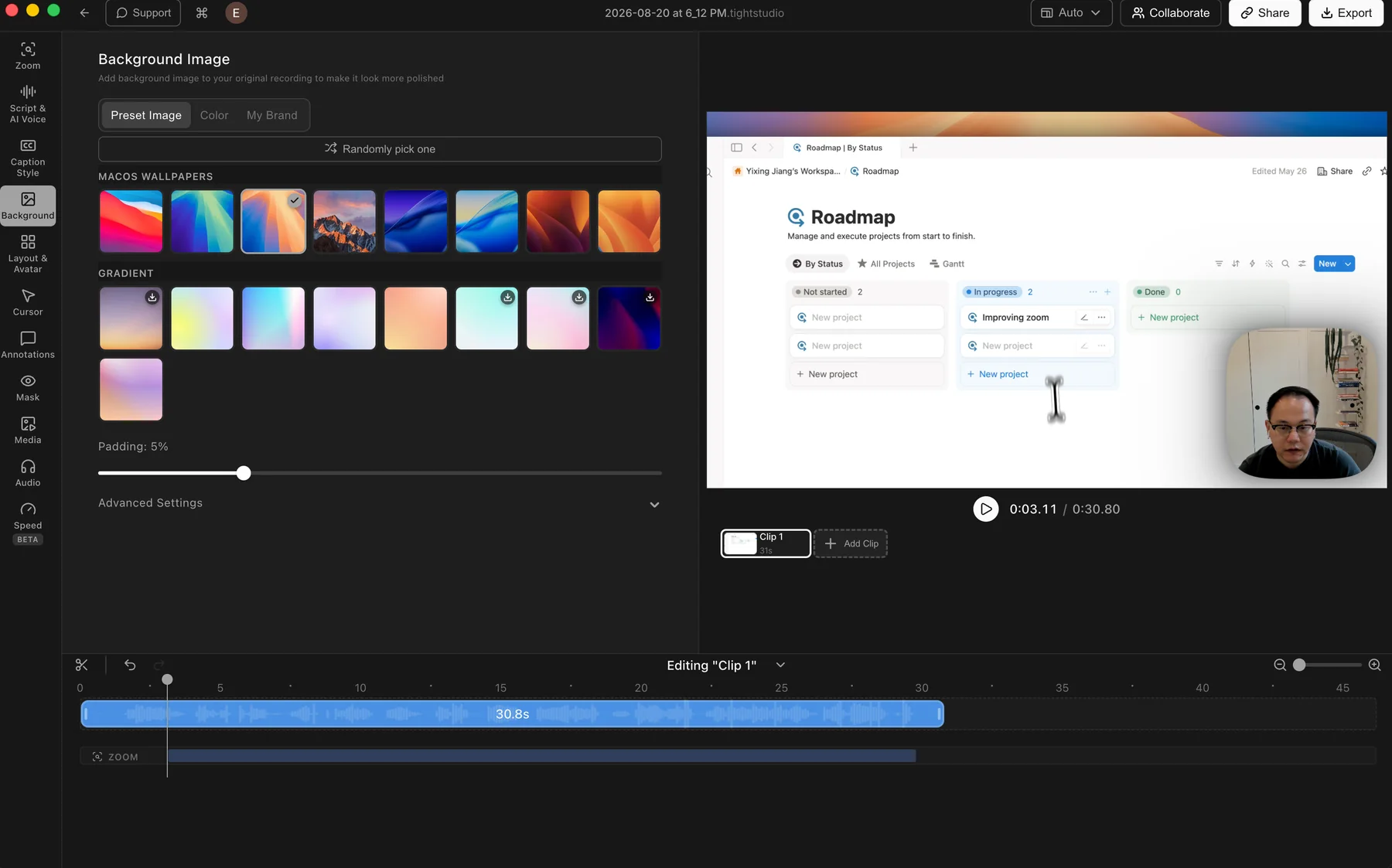
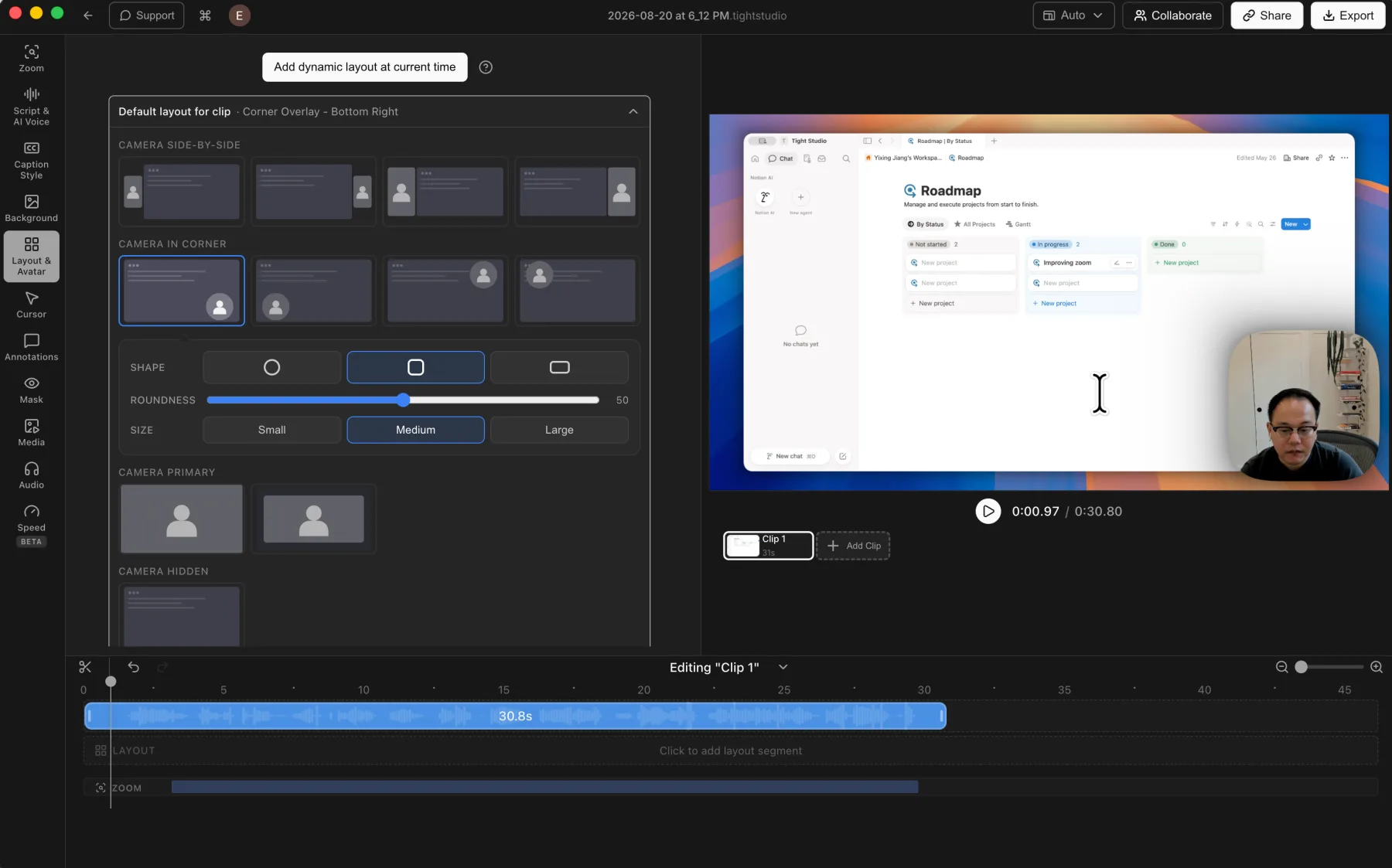
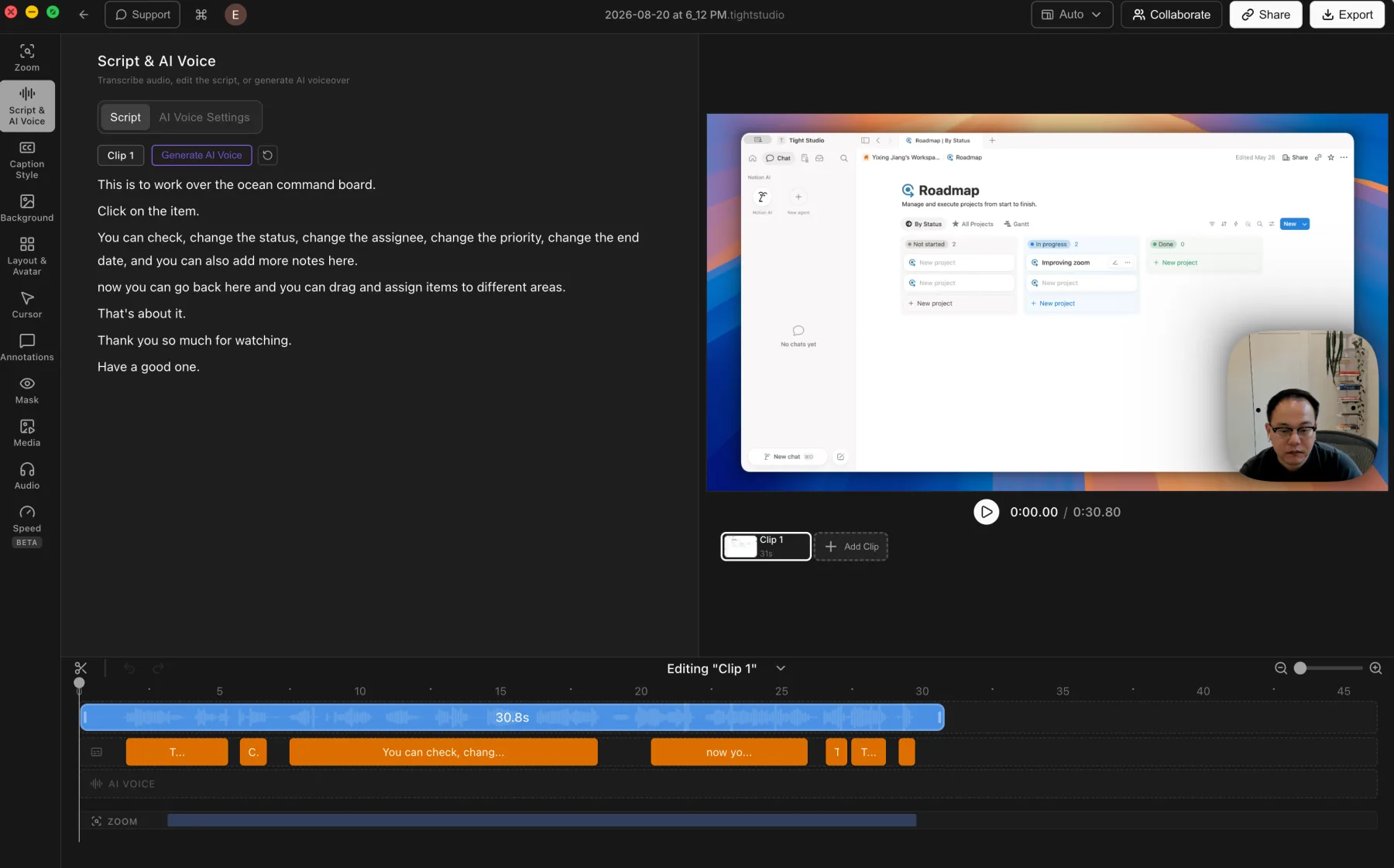
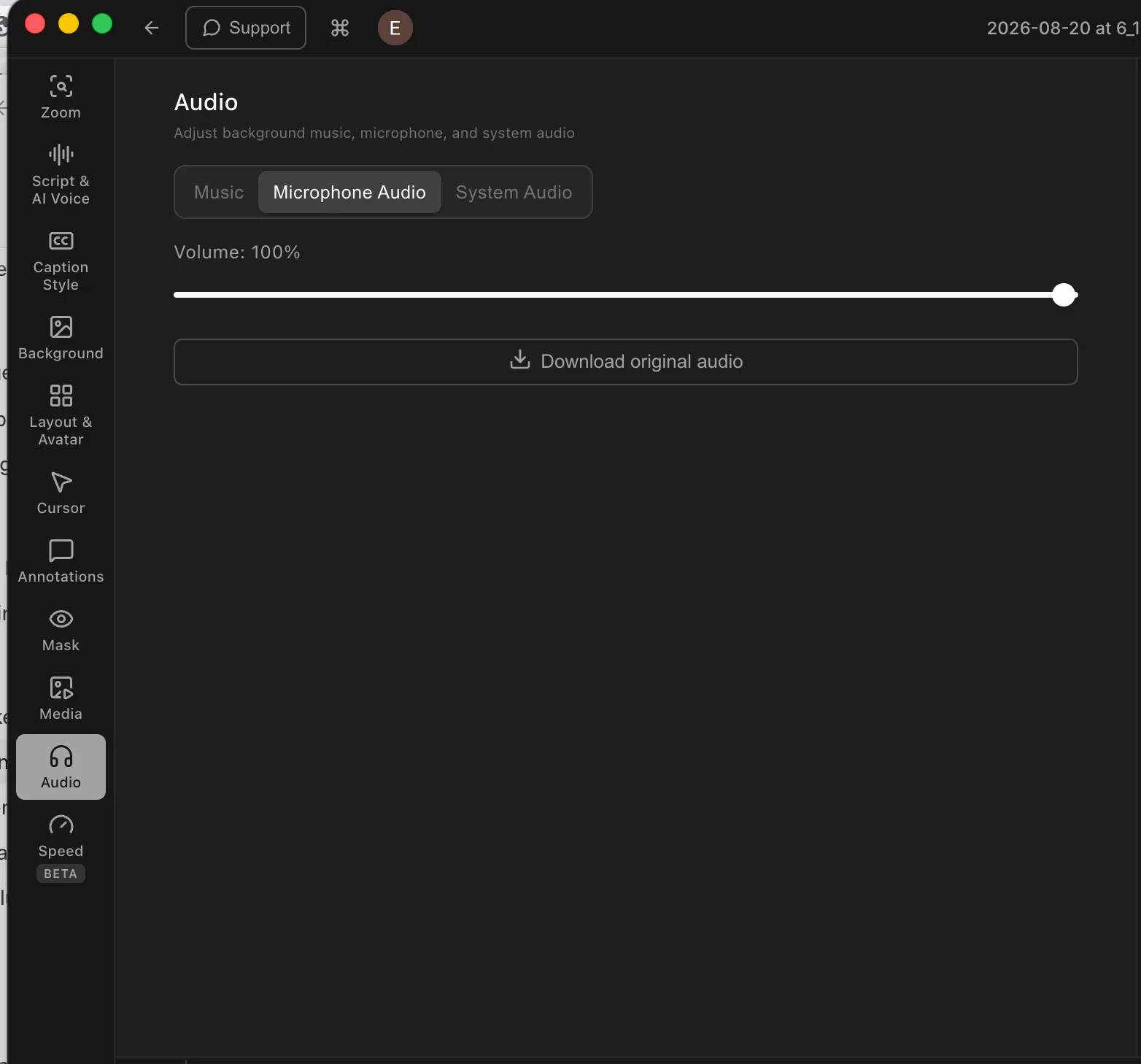
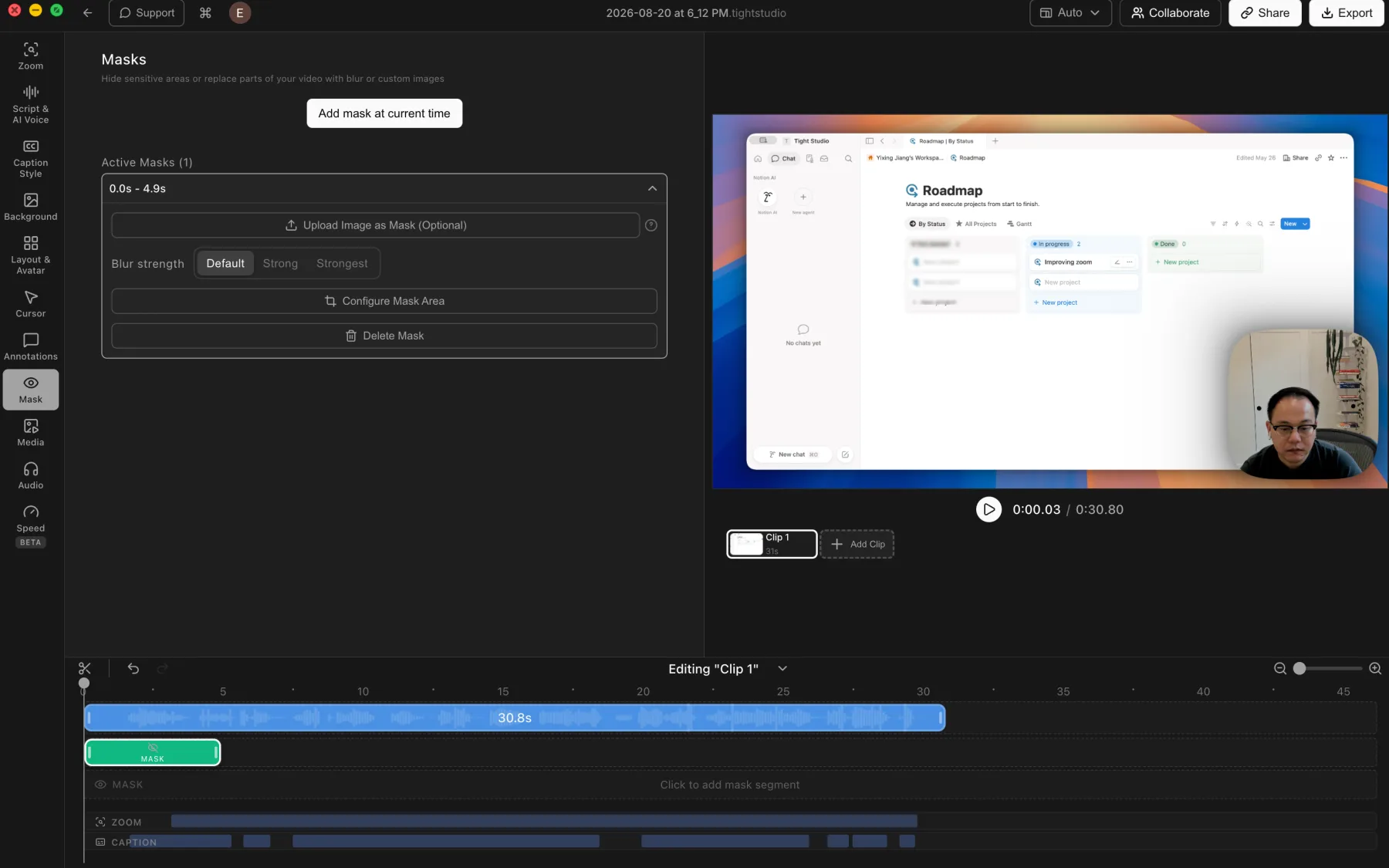
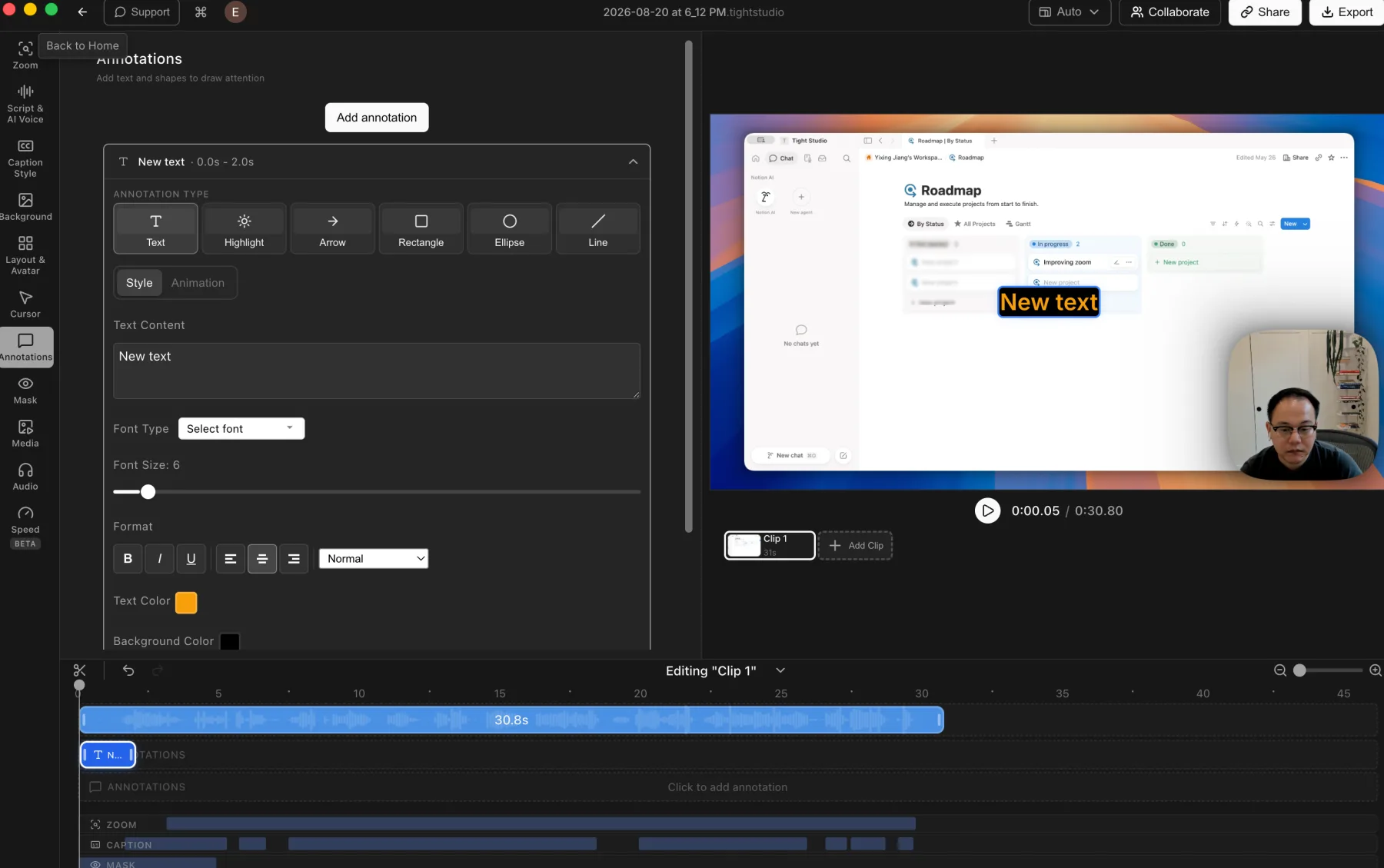
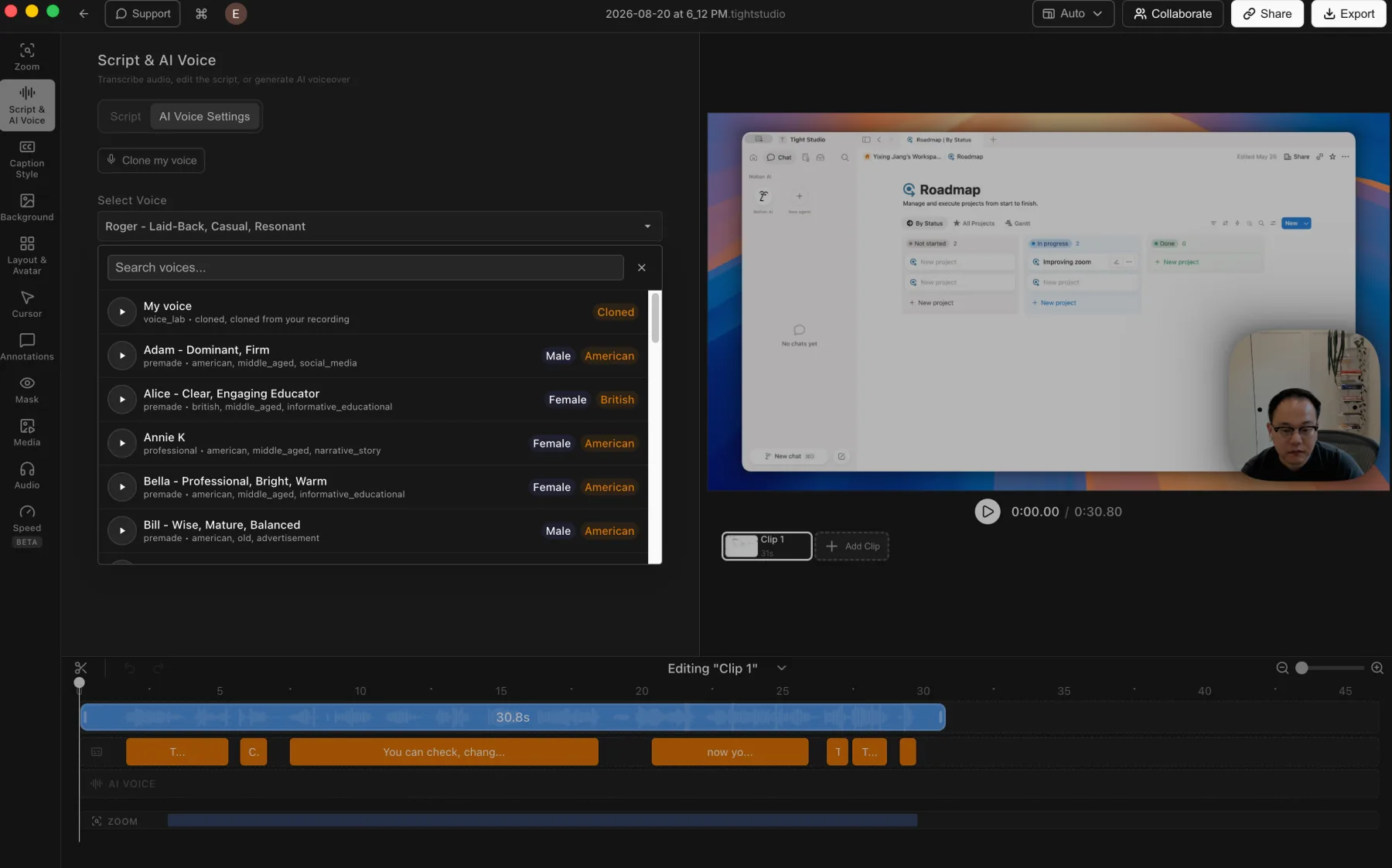
Tight Studio combines recording with zoom, captions, overlays, narration, music, and sharing in one app.

You want less initial configuration

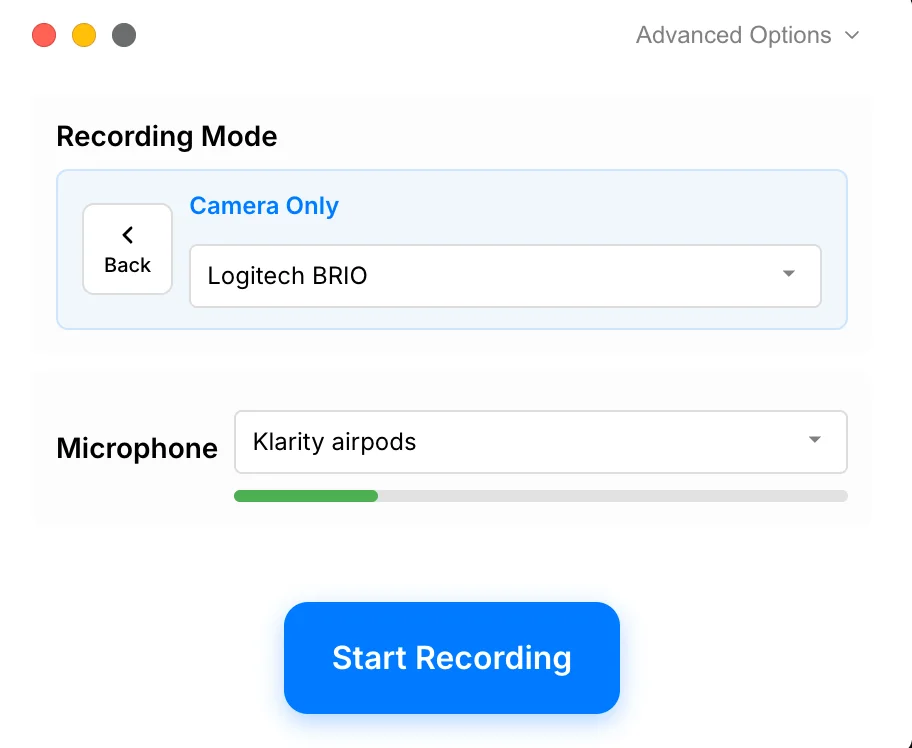
A standard Tight Studio screen demo generally needs fewer scene, source, track, and encoder decisions than an OBS setup.

You record in sections

Multi-clip recording supports several takes and combines them before export.

Reviewed against current public product information

This is a first-party comparison written and reviewed by the Tight Studio team. We reviewed it on August 4, 2026 using official product documentation, pricing pages, and the current Tight Studio pricing and feature pages. Feature availability can depend on plan, platform, or workflow, so the table uses notes and “Partial” where a simple yes/no would be misleading.

Tight Studio vs OBS

See how the features stack up side by side.

Feature Tight Studio OBS
Smart auto-zoom
Auto-detects clicks and keystrokes
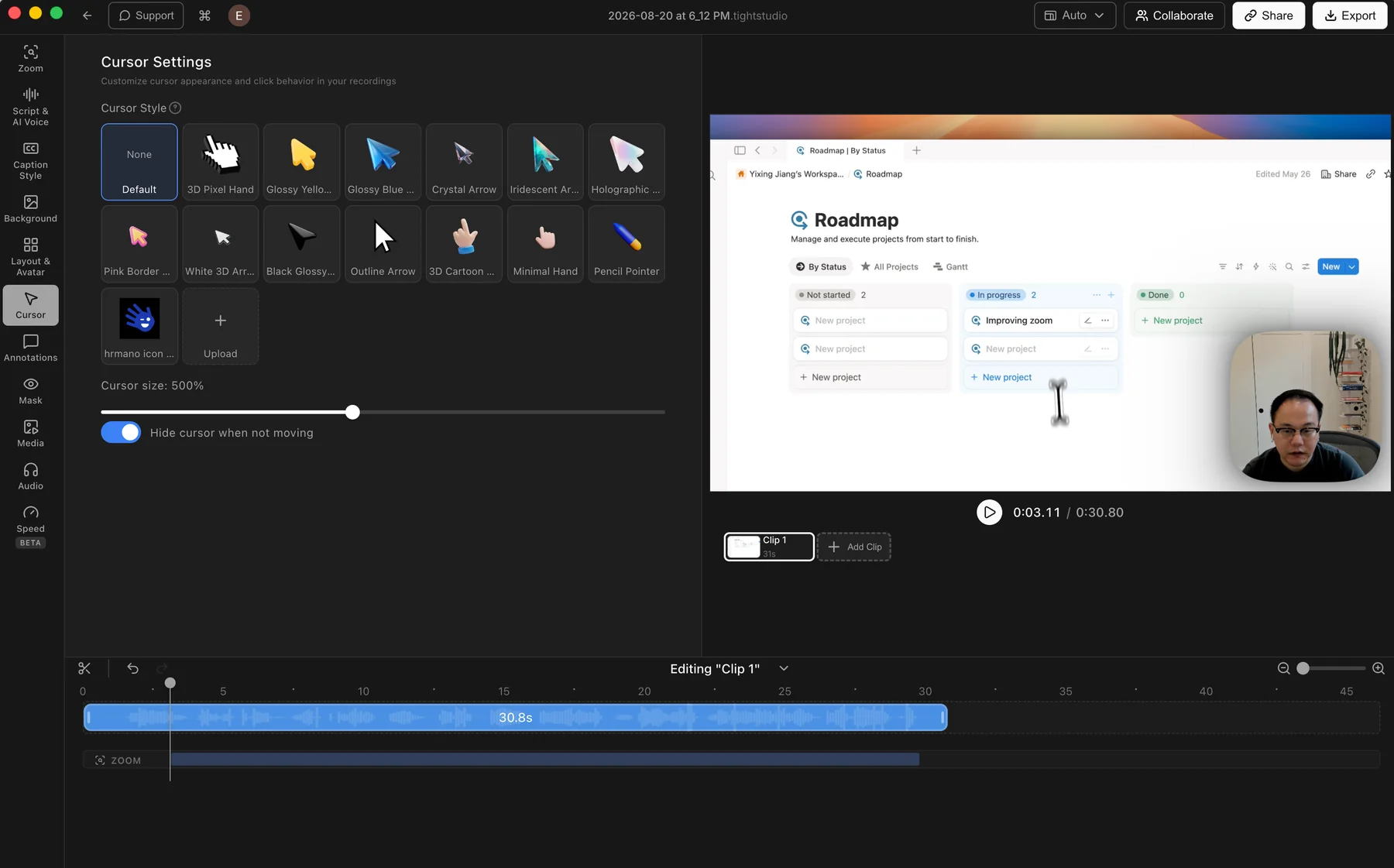
Cursor animation
Smooth, professional cursor paths
Post-capture timeline editor
Zoom, captions, overlays, music, and clips
Real-time composition and filters, but no post-capture timeline
Multi-clip recording
Record in parts, combine into one video
Single continuous recording
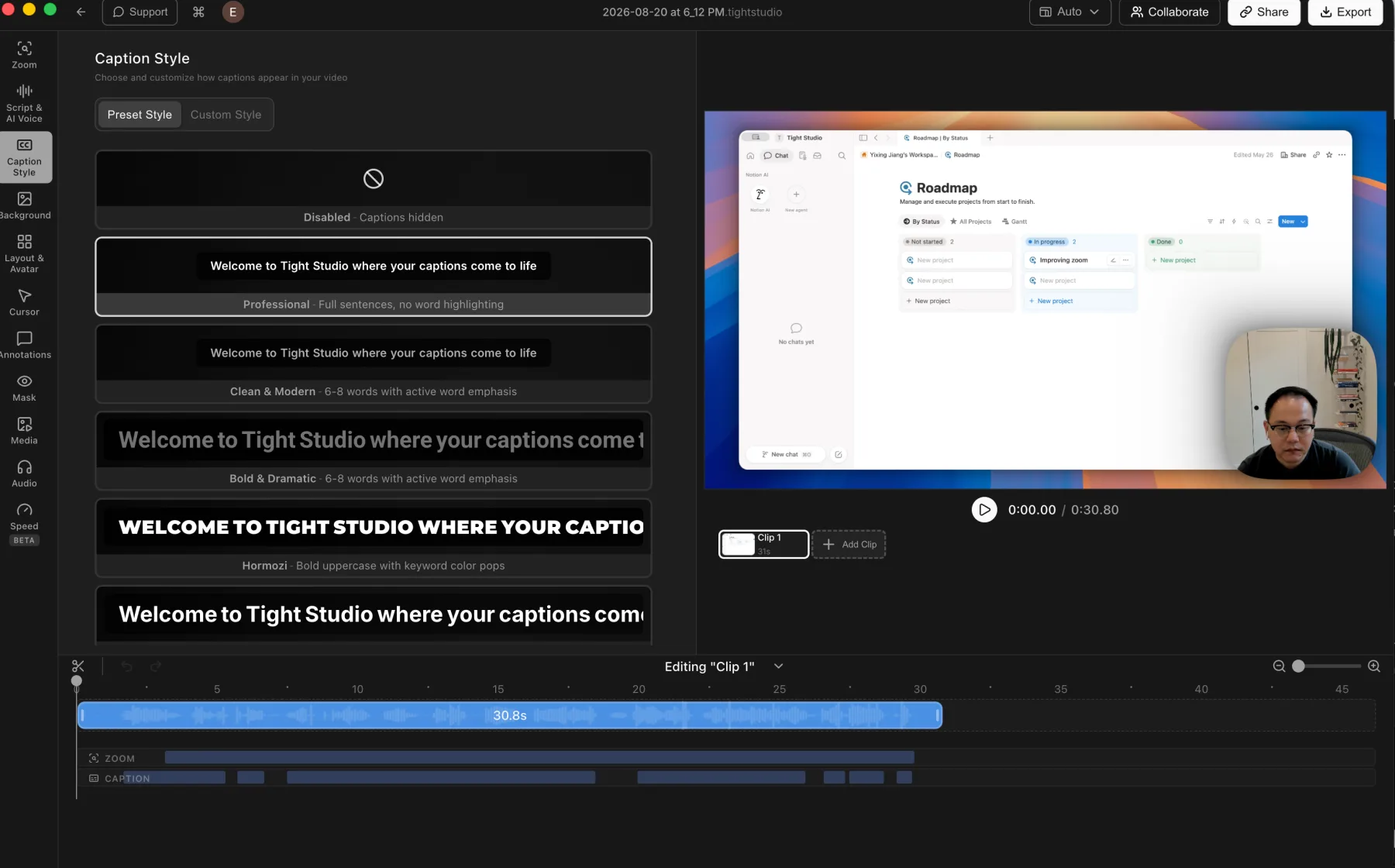
Professional styled captions
Pre-designed visual styles
AI narration / voiceover
Natural-sounding AI voices
Dynamic text overlays
Animated text with styles
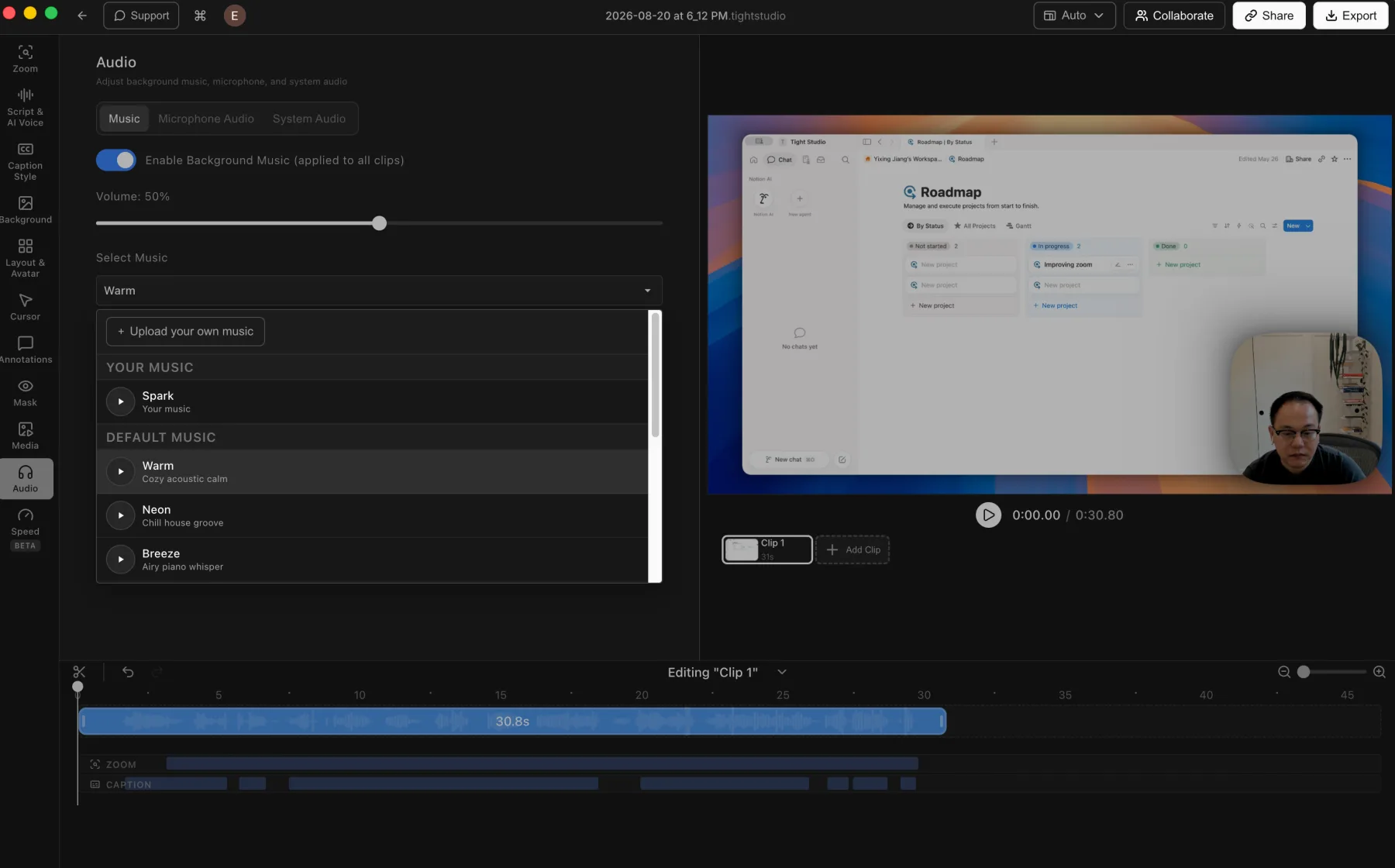
Background music library
Curated music library included
AI media generation
Generate images on demand
Shareable video links
One-click sharing
Saves to local file only
Typical setup
Guided capture Less initial configuration for a standard screen recording
Configurable scenes Sources, scenes, encoders, and tracks can be configured in detail
Live streaming
Twitch, YouTube, custom RTMP
Scene composition
Multiple sources, transitions, layouts
Plugin ecosystem
Large community plugin ecosystem
Cross-platform
macOS only
Windows, macOS, Linux

Pricing, quality, privacy, and workflow differences

The feature list matters less than how each product changes the work around your recording.

Workflow

OBS exposes scenes, sources, filters, transitions, tracks, and encoding for capture and live composition, but has no post-capture timeline. Tight Studio provides a guided record, edit, export, and share flow.

Finished video quality

OBS offers extensive real-time control over sources, transforms, filters, transitions, and audio. Tight Studio adds a post-capture editor with automatic zoom, cursor animation, captions, narration, music, and overlays.

Privacy and storage

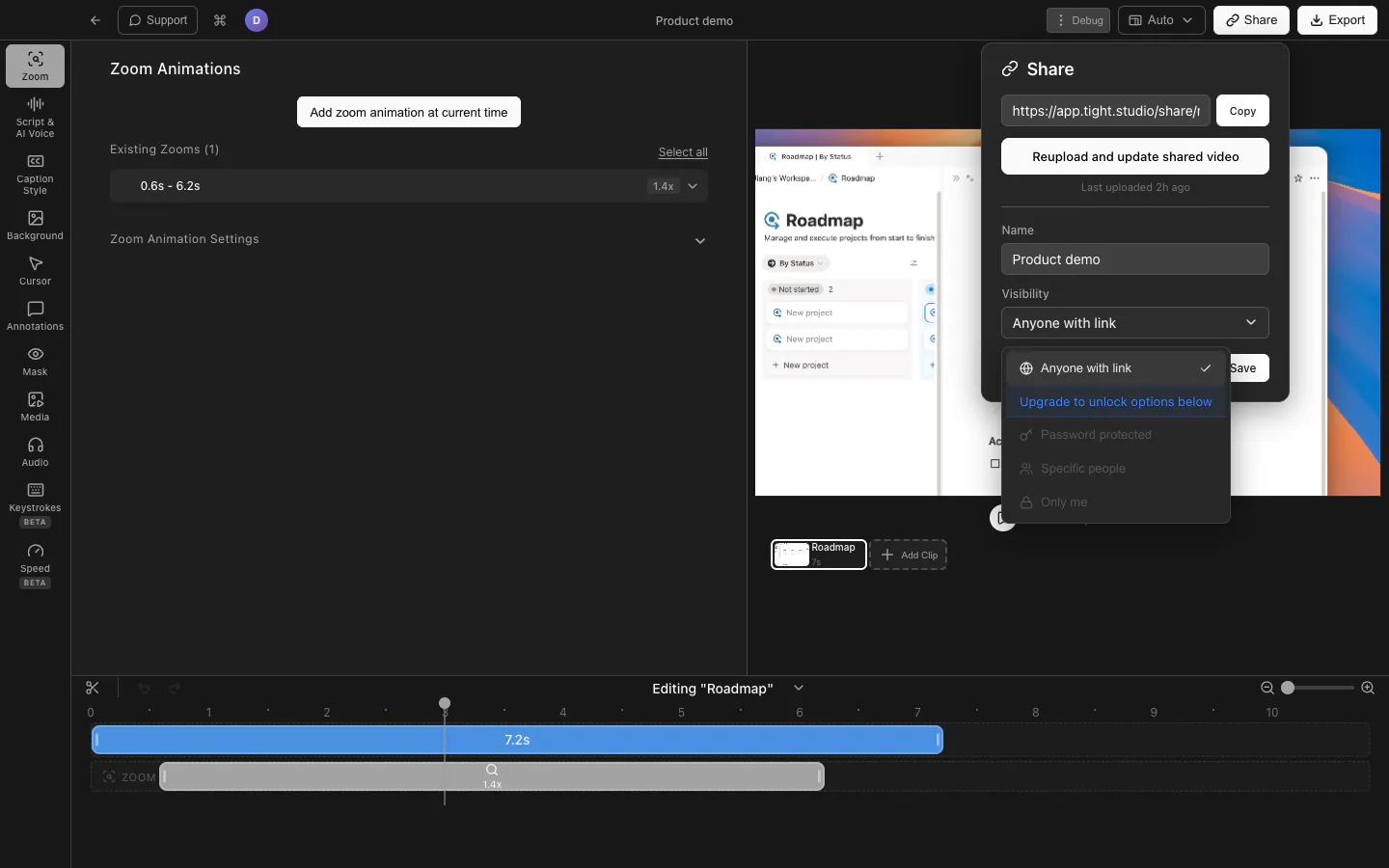
OBS saves recordings as local files and has no built-in shareable links. Tight Studio supports one-click links in addition to its desktop creation workflow.

Pricing and open-source ownership

OBS is completely free and open source with no paid tiers. Tight Studio has a free tier, while its paid plans fund the integrated editing, AI, and sharing features.

Current plans and practical limits

$0 / month Standard exports have no watermark. Free includes two Add Clip trial uses, up to five seven-day share links, and 100 trial AI credits; trial AI Voice exports are watermarked.

OBS is free and open source. Tight Studio offers a free tier with paid plans for advanced features like AI narration and styled captions.

Tight Studio

Free $0 No watermark on standard exports; 2 Add Clip trial uses, up to 5 shareable links with 7-day expiration, and 100 trial AI credits
Plus $9/mo Billed yearly, or $19/mo monthly. Unlimited multi-clip recording and unlimited non-expiring shareable links
Pro $24/mo Billed yearly, or $49/mo monthly. 1,000 AI credits/mo plus team workspace and collaborative editing

OBS

Free $0 Full features, open source
No paid tiers - Community-supported

Can you use both?

Yes. OBS can remain the tool for live streams and complex source capture, while Tight Studio handles purpose-built screen recordings and their edit. Exported OBS footage may require another editor because no direct Tight Studio import integration is asserted here.

Loved by creators worldwide

See what our users have to say about Tight Studio.

4.8/5 · 10 reviews

“Tight Studio combines simplicity with impact. It's effortless to use, yet the videos I create in minutes consistently help attract new users to our latest product features.”

Sinyoung Lee
Sinyoung Lee Growth lead at Klarity

“I've been using Tight Studio recently to prep presentations and share demos with my colleagues, and it's been a huge time saver. The whole flow feels really smooth, even for someone with no video editing skills. I can go from recording to a clean, shareable product demo in minutes with almost no effort.”

Ivy Chen
Ivy Chen Data scientist at Yahoo

“Awesome tool - I've used it to seamlessly edit my video recordings to show it to peers and for presentations and guides for software usage! Setup is super easy, and I LOVE the auto-zoom feature. Crazy how fast the team is shipping too.”

Shivam Misra
Shivam Misra Software engineer at Quanta

Tight Studio or OBS?

Choose OBS for streaming, cross-platform capture, scene composition, and open-source control. Choose Tight Studio for a simpler route from screen capture to a polished, shareable recording.

Frequently asked questions

Is Tight Studio a good alternative to OBS?

It depends on what you need. Tight Studio combines screen capture with post-capture editing for demos and tutorials. OBS is built for both recording and live streaming, with detailed scene composition, filters, sources, audio tracks, encoders, and plugins. Choose OBS for configurability and cross-platform capture; choose Tight Studio for a guided recording-to-edit workflow.

Is Tight Studio free?

Free includes standard exports without a watermark, two account-level Add Clip trial uses, up to five shareable links with seven-day expiration, and 100 trial AI credits. AI Voice exports use a watermark during the trial.

Why would I pay for Tight Studio when OBS is free?

OBS provides sophisticated real-time composition, source transforms, filters, transitions, remuxing, and multi-track recording, but it does not include a post-capture timeline editor. Tight Studio combines capture with post-production controls such as zoom, cursor animation, captions, narration, music, and sharing. Paying is mainly about that integrated workflow, not because OBS lacks production controls.

Does Tight Studio work on Windows?

Currently, Tight Studio is available for macOS with Apple Silicon only. If you need Windows or Intel Mac support, email [email protected] and we will prioritize accordingly. OBS supports Windows, macOS, and Linux.

Can Tight Studio live stream like OBS?

No. Tight Studio is focused on screen recording and video editing, not live streaming. If you need to stream to Twitch, YouTube, or a custom RTMP server, OBS is the right tool for that.

Is Tight Studio easier to use than OBS?

Tight Studio generally requires less initial configuration for a standard screen demo. OBS exposes more choices for scenes, sources, tracks, and encoding, which adds setup but also enables workflows Tight Studio does not support. Ease depends on whether you value a guided default or detailed control.

Want to try Tight Studio?

Download Tight Studio when you want screen capture and post-production in one focused Mac workflow.

Download free

macOS Apple Silicon - Free to start, no credit card required