
Start with a polished preset
Choose from familiar macOS wallpapers and curated gradients to frame your screen instantly. They give the recording visual depth while keeping the interface you are demonstrating easy to read.
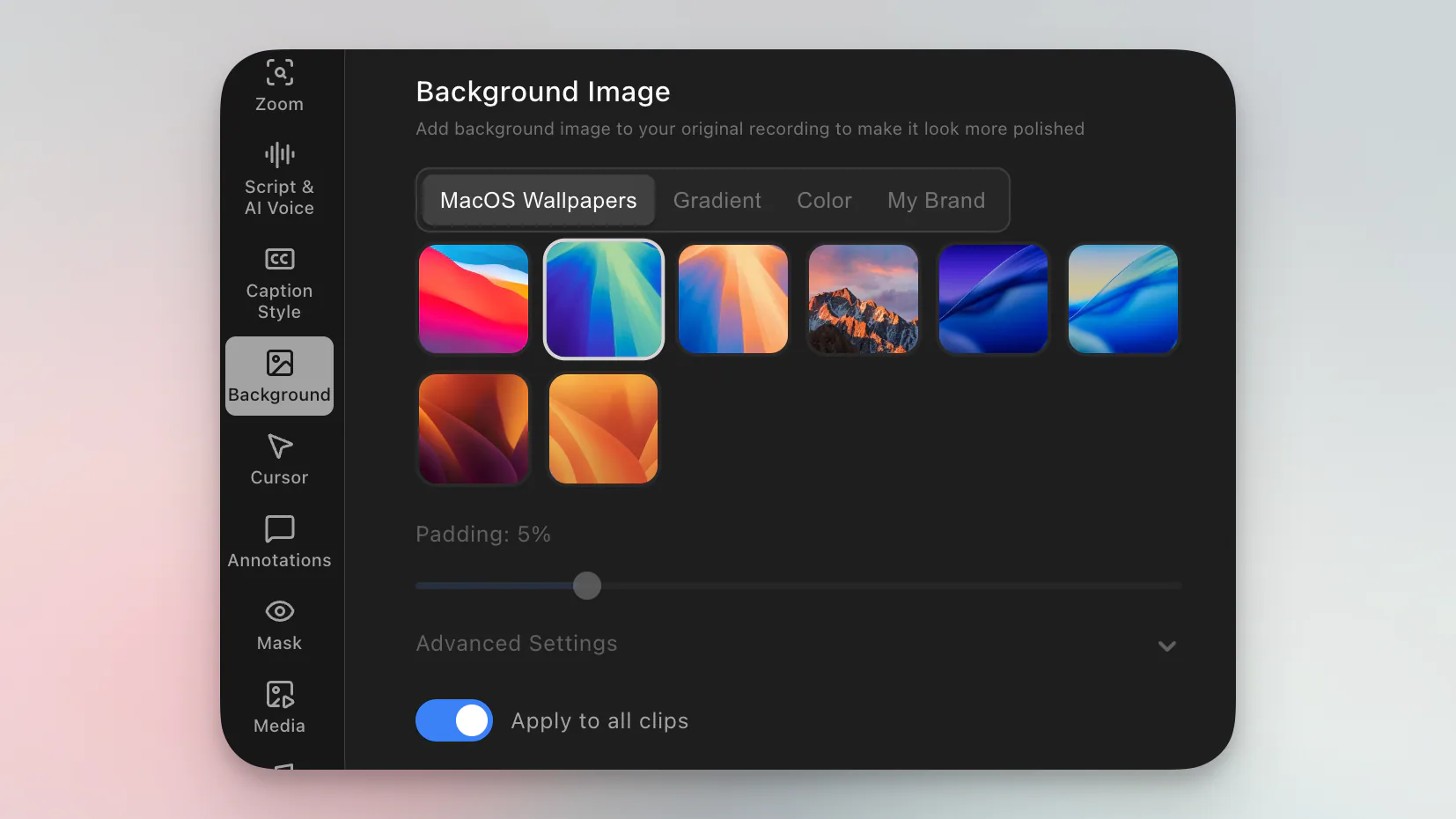
Put your screen on a polished canvas with macOS wallpapers, gradients, brand images, or exact colors - then refine the spacing, corners, and shadow.
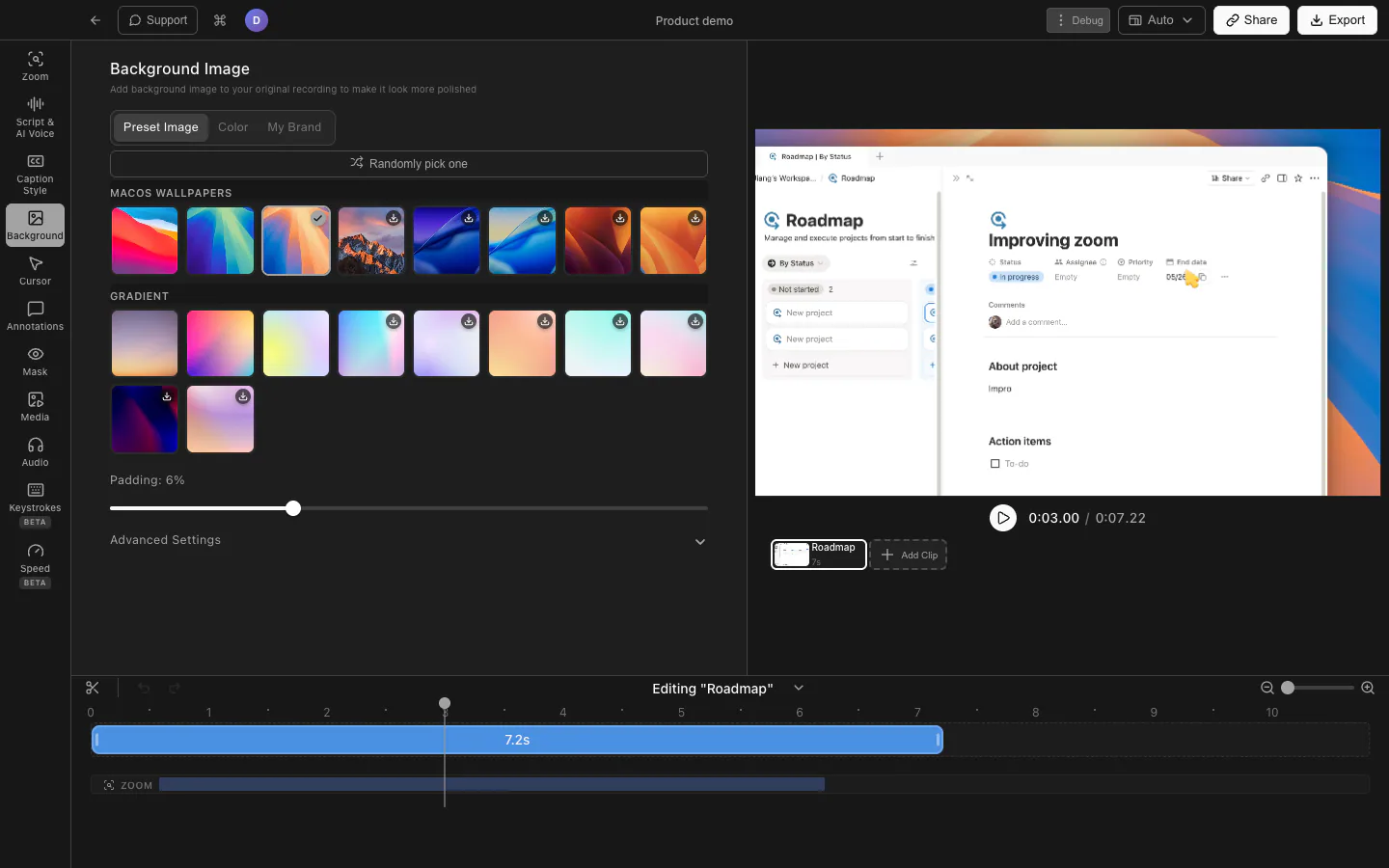
Choose from familiar macOS wallpapers and curated gradients to frame your screen instantly. They give the recording visual depth while keeping the interface you are demonstrating easy to read.
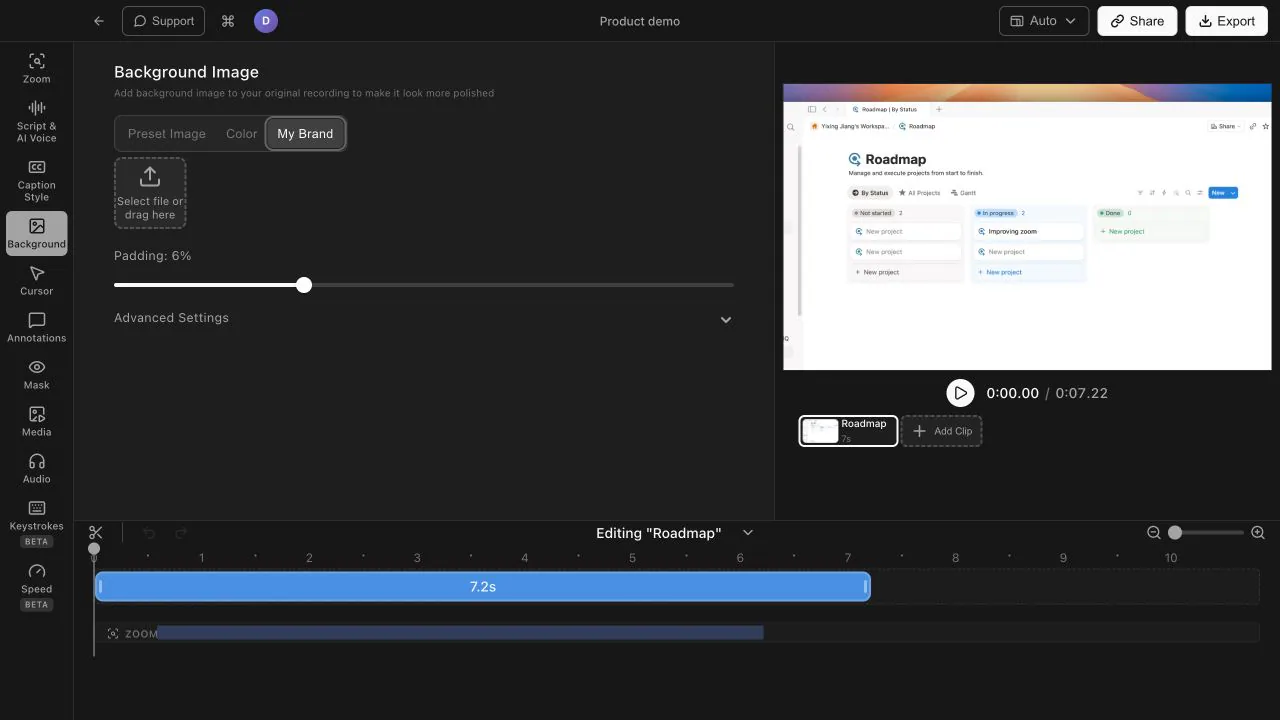
Use a brand image instead of settling for a generic desktop. Product demos, tutorials, and launch videos can share one recognizable visual system from the first frame to the last.
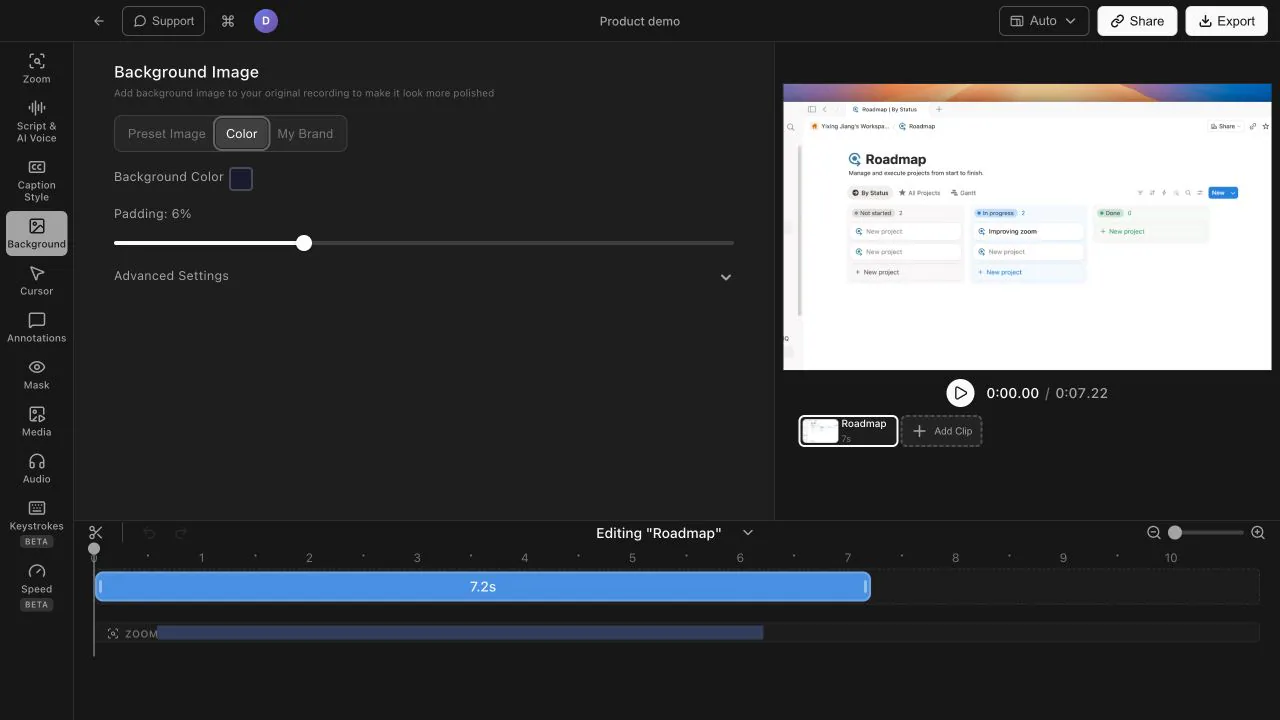
Choose a solid background color when a clean canvas fits the video best. Match a campaign palette, product launch, or team brand without designing and uploading another image.
Adjust the padding, corner roundness, and shadow so the captured screen sits naturally on its new background. Apply the same background treatment across clips for a cohesive finished video.
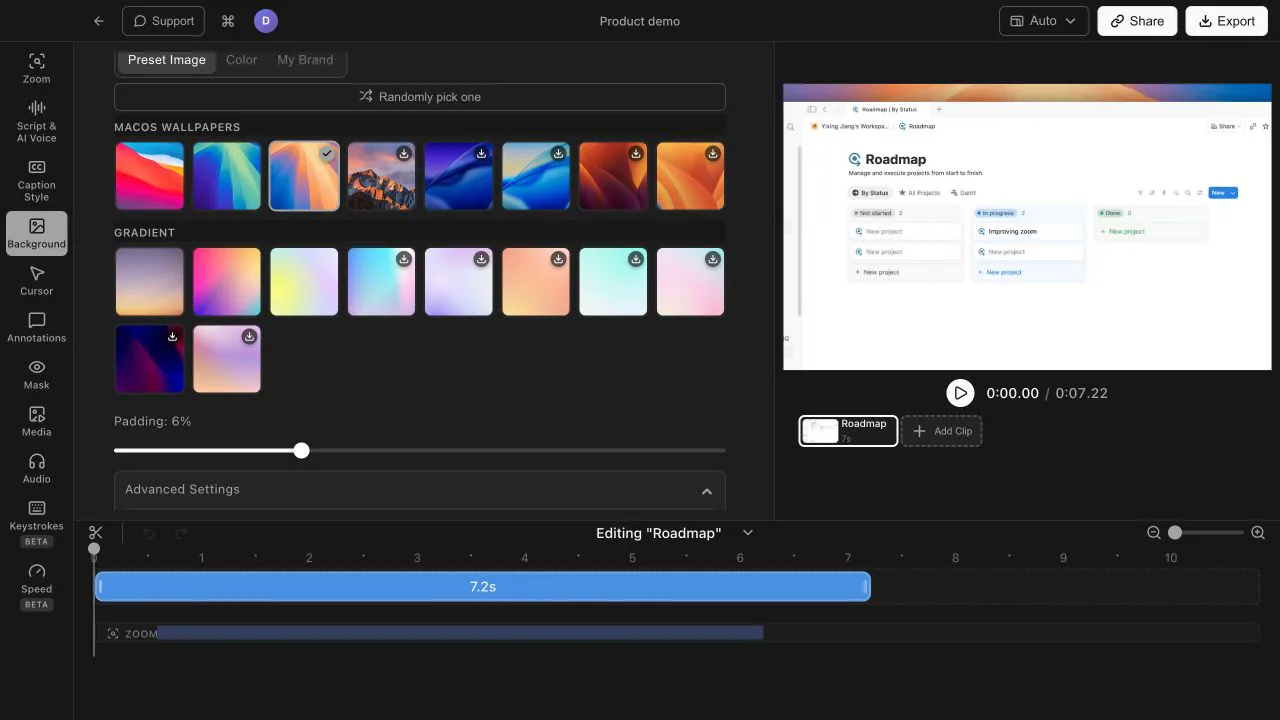
You can choose a macOS wallpaper, a curated gradient, or a solid color. You can also use your own brand image when you want a fully custom look.
Yes. Tight Studio supports custom PNG, JPG, JPEG, and WebP background images, so you can use branded artwork, campaign graphics, or a reusable backdrop designed by your team.
Yes. You can apply the selected background and its framing settings across every clip, helping multi-clip demos and tutorials maintain one consistent visual style.
Download Tight Studio and turn your next screen recording into a polished, on-brand video.
Download freemacOS Apple Silicon - Free to start, no credit card required