

Customer success teams repeat the same explanations every week: how to finish setup, where to find a feature, what a workflow should look like, and what to do next. A reusable customer onboarding demo turns those explanations into an asset instead of another meeting.
The right format depends on where the customer is in the journey. A short video works well in a welcome email or help center. An interactive walkthrough lets the customer click through a process. An in-app guide can appear at the exact moment a user reaches a feature.
This guide compares those formats and the tools that create them. It focuses on onboarding demos, training videos, and product walkthroughs rather than the broader customer success software category.
How to choose a customer onboarding demo format
Start with the action the customer needs to complete. Then choose the smallest demo format that makes that action clear.
| Customer moment | Useful format | Why it fits |
|---|---|---|
| Before the first login | Recorded onboarding video | Works in email and does not require product access |
| Account setup | Interactive walkthrough | Lets the customer move through each step at their own pace |
| First use of a feature | In-app guide | Appears inside the relevant workflow |
| Help center visit | Short training video | Shows the complete task without a live call |
| Account-specific follow-up | Quick async recording | Adds personal context without creating a permanent asset |
| Repeated team training | Polished video library | Keeps delivery consistent across customers and CSMs |
Do not start by recording a tour of every menu. A useful onboarding demo helps the customer reach one outcome, such as inviting a teammate, importing data, or publishing a first project.
Best customer onboarding demo tools compared
| Tool | Format | Strongest part | Main limitation |
|---|---|---|---|
| Tight Studio | Polished screen-recorded video | Automatic zoom, separate microphone and system-audio tracks, AI voiceover, and multi-take editing | Mac only |
| Loom | Quick async video | Fast recording and an immediately shareable link | Less control over a polished final presentation |
| Guidde | AI video documentation | Turns captured workflows into narrated, step-by-step video guides | Less timeline control than a dedicated video editor |
| Clueso | AI product video and documentation | Produces polished videos and written guides from one recording | Best suited to repeatable documentation workflows |
| Arcade | Interactive walkthrough | Self-paced, click-through product stories | Does not replace narrated training video |
| Supademo | Interactive product demo | Branching, voiceover, embeds, and viewer analytics | Simulates a guided flow rather than showing continuous product motion |
| Appcues | In-app onboarding | Targeted flows, checklists, tooltips, and prompts | Requires installation inside the product |
These products do different jobs. The most effective customer onboarding programs often combine a reusable video with either an interactive walkthrough or in-app guidance.
Recorded customer onboarding video tools
Recorded demos are the most portable format. You can place the same video in an onboarding email, knowledge base, learning portal, or customer workspace.
Tight Studio for polished onboarding and training videos
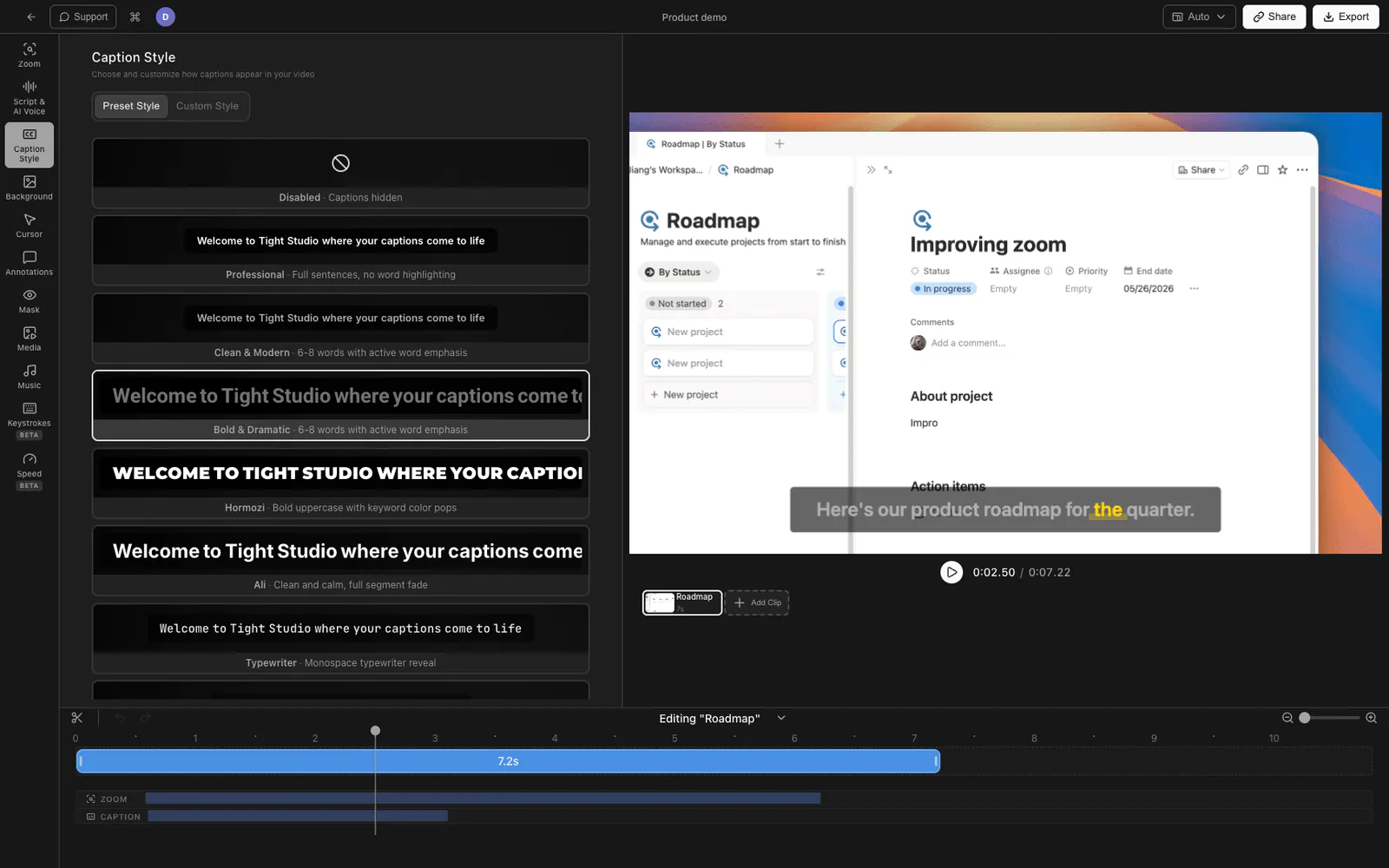
Tight Studio is a Mac screen recorder and editor for product walkthroughs, customer training, and tutorial videos. It is designed for recordings that need to look finished rather than conversational.
The relevant features for customer onboarding are:
- Smart zoom animation follows clicks and keeps dense interfaces readable.
- Cursor animation and click highlighting make each interaction easier to follow.
- AI voiceover generates narration from a script, which helps keep a training library consistent.
- Multi-take recording lets you replace one section without recording the entire walkthrough again.
- System audio capture records computer audio separately from the microphone, with independent volume control.
- Text annotations add short instructions, warnings, or keyboard shortcuts on screen.
- Intro and outro slides give a video a consistent title and ending.
- Captions and background music can be added without moving the recording into a separate editor.
Tight Studio exports a finished video file. It is Mac-only. Microphone and system audio remain separate in the editor, so a CSM can balance narration against sounds from the demonstrated app before exporting.
For production steps, see how to make a tutorial video and how to write a video script.
Loom for account-specific walkthroughs
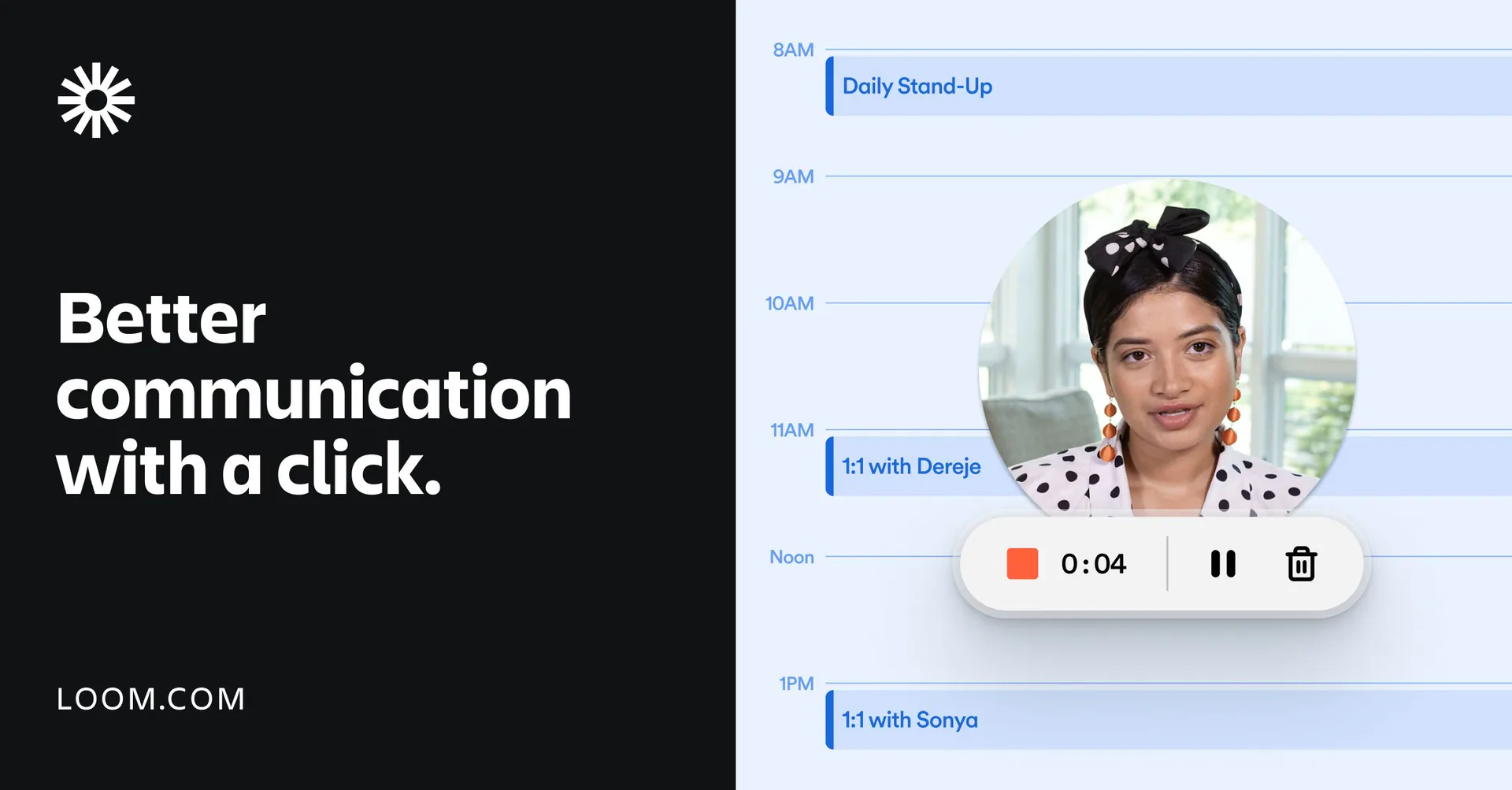
Loom prioritizes recording and sharing speed. When a CSM needs to explain an account-specific setting or follow up after a call, the automatically generated link removes the export and upload steps.
Loom also supports viewer comments and reactions, which makes it useful when the recording is part of a conversation. The tradeoff is that a fast async reply and a permanent training asset have different standards. For an evergreen onboarding library, more deliberate scripting, visual consistency, and editing usually matter.
See the Tight Studio vs Loom comparison if sharing speed and editing control need to be weighed together.
Guidde for AI-generated video documentation
Guidde captures a browser or desktop workflow and turns it into video documentation with an AI-generated script, voiceover, captions, and visual highlights. Customer success teams can use it to produce short how-to guides without building every scene manually.
Guidde is a good fit when the main deliverable is a repeatable support or onboarding guide. A dedicated editor offers more control when the recording needs precise pacing, a custom visual story, or detailed timeline changes.
Clueso for product videos and written guides from one capture
Clueso converts a raw product recording into a polished video and step-by-step documentation. It can rewrite the script, generate voiceover, add captions and zooms, apply branded templates, and translate the result.
That paired output is useful when the same onboarding task needs both a watchable video and a searchable help-center article. Teams that only need a quick personal reply may find Loom faster, while teams that need granular video editing may prefer a dedicated editor.
Interactive customer onboarding walkthrough tools
Interactive demos are useful when the customer should learn by clicking rather than watching. They can simulate a product flow without asking the viewer to enter a live account.
Arcade for self-guided product walkthroughs
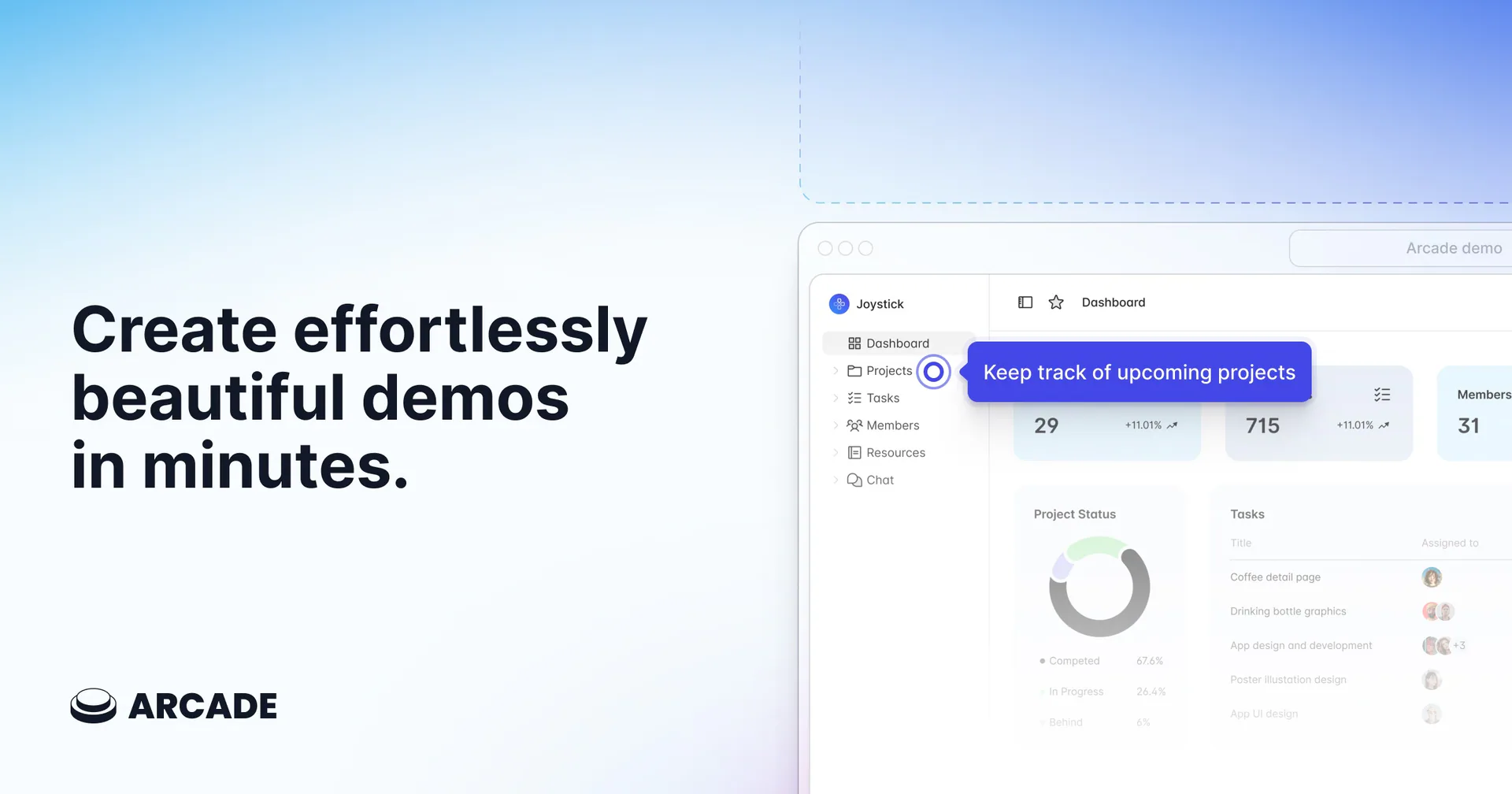
Arcade captures a product flow as a sequence of interactive steps. Customers control the pace and can repeat a step without scrubbing through a timeline.
This format works well for a short setup path or feature overview. It is less suitable when tone of voice, detailed explanation, or motion inside the product is important. In those cases, a narrated video communicates more context.
Supademo for branching interactive onboarding demos
Supademo captures clicks and actions as a self-paced interactive demo. Teams can add text or AI voiceover, annotations, branching paths, blurred areas, and calls to action, then share the result as a link, embed, video, or GIF.
Branching makes Supademo useful when different customer roles need different setup paths. Its analytics can also show how viewers move through a demo. Because the experience is step-based, use recorded video instead when continuous animation, exact timing, or detailed narration carries the lesson.
Appcues for guidance inside the product
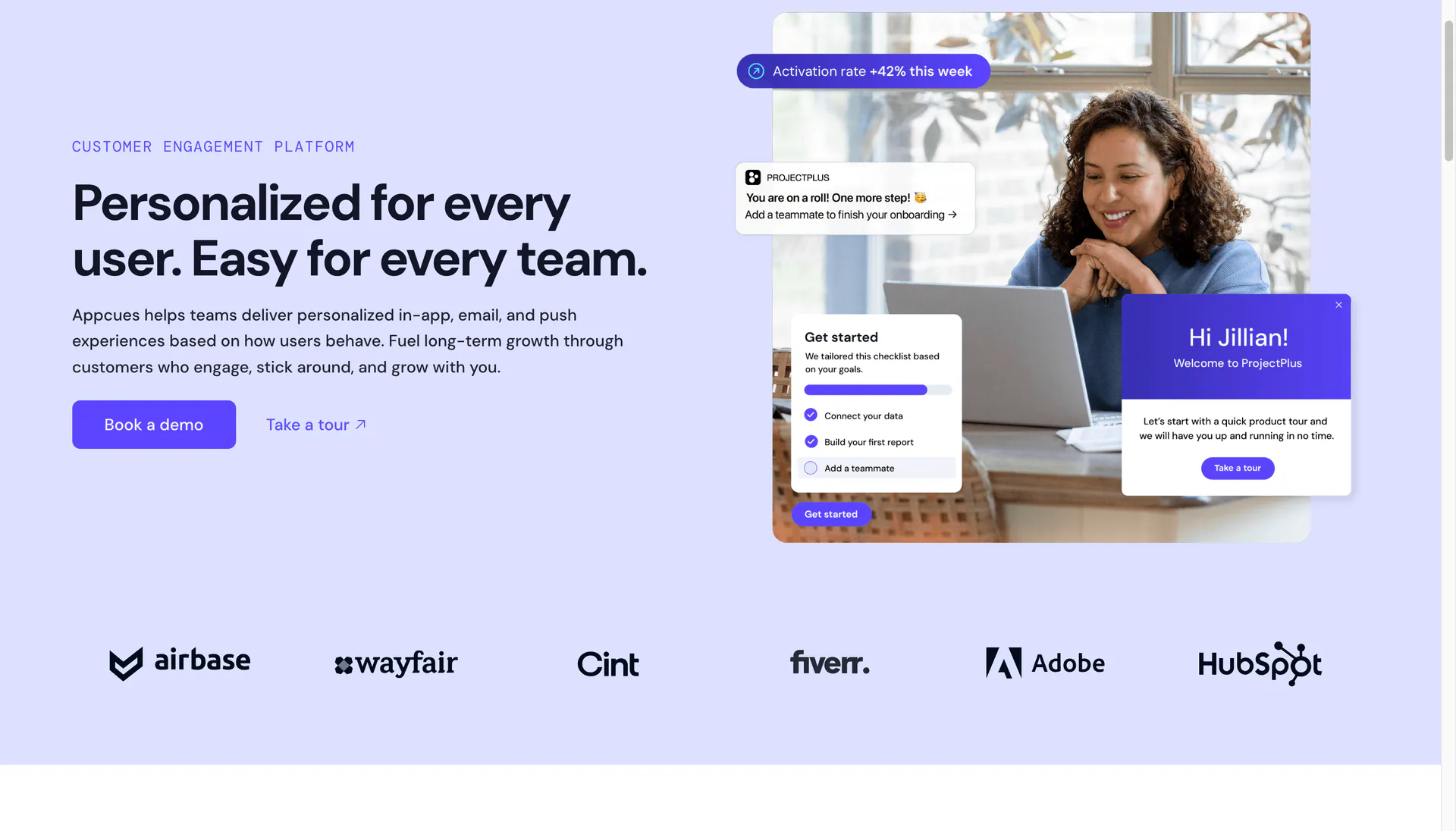
Appcues creates in-app flows using tooltips, modals, slideouts, checklists, pins, and other prompts. Once the product integration is installed, customer success and product teams can update guidance without changing application code for every edit.
Appcues fits guidance that should respond to a user’s page, behavior, or onboarding state. It is not a portable video asset, so it does not cover welcome emails, customer portals, or training outside the application.
A practical customer onboarding demo workflow
The tool matters less than the structure of the demonstration. Use this sequence for a reusable onboarding asset:
- Choose one customer outcome. Avoid combining setup, reporting, permissions, and advanced features in one recording.
- Prepare a clean sample account. Remove personal data, old notifications, and irrelevant navigation.
- Write the action path. List every click required to reach the outcome before writing narration.
- Script the context. Explain why the step matters, then show how to complete it.
- Record in short sections. Short takes are easier to update when the interface changes.
- Add visual emphasis. Use zoom, cursor treatment, captions, or annotations only where they clarify an action.
- Publish beside the next step. Place the demo next to the button, checklist item, or help article the customer should use afterward.
- Review after product releases. Update the affected section instead of allowing an incorrect walkthrough to remain live.
If narration is the slowest part, this AI voiceover workflow for screen recordings explains how to work from a script.
How to combine video and interactive onboarding
Video and interactive guidance are complements rather than direct replacements.
A common sequence is:
- Send a 60 to 90 second welcome video that explains the customer’s first outcome.
- Link to an interactive walkthrough for the setup steps.
- Use in-app prompts when the customer reaches advanced features.
- Keep short task videos in the help center for later reference.
- Record a personal async follow-up only when the account needs specific context.
This avoids forcing one long product tour to handle every stage of onboarding.
Customer onboarding demo mistakes to avoid
- Touring the interface instead of teaching an outcome. Menus are not a customer goal.
- Starting with company background. Put the result and task first.
- Recording against a cluttered account. Realistic sample data is useful; unrelated data is distracting.
- Making one long onboarding video. Short task-based demos are easier to find and update.
- Hiding limitations or prerequisites. Tell viewers what access, data, or permissions they need before the first step.
- Publishing without captions. Captions improve accessibility and make silent viewing possible. See how to add stylish captions to screen recordings.
- Leaving videos without ownership. Give each onboarding asset an owner and a review trigger.
Frequently asked questions
What is a customer onboarding demo?
A customer onboarding demo shows a new customer how to reach a specific outcome in a product. It may be a recorded video, an interactive walkthrough, or an in-app guide. The most useful demos focus on one task rather than presenting every feature.
How long should a customer onboarding video be?
Most task-based onboarding videos should be two to five minutes. A welcome or orientation video can be shorter. If a recording covers several unrelated outcomes, split it into a small library so customers can find and revisit the exact task they need.
Is video or an interactive walkthrough better for onboarding?
Video is better when explanation, narration, or product motion matters. Interactive walkthroughs are better when customers should click through a short process at their own pace. Many teams use video for context and an interactive guide for practice.
What should a customer success team record first?
Start with the task that creates the most repeated calls or support questions. Good first candidates include initial setup, inviting teammates, importing data, publishing a first project, and reading the first report.
Can onboarding demos replace live customer training?
They can replace repeated baseline explanations, but they do not replace every live conversation. Reusable demos give live sessions more room for account-specific planning, questions, and exceptions.
How often should customer training videos be updated?
Review a video whenever the demonstrated workflow changes. Recording in short sections makes maintenance easier because only the affected step needs to be replaced. A scheduled quarterly review can catch smaller copy and navigation changes.