
Sign in, manage your account, and understand plans
Sign in with Google, Microsoft, or email and understand plan limits, watermarks, and AI credits.
Before you start
You can record, edit, and export without signing in. Sign in when you want to share videos, use account-based AI features, see your credit balance, or manage a paid plan.
Use the same email address you used at checkout. Tight Studio refreshes plan and credit information when you open Profile, so an internet connection is required to show the latest account state.
Choose Google sign in, Microsoft sign in, or an email code. Profile also shows whether the account is on the Free plan, Plus plan, or Pro plan.
- Sign-in choices
- Google, Microsoft, or a six-digit email code
- Account details
- Profile shows your Plan and Credits
- Billing
- Checkout and subscription management open in your web browser
Follow these steps
- Step 1
Open the sign-in panel
From Home, click Login in the upper-left corner. The Sign in to Tight Studio panel opens below it.
Tight Studio can also ask you to sign in when you start an account-based action such as sharing or using an AI feature. Complete the same sign-in flow in that centered panel, then return to the action.
- Step 2
Choose Google, Microsoft, or an email code
Click Continue with Google or Continue with Microsoft to finish authentication in your browser.
For email sign-in, enter your address and click Email me a sign-in code. Enter the six-digit code from the email, then click Verify and sign in. Use Resend code after the countdown ends, or Use another email to correct the address.
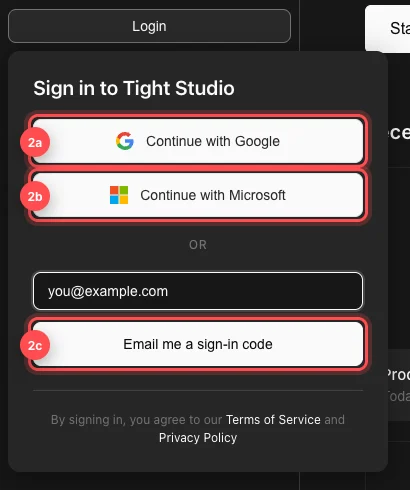
Choose either browser-based sign-in or request a six-digit code by email. - Step 3
Open Profile
After signing in, Home replaces Login with your name and avatar. Click it to open Profile.
While editing a project, click your avatar in the top bar instead. Both buttons open the same account panel.
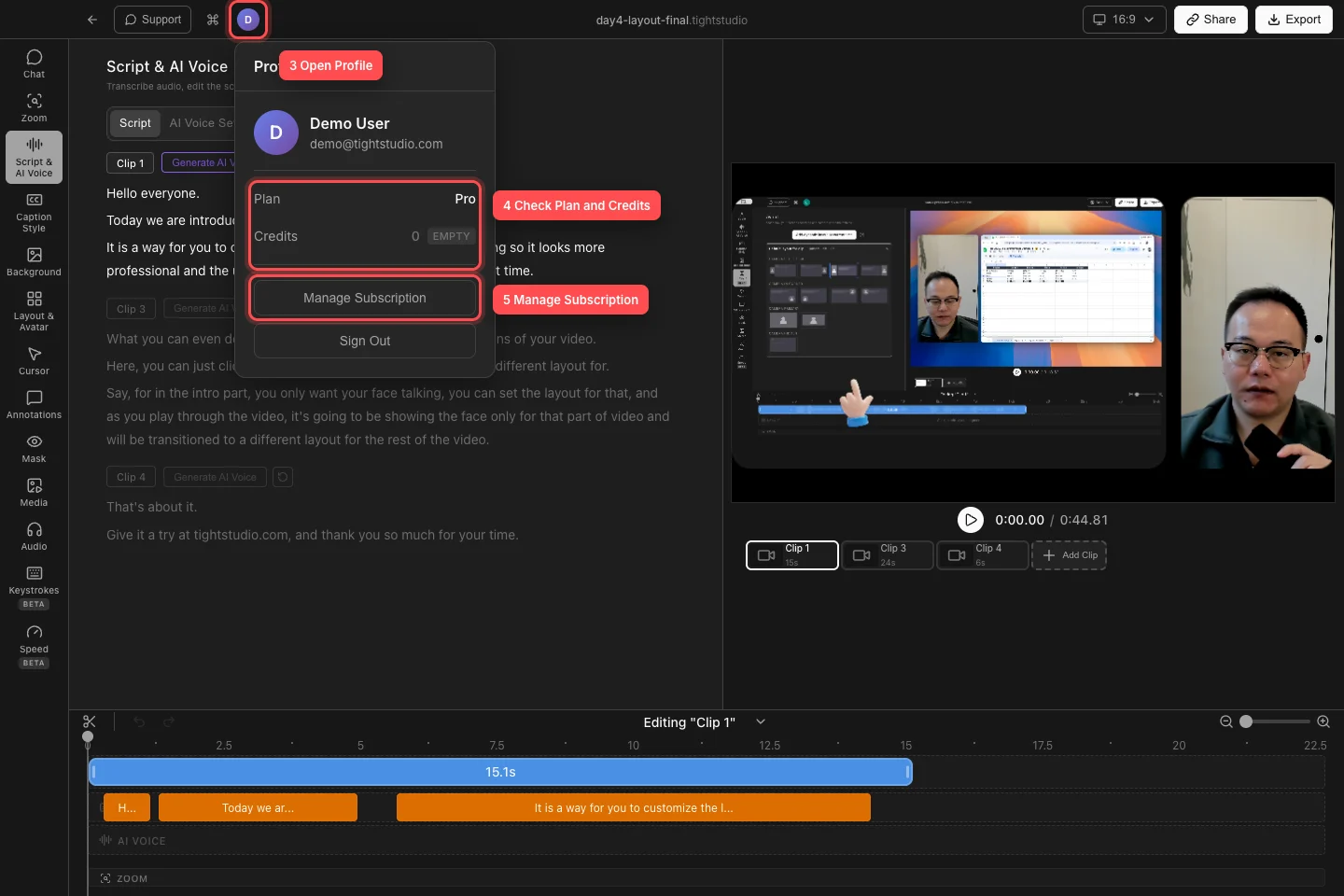
Open Profile to see the account, plan, credit balance, and available subscription actions. - Step 4
Check Plan and Credits
The Plan row shows Free, Plus, or Pro. The Credits row shows the AI-credit balance currently available to the signed-in account; Low and Empty badges call attention to a small or depleted balance.
Credits are consumed by metered AI work such as AI voice and AI media generation. A credit balance is separate from recording time and ordinary editing, so reaching zero does not prevent you from recording, editing, or making a standard export.
- Step 5
Understand or change your plan
Free includes core recording, editing, and standard exports without a watermark. AI Voice exports do include a watermark. Free accounts currently have five lifetime uses of Add Clip across all projects; you can still start new recordings. They can also keep up to five shared videos, and free share links expire after seven days.
Plus removes the Add Clip and shared-video limits and keeps share links from expiring. Pro includes the Plus capabilities and adds the plan allocation of AI credits plus AI voice and AI media generation. Check the in-app plan screen for the current billing periods and checkout terms.
If you are on Free, click Subscribe and choose a plan, billing period, and Checkout. A Plus account shows Upgrade to Pro. Any active paid account shows Manage Subscription, which opens the billing portal in your browser.
- Step 6
Sign out when needed
Open Profile and click Sign Out. Tight Studio removes the account, plan, and credit information from this Mac until you sign in again.
Your local projects remain on the Mac. Sign back in with the same account to restore access to its subscription, credits, and shared videos.
Troubleshooting
Why did the email code not arrive?
Confirm the address, check spam or junk folders, and wait for the Resend code countdown to finish. Click Use another email if the address is wrong. Only the newest six-digit code should be used.
Why does Profile show Free or zero credits after I paid?
Make sure you signed in with the email used at checkout and that the Mac is online. Close and reopen Profile to refresh the account. If the value still does not update, restart Tight Studio and contact support with the account email and checkout receipt.
Why did Subscribe or Manage Subscription not appear?
Subscribe appears for Free accounts, Upgrade to Pro appears for Plus, and Manage Subscription appears for an active paid plan. Open Profile again after it refreshes. These actions open your default web browser, which may be behind the Tight Studio window.
Why does my export have a watermark on the Free plan?
Standard Free-plan exports are clean, but a project that uses AI Voice is watermarked. In the export or share dialog, choose Turn off AI voice for a clean export, or upgrade to Pro for clean AI Voice output.
Still stuck?
Send us a note with the project name and the step where you got blocked.