
Team workspace and project chat
Collaborate in a Team Workspace
Share a local project, record or import team clips, and work together on a cloud project.
Before you start
Sign in with an account that belongs to an organization with Team Workspace access. The Team Workspace item and Collaborate with team command appear only when this feature is enabled for your organization.
A shared team project is a cloud collaboration copy. Keep the original local project until the upload finishes and you have confirmed that the team copy opens correctly.
- Access
- A signed-in Team Workspace member
- Share an existing video
- Recent Videos > Collaborate with team
- Create in the workspace
- Team Workspace > Start recording
Follow these steps
- Step 1
Open Team Workspace
From Home, select Team Workspace in the sidebar. The project cards with cloud icons are team projects available to your organization.
Click a card to download and open that team project. Tight Studio shows progress on the card while it prepares the project for the first open.
- Step 3
Start a new team recording or open a project
In Team Workspace, click Start recording to create a new shared recording. Choose the screen, camera, and audio options as usual; after recording stops, Tight Studio publishes the clip to the workspace and opens its team project.
To continue existing work instead, click one of the team project cards. Everyone should open the cloud project from Team Workspace rather than editing an older local copy.
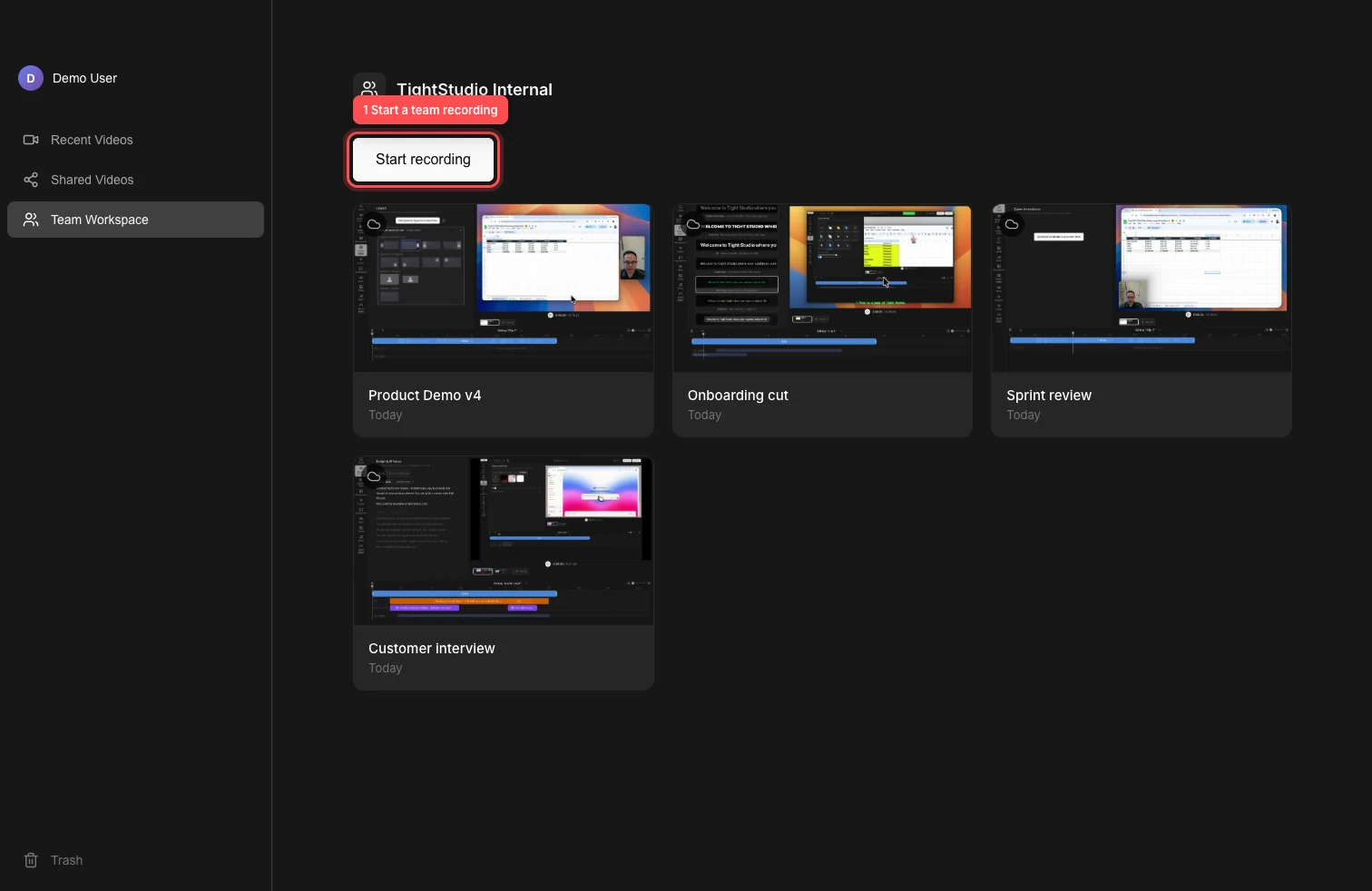
Open Team Workspace, then start a shared recording or choose an existing cloud project. - Step 4
Record team clip or import team clip
To record a team clip from an open team project, click Add Clip and choose Add recording clip. The new recording is added to the same collaborative project when recording stops.
To import a team clip, click Add Clip and choose Import media as clip for a video or image file. Choose Import from another video when you want to bring selected clips from another Tight Studio project.
- Step 5
Work together on the cloud project
Team members can open the same team project from their own Team Workspace. Project-level changes and completed clip edits synchronize through the cloud.
A collaborator avatar indicates who is editing a clip. Choose another available clip while a teammate holds an editing lock, and wait for the connection indicator to return online before closing after a change.
- Step 6
Duplicate team project for a separate version
To duplicate a team project, open its three-dot menu in Team Workspace and choose Duplicate video. Tight Studio creates an independent copy owned by you and adds it to the workspace.
Use the duplicate for a new version or experiment. Changes to it do not change the original team project.
Troubleshooting
Why don’t I see Team Workspace or Collaborate with team?
Confirm that you are signed in with the organization account that has Team Workspace access. If your organization should have access but the commands remain missing, sign out and back in, then contact Tight Studio support with the account email and organization name.
Why hasn’t the shared project appeared for teammates?
Return to the Collaborate with team dialog and confirm the upload reached Video shared successfully. Keep Tight Studio online and open during the upload. If it failed, retry from the local project’s three-dot menu after checking the connection.
Why is a clip read-only or not syncing?
Another member may be editing that clip, or the team connection may be offline or reconnecting. Choose an unlocked clip and wait for the connection to recover before editing. See the team locks and connections guide for the status indicators and recovery steps.
Still stuck?
Send us a note with the project name and the step where you got blocked.