
Share, protect, embed, update, and manage videos
Publish a browser link, control access, embed it, update the same URL, and manage existing shares.
Before you start
Sharing renders the current project, uploads it, and creates a browser-ready share link. Sign in first, check the finished project from beginning to end, and keep Tight Studio open until rendering and uploading finish.
Access controls other than Anyone with link may require a paid plan. A shared video remains separate from the local .tightstudio project, so later project edits do not reach viewers until you upload the updated version.
- Open from
- Share in the editor title bar
- Outputs
- Link or responsive embed code
- Access choices
- Anyone with link, Password protected, Specific people, or Only me
- Manage from
- Home → Shared Videos
Follow these steps
- Step 1
Open Share and prepare the video
Open the finished project and click Share in the editor title bar. Keep Link selected when you want a URL that opens the Tight Studio player in a browser.
Enter a clear Name for the shared video. This is the title viewers see and the title used later in Shared Videos; it does not rename the local project file.
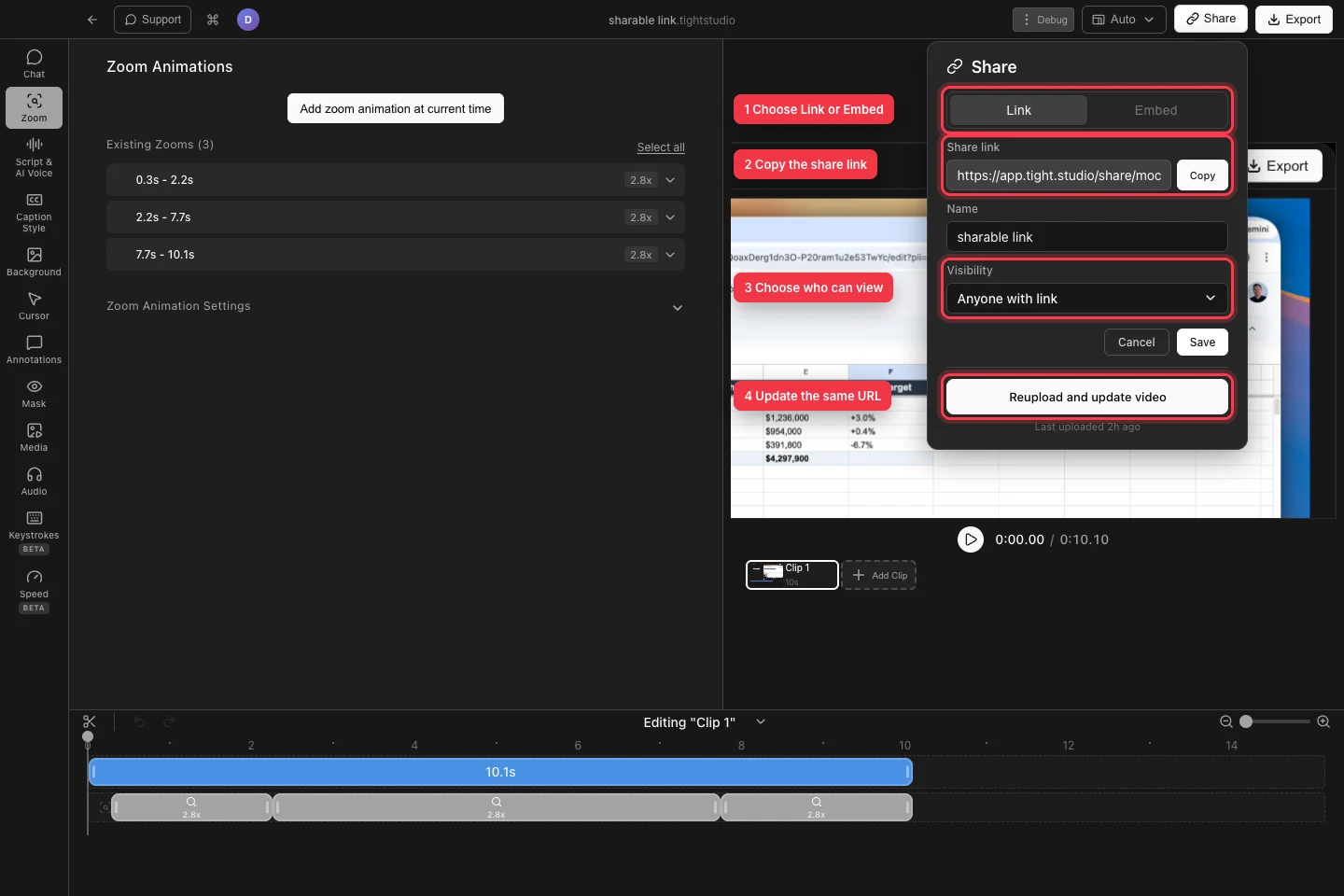
Choose the output, copy the link, set access, or update the existing share without changing its URL. - Step 2
Choose who can watch
Open Visibility and choose Anyone with link for an unrestricted player. Choose Password protected and enter a password when every viewer should supply the same secret.
Choose Specific people and add each allowed email address when access should be tied to named viewers. Choose Only me for a private upload that only your account can open. If an option says Upgrade to unlock, change plans or keep Anyone with link.
- Step 3
Upload and copy the share link
For a new link, click Upload and share. Tight Studio moves through Preparing…, Rendering…, and Uploading…, then displays the Share link and copies it to the clipboard. You can click Copy again whenever needed.
Check the confirmation for an expiration notice. When it says Expires in 7 days, click Upgrade to keep it forever if the link must remain available beyond that expiration. Open the copied URL in a private browser window to verify the viewer experience before sending it.
- Step 4
Embed the video on a website
Click Embed in the Share dialog. For a new upload, click Upload and get embed code; for an existing share, the paste-ready iframe appears immediately. Click Copy embed code and paste the responsive snippet into the website’s HTML or embed block.
A public embed plays inline and supports fullscreen. If the share is restricted, the embed opens the share page instead of playing inline so Tight Studio can enforce the password, email, or account check.
Troubleshooting
Why can’t I upload another shared video?
Sign in and check the message in the Share dialog. If you have used all available free shares, delete an old item from Shared Videos or upgrade for more shares. Also confirm the internet connection and retry after any render or upload error.
Why can’t a viewer open the link?
Open Share or Shared Videos → Settings and inspect Visibility. Supply the correct password for Password protected, add the viewer’s email under Specific people, or switch to Anyone with link and click Save. Also check whether the link reached its expiration.
Why does my embed open a share page instead of playing inline?
Inline playback is available for public shares. Password protected, Specific people, and Only me must open the share page so Tight Studio can verify access. Change Visibility to Anyone with link if the website should play the video directly.
Still stuck?
Send us a note with the project name and the step where you got blocked.