
Generate, edit, and re-transcribe captions
Create captions from audio, correct transcript text and timing, and run transcription again.
Before you start
Automatic transcription and re-transcription require you to sign in, and the clip must have original recorded audio. If a clip has no original audio, Script & AI Voice opens a manual caption composer instead.
Captions belong to individual clips. In a multi-clip project, Tight Studio transcribes each eligible clip and keeps its transcript with that clip when you switch or reorder clips.
Use Generate captions for the first transcript, then Edit transcript to correct text while preserving word timing.
- Editor tab
- Script & AI Voice → Script
- Automatic source
- Speech in the clip’s original audio
- Edit shortcuts
- Enter saves; Shift + Enter splits a caption segment
- Timing detail
- Every caption word has its own start and end time
Follow these steps
- Step 1
Open the Script tab
Open your project, select the clip you want to caption, and click Script & AI Voice in the left sidebar. Stay on the Script subtab.
The panel shows one section per clip. Click a clip header to make that clip active before editing its transcript.
- Step 2
Transcribe the original audio
If the project has not been transcribed, click Transcribe original recording. In a multi-clip project the label is Transcribe original recordings, and eligible clips are queued and transcribed in sequence.
Tight Studio reports Queued to transcribe… or Transcribing… while it works. When transcription completes, the script appears as editable caption segments and matching orange blocks appear on the caption timeline.
- Step 3
Correct the transcript
Click a caption segment in the script. Tight Studio seeks to that segment and opens its text inline. Correct the wording, punctuation, or capitalization, then press Enter to save.
When text is replaced, Tight Studio rebuilds the words inside the same segment time range and distributes their word timing across that range. The edit changes the caption text and timing metadata; it does not change the spoken audio.
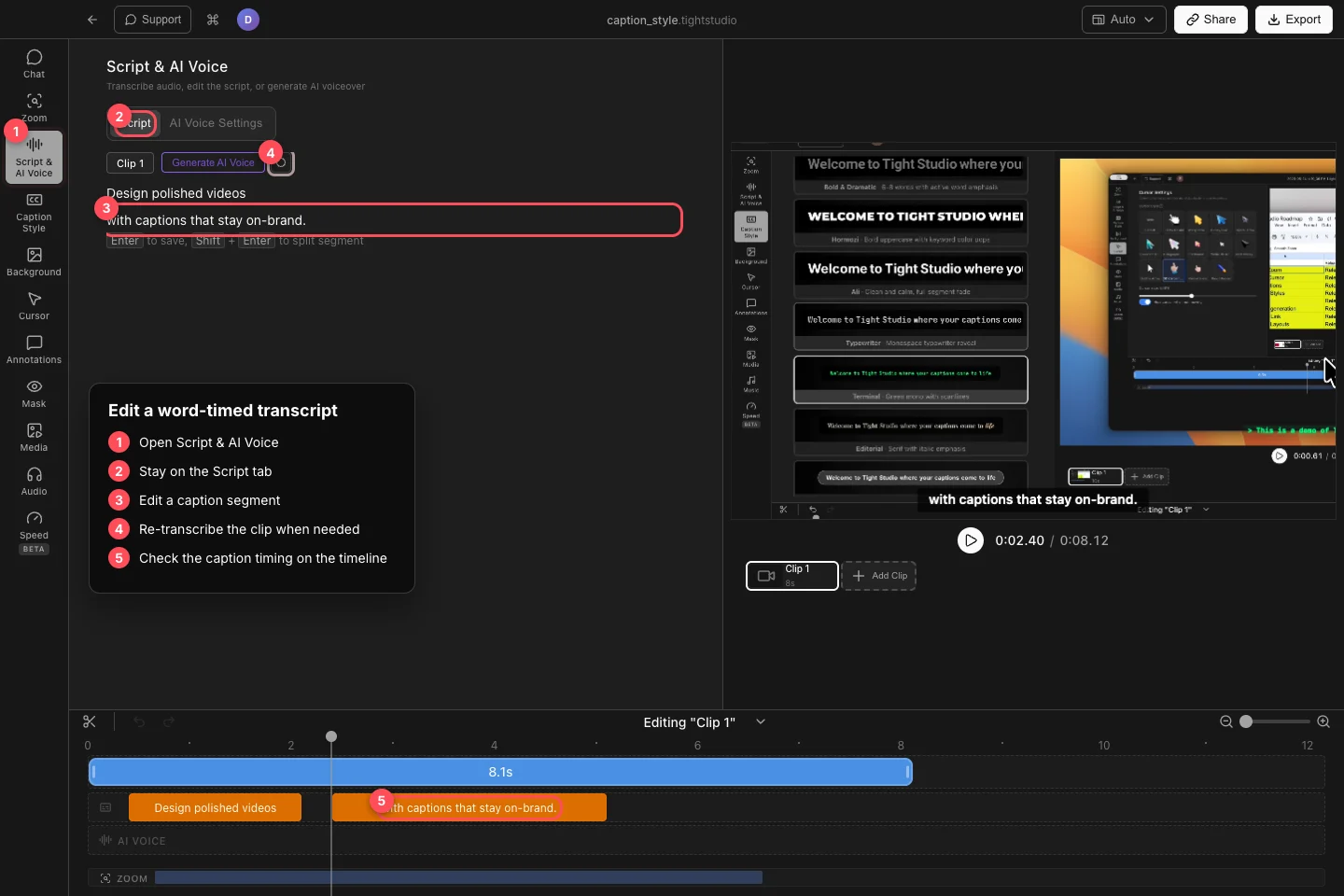
Edit a transcript segment inline, then confirm its word-timed orange block on the caption timeline. - Step 4
Adjust caption segments
To divide a long caption, place the cursor where the next segment should begin and press Shift + Enter. Tight Studio keeps the words before the cursor in the first segment and moves the remaining words into a second timed segment.
Hover a segment to use Add caption or Delete caption. If the clip has no transcript, click Click to add… and type a caption manually. Use the orange timeline blocks to check when each segment starts and ends.
- Step 5
Re-transcribe or hide captions
If the entire transcript is unreliable, click Re-transcribe this clip beside the clip’s audio controls. This runs transcription again from the original audio and replaces that clip’s current transcript, so copy any manual corrections you need before using it.
To keep the transcript but remove captions from the video, open Caption Style → Custom Style and turn on Hide Captions. You can also choose the Disabled preset. Hiding is reversible and does not delete the transcript.
Troubleshooting
Why do I see Sign in and transcribe original recording?
Automatic transcription requires an account session. Sign in, return to Script & AI Voice → Script, and click the transcription button again.
Why does the panel only show Click to add…?
The active clip has no usable original audio or no automatic transcript. Add captions manually, or switch to a clip that contains recorded speech and transcribe that clip.
Why did my manual corrections disappear?
Re-transcribe this clip replaces the current transcript with a fresh result from the original audio. Use Undo immediately if available, or reapply the corrections to the new transcript.
Why are captions missing from the video even though the transcript exists?
Open Caption Style and check whether the Disabled preset is selected or Hide Captions is on. Choose another preset or turn Hide Captions off.
Still stuck?
Send us a note with the project name and the step where you got blocked.