
Fix caption, AI voice, Voice Lab, and credit problems
Resolve transcription, generation, microphone-permission, sign-in, plan, and AI-credit issues.
Before you start
Caption transcription needs original recorded audio and a signed-in account. AI voice and Voice Lab also require sign-in; generation uses AI credits, while Voice Lab additionally needs macOS microphone permission.
Before re-transcribing, copy any manual script corrections you need to keep. Re-transcribe this clip replaces that clip’s current transcript with a fresh result from the original audio.
This guide covers no speech detected, transcription failed, regenerate captions, AI voice failed, and Voice Lab permission states.
- Caption diagnostics
- Script & AI Voice → Script
- AI voice diagnostics
- Script & AI Voice → AI Voice Settings
- Low credits
- Balance below 50 but above 0
- Empty credits
- Balance of 0
Follow these steps
- Step 1
Check sign-in, plan, and AI credits
Click the profile avatar and confirm the intended account is signed in. Under Credits, Low means fewer than 50 credits remain and Empty means the balance is 0.
Caption transcription can ask you to Sign in and transcribe original recording. AI voice can show Sign in to use AI voice or Upgrade to Pro to refill AI credits depending on the account and credit state. Resolve that gate before retrying.
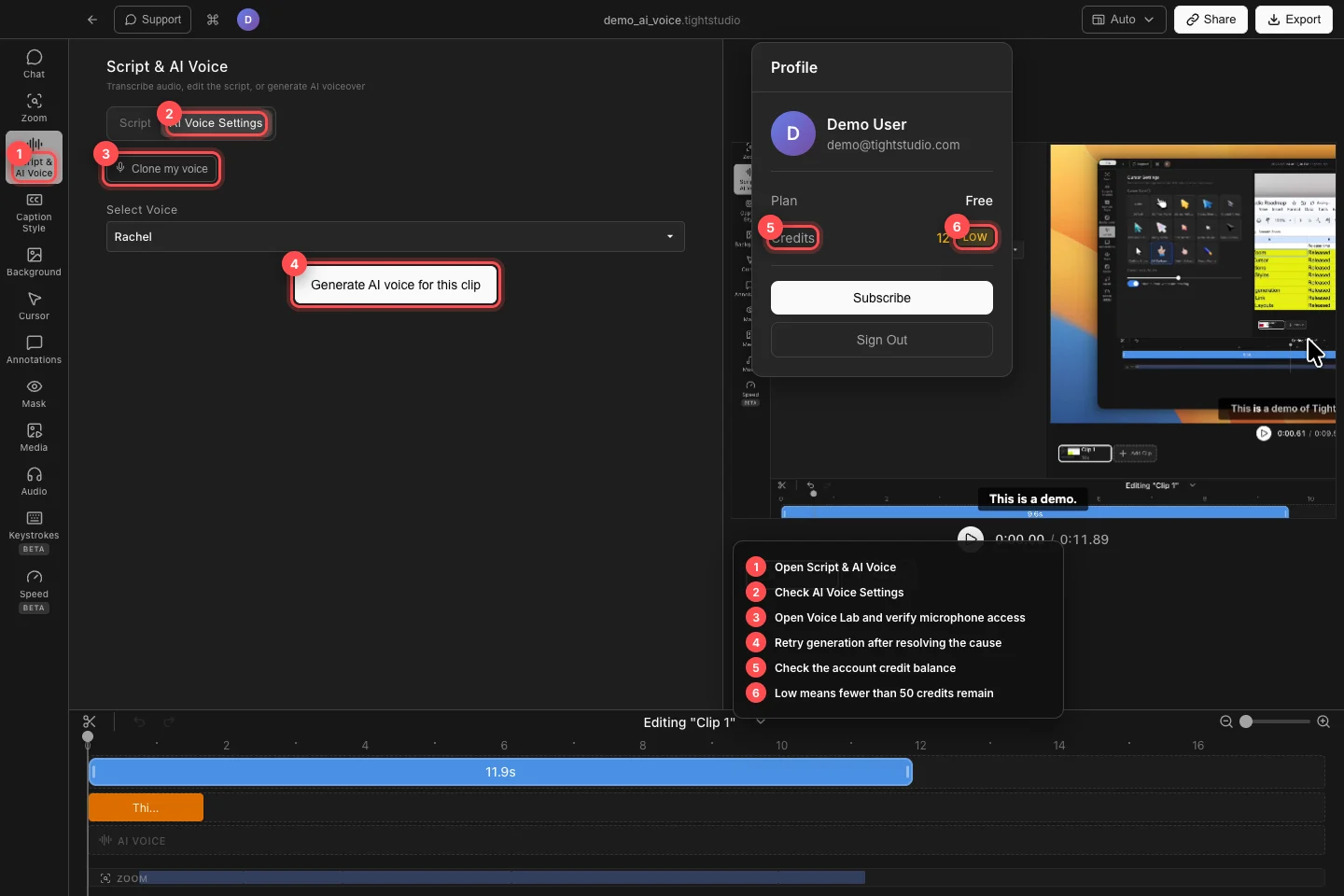
Check the correct account and credit state, then return to the specific caption, AI voice, or Voice Lab action that failed. - Step 2
Resolve No speech or no original audio
Open Script & AI Voice → Script and select the affected clip. “No spoken words were found in your recording.” means transcription completed but detected no speech; “No audio was recorded.” means the clip has no original audio source.
Play the clip and confirm the intended microphone or system-audio track is audible. When no usable speech exists, use Click to add… to create captions manually. Switch clips if another recording contains the narration.
- Step 3
Retry a failed or inaccurate transcription
A failed clip shows its error with Retry. Check the network connection, confirm you are signed in, and click Retry. Queued to transcribe… and Transcribing… are progress states, not failures.
For a completed but inaccurate transcript, choose Re-transcribe this clip from that clip’s audio controls. Wait for the fresh transcript, then reapply any manual wording changes you saved beforehand.
- Step 4
Fix AI voice generation
Open AI Voice Settings, confirm the script contains kept words, choose a voice under Select Voice, and click Generate AI voice for this clip or Regenerate AI voice for this clip.
If the panel reports Failed to generate voice, restore the network connection and try again. An Insufficient credits message states the credits needed and current balance; refill or upgrade before retrying. A partial “Generated voice for X/Y segments” result should be regenerated after the underlying error is resolved.
- Step 5
Restore Voice Lab microphone permission
In AI Voice Settings, click Clone my voice. When Voice Lab says Microphone access needed to clone your voice, click Allow microphone access and enable Tight Studio under System Settings → Privacy & Security → Microphone.
Quit and reopen Tight Studio if macOS does not refresh the permission. Select the correct input under Select microphone and confirm that its level changes before starting the 20-second sample.
- Step 6
Confirm captions and narration are working
Play from before the first caption or AI voice segment. Confirm captions appear at the correct words and the generated narration plays for the current clip.
If the script exists but captions are invisible, check Caption Style for the Disabled preset or Hide Captions. If AI voice was generated but the original audio still plays, enable Using AI voice for current clip.
Troubleshooting
Why does caption generation say no speech even though I can hear audio?
Confirm the audible track actually contains clear spoken words rather than music or system sounds. Re-transcribe this clip once with a stable connection; if speech still is not detected, add captions manually and include the clip details in a Support report.
Why can’t I generate or regenerate AI voice?
Sign in, keep at least one usable script segment, select a voice, and check the profile credit balance. Refill an Empty balance or resolve the exact Insufficient credits amount before trying again.
Why can’t Voice Lab hear my microphone?
Enable Tight Studio in System Settings → Privacy & Security → Microphone, reopen the app, and select the intended device under Select microphone. Check the macOS input level if Voice Lab still reports Too quiet.
Still stuck?
Send us a note with the project name and the step where you got blocked.