
Change the speed of part of a video
Speed up or slow down a selected video segment and understand how timing changes.
Before you start
Speed Settings changes an individual video segment, not an entire clip automatically. If only one part of a take should speed up or slow down, split the video at the beginning and end of that part first.
Speed is marked Beta. The editor notes that speed adjustment is experimental and segment alignment may be affected, so preview the transitions around a changed segment before exporting.
- Editor tab
- Speed → Speed Settings
- Available presets
- 0.1x, 0.25x, 0.5x, 0.75x, 1x, 1.25x, 1.5x, 2x, 4x, and 8x
- Timing rule
- Displayed duration = source duration ÷ playback speed
- Normal speed
- 1x
Follow these steps
- Step 1
Isolate the part you want to change
Find the blue video segment in the main timeline. If the whole segment should use one speed, leave it as it is.
To change only part of it, place the playhead at the beginning and end of that part and split at both boundaries. Each resulting blue block is a separate video segment and can have its own playback speed.
- Step 2
Select the video segment
Click the blue segment you want to change. Tight Studio outlines the selection and opens Speed Settings automatically.
You can also click Speed in the left sidebar, then select the segment under Video Segments. Its displayed start and end time appears in the row; click the row to expand its controls.
- Step 3
Choose a playback speed
Under Playback Speed, click a preset. Values below 1x slow the segment down, while values above 1x speed it up. Choose 1x for the original timing.
The change applies immediately. The selected preset is highlighted, and the segment row and timeline show a speed badge whenever the value is not 1x.
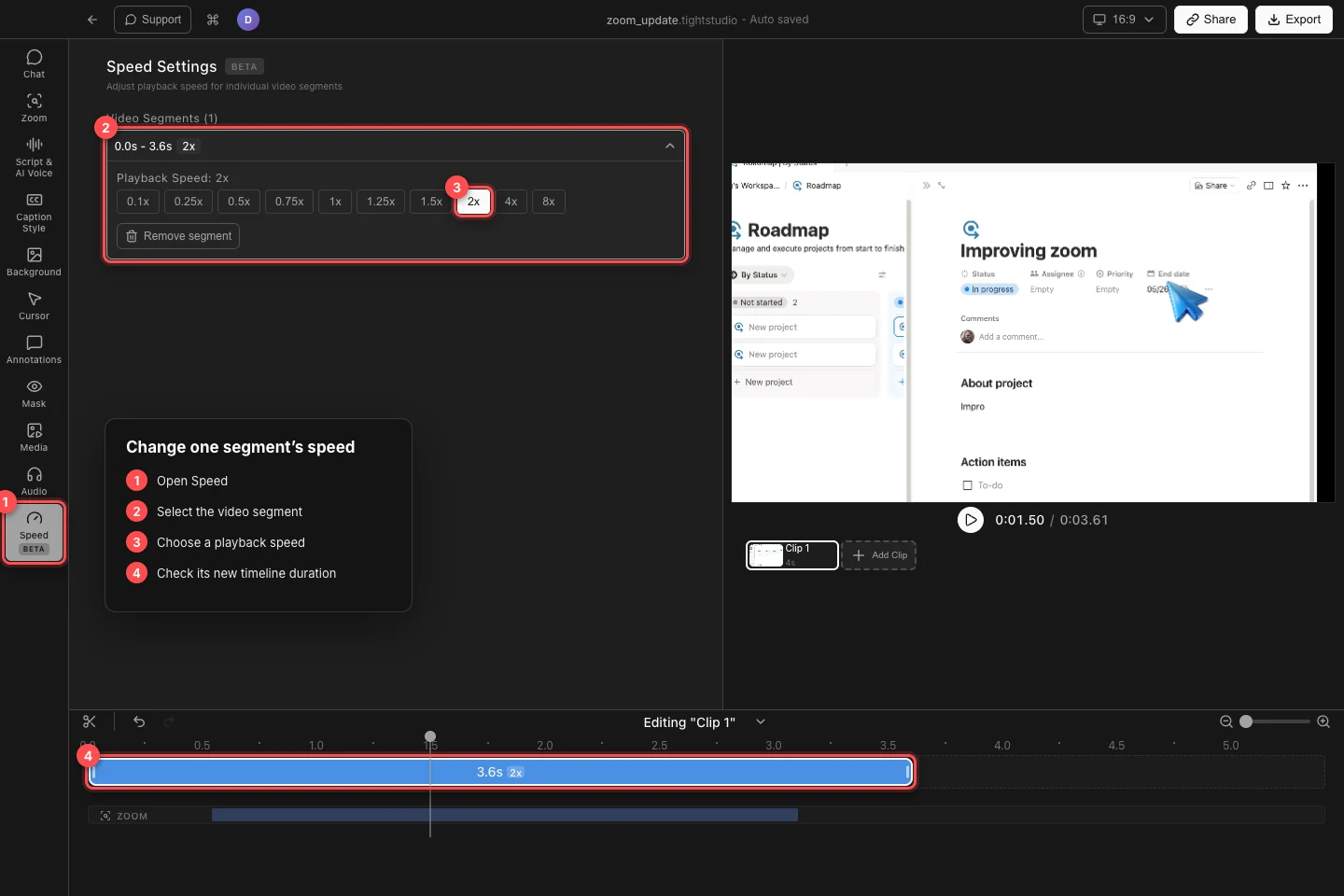
Select a video segment, choose a preset in Speed Settings, then confirm its updated duration on the timeline. - Step 4
Check how the duration changed
Tight Studio recalculates the segment’s displayed duration from its source duration and speed. A 7.2-second source segment becomes about 3.6 seconds at 2x, while 0.5x makes it about 14.4 seconds.
The timeline block grows or shrinks to match the new duration, and later content moves with it. The player’s total duration also updates, so use the timeline ruler and end time to check the result.
- Step 5
Preview the changed segment
Move the playhead to just before the segment and press Play. Watch the transition into and out of it, especially when using a large change such as 0.1x, 4x, or 8x.
To restore the original timing, select the segment and click 1x. Do not click Remove segment to reset speed—that command removes the selected video section from the edit.
Troubleshooting
Why did more of the video change speed than I intended?
Speed applies to the entire selected video segment. Undo the change or return it to 1x, split the segment at the intended start and end points, then apply the speed to only the new middle segment.
Why is the overall video duration different?
This is expected. Faster speeds shorten the selected segment and slower speeds lengthen it. Tight Studio repacks later timeline content and updates the project duration after every speed change.
Why can’t I see the Playback Speed buttons?
Open Speed and select a row under Video Segments, or click a blue video segment in the timeline. The row must be selected and expanded before the preset buttons appear.
How do I return a segment to its original speed?
Select the segment and click 1x under Playback Speed. Avoid Remove segment, which deletes that section instead of resetting its speed.
Still stuck?
Send us a note with the project name and the step where you got blocked.