
Add touch ripples to mobile recordings
Show viewers where a mobile screen was tapped with timed, styled ripple indicators.
Before you start
Touch ripples are available for clips recorded from an iPhone or iPad. Select the mobile recording you want to edit before opening Annotations; the Touch option does not appear for a desktop screen recording.
A touch ripple is an editor-authored tap indicator. Place it at the moment and position of a tap, then preview the result before exporting.
- Works with
- iPhone and iPad device recordings
- Add from
- Annotations > Add annotation > Touch
- Customize
- Touch color, touch size, and touch opacity
Follow these steps
- Step 1
Select the mobile recording
Open the project and select the iPhone or iPad clip in the clip strip. Move the playhead to the frame where the tap should begin, then pause the video.
If the project contains several clips, confirm that the selected clip is a device recording before continuing.
- Step 2
Add an annotation at the playhead
Open Annotations in the left sidebar and click Add annotation. Tight Studio adds a new annotation at the current playhead position and opens its settings.
- Step 3
Choose Touch as the annotation type
In Annotation type, click Touch. The annotation becomes a timed touch ripple and appears as a TOUCH segment on the Annotations track.
The ripple is included in editor playback and the exported video, without changing the original mobile recording.
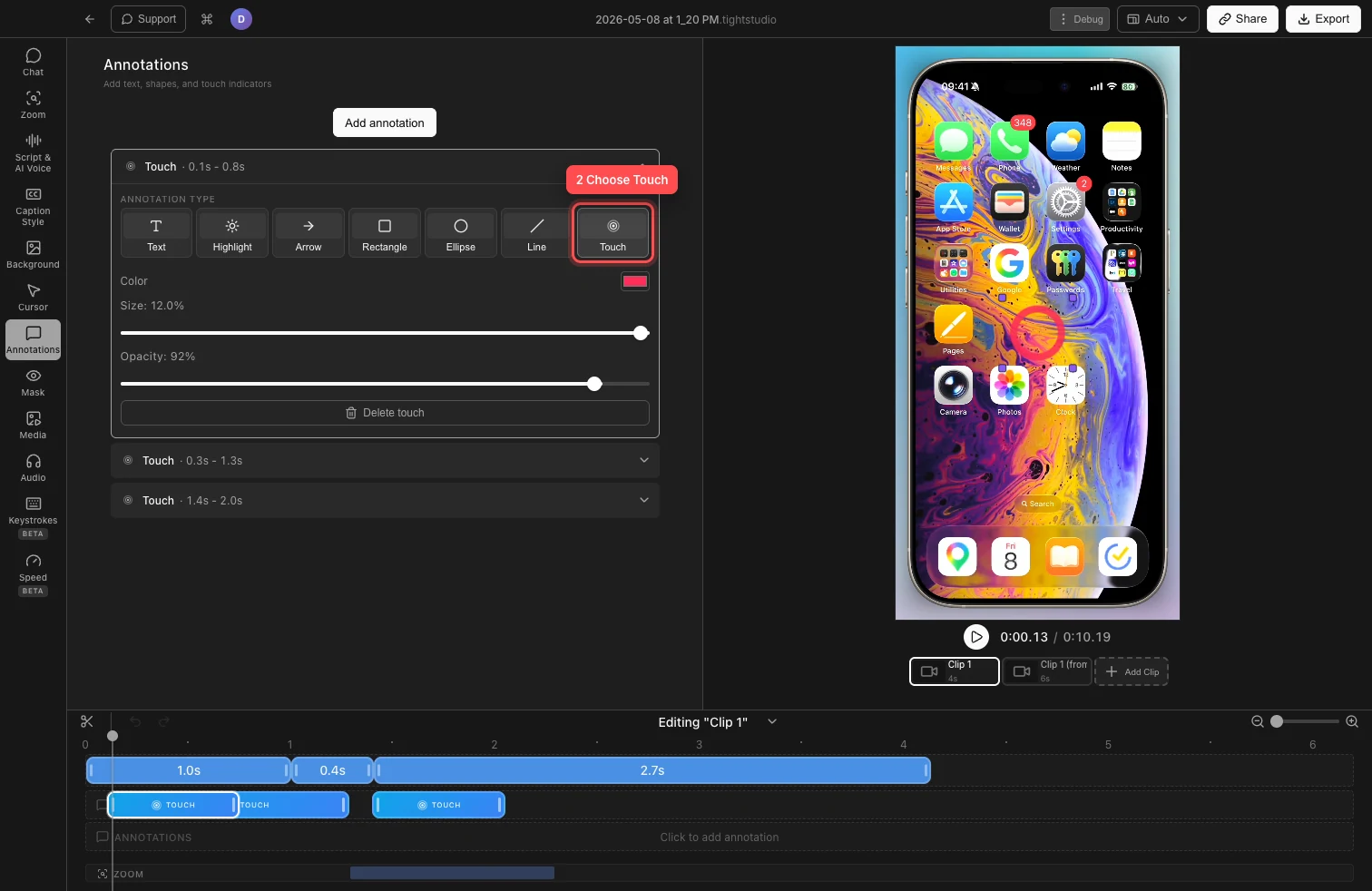
Choose Touch, then use Color, Size, and Opacity to style the tap indicator. - Step 4
Place and time the tap indicator
Pause on a frame inside the TOUCH segment, then drag the touch marker in the video preview until it sits over the control that was tapped.
On the Annotations track, drag the segment to align its start with the tap. Trim its edges to control how long the ripple remains active.
- Step 5
Adjust the touch color, size, and opacity
Expand the Touch row in Annotations. Click Color to choose a touch color that contrasts with the mobile screen.
Use Size to control the ripple diameter and Opacity to make it more subtle or more prominent. These settings apply to the selected touch only, so different taps can use different styles.
- Step 6
Preview the ripple and export
Play across the TOUCH segment and check the tap indicator at normal speed. Make sure the ripple is visible without covering the control underneath it.
Repeat the workflow for any other taps. When the timing and styling look right, export or share the video normally.
Troubleshooting
Why is Touch missing from Annotation type?
Touch is shown only when the active clip is an iPhone or iPad device recording. Select the mobile clip in the clip strip, then reopen Annotations. Desktop screen recordings support the other annotation types but not touch ripples.
Why is the touch ripple in the wrong place?
Pause on a frame inside the TOUCH segment, select its Touch row, and drag the marker directly on the phone preview. If you are outside the segment time range, move the playhead into it first so the marker is available.
Why is the tap indicator hard to see or visible for too long?
Choose a contrasting Color, increase Size or Opacity, and preview again. To shorten the effect, trim the TOUCH segment on the Annotations track so it covers only the tap moment.
Still stuck?
Send us a note with the project name and the step where you got blocked.