
Recover missing, moved, or damaged projects and media
Find project bundles, reopen downloads, restore Trash items, and keep source media intact.
Before you start
Stop moving, renaming, or deleting files as soon as a project or media item appears missing. Keep the original Mac, download, backup, and any .tightstudio or ZIP copies until the recovered project has been opened and checked.
A .tightstudio item is a macOS project bundle. Treat the whole bundle as one file: opening or copying only project.json, Recordings, Resources, or another item inside can leave the project invalid or incomplete.
For a missing project, search Recent Videos and restore Trash first. Extract a downloaded ZIP before opening it, and keep backups available while diagnosing missing media.
- Editable project
- Complete .tightstudio bundle
- Required bundle files
- project.json and Info.plist
- Tight Studio Trash
- Projects and clips are retained for 7 days
- Downloaded backup
- Extract the ZIP before opening
Follow these steps
- Step 1
Search Recent Videos first
Open Recent Videos and enter part of the project name in Search videos…. Clear the search, change Date modified sorting, and check whether the project was renamed before assuming it is gone.
If you find the project, open its three-dot menu and choose Show in Finder. This reveals the complete .tightstudio bundle so you can confirm its location and make a safe copy.
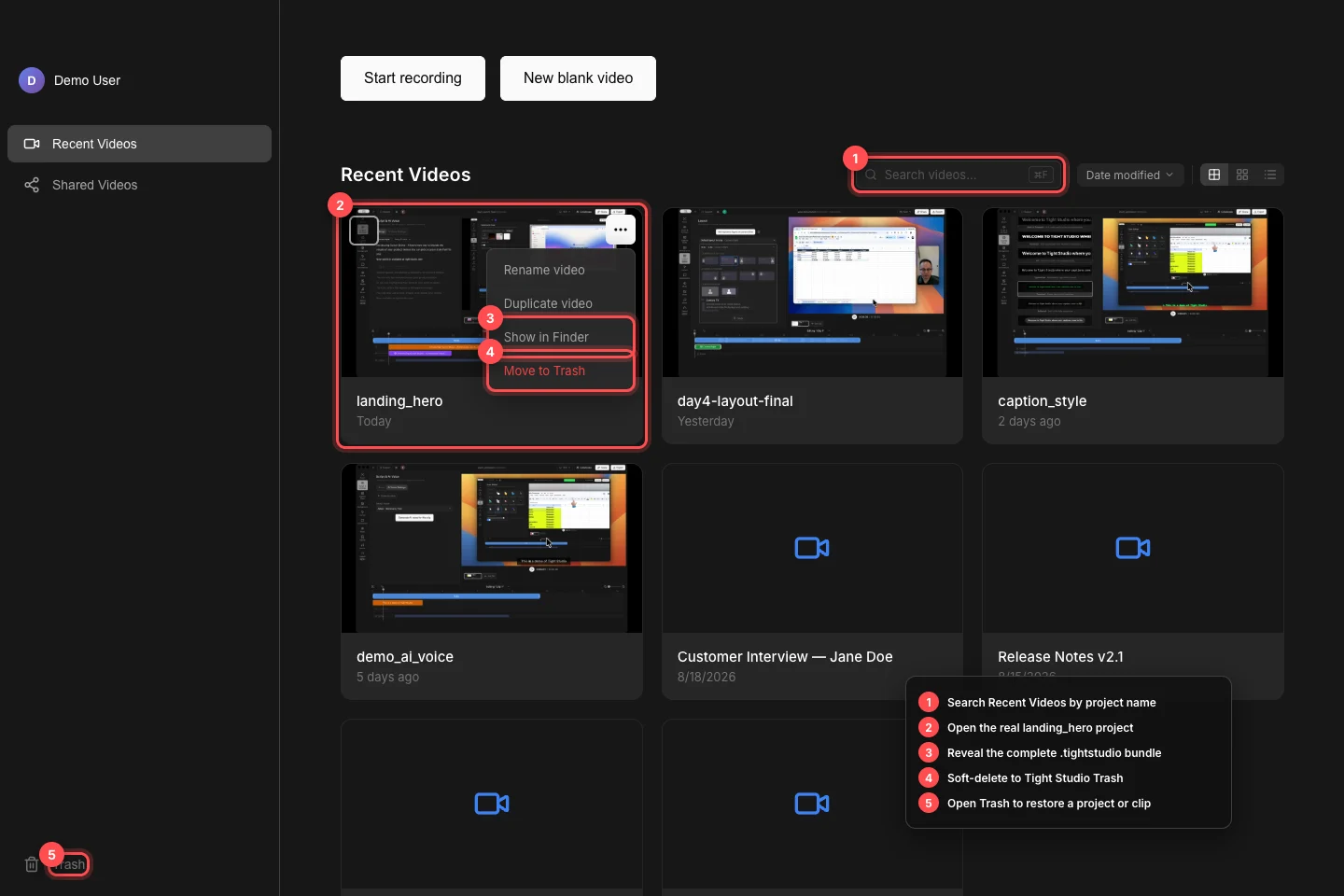
Search the project library, reveal the full bundle in Finder, and use Tight Studio Trash for recoverable deletion. - Step 2
Find and reopen a moved project bundle
If the project is no longer in Recent Videos, search Finder for its name or for items ending in .tightstudio. A manually moved bundle may fall outside Tight Studio’s normal Recent Videos folder even though it is still intact.
Move the complete bundle to a local, fully downloaded folder and double-click it. Tight Studio validates the bundle before opening; do not use Show Package Contents and try to open an individual file inside.
- Step 3
Restore a project or clip from Trash
Click Trash in the Home sidebar. Open the item’s menu and choose Restore. Restored projects return to Recent Videos; restored clips return to their owning project.
Tight Studio says items are automatically deleted after 7 days. Do not choose Delete Permanently or Empty Trash while recovering. If you manually moved the bundle to the macOS Trash instead, open Finder’s Trash and use Put Back.
- Step 4
Recover a project downloaded as a ZIP
Wait for the ZIP download or cloud sync to finish, then double-click the ZIP once in Finder. Open the extracted item ending in .tightstudio—not the ZIP and not a file from inside the extracted bundle.
If extraction creates an incomplete bundle or reports an archive error, delete only that incomplete copy and download the original ZIP again. Never rename a ZIP extension to .tightstudio.
- Step 5
Recover missing recordings or imported media
For missing original recordings, replace the destination with a fresh copy of the entire known-good .tightstudio bundle. Current recordings live under Recordings inside the bundle, so a partial transfer can preserve edits while losing playable source files.
Imported library media is stored separately in Tight Studio’s Media library. If an image, video, or audio overlay is missing, preserve its timeline segment and the original Mac’s Media folder, then contact Support before replacing or deleting anything; importing another copy does not automatically relink the existing segment.
- Step 6
Verify the recovery and make a backup
Open every clip, scrub the timeline, play camera and screen tracks, check imported overlays and music, and run a short test export. A visible project title alone does not prove that every resource recovered.
After verification, close the editor and copy the complete .tightstudio bundle to a second location. Preserve any separate Media library assets used by the project and keep the original recovery source until the backup is confirmed.
Troubleshooting
Why does double-clicking the .tightstudio item show an invalid-project error?
The item is incomplete, damaged, or missing required bundle files such as project.json or Info.plist. Re-extract or recopy the complete bundle from the original backup; do not rebuild it from individual files unless Support directs you.
Why is a restored project still missing from Recent Videos?
Clear the search and return to Recent Videos, then sort by Date modified. If it was restored through Finder rather than Tight Studio Trash, double-click the complete .tightstudio bundle to reopen it.
Why do the timeline and edits load but a recording or overlay is blank?
The project metadata survived but a referenced asset did not. Recopy the whole project for missing recordings; for imported overlays, preserve the original Media library and contact Support because a new import does not automatically relink the old segment.
Still stuck?
Send us a note with the project name and the step where you got blocked.