
Save, reopen, back up, and transfer project files
Understand automatic saving and safely move complete .tightstudio projects between Macs or cloud storage.
Before you start
Use a project backup when you want to keep editing later or move an editable project to another Mac. If someone only needs to watch the result, export an MP4 or GIF instead.
This workflow is for local projects in Recent Videos. Team Workspace projects use their own cloud-sync workflow.
- Editable project
- A complete .tightstudio project bundle
- Finished video
- An exported MP4 or GIF
- Safe to copy
- The Edited status has cleared and the editor is closed
Follow these steps
- Step 1
Let Tight Studio finish saving
Tight Studio uses autosave while you edit. If the project title shows Edited status, wait for that status to clear before you continue.
Return to Recent Videos and close the editor before copying the project. If Tight Studio asks whether to save, choose the save option and wait for it to finish.
- Step 2
Choose Show in Finder
In Recent Videos, move the pointer over the local project and select its three-dot menu.
Choose Show in Finder. Tight Studio opens Finder and reveals the selected project bundle.
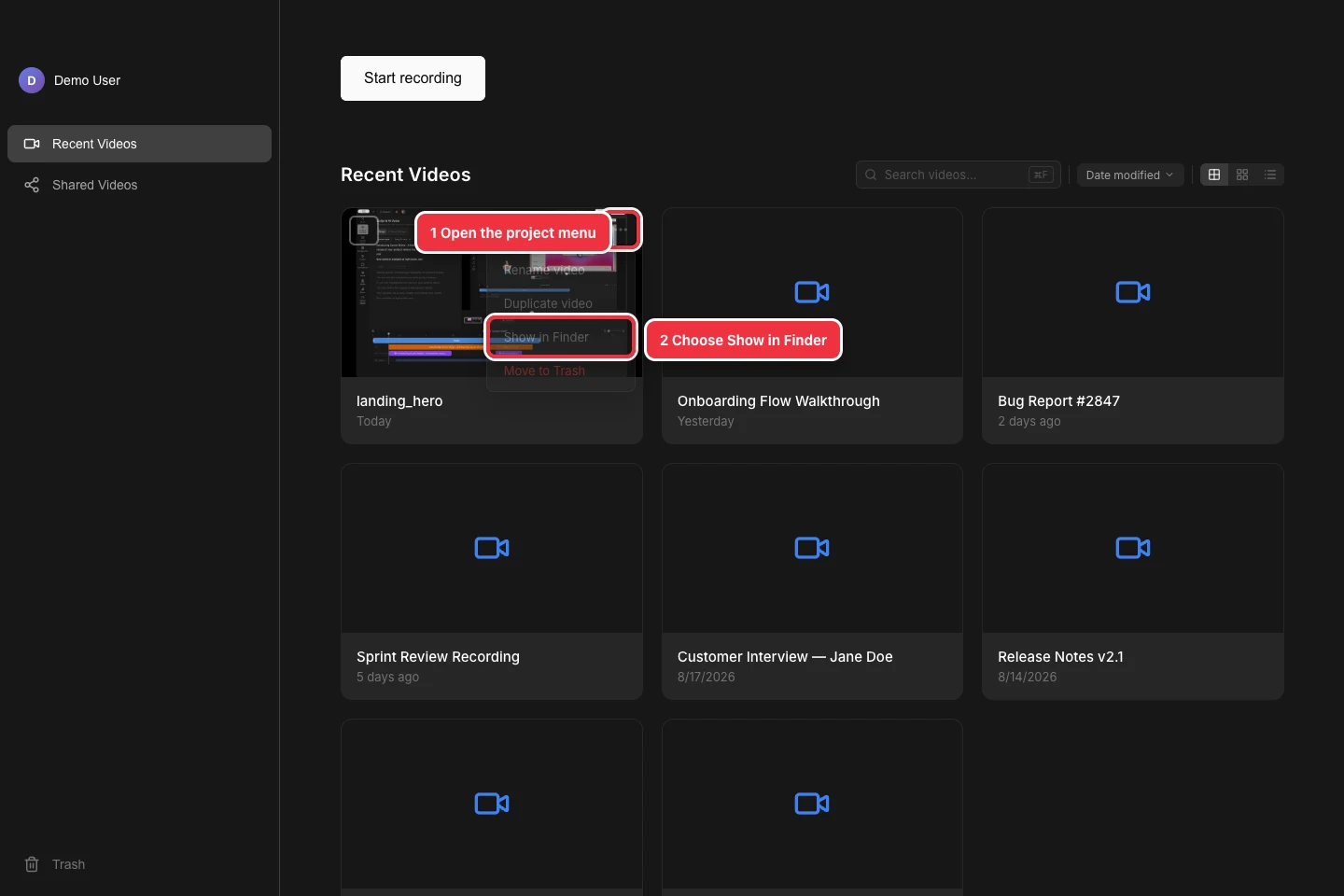
Open the project menu, then choose Show in Finder. - Step 3
Keep the complete .tightstudio project together
Finder selects an item whose name ends in .tightstudio. This is the complete editable project: it keeps the edit settings and the recordings and resources stored with the project.
Treat it as one item. Copy or upload the complete .tightstudio bundle—do not open its package contents and transfer only project.json, recordings, or another file inside it.
- Step 4
Make a local project backup
Copy the complete bundle to a backup folder or external drive. Keep the original in place until the copy completes, and avoid moving or renaming either item while Tight Studio is open.
Projects can be much larger than the final exported video because they contain source media. Wait for Finder to finish, then confirm the copied item has the expected name and size.
- Step 5
Back up the project with Google Drive
With Google Drive for desktop, copy the complete .tightstudio bundle into My Drive and wait until Drive reports that syncing is complete.
For an upload in a web browser, Control-click the project in Finder, choose Compress, and upload the resulting ZIP. Compressing first preserves the bundle as one transferable item.
- Step 6
Transfer and reopen the project
On the destination Mac, download the complete project to a local folder and wait for the download to finish. If you transferred a ZIP, double-click it once to extract the .tightstudio bundle.
Double-click the .tightstudio item to open it in Tight Studio. Check that the timeline, recordings, and edits are present before removing the original project backup.
Troubleshooting
Why can’t Google Drive preview the project?
A .tightstudio item is an editable project bundle, not a finished video. Google Drive can store and share it but cannot preview or edit it.
What if the project downloads as a ZIP file?
Double-click the ZIP file to extract it. Then open the item ending in .tightstudio, not an individual file from inside the bundle.
Why are recordings or media missing after the transfer?
The bundle was likely copied incompletely or opened before syncing finished. Delete the incomplete destination copy, then copy or download the complete original .tightstudio project again and wait for the transfer to finish.
Why don’t I see Show in Finder?
Return to Recent Videos and open the three-dot menu on a local project card. Team Workspace projects use cloud sync and do not follow the same local project backup workflow.
Still stuck?
Send us a note with the project name and the step where you got blocked.