
Add text, shapes, arrows, and highlights
Draw attention with styled text, callout shapes, textured arrows, and spotlight highlights.
Before you start
Annotations belong to the active clip and appear only during their timeline range. Place the playhead where the callout should begin before adding one.
Add annotation creates a two-second text annotation by default. You can immediately convert it to Highlight, Arrow, Rectangle, Ellipse, or Line without changing its time range or timeline track.
- Editor tab
- Annotations
- Default annotation
- New text for two seconds
- Available types
- Text, Highlight, Arrow, Rectangle, Ellipse, and Line
- Placement
- Drag and resize directly on the video canvas
Follow these steps
- Step 1
Add an annotation at the playhead
Select the clip, move the playhead to the moment that needs emphasis, and click Annotations in the left sidebar. Click Add annotation.
Tight Studio creates New text for two seconds, expands its settings row, selects it on the canvas, and adds a blue annotation segment to the timeline.
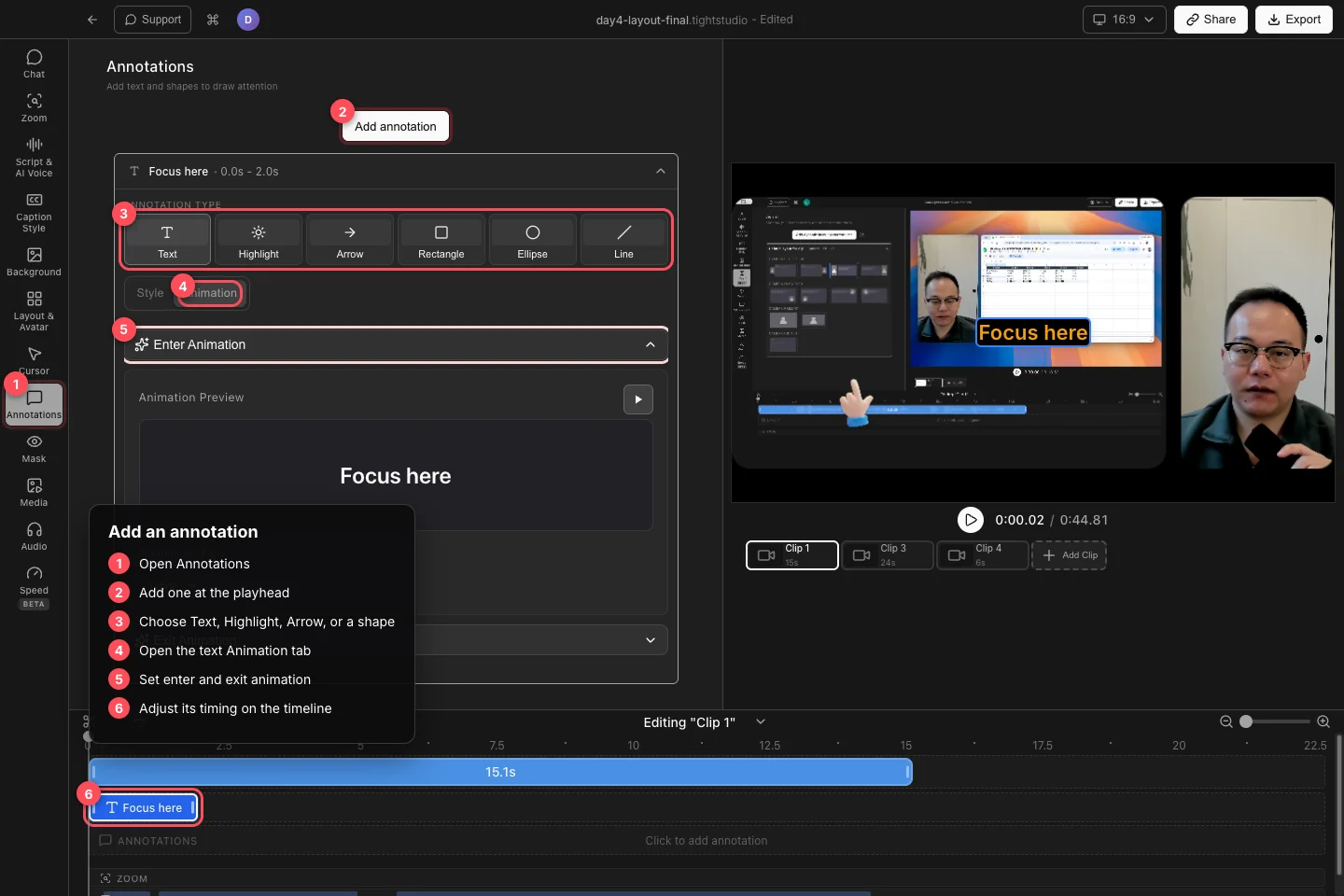
Add an annotation, choose its type, then style it and adjust its time range on the timeline. - Step 2
Choose text, a shape, an arrow, or a highlight
Use Annotation type in the expanded row to choose Text, Highlight, Arrow, Rectangle, Ellipse, or Line. You can switch the selected annotation to another type later; Tight Studio preserves its start time, end time, and track position.
Use Rectangle or Ellipse to frame an interface region, Line to underline or separate content, Arrow to point at a specific target, and Highlight to dim everything outside a selected area.
- Step 3
Style and animate text
For Text, open Style and enter the Text Content. Choose Font Type and Font Size, then use Format for bold, italic, underline, alignment, and text case. Set Text Color and Background Color, and open Show Advanced Settings for shadow, outline, opacity, letter spacing, line height, padding, and corner radius.
Open Animation to set Enter Animation and Exit Animation. Available entrances are None, Fade In, Slide In, and Scale In; exits are None, Fade Out, Slide Out, and Scale Out. Use the preview button, then adjust Duration and any direction, distance, or scale controls shown for the chosen effect.
- Step 4
Style shapes and arrows
For Rectangle, Ellipse, or Line, set Stroke and Stroke width. Drag the annotation on the video canvas to move or resize it.
For Arrow, choose a Style, select a Color, and adjust Thickness and Arrowhead size when those controls are available for the selected arrow style. Drag the on-canvas endpoints to aim the arrow precisely.
- Step 5
Configure a highlight and its timing
For Highlight, click Configure Highlight Area. Draw the area that should remain visible in the captured frame, then click Apply Highlight Area. Everything outside that area is dimmed during the highlight segment.
Drag the annotation’s blue timeline block to change when it appears, and drag either edge to change its duration. Click the canvas object, timeline block, or annotation row to reopen its controls; use the matching Delete command when you no longer need it.
Troubleshooting
Why did the annotation appear at the wrong moment?
Add annotation starts at the current playhead. Drag its blue timeline segment to the intended start time, then trim its edges to set the duration.
Why can’t I see the annotation on the canvas?
Move the playhead inside the annotation’s timeline range and confirm you are editing the clip that owns it. An annotation from another clip does not appear on the active clip.
Why are the arrow or shape controls different?
Controls follow the selected Annotation type and, for arrows, the selected Style. Reopen the row, confirm the intended type, and choose the standard arrow style when you need Thickness and Arrowhead size controls.
Why does a text animation not play while paused?
Use the play button in Animation Preview or play across the annotation’s start and end in the main video. A paused frame inside the segment shows the settled text rather than replaying its entrance automatically.
Still stuck?
Send us a note with the project name and the step where you got blocked.