
Customize cursor movement, styles, and click effects
Smooth cursor motion, change its appearance, upload a custom cursor, and style clicks.
Before you start
Cursor settings use pointer data captured during a screen recording. Imported videos and clips recorded without cursor input cannot recreate that movement.
Open Cursor from the editor sidebar and preview a section with both movement and clicks before choosing a final style.
- Panel
- Cursor Settings
- Applies to
- Recorded cursor movement and clicks
- Custom cursor
- Image plus an adjustable click hotspot
Follow these steps
- Step 1
Choose a cursor style or upload one
Open Cursor, then select Default, one of the illustrated cursor styles, or None. Choose Upload to add a custom cursor image.
For a custom cursor, set its hotspot at the exact point that should land on recorded clicks. An incorrect hotspot makes the image appear offset from buttons and links.
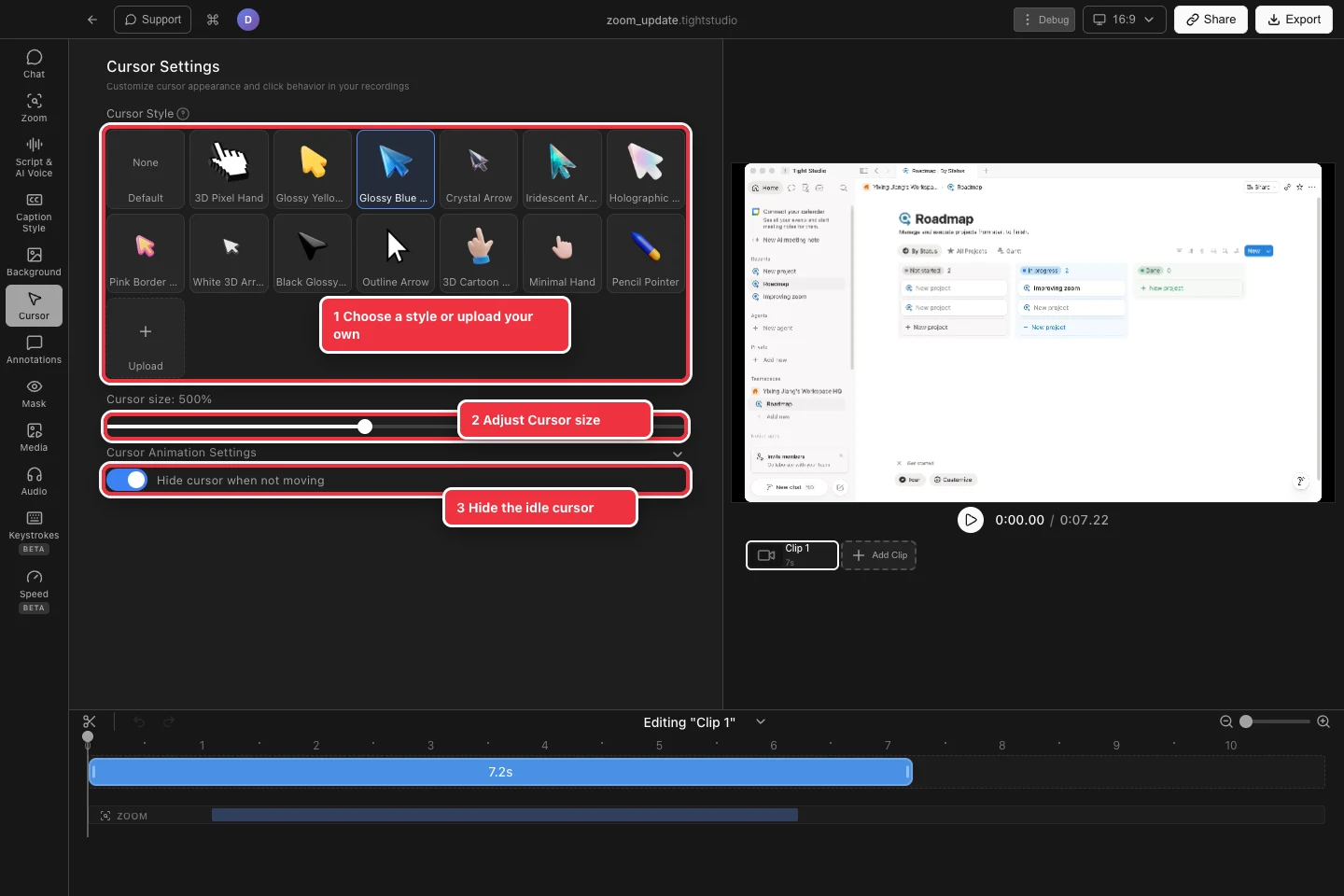
Choose a cursor style, adjust its size, and decide what happens while the pointer is idle. - Step 2
Set the cursor size
Drag Cursor size until the pointer is readable without hiding the interface below it. Larger sizes are useful for tutorials and small embedded videos.
Preview the cursor at the final canvas aspect ratio because a size that feels subtle at 16:9 may dominate a vertical export.
- Step 3
Tune cursor animation
Expand Cursor Animation Settings to adjust how recorded movement is smoothed. Use the available presets and controls to balance fast response against softer motion.
Keep the result close to the original path when precise pointing matters. Heavier smoothing is best for broad presentation gestures.
- Step 4
Add click circles and click sound
Enable click circles to show a visible pulse at recorded clicks, then choose a color and size that contrasts with the recording. Enable click sound when an audible cue will help viewers follow actions.
Play a click-heavy section and make sure the visual and sound remain informative rather than distracting.
- Step 5
Hide the cursor when it is idle
Turn on Hide cursor when not moving to remove the pointer after it stops. It returns automatically when recorded movement resumes.
Review pauses and zooms before export so the cursor does not disappear when it is intentionally pointing at an important element.
Troubleshooting
Why do cursor changes have no effect?
The selected clip may be imported or may not contain recorded pointer input. Choose a native screen recording with cursor data.
Why does a custom cursor miss the click point?
Adjust the custom cursor hotspot so it matches the image tip or finger point, then replay a recorded click to verify alignment.
Why are click circles or click sound missing?
Confirm the clip contains recorded clicks and the effect is enabled. Scrub to a known click event; ordinary movement does not trigger click effects.
Still stuck?
Send us a note with the project name and the step where you got blocked.