
Learn the Home screen and project library
Find recent projects, shared videos, Trash, and Team Workspace, then open a project in the editor.
Before you start
The Home screen is the starting point for recordings and the library for videos you already created. Select the back button in the editor whenever you want to return to it.
Recent Videos and Trash describe local projects on this Mac. Shared Videos describes the links you published, while Team Workspace appears only for accounts with team collaboration access.
- Local library
- Recent Videos
- Published links
- Shared Videos
- Collaboration
- Team Workspace, when available
- Recover deleted work
- Trash for up to 7 days
Follow these steps
- Step 1
Open your local project library
Select Recent Videos in the left sidebar. Your most recently modified local projects appear in the main area, with the project name and last-modified date under each thumbnail.
Select Start recording when you want to capture something new. A finished recording is added to Recent Videos as a project you can reopen later.
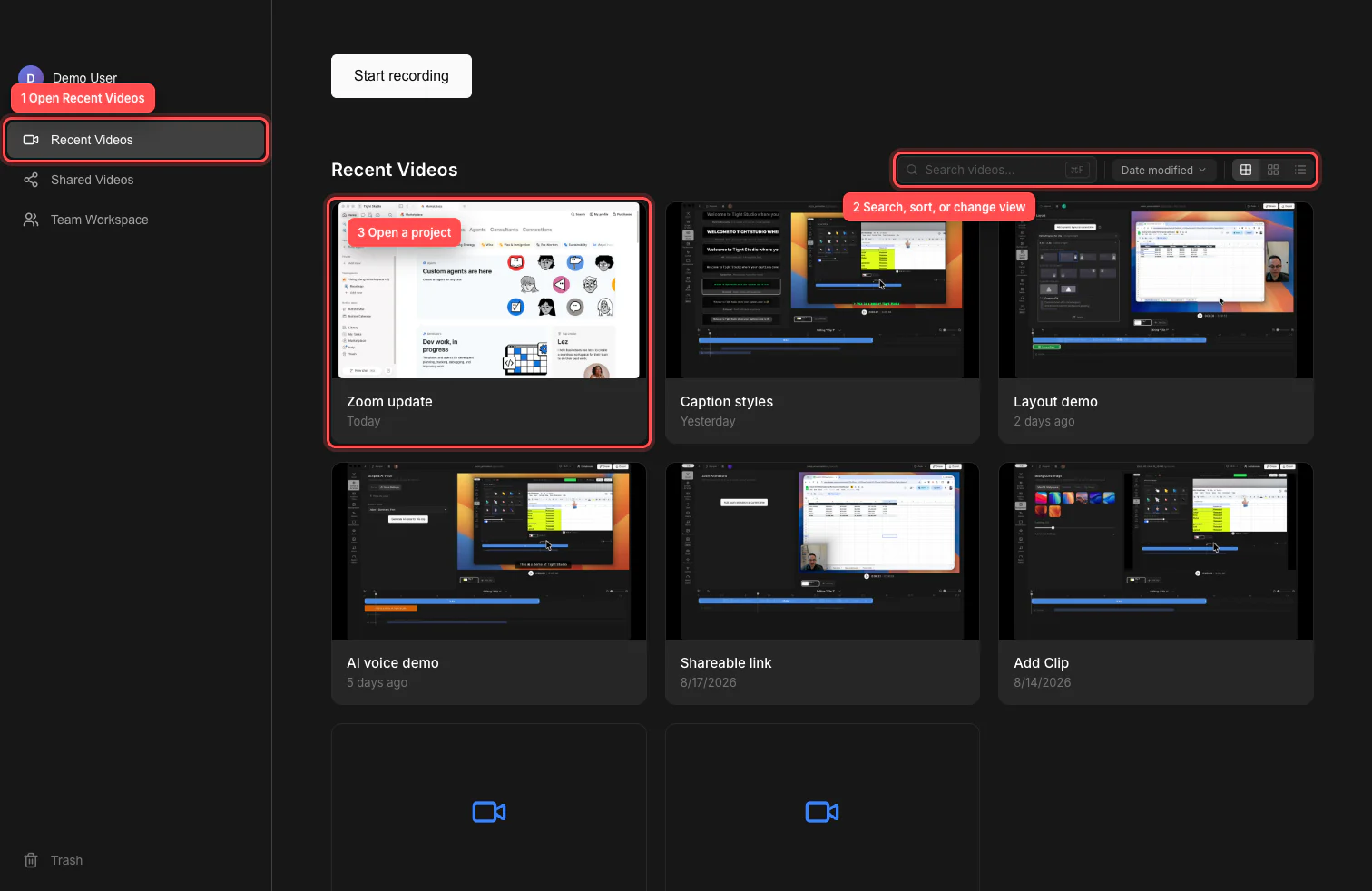
Use Recent Videos to browse projects, the toolbar to narrow the library, and a project card to open the editor. - Step 2
Find a project with search and sort
Enter part of a project name in Search videos. You can also press Command-F to move directly to the search field. Select the clear button, or press Escape while the field contains text, to show the full library again.
Open the sort menu and choose Date modified, Name (A–Z), or Name (Z–A). Search and sort work together, so you can reduce a large library to the exact project you need.
- Step 3
Choose a grid view or list view, then open a project
Use the three view buttons to switch between Grid, Compact, and List. Tight Studio remembers the selected grid view, compact grid, or list view on this Mac.
Select a project card or list row to open it in the editor. You can also focus a project with the keyboard and press Enter.
- Step 4
Manage a project from its menu
Point to a project and select its three-dot menu. Choose Rename video to change its library name, Duplicate video to make a separate copy, or Show in Finder to reveal the local project file.
Choose Move to Trash when you no longer need the project, then confirm the action. Team-enabled accounts may also see Collaborate with team in this menu.
- Step 6
Restore a project or clip from Trash
Select Trash at the bottom of the sidebar to see deleted videos and clips. Open an item’s menu and choose Restore to return it, or Delete Permanently when you are sure you no longer need it.
Items in Trash are automatically deleted after 7 days. Empty Trash permanently removes everything there, so review the list before confirming.
Troubleshooting
Why can’t I find a project in Recent Videos?
Clear Search videos, return the sort menu to Date modified, and check Trash in case the project was moved there. Recent Videos lists local projects available to the current Mac; a team project may instead be in Team Workspace.
Why is Team Workspace missing from the sidebar?
Team Workspace appears only for signed-in accounts with team collaboration access. Confirm that you are signed in to the intended account and that it belongs to an enabled team.
Why is a project thumbnail blank?
A missing thumbnail does not necessarily mean the project is damaged. Select the project by name to open it. If it does not open, use its three-dot menu and choose Show in Finder to confirm that the local project file is still available.
Why is a shared video not in Recent Videos?
Recent Videos is the local project library; Shared Videos is the list of published links. Open Shared Videos to copy or manage a link, and use Recent Videos when you want to edit the source project.
Still stuck?
Send us a note with the project name and the step where you got blocked.