
Team workspace and project chat
Chat with ChatGPT about a project
Connect ChatGPT, ask about the project, and review proposed edits before they are applied.
Before you start
Project Chat uses your ChatGPT plan and does not require an API key. The first time you open it, Tight Studio sends you to a secure ChatGPT sign-in page in your browser and returns to the project after you approve the connection.
Chat receives your request plus relevant project text and settings; local file paths are removed. A written answer or explanation does not edit the project. Project changes happen only when Chat requests and completes a supported editor operation, with sensitive operations always shown for approval.
- Open from
- Chat in the editor sidebar
- Account
- Your connected ChatGPT plan
- Send shortcut
- Enter sends; Shift + Enter adds a new line
- Always asks
- Deleting, publishing, file access, and paid actions
Follow these steps
- Step 1
Connect ChatGPT
Open Chat in the left sidebar and click Continue with ChatGPT. Complete the secure sign-in and approval in your browser; Tight Studio changes to ChatGPT connected when the account is ready.
If the browser page was closed, click Open browser again. When the session has expired, use Reconnect ChatGPT and sign in again before continuing the conversation.
- Step 2
Ask project questions or request an explanation
Click a suggested prompt such as Summarize this project and list its clips, or type in Message. Click Send or press Enter. Chat can inspect the available clip and project context, answer project questions, and give general editing guidance.
Treat an Assistant message as information unless the response also reports a completed operation under Project changes applied. Explanations, summaries, and recommendations by themselves do not alter the canvas, clips, timeline, or export.
- Step 3
Request supported project changes
Describe the result you want, for example “Make this project vertical and turn on captions.” Chat reviews the current project and shows Assistant activity while it identifies the supported operations needed.
The Agent → Permissions choice controls reversible edits. Don’t ask for project edits lets Chat apply supported reversible changes without an extra prompt; Ask for permission shows those proposed operations before they run.
- Step 4
Review, approve, or reject a proposed operation
When Approval required appears, read every operation, its parameters, and the risk label. Click Approve only when the listed actions match your request. Tight Studio runs the operations and reports which project changes were applied.
To reject the proposal, click Cancel. Chat receives the cancelled result and does not run those operations. Deleting, publishing, file access, and actions that may consume paid AI credits always require this confirmation regardless of the reversible-edit permission.
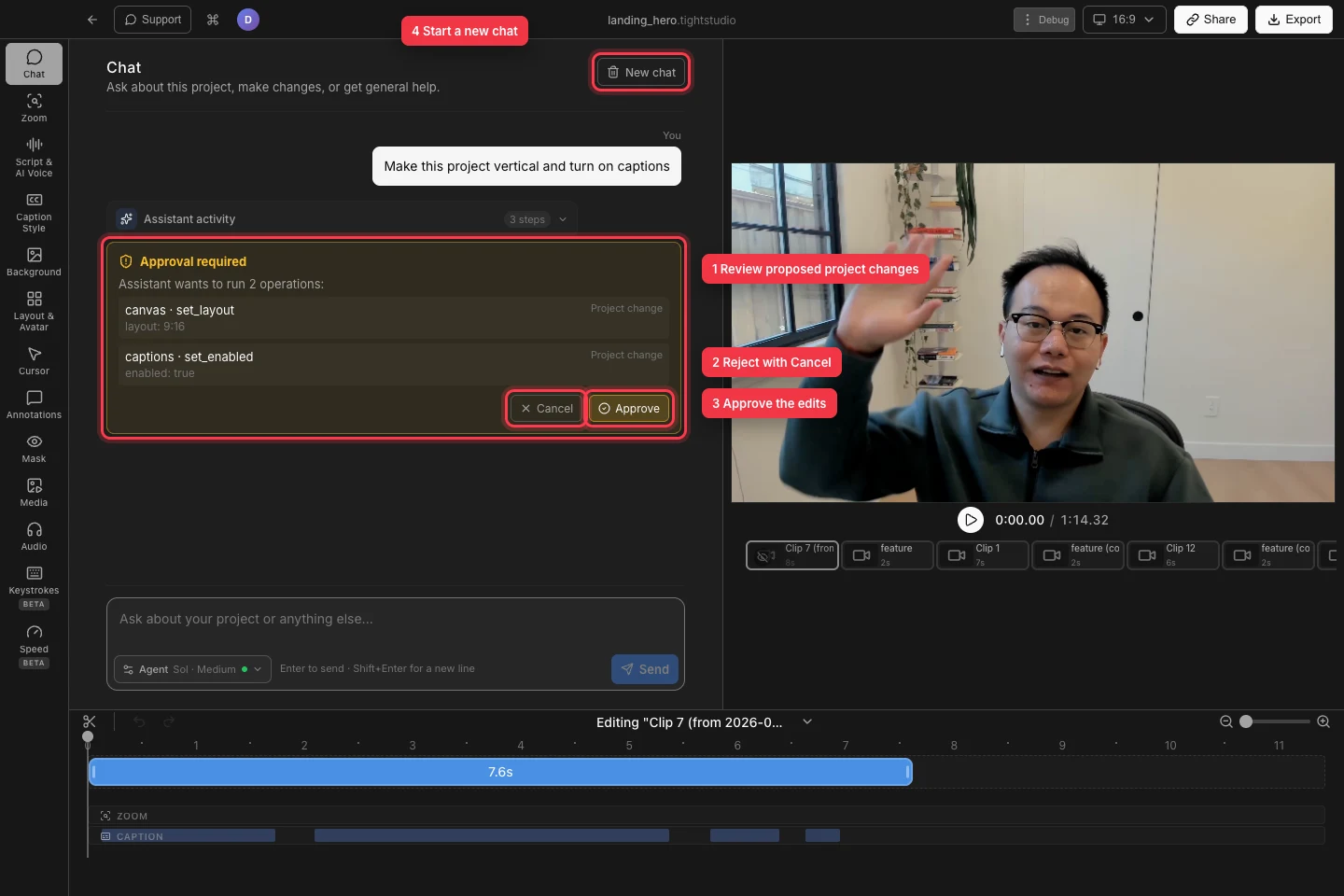
Review the exact operations before choosing Cancel or Approve; use New chat when you want a clean conversation. - Step 5
Start a new chat or disconnect the account
Click New chat to clear the current conversation and start with a clean context. This also cancels a pending operation, so resolve or intentionally abandon any approval card first.
To disconnect, open Agent, find Account, and click Disconnect. Confirm Sign out only when intended: the dialog notes that this signs ChatGPT out on this Mac and also signs out other local Codex sessions.
Troubleshooting
Why did ChatGPT not connect after the browser opened?
Return to Chat and look for Finish connecting in your browser. Click Open browser again and finish the ChatGPT approval. If the screen says ChatGPT wasn’t connected or the session expired, use Try again or Reconnect ChatGPT.
Why is Send disabled?
Enter a non-empty message and confirm ChatGPT is connected. Send also stays disabled while Chat is responding or while an Approval required card is waiting; choose Cancel or Approve before sending another request.
Why did Chat answer me without changing the project?
Questions and explanations normally return text only. Ask explicitly for a supported editor change, watch Assistant activity, and approve any requested operation. If Chat says the operation is unsupported, make that edit with the normal editor control instead.
Still stuck?
Send us a note with the project name and the step where you got blocked.