
Fix screen-recording and permission problems
Resolve missing permission prompts, unavailable screens or windows, and incomplete cursor capture.
Before you start
Tight Studio needs macOS Screen Recording permission to capture displays and windows. It also needs Accessibility permission to collect mouse activity locally for cursor capture and automatic zoom effects.
Permission changes may not reach an app that is already running. Finish any active recording, save the project, and be prepared to quit and relaunch Tight Studio after changing a switch in System Settings.
- Screen access
- System Settings → Privacy & Security → Screen & System Audio Recording
- Cursor events
- System Settings → Privacy & Security → Accessibility
- First-run window
- Permissions Required
- Final check
- Both rows show Granted before Continue becomes available
Follow these steps
- Step 1
Open Permissions Required and check both rows
When the permission prompt appears, check Screen Recording Permission and Accessibility Permission separately. Click Grant Permission beside any row that is not already marked Granted.
After macOS opens System Settings, leave the Tight Studio permission window open. Return to it only after the relevant switch has been enabled.
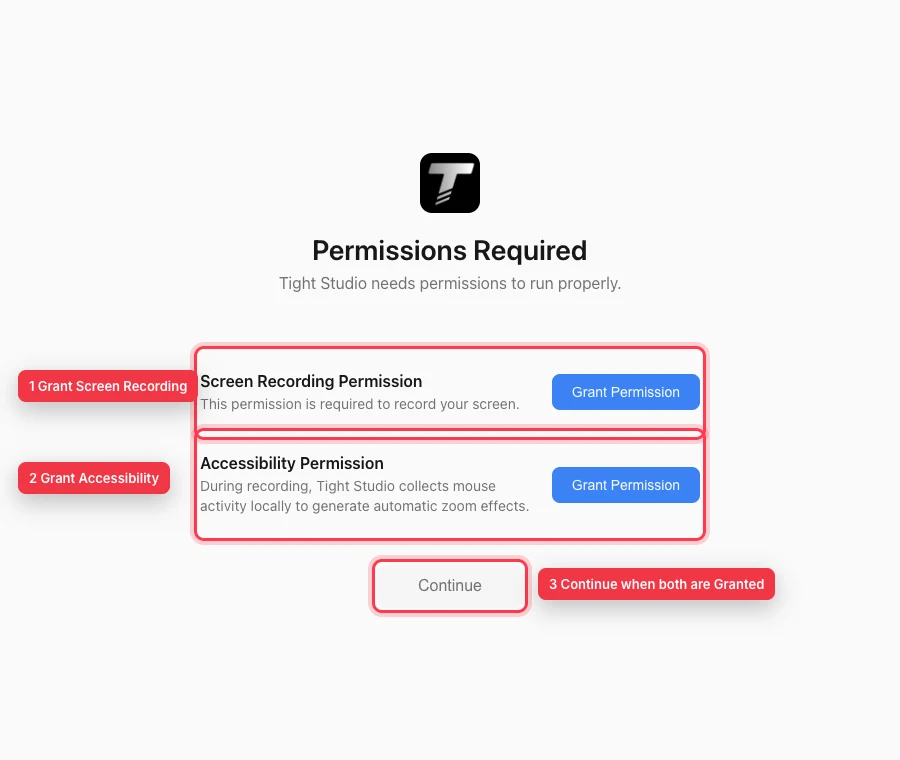
Grant screen access and Accessibility separately; Continue becomes available after Tight Studio detects both permissions. - Step 2
Enable Screen Recording in System Settings
Open System Settings → Privacy & Security → Screen & System Audio Recording. On older macOS versions, the section may be named Screen Recording. Turn Tight Studio on.
If Tight Studio is not listed and the permission prompt never appears, use the add control when macOS provides one and choose Tight Studio from Applications. Quit and relaunch the app after enabling access.
- Step 3
Enable Accessibility for mouse activity
Open System Settings → Privacy & Security → Accessibility and turn Tight Studio on. This allows local mouse-event collection used by automatic zooms and complete cursor capture.
If the switch is already on but clicks are not detected, turn it off, turn it back on, and relaunch Tight Studio so macOS issues a fresh authorization state.
- Step 4
Refresh a screen missing from Full Display
Disconnect and reconnect the display, wait for macOS to finish arranging it, then close and reopen the recording controls. Select Full Display again and check the display picker.
If the screen missing from the picker is still unavailable, confirm Screen Recording remains enabled for the exact Tight Studio app you launched, then quit and reopen that copy of the app.
- Step 5
Refresh a window missing from the Window picker
Open the target app and bring the specific window onscreen, then reopen Window in the recording controls. Tight Studio rescans available windows each time the picker opens.
If a window missing from the list belongs to an app that was restarted, close the picker and open it again. Choose the newly listed window instead of a stale previous selection.
- Step 6
Record a short permission test
Click Continue after both permissions show Granted. Record a few seconds while moving and clicking the pointer, then finish the recording and inspect the editor.
Confirm the correct screen or window was captured and that pointer motion and clicks are present. If recording works but cursor data is incomplete, repeat the Accessibility reset and relaunch once more.
Troubleshooting
Why does the permission prompt never appear?
Open the two Privacy & Security sections manually and enable Tight Studio there. If the app is absent, add it when macOS offers an add control, then quit and relaunch Tight Studio.
Why is a screen or window still missing after permission is granted?
Reconnect the display or bring the target window onscreen, then reopen the recording controls so the source list is rescanned. Verify you granted access to the same Tight Studio app copy that is currently running.
Why is the video recorded but cursor capture or automatic zooms are incomplete?
Screen Recording allows the pixels, while Accessibility supplies mouse activity. Reset Tight Studio under Privacy & Security → Accessibility, relaunch, and make a short test with visible pointer movement and clicks.
Still stuck?
Send us a note with the project name and the step where you got blocked.