
Edit the script and generate AI voice narration
Turn a transcript into an editable script and generate or regenerate spoken narration.
Before you start
AI voice narration starts with a script. Tight Studio can create one through transcription of a clip’s original audio, or you can enter and edit script segments manually in Script & AI Voice → Script.
You must be signed in and have enough AI credits to generate speech. Generation works one clip at a time, uses the selected voice, and creates new narration without deleting the clip’s original audio.
- Editor panel
- Script & AI Voice
- Required input
- At least one script segment with text
- Generation scope
- The currently selected clip
- Usage
- Generation and regeneration consume AI credits
Follow these steps
- Step 1
Transcribe the recording or write a script
Select the clip you want to narrate, open Script & AI Voice, and stay on the Script tab. If the clip contains original audio but has no script, click Transcribe original recording. Tight Studio shows transcription progress and turns detected speech into editable segments.
For a clip without usable speech, click Click to add… and enter the narration manually. In a multi-clip project, confirm that the correct clip header is active before adding or changing text.
- Step 2
Edit the script segments
Click a script segment, correct its wording, and press Enter to save. Press Shift + Enter where you want to split a long segment; use Add caption or Delete caption to change the structure.
Review every segment before generating narration. The text and segment order determine what the voice says, while the original recording remains unchanged.
- Step 3
Choose voice for the narration
Open AI Voice Settings inside Script & AI Voice. Click Select Voice, search or browse the available choices, and use the play button beside a voice when you want to preview it.
Select the voice that fits the project. Your choice is reused for later generation and segment regeneration until you choose a different voice.
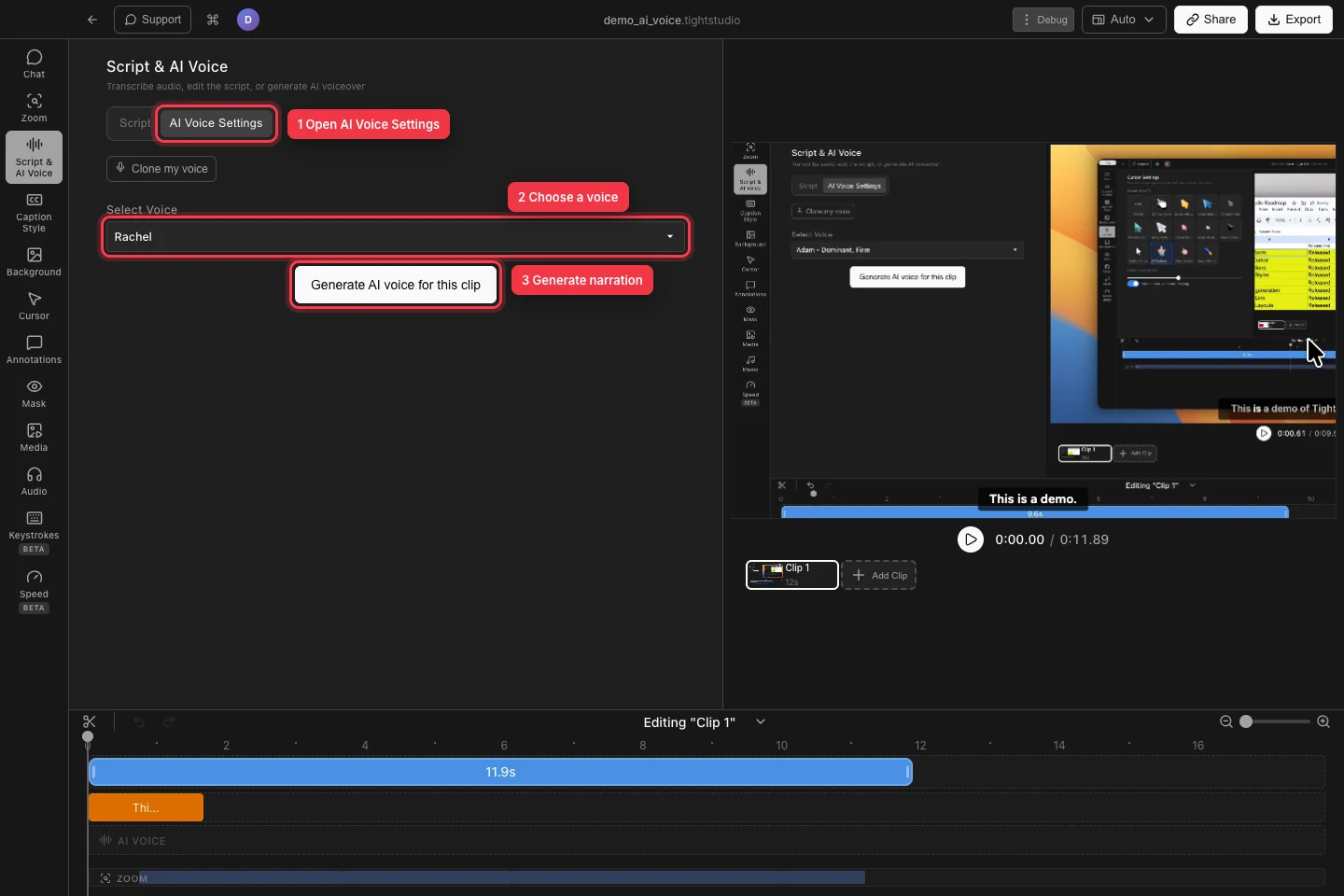
Open AI Voice Settings, choose the voice, then generate narration for the active clip. - Step 4
Generate narration for the clip
Click Generate AI voice for this clip. Tight Studio checks the script, account session, selected voice, and available AI credits, then reports Generating segments… while it creates the narration.
After generation, leave Using AI voice for current clip enabled to hear the result and adjust AI Voice Volume if needed. Turn the toggle off when you want to compare it with the original audio.
- Step 5
Regenerate a clip or one segment after edits
After changing the script or voice, open AI Voice Settings and click Regenerate AI voice for this clip to rebuild all narration in the active clip.
To regenerate a segment only, return to Script and hover that script segment. The regenerate segment action is the audio-wave button whose tooltip reads Regenerate AI voice. Click it to replace that segment’s generated speech and timing while leaving the other generated segments in place.
Troubleshooting
Why does AI Voice Settings say this clip has no script?
Return to Script and click Transcribe original recording, or add text manually with Click to add…. AI voice needs at least one segment containing kept script words before it can generate narration.
Why is Generate AI voice for this clip unavailable?
Make sure the active clip has a usable script and choose an item under Select Voice. If Tight Studio opens a sign-in dialog, sign in to your account and try the button again.
Why did generation stop with an insufficient-credits message?
The account does not have enough AI credits for the estimated speech length. Check the balance and plan under your profile, upgrade or refill credits when offered, or shorten the script before generating again.
Still stuck?
Send us a note with the project name and the step where you got blocked.