
Fix camera, microphone, system-audio, and device-capture problems
Restore missing devices and sound when camera, microphone, system audio, or iOS capture is unavailable.
Before you start
Connect the camera, microphone, audio interface, iPhone, or iPad before opening the recording controls. Quit other apps that may be holding the device exclusively, and unlock an iOS device before testing it.
Microphone narration and computer sound are separate sources. The Microphone row selects an input and shows its input level; Advanced Options → Record system audio controls sound produced by apps and macOS.
- Camera access
- System Settings → Privacy & Security → Camera
- Microphone access
- System Settings → Privacy & Security → Microphone
- Computer sound
- Advanced Options → Record system audio
- iOS capture
- Device → connect, unlock, and trust over USB
Follow these steps
- Step 1
Reconnect the device and reopen recording controls
Close the recording controls, reconnect the device directly to the Mac, and wait a few seconds before opening Start Recording again. Avoid an unpowered hub while diagnosing intermittent cameras, microphones, or iOS devices.
Close video-conferencing, streaming, and audio-routing apps that might own the device. If the list does not refresh, quit and relaunch Tight Studio with the hardware already connected.
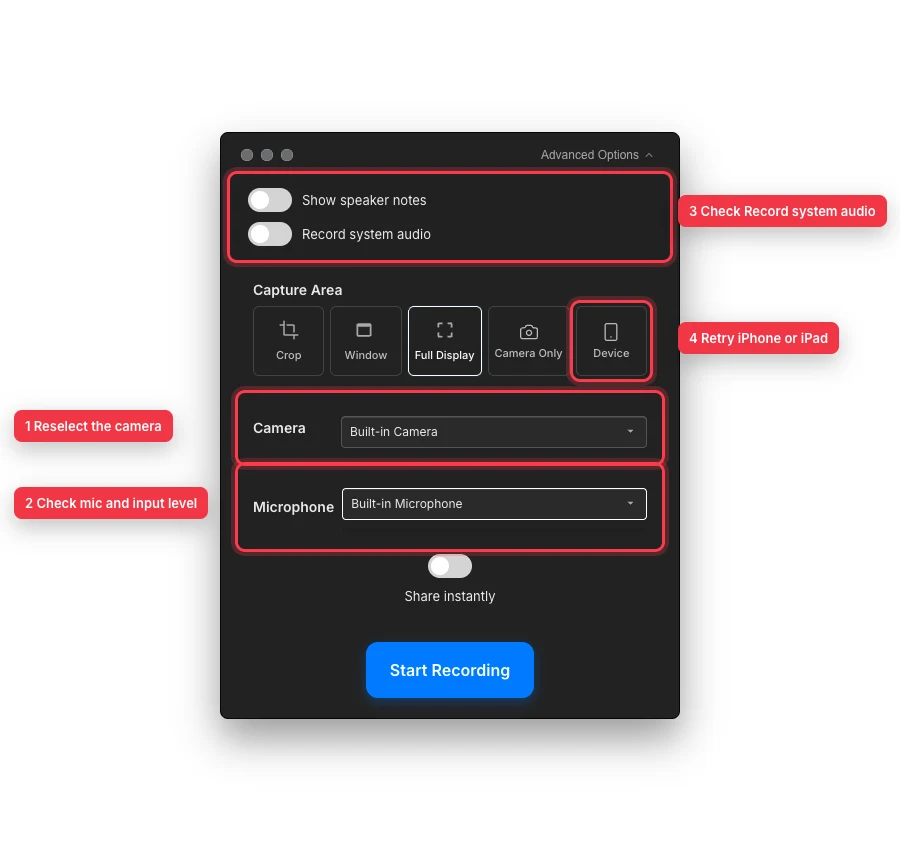
Reselect each input, verify microphone activity, enable computer sound separately, and reopen Device capture after reconnecting iOS hardware. - Step 2
Restore a missing camera
If the camera not listed in the Camera picker is connected, open System Settings → Privacy & Security → Camera and enable Tight Studio. Return to the recording controls and click Allow camera access if that button appears.
Open the Camera picker and reselect the device. If it says No cameras found, reconnect the camera, close competing camera apps, and relaunch Tight Studio.
- Step 3
Restore the microphone and verify its input level
If the microphone not listed in the picker is connected, enable Tight Studio under System Settings → Privacy & Security → Microphone, then click Allow microphone access if shown. Reopen the picker and choose the intended input instead of No microphone selected.
Speak at normal volume and watch the meter beneath the Microphone picker. If there is no input level, check the hardware mute switch, interface gain, cable, and the Mac’s selected input, then reselect the microphone.
- Step 4
Identify why a recording is silent
For a silent recording with no narration, confirm a microphone was selected and its meter moved before recording. No microphone selected intentionally records without microphone audio.
For system audio missing from apps or the Mac, open Advanced Options and turn on Record system audio before starting. Make a test while the source app is actively producing audible sound; this toggle is independent of the microphone picker.
- Step 5
Reconnect an iPhone or iPad
Use a USB cable that supports data, unlock the device, and accept Trust This Computer when iOS asks. Open Finder once to confirm the device is visible and trusted, then return to Tight Studio.
Click Device and wait while Tight Studio looks for connected hardware. If an iPhone not detected or iPad not detected message remains, reconnect the cable, try another port, keep the device unlocked, click Back, and open Device again.
- Step 6
Record and inspect a short test
Record five to ten seconds with visible camera movement, spoken narration, system sound, or iOS interaction—whichever source you repaired. Finish the recording and play it in the editor.
Check camera video, microphone audio, and system audio separately. If only one source is absent, repeat that source’s permission and picker checks instead of changing the sources that already work.
Troubleshooting
Why do camera and microphone lists remain empty?
Enable Tight Studio in the Camera and Microphone privacy sections, connect the hardware before opening recording controls, and close apps that may own it. Reconnect the device and relaunch Tight Studio if the lists remain stale.
Why does the meter move but the finished recording is silent?
Confirm you are listening to the correct track and that its editor volume is not muted. The meter verifies microphone input only; if system audio is missing, enable Record system audio in Advanced Options and test again.
Why is my iPhone or iPad still not detected?
Use a data-capable USB cable, unlock the device, accept Trust This Computer, and verify it appears in Finder. Then reopen Device in Tight Studio; try a direct Mac port and another cable if discovery still fails.
Still stuck?
Send us a note with the project name and the step where you got blocked.