
Change layouts over time with dynamic layouts
Add layout segments so screen, camera, and caption placement can change within a clip.
Before you start
A dynamic layout changes the screen-and-camera arrangement for one time range inside a clip. The Default layout for clip remains active everywhere that is not covered by a dynamic Layout segment.
Choose the canvas orientation and a useful default layout first. Layout controls are unavailable while AI voice is enabled, and dynamic ranges cannot overlap one another.
- Create
- Add dynamic layout at current time
- Initial range
- About 2 seconds in an available gap near the playhead
- Timeline track
- Layout
- Vertical captions
- Caption position from top
Follow these steps
- Step 1
Set the canvas and default layout
Choose 16:9 Landscape or 9:16 Vertical from the title-bar menu. Open Layout & Avatar → Layout, then choose the arrangement that should play for most of the clip under Default layout for clip.
For example, keep a small corner camera as the default, then use a dynamic segment to make the camera primary for an introduction or reaction.
- Step 2
Place the playhead near the change
Move the playhead to the point where the temporary layout should begin. Leave an open area on the Layout track; Tight Studio finds a roughly two-second space near the playhead without overlapping an existing layout segment.
For precise timing, you will resize or move the created segment on the timeline after choosing its preset.
- Step 3
Add a dynamic layout segment
Click Add dynamic layout at current time. A timed row appears below Default layout for clip, and a green segment appears on the Layout track.
The new row starts with the current default preset. Its heading shows the active time range and preset name; it expands automatically so you can choose a different arrangement.
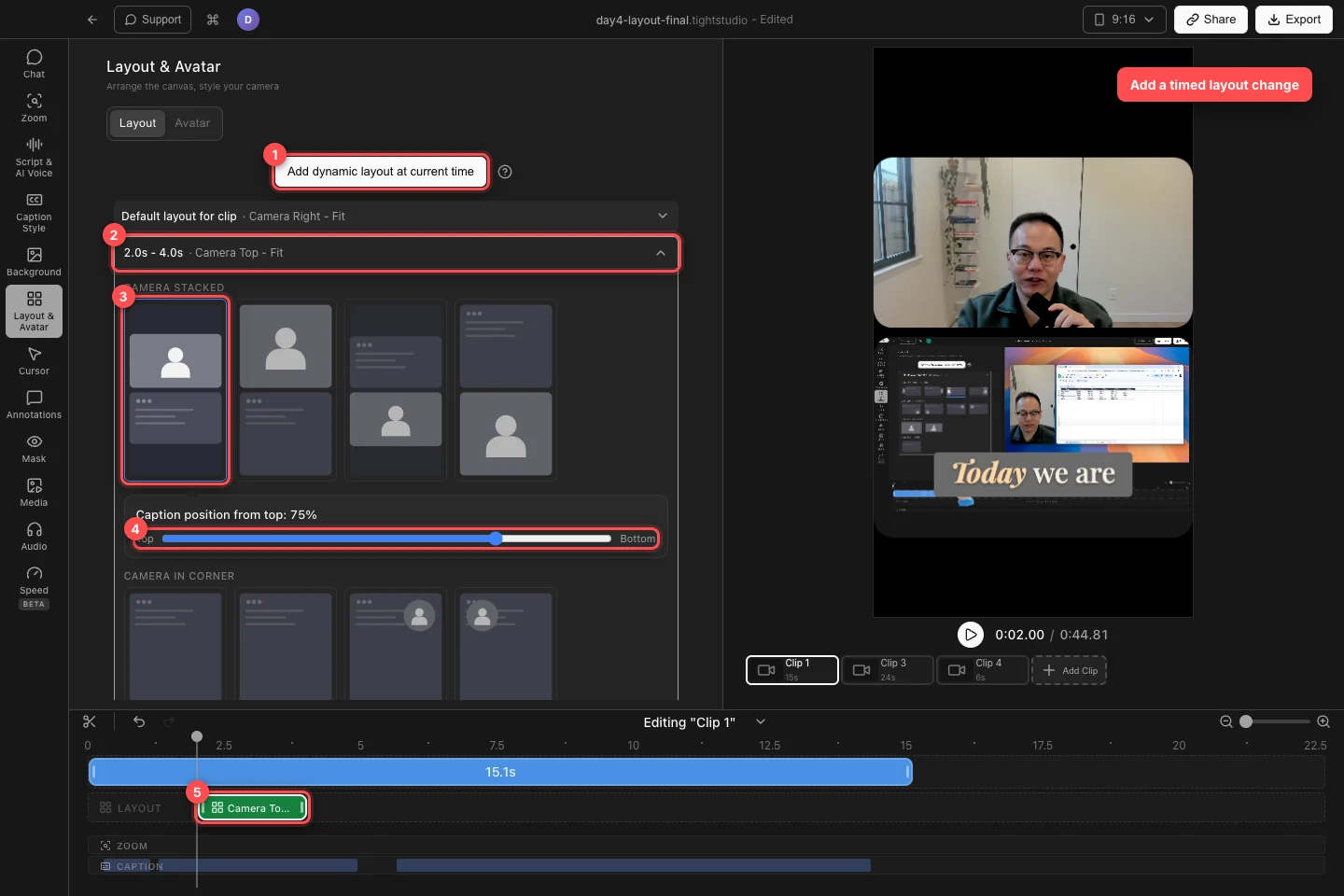
Create the timed range, choose its layout, adjust vertical caption placement, and refine the green segment on the Layout track. - Step 4
Choose the layout for the range
Choose any compatible preset in the expanded dynamic row. On 16:9, use side-by-side, corner, camera-primary, or Screen Only choices. On 9:16, Camera Top - Fit, Camera Top - Cover, Camera Bottom - Fit, and Camera Bottom - Cover create vertical stacks.
Move the playhead inside and outside the green segment to compare the dynamic preset with the default layout.
- Step 5
Position captions for a vertical layout
On a 9:16 canvas, use Caption position from top in the expanded row to move captions for this dynamic segment. Drag toward Top or Bottom until the captions stay clear of the camera and screen content.
Choose Reset when the segment should inherit the project’s default caption position again. This per-segment control is intentionally hidden on 16:9 canvases.
- Step 6
Move, resize, or remove the layout change
Drag the green Layout segment to move the change. Drag either edge to adjust its start or end; the row’s displayed time range updates with the timeline.
Layout segments cannot overlap. To remove the timed change, expand its row and click Delete. The Default layout for clip takes over that range again.
Troubleshooting
Why does Tight Studio say “No space available for a new layout segment”?
Existing Layout segments leave no open range near the playhead. Move or shorten a green segment, move the playhead into a larger gap, and click Add dynamic layout at current time again.
Why are the layout controls locked?
Layout is locked while AI voice is enabled. Disable AI voice for the clip before adding or editing default and dynamic layouts.
Why don’t I see Caption position from top?
That control appears only on a 9:16 Vertical canvas. Switch the canvas to 9:16 and expand the dynamic layout row; horizontal layouts use the project’s normal caption safe area.
Why does the layout change at the wrong time?
Select the green segment on the Layout track, then drag it or resize its edges. The timed row shows the exact range. Preview just before and after both edges to confirm the transition.
Still stuck?
Send us a note with the project name and the step where you got blocked.