
Use keyboard shortcuts, Settings, and updates
Work faster with editor and recording shortcuts, adjust app settings, and install updates.
Before you start
Open a project in the editor before reviewing or changing keyboard shortcuts. The shortcuts window shows both editable commands and fixed reference shortcuts for the timeline and settings panel.
On macOS, Cmd is the primary modifier shown in the app. Tight Studio saves custom shortcuts for future projects, while the separate Settings window controls how multi-sentence text is pasted into Script & AI Voice.
- Shortcut reference
- Command icon in the editor title bar
- App settings
- Tight Studio > Settings… or Cmd+,
- Update prompts
- Update Available or Update Ready
Follow these steps
- Step 1
Open Keyboard Shortcuts from the editor
Open any project, then select the Command icon beside Support in the top-left of the editor. The Keyboard Shortcuts window groups commands under Playback, Editing, Recording, Timeline, and Settings Panel Navigation.
Use this window as a quick reference for keyboard shortcuts such as Space for Play / Pause, X to turn the split tool on or off, Cmd+X to split at the playhead, and Cmd+S to save the video.
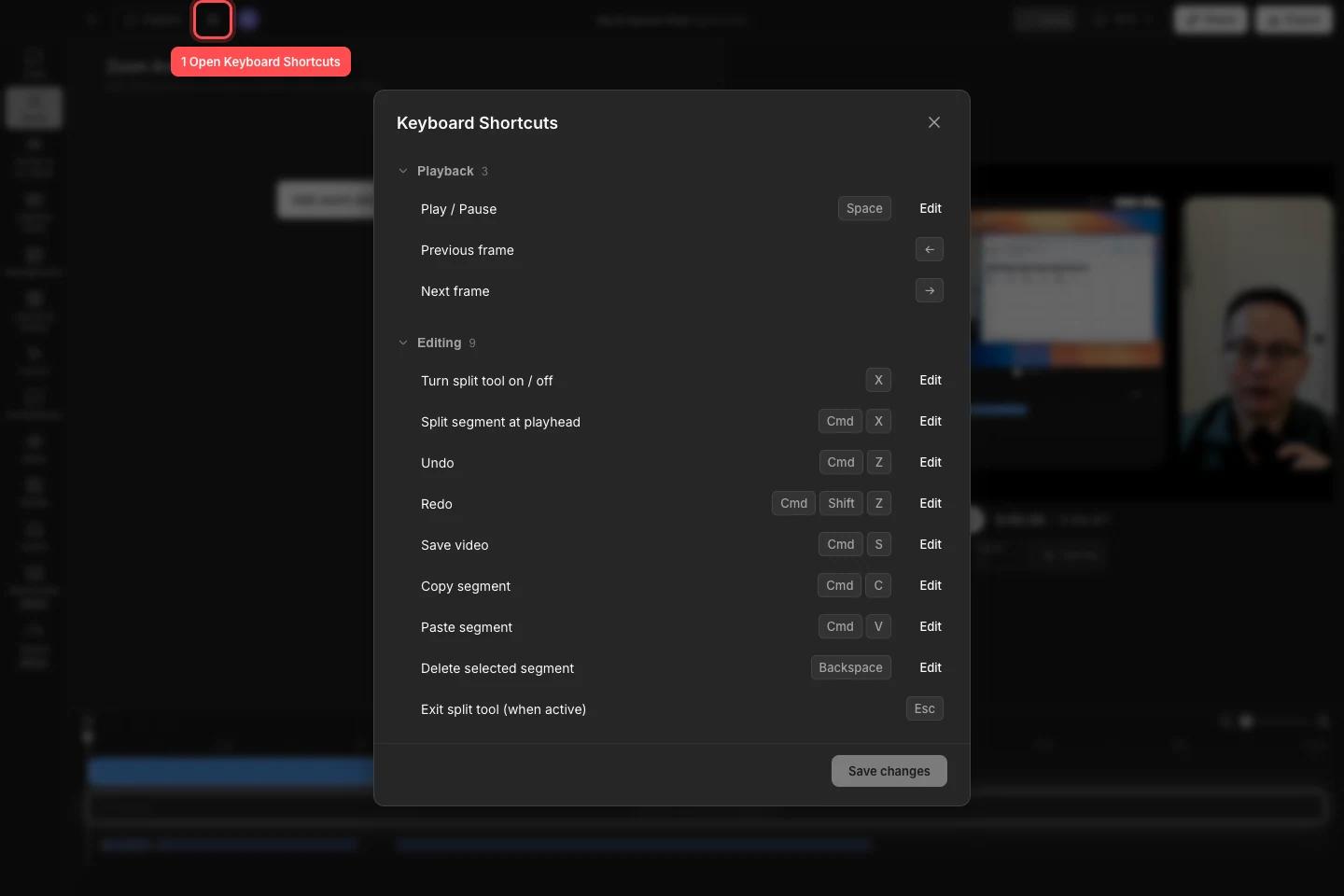
Select the Command icon to open the complete shortcut reference for the current editor. - Step 2
Create custom shortcuts
Find an editable command and select Edit. When Press keys… appears, press the new key combination once. Select Save changes after you finish editing the shortcuts you want to keep.
Tight Studio prevents duplicate assignments. If a combination is already used, choose a different one or edit the conflicting command first. Press Escape while the app is waiting for keys to cancel that change.
- Step 3
Customize the global recording shortcuts
Scroll to Recording to find Pause / Resume recording and Stop recording. Their defaults are Cmd+Shift+1 and Cmd+Shift+2.
These global recording shortcuts work during an active capture even when Tight Studio is not the focused app. Select Edit, press a combination that includes at least one modifier such as Cmd or Shift, then select Save changes. The new combination is registered the next time a recording starts.
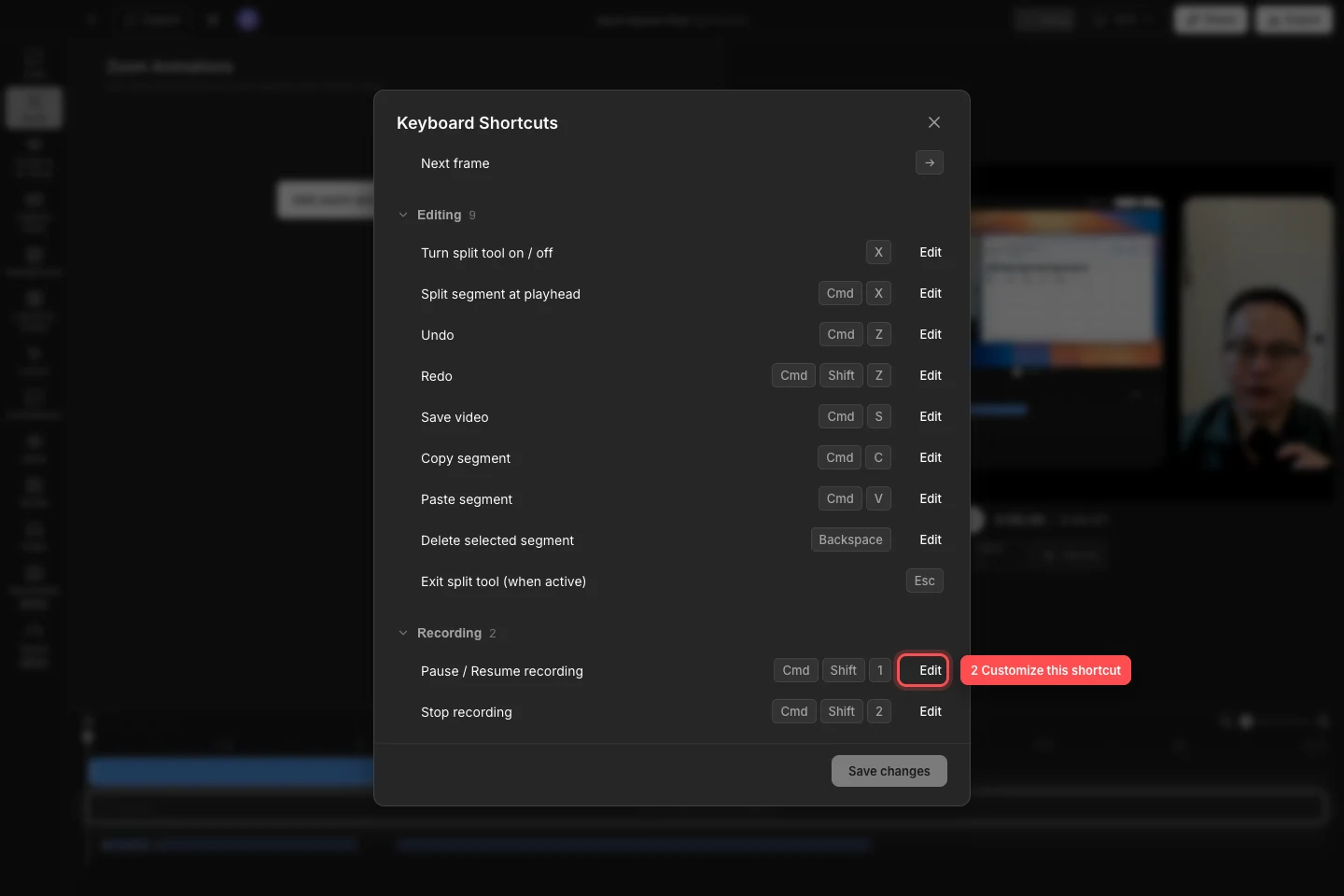
Recording shortcuts are editable, but they must include a modifier so they cannot take over normal typing. - Step 4
Choose the caption paste mode in Settings
Open the Tight Studio application menu and choose Settings…, or press Cmd+,. Select Script in the sidebar, then open Pasting multi-sentence text.
Choose Keep as one segment to add the full pasted passage as one script or caption segment. Choose Split into segments to break it into separate segments at sentence boundaries. The selection is saved immediately and applies the next time you paste text.
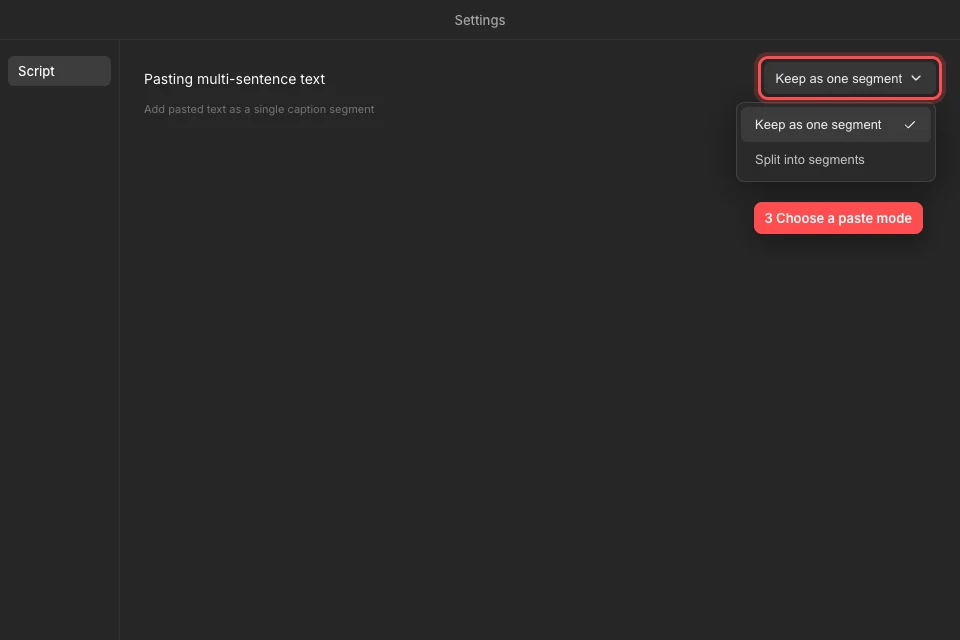
Use the Script setting to decide whether multi-sentence pasted text stays together or is split automatically. - Step 5
Install updates when Tight Studio offers them
Tight Studio checks for updates automatically. When the Update Available dialog appears, finish any active recording, then select Update and Restart Application. Select Later when you need to postpone the restart.
If the update has already downloaded, the dialog changes to Update Ready. Select Restart Application Now to finish installing it. The See what’s changed link opens the changelog before you decide.
Troubleshooting
Why can’t I see the Keyboard Shortcuts button?
The Command icon is hidden during an active recording. Stop the recording, return to the editor, and look beside Support in the title bar.
Why was my custom shortcut rejected?
A shortcut cannot duplicate another assigned command. Recording shortcuts also require at least one modifier such as Cmd or Shift. Select Edit again and enter an unused combination, then select Save changes.
Why is pasted text still using the previous layout?
Open Tight Studio > Settings…, select Script, and confirm the caption paste mode under Pasting multi-sentence text. The setting applies to the next paste; it does not rearrange segments that are already in the project.
Why don’t I see an update prompt?
The update dialog appears only when a newer build is available or an update is ready to install. Return to the Home screen while connected to the internet. If an update reports an error, select Try Again or install a fresh copy from the Tight Studio download page.
Still stuck?
Send us a note with the project name and the step where you got blocked.