
Record system audio
Capture sound from apps and the computer on a track you can adjust separately later.
Before you start
Record system audio when a tutorial, presentation, game, browser tab, or other app needs its own sound in the finished video. Tight Studio captures that computer sound through macOS screen capture; it does not require Microphone access.
Screen Recording permission must already be granted. Start the app or media you intend to demonstrate, set its volume, and close or mute notifications and unrelated apps before recording because system audio is not limited to the one window you select.
- Recorder control
- Advanced Options > Record system audio
- Permission
- Screen Recording permission; no microphone required
- After recording
- Audio > System Audio provides a separate Volume control
Follow these steps
- Step 1
Prepare the app audio
Open the app or browser tab whose sound you want to demonstrate and play a short sample. Confirm the Mac is using the intended output device and that neither the app nor macOS is muted.
Pause the content at the point where you want the recording to begin. System audio captures computer sound that plays during the recording, including sound from other active apps, so silence anything unrelated first.
- Step 2
Open Advanced Options
From Home, click Start recording. In the recording-controls window, click Advanced Options in the upper-right corner.
The section expands above Capture Area and shows Show speaker notes and Record system audio.
- Step 3
Turn on Record system audio
Turn on Record system audio. Tight Studio saves this choice for future recording sessions, so check it again when a later recording should be silent.
This captures app audio and other computer sound independently of the Microphone selection. Leave Microphone set to No microphone selected for system-only sound, or choose a microphone when you also want narration.
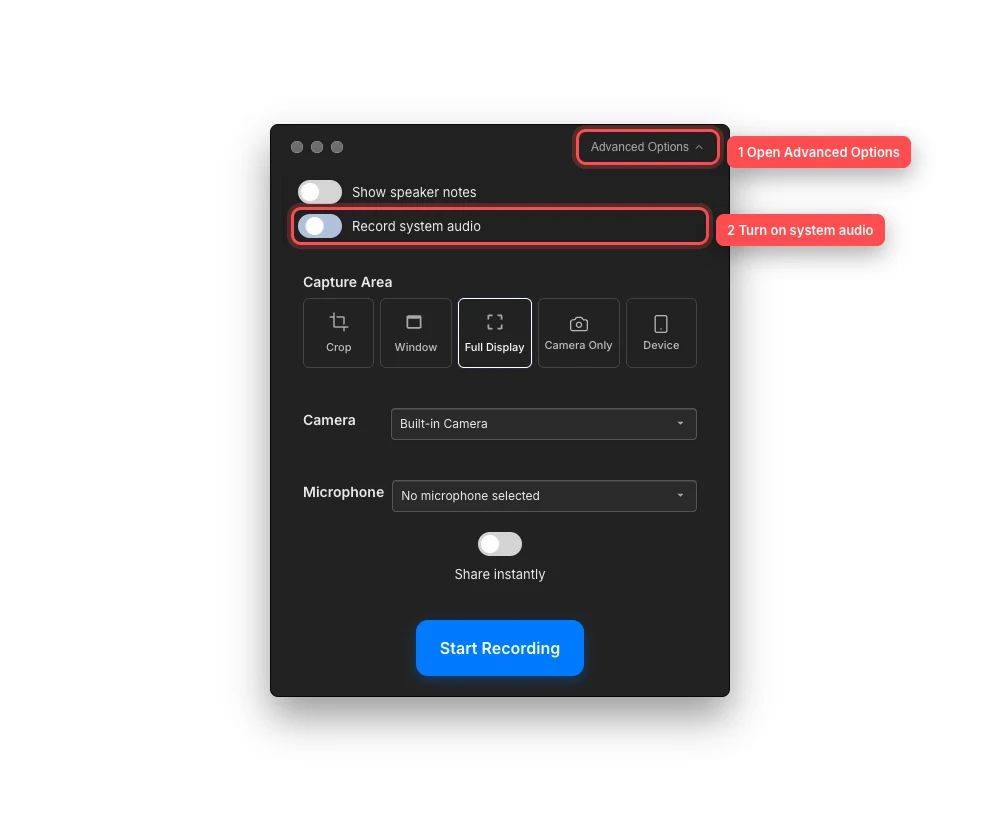
Expand Advanced Options, then enable system audio before the recording starts. - Step 4
Choose a capture area and start recording
Choose Crop, Window, or Full Display and configure the camera and microphone as needed. Click Start Recording, then resume the app content after the recording becomes active.
Tight Studio records the visual source and system sound together while preserving microphone and system audio as separate tracks for supported new recordings.
- Step 5
Adjust the separate audio track
When the project opens, select the recorded clip and open Audio. If that clip contains computer audio, a System Audio tab appears next to Music and, when present, Microphone Audio.
Open System Audio and adjust Volume from 0% to 100%. The setting applies to preview and export for the selected clip. Use Download system audio when you want a standalone copy of the captured track.
Troubleshooting
Why is there no System Audio tab after recording?
Select the clip that was just recorded and open Audio. The tab appears only when Record system audio was enabled and macOS produced an audio stream. It does not appear for imported media, older recordings without a separate audio track, or a recording during which no computer audio was captured.
Why is the recorded computer sound silent or very quiet?
Confirm the source app and macOS output were audible during recording, increase the app volume, and verify Tight Studio still has Screen Recording access. In the editor, open Audio > System Audio and make sure Volume is above 0%.
Why did a notification or another app appear in the audio?
System audio is not restricted to the selected video window. Mute notification sounds, quit unrelated media apps, and use Do Not Disturb before recording, then record the section again.
Why do I hear an echo when I also record a microphone?
The microphone may be hearing the speakers while Tight Studio also captures their sound directly. Use headphones, move the microphone away from the speakers, or record without a microphone. You can also balance Microphone Audio and System Audio separately in the Audio panel.
Still stuck?
Send us a note with the project name and the step where you got blocked.