
Fix export, sharing, and Team Workspace problems
Resolve empty or failed exports, upload and privacy errors, restricted embeds, and team connection states.
Before you start
Export, sharing, and Team Workspace problems happen in different parts of the workflow. First identify whether the project cannot render locally, the rendered video cannot upload or play with its chosen privacy, or a team connection or clip lock is pausing edits.
Save the project, keep Tight Studio open, and confirm the Mac has a stable internet connection and free local storage. Sharing renders before it uploads, while Team Workspace editing depends on a live server connection; closing the app during either process can interrupt recovery.
- Local output
- Export → Video 1080p, Video 4K, or GIF
- Hosted output
- Share → Preparing… → Rendering… → Uploading…
- Team outage
- Connection lost pauses all editing
- Clip conflict
- A teammate editing the selected clip makes it view only
Follow these steps
- Step 1
Identify the stage that is failing
Open the project and play the complete timeline. If the preview is empty, a clip is missing, or Export is disabled, start with the project-content check below. If a local Video 1080p export succeeds but Share does not, focus on sign-in, plan limits, network access, and uploading rather than the editor timeline.
For a team project, check the editor before retrying anything. Connection lost means the team session is offline, while a banner that says a teammate “is editing this clip - view only” means the connection works but the selected clip is locked.
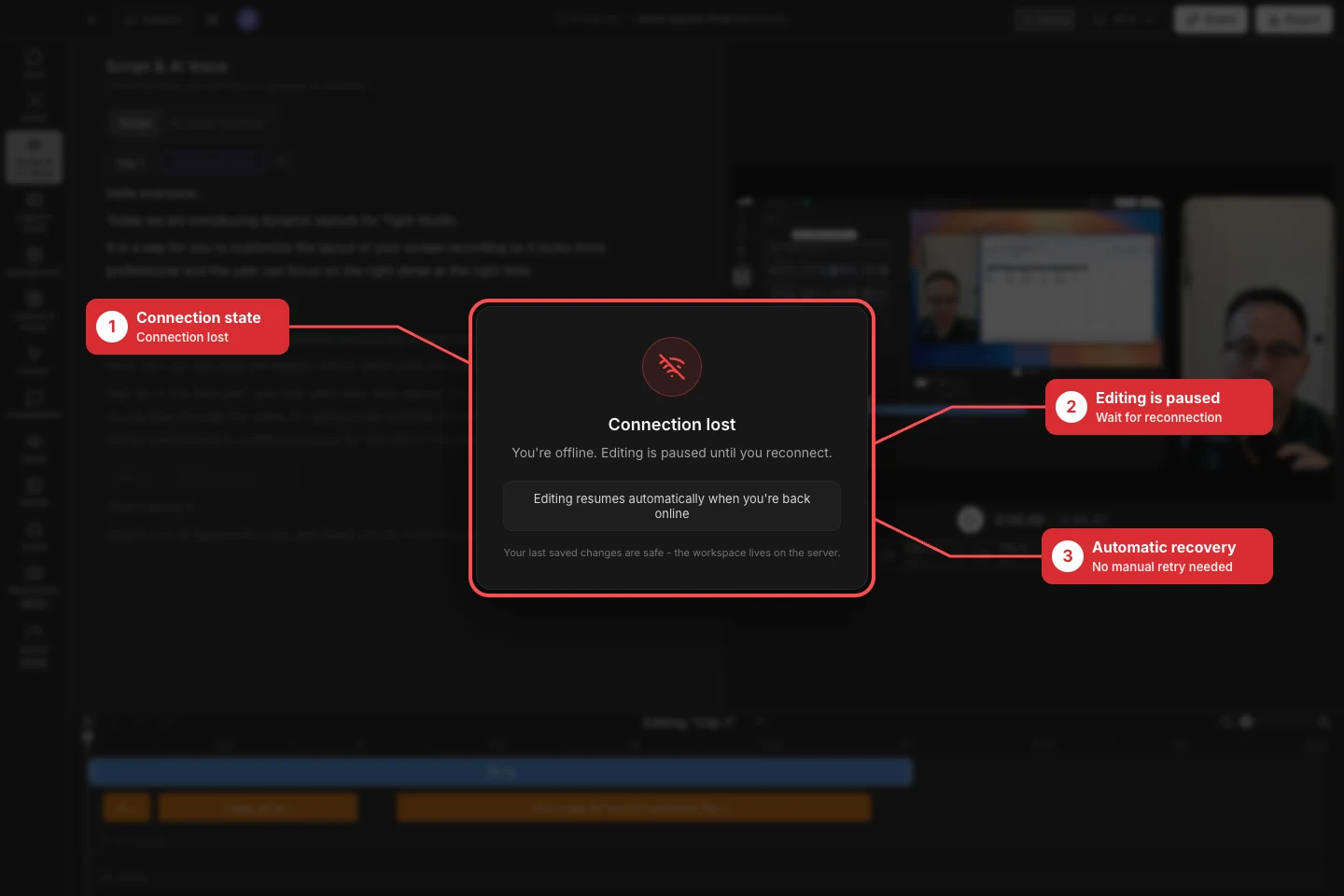
When the team connection is offline, stop retrying edits and restore the connection; Tight Studio resumes the session automatically. - Step 2
Restore content when Export is unavailable
Open Export and read the message above the output choices. “No exportable content. Add video segments or media to export.” means the project has no visible, playable screen, camera, video, image, or generated-media segment with a usable duration.
Return to the editor, restore a hidden clip or import or record media, then confirm the timeline has a nonzero duration and plays in the canvas. Reopen Export only after the no exportable content message clears and Video 1080p, Video 4K, or GIF becomes available.
- Step 3
Retry an export failed result safely
When Tight Studio says “Export failed. This is usually a transient issue - please try again,” click Retry export once. If it fails again, click Show details, keep the exact error for Support, and save to a writable local folder with enough space for both the finished file and temporary render data.
Try Video 1080p to determine whether the failure is specific to a heavier Video 4K or GIF render. Close other graphics-heavy apps, prevent the Mac from sleeping, and leave Tight Studio open until Export complete! appears.
- Step 5
Check privacy when an embed will not play inline
Open Share → Visibility. Anyone with link supports public inline playback. A restricted embed using Password protected, Specific people, or Only me opens the Tight Studio share page instead so the viewer can satisfy the password, email, or account check.
If the website must play the video inline, choose Anyone with link, click Save, then open Embed and click Copy embed code again. If access must remain restricted, keep the current visibility and link viewers to the share page rather than treating that redirect as an embed failure.
- Step 6
Restore Team Workspace editing
For team offline, restore Wi-Fi, Ethernet, or required VPN access and leave the project open. Reconnecting… means Tight Studio is restoring the session; Connection lost says “You’re offline. Editing is paused until you reconnect.” Editing resumes automatically when you’re back online, and the last saved server changes remain safe.
For a read-only clip, look for the collaborator avatar and the “is editing this clip - view only” banner. Select an available clip or click Request to take over and wait for Hand off; do not duplicate or delete work to bypass the lock. Playback and timeline review can remain available while conflicting edits stay blocked.
Troubleshooting
Why does Export show no content or fail repeatedly?
Confirm at least one visible clip or media segment plays and the timeline has a usable duration. For an export failed result, click Show details, save to a local folder with more free space, retry Video 1080p, and send the exact repeated error to Support.
Why did sharing fail, or why does the embed open another page?
A share error may come from rendering, an upload failed connection, sign-in, a share limit, or a paid visibility requirement, so read the complete message and address that stage. A restricted embed intentionally opens the share page; use Anyone with link and copy the embed code again only when public inline playback is acceptable.
Why is Team Workspace editing paused or view only?
Team offline freezes the editor until the server connection returns; restore the network and leave the project open for automatic recovery. A read-only clip is different: another teammate holds that clip lock, so choose another clip or use Request to take over and wait for the handoff.
Still stuck?
Send us a note with the project name and the step where you got blocked.