
Team workspace and project chat
Understand team editing locks and connection states
See who is editing, respect read-only clips, and recover cleanly from connection interruptions.
Before you start
A Team Workspace keeps the shared project on the server. Only one person edits a clip at a time, while teammates can view the project and work on other available clips.
Clip locks protect against conflicting edits. A connection interruption pauses team editing because offline changes are not queued as a second local copy.
- Lock scope
- The selected clip
- Locked state
- View only
- Brief interruption
- Reconnecting…
- Sustained interruption
- Connection lost
Follow these steps
- Step 1
Identify who is editing the clip
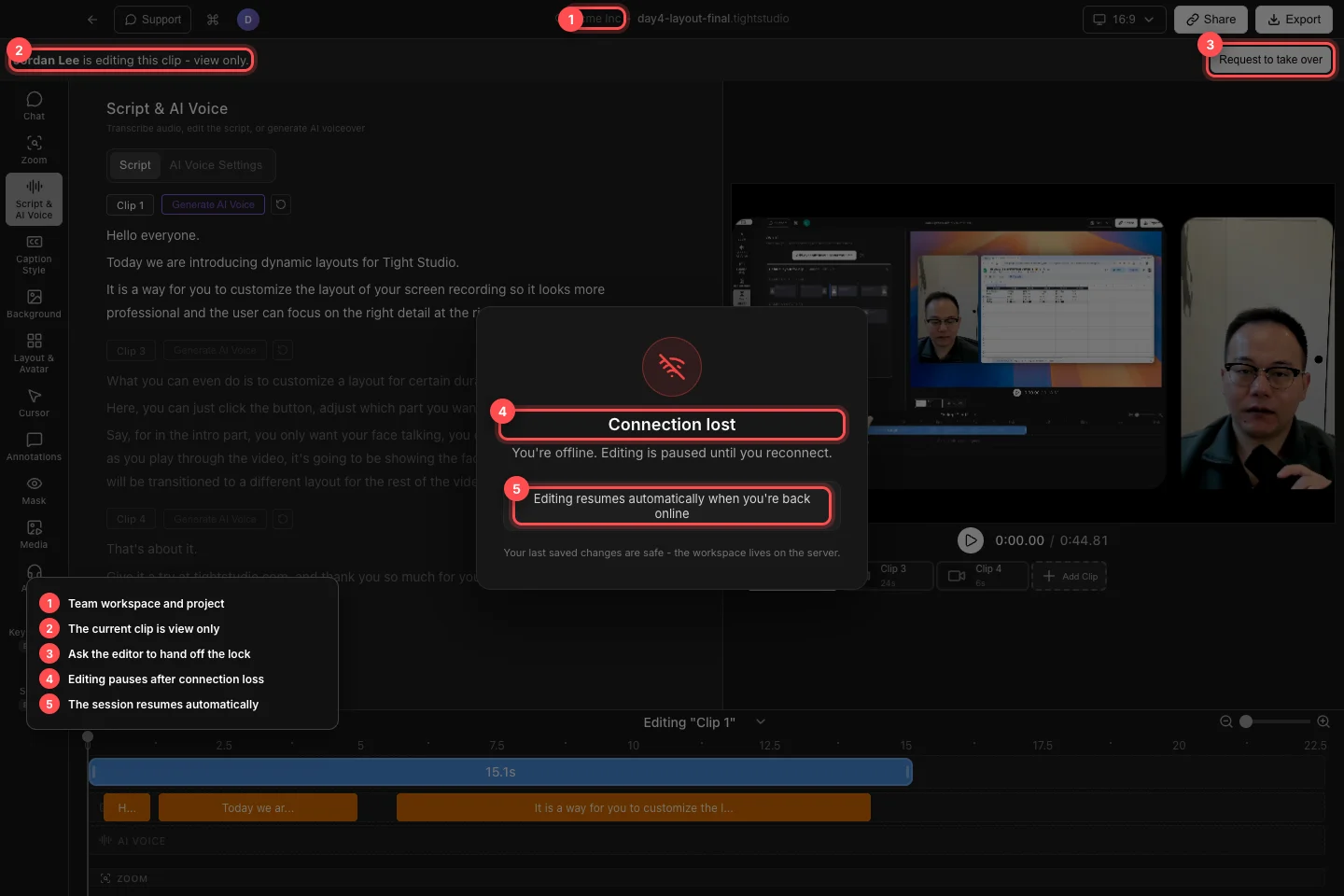
Open the team project and select a clip. A collaborator avatar on a clip card shows that another member is working there, and the banner above the editor names the current holder.
When the banner says a teammate “is editing this clip - view only,” you can review the clip but editing controls are gated until the lock changes.
Respect the clip holder’s lock, request a handoff when needed, and wait for team editing to resume automatically after reconnection. - Step 2
Request control of a locked clip
Click Request to take over when you need to edit the locked clip. The banner changes to Requesting access to this clip… and tells you whether it is waiting for the current editor or expects an idle handoff.
Keep viewing while the request is pending, or click Cancel if you no longer need control. Do not recreate the same changes in another clip merely to bypass the lock.
- Step 3
Respond when a teammate requests your clip
If you hold the lock, an incoming banner says that the teammate wants to edit this clip. Save or finish the immediate change, then click Hand off to give them control.
Click Keep editing when you still need the clip. When the banner says it will hand off automatically because you are idle, respond promptly if you intend to retain control.
- Step 4
Wait through a brief reconnection
A brief network interruption shows Reconnecting… with Restoring your session. Editing is already paused while Tight Studio reconnects, even though the state may clear quickly.
Leave the project open and avoid repeated edits or reloads. If the team connection returns within the grace period, the overlay disappears and the session continues.
- Step 5
Recover from Connection lost
A sustained outage shows Connection lost and “You’re offline. Editing is paused until you reconnect.” Restore Wi-Fi, Ethernet, or VPN access and leave Tight Studio open.
Editing resumes automatically when you’re back online. The message confirms that your last saved changes are safe because the workspace lives on the server; verify the current clip holder before editing again.
Troubleshooting
Why can I view a clip but not edit it?
Another collaborator holds that clip’s editing lock. Select an available clip or click Request to take over and wait for the current editor to hand it off.
Why is my takeover request still pending?
The current editor may still be active. Wait for their response, or click Cancel if you no longer need the clip. An idle holder may hand off automatically when the banner says so.
Why is the entire editor paused?
The Team Workspace connection is reconnecting or offline. Restore the network connection and leave the project open; editing resumes automatically after the server session reconnects.
Still stuck?
Send us a note with the project name and the step where you got blocked.