
Use speaker notes and the teleprompter
Prepare a script and keep it visible in a movable notes window while you record.
Before you start
Speaker Notes is a separate, teleprompter-style window for a script, outline, or reminders. It stays above other windows while you present, and Tight Studio excludes it from the recording.
Prepare the notes before you click Start Recording. The window supports manually scrolling and editing during a take, but it does not automatically advance the script or follow the recording timeline.
- Recorder control
- Advanced Options → Show speaker notes
- Window
- Movable, resizable, and always on top
- Scripts
- Auto-saved locally; up to 10 recent scripts
Follow these steps
- Step 1
Prepare the recording
From Home, click Start recording. Choose the Capture Area, Camera, and Microphone settings you want for the take.
Open speaker notes before starting so you can place the notes window without rushing through the recording countdown.
- Step 2
Turn on Show speaker notes
Click Advanced Options at the top of the recorder, then turn on Show speaker notes.
Tight Studio opens a separate window titled Speaker Notes. The message “This window won’t appear in your recording” confirms that it is treated as a presenter aid rather than recorded content.
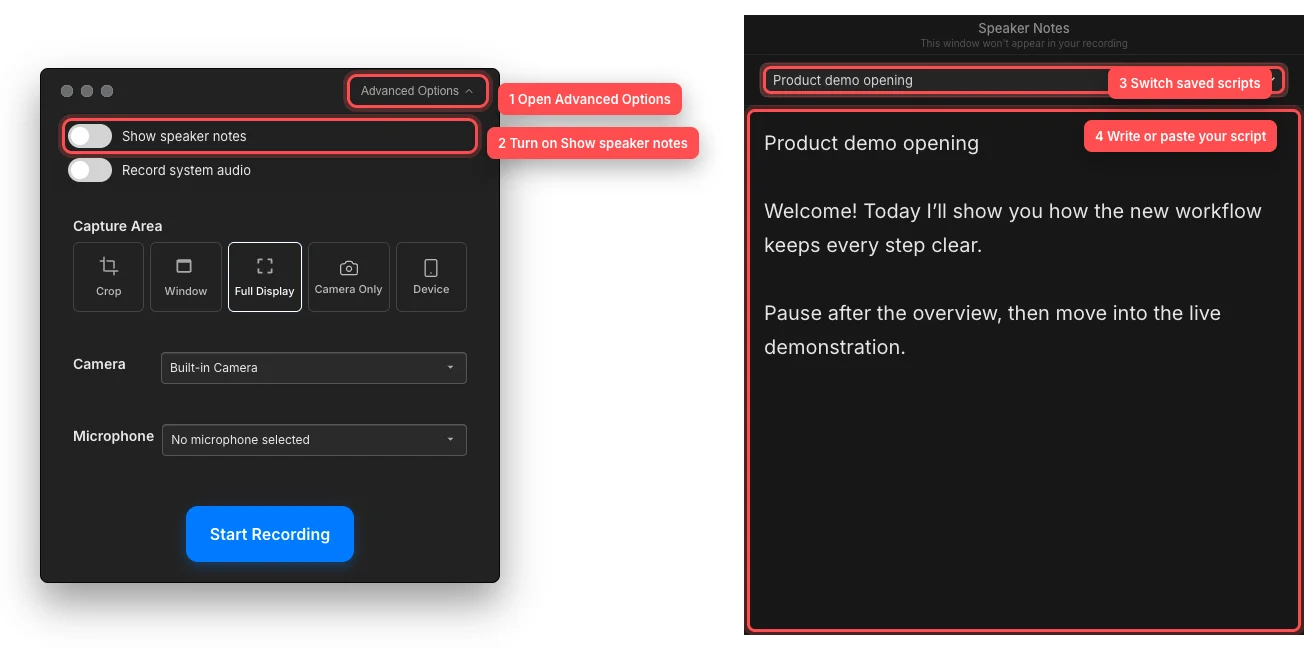
Enable the notes window, write your script, and switch between saved scripts from the menu. - Step 3
Write or paste your script
Click the large notes area and type or paste your script. The placeholder reads “Add notes for your speech...”. Tight Studio auto-saves non-empty notes after you pause typing briefly.
The first line becomes the script title. After the first script is saved, use the selector below Speaker Notes to reopen a saved script or choose + New Script. Tight Studio keeps the 10 most recently created or edited scripts on this Mac.
- Step 4
Position the notes window for the take
Drag the title bar to move the notes window and resize it from an edge or corner. Place it near the camera or the part of the screen you will look at most often.
Click Start Recording in the recorder. The action bar hides, but Speaker Notes remains available above your other windows and is excluded from the captured video. Scroll or edit the text manually as needed.
- Step 5
Finish the take and reuse the notes
Stop the recording from the recording controls. Tight Studio closes Speaker Notes when the recording session ends and opens the project in the editor.
For another take, open Advanced Options and turn on Show speaker notes again. The most recently updated saved script opens first; use the script selector to choose a different one.
Troubleshooting
Why didn’t the Speaker Notes window open?
Open Advanced Options and confirm Show speaker notes is turned on. If the window was closed directly, turn the option on again. Look beside the recorder and on other connected displays because the window initially opens next to the action bar.
Why is there no saved-script selector?
The selector appears after at least one non-empty script has been saved. Type a clear first line and some notes, then pause briefly for auto-save. Empty notes are intentionally not added to the script list.
Why did an older script disappear?
Speaker Notes keeps up to 10 scripts on the current Mac. Adding more removes an older entry. Copy long-term scripts to another document if you need to keep a larger archive.
Why did Speaker Notes close after I stopped recording?
That is expected. Tight Studio closes the notes window when the recording session ends. Reopen it from Advanced Options → Show speaker notes before the next take; saved scripts remain available.
Still stuck?
Send us a note with the project name and the step where you got blocked.