
Organize projects from the Home screen
Rename, duplicate, find, trash, restore, permanently delete, and bulk-manage projects.
Before you start
Recent Videos on Home is the library for projects stored on this Mac. Most organization tools are in the three-dot menu on each project card; selection checkboxes provide the bulk actions.
Moving a video to Trash is recoverable for up to 7 days. Delete Permanently and Empty Trash delete forever, so restore or back up anything important before confirming either action.
- One project
- Use its three-dot menu
- Several projects
- Select checkboxes to open bulk controls
- Recovery window
- Trash automatically removes items after 7 days
Follow these steps
- Step 1
Find the project and open its menu
On Home, select Recent Videos. Use Search videos, the Date modified menu, or the Grid, Compact, and List buttons to locate the project you want to organize.
Point to the project card or list row and click its three-dot menu. The local-project menu contains Rename video, Duplicate video, Show in Finder, and Move to Trash.
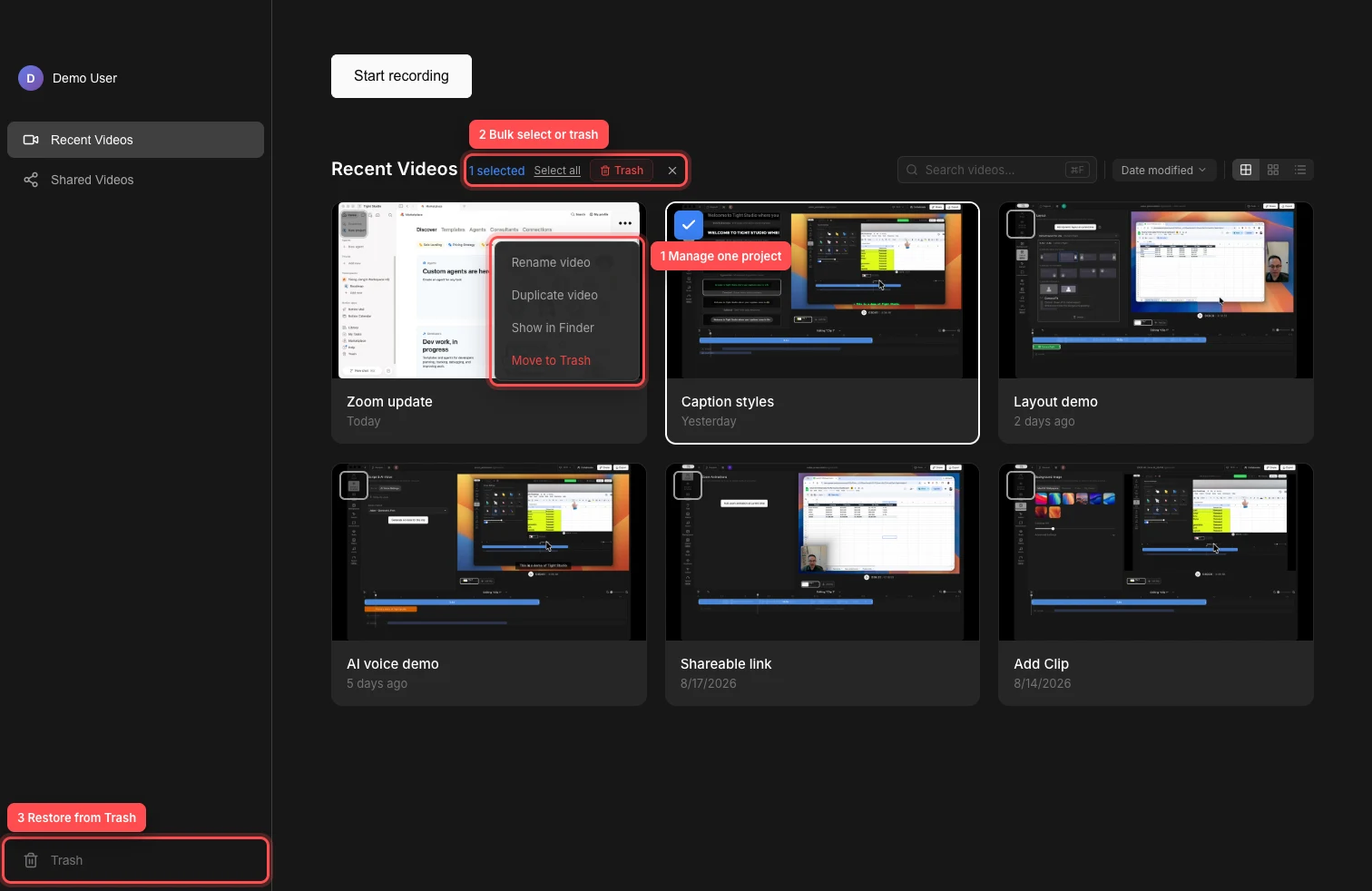
Use a project menu for individual actions, checkboxes for bulk management, and Trash for recovery or permanent deletion. - Step 2
Rename a project
Open the project menu and choose Rename video. This rename project workflow turns the title into an editable field; enter the new name and submit it to rename the local project bundle.
Use a descriptive name that will also make the project easy to find with Search videos. Cancel the edit when you do not want to keep the new name.
- Step 3
Duplicate the video or reveal its file
Choose Duplicate video to create a separate local copy. Tight Studio adds the copy to Recent Videos, where you can rename and edit it without changing the original project.
Choose Show in Finder to reveal the project’s .tightstudio bundle. This is useful when you want to move, copy, or back up the complete project outside Tight Studio.
- Step 4
Move a project to Trash
Open the three-dot menu, choose Move to Trash, and confirm Move to Trash. The project disappears from Recent Videos and moves to the Trash section in the sidebar.
Trash also contains clips removed from projects. A deleted clip is labeled with its project name so you can distinguish it from an entire deleted video.
- Step 5
Restore or permanently delete an item
Select Trash in the sidebar, open an item’s three-dot menu, and choose Restore to return it. Restored projects reappear in Recent Videos; restored clips return to their original project.
Choose Delete Permanently and confirm when you want to delete one item forever. Empty Trash permanently removes every listed project and clip. Items left in Trash are automatically deleted after 7 days.
- Step 6
Bulk-select projects
Click the checkbox on a project card or row to enter bulk select mode. Select more projects individually, Shift-click checkboxes to select a range, or click Select all in the Recent Videos heading.
Click Trash in the bulk bar to move every selected project to Trash. Click the close button or press Escape to clear the selection without moving anything.
Troubleshooting
Why can’t I find a project I moved to Trash?
Select Trash at the bottom of the Home sidebar and look for the project name. Items are automatically deleted after 7 days, and a project removed with Delete Permanently or Empty Trash cannot be restored there.
Why did Rename video fail?
Use a non-empty name and try again. If the project was moved, renamed, or deleted outside Tight Studio, reopen Recent Videos so the library can refresh, then use Show in Finder to verify that the project bundle still exists.
Why does clicking a card select it instead of opening it?
At least one project is already selected, so the library is in bulk select mode. Click the close button beside the bulk actions or press Escape, then click the project again to open it.
Why is a duplicated video missing?
Clear Search videos and sort by Date modified. The new copy should be near the top of Recent Videos. If duplication failed, use Show in Finder to confirm the source project is still present and accessible.
Still stuck?
Send us a note with the project name and the step where you got blocked.