
Pause, resume, restart, and finish a recording
Use the recording control panel to manage a take without losing track of elapsed time.
Before you start
The recording control panel appears after a recording begins. It stays above other windows and is excluded from the recording, so you can manage the take without adding the panel to the captured video.
Restart and Discard are destructive actions. Restart replaces the current take with a new one, while Discard ends the session without keeping the take.
- Default pause or resume shortcut
- Command-Shift-1
- Default finish shortcut
- Command-Shift-2
- Panel position
- Drag the dotted handle to move it
Follow these steps
- Step 1
Find the recording control panel
After the recording starts, look for the compact dark panel near the bottom of the screen. It contains the recording timer, Finish, Pause or Resume, Restart, Discard, and a dotted drag handle.
Drag the dotted handle at the right edge when the panel covers something you need to see. Tight Studio remembers the moved position for later recordings when that position remains on a connected display.
- Step 2
Read the timer and identify each control
The recording timer shows elapsed time followed by the current maximum duration. For example, 00:02 / 30:00 means that two seconds have elapsed in a session with a 30-minute limit.
The red square finishes the take. The pause icon pauses or resumes it, and the circular arrow restarts it. Hover over a control to see its exact action and any configured keyboard shortcut.
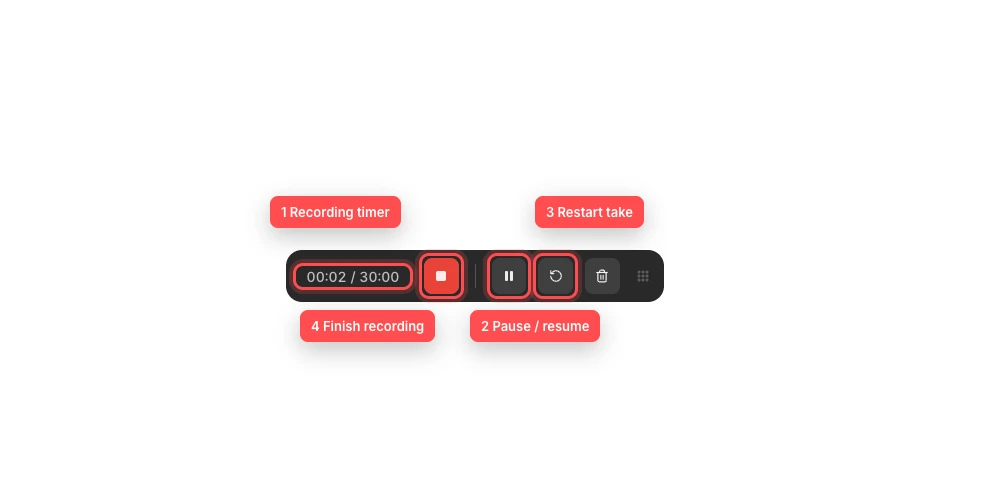
Use the timer to track the take, then pause, restart, or finish without leaving the recorded app. - Step 3
Pause and resume the recording
Select the pause button to pause capture. The button changes to a play icon, and the elapsed time in the timer stops increasing while the recording is paused.
Select the play icon to resume recording. You can also use the configured pause or resume shortcut; its default is Command-Shift-1.
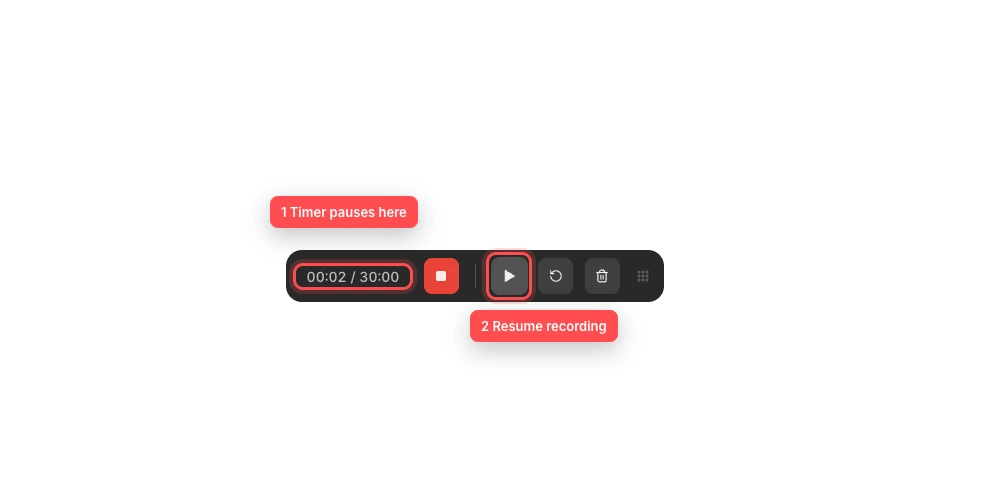
While paused, the same control becomes Resume and the elapsed timer holds its value. - Step 4
Restart the current take
Select the circular-arrow button when you want to abandon the recorded portion and start the take again with the same capture setup.
The panel displays Restarting... and temporarily disables the other actions while the recording engine starts over. When restart recording finishes, the timer resets to 00:00 and capture continues automatically.
- Step 5
Finish and keep the recording
Select the red square when the take is complete. Its tooltip says Finish recording; this is the stop recording control that ends capture and keeps the result.
You can also use the configured finish shortcut, which is Command-Shift-2 by default. The control panel closes while Tight Studio processes the recording and opens the resulting project or adds the new clip.
- Step 6
Discard a take you do not want
Select the trash-can button to discard recording instead of keeping it. The active recording ends and no project or clip is created from that take.
Use Restart when you want to begin the same setup again immediately. Use Discard only when you are finished with the session, because the discarded take cannot be recovered from the editor.
Troubleshooting
Why can I not find the recording control panel?
Confirm that the countdown completed and the recording actually started. The panel normally appears near the bottom of the target display, but a previously saved position may place it elsewhere. Check connected displays and fullscreen Spaces before restarting Tight Studio.
Why did Pause turn into a play icon?
That is the Resume recording state. The timer should stop advancing while paused. Select the play icon or use the pause or resume shortcut again to continue the take.
Why are all controls disabled and the timer says Restarting...?
Tight Studio is replacing the current take and starting the recorder again. Wait for the timer to return to 00:00 and the controls to re-enable. Avoid clicking repeatedly during this transition.
Why did the recording stop by itself?
The second value in the timer is the session maximum. Tight Studio automatically finishes when the elapsed time reaches that limit; the timer flashes near the end. Open the resulting project, then record another clip if more time is needed.
Still stuck?
Send us a note with the project name and the step where you got blocked.